9.3 Understanding and Customizing Grid Behavior
Learn how Interactive Grid works at runtime and how to use JavaScript APIs to customize its setup, actions, events, selection, and data refresh behavior.
Understanding Grid Behavior and Save Processing
The Interactive Grid region is a model-view component: a client-side model manages records, metadata, and change state; multiple views present and edit that model; and actions, events, and widget methods let developers invoke commands and respond to user interactions.
Toolbar buttons and menu items are wired to named Interactive Grid actions. When a user triggers one of these actions, the Interactive Grid widget coordinates the appropriate response, such as refreshing data, entering edit mode, adding a row, opening a dialog, or saving changes.
The Interactive Grid can be read-only, or enabled for editing. Each editable one's client-side model tracks inserted, updated, and deleted records. When a grid’s Save action is triggered, it saves its own pending changes without refreshing the page. When the user submits the page, pending grid changes can be processed along with form region items, validations, and other page processes. Each grid's associated Interactive Grid - Automatic Row Processing (DML) page process handles saving its changes. This lets a master form and one or more detail grids be validated and saved in a single transaction. When using page submit to save grid data, you can optionally hide the grid's own (Save) toolbar button by turning off that feature in the Property Editor.
Customizing Grid Behavior with JavaScript
The Oracle APEX JavaScript API Reference covers the grid's rich set of client-side APIs. Developers commonly use them to:
- Configure high-level grid features and default view options.
- Customize the toolbar by adding, removing, or rearranging its controls.
- Configure built-in actions or add custom actions.
- Invoke grid commands such as save, refresh, edit, or open a built-in dialog.
- Respond to grid events such as selection, save, report, view, or mode changes.
- Work with selected records and model data, including refreshing a single row.
Use the Interactive Grid's JavaScript Initialization Function for settings that must be in place before the grid is created. Examples include:
- Setting initial grid options for features, toolbar layout, report settings, selection, editability, pagination, and default view or model behavior.
- Using
initActionsto add, hide, disable, relabel, or configure actions before the toolbar and menus are wired up.
apex.util.getNestedObject when setting initialization options
inside objects like defaultGridViewOptions or
defaultModelOptions. This lets your code change the values it cares
about without accidentally discarding other settings that might already be in
place.
After the grid exists, you can use region, grid, actions, model, and event APIs. Examples include:
- Invoking named actions such as
save,edit, orshow-filter-dialog. - Getting or setting selected records.
- Reacting to events such as selection change, mode change, save, report change, view change, or view model create.
- Using the current view and model APIs to read or update record values.
- Calling region, grid view, or model methods to refresh data, navigate to a cell, move focus, or refresh a specific row after a dialog closes.
Initialization code shapes the grid before it is created; runtime code works
with the grid after it exists. Although initActions runs during
initialization, the actions it configures can be triggered later by users or invoked
later by JavaScript code.
Studying Some Simple Customization Examples
Suppose you want your grids to be able to:
- Hide the footer when not needed
- Let users select multiple rows in the grid
- Keep selected rows across page-by-page pagination
- Automatically maintain primary keys of selected rows in a hidden page item.
Each requires setting just a single property in the grid’s JavaScript Initialization Function:
- Hide the footer –
footer = false - Enable multiple row selection –
multiple = true - Track selected keys –
selectionStateItem = "P2_SELECTED_EMPNOS" - Keep selected rows across pagination –
persistSelection =
                        true
You can add one or more of these settings to a small initialization function: just
add the property assignments you need. You define it in the JavaScript
Initialization Function area on the Attributes tab of
the Interactive Grid region. For example, to enable a selection state item in a grid
with multi-row selection, the necessary code appears below. Notice the function
receives an options object as a parameter from the grid. It uses
the getNestedObject() utility function to access the default grid
view settings object, then assigns two properties on it. Finally, it returns the
same options object so APEX initializes the grid with the modified settings.
function( options ) {
    const gridOptions = apex.util.getNestedObject(
                            options,"defaultGridViewOptions");
    gridOptions.selectionStateItem = "P2_SELECTED_EMPNOS";
    gridOptions.multiple = true;
    // gridOptions.footer = false;
    // gridOptions.persistSelection = true;
    return options;
}
Surgically Refreshing an Edited Row
The Interactive Grid's model API has getRecord() and
fetchRecords() functions. Use getRecord() to
find a record by primary key in the client-side model. Call
fetchRecords() to refresh one or more specific records
with the latest data from the server. You can combine them to write a
refreshGridRowOrRegion() helper function to add to a page's
Function and Global Variable Declaration. The code
appears below. It uses apex.region() to find the region by HTML DOM
ID, then validates the region type to ensure it's working with an Interactive Grid.
If the caller provides a primaryKey, it calls
getRecord() and fetchRecords() to surgically
refresh that record in the client-side model. Conversely, if the key is not provided
it refreshes the whole grid instead.
function refreshGridRowOrRegion( regionHtmlDomId, primaryKey ) {
    const region = apex.region( regionHtmlDomId );
    // Ensure the static id identifies an Interactive Grid region
    if ( !region || region.type !== "InteractiveGrid" ) {
        throw new Error( "The region must be an Interactive Grid" );
    }
    // If we have a primary key that was updated, refresh just that row
    if ( primaryKey ) {
        const gridView = region.call( "getViews", "grid" );
        const model = gridView.model;
        const record = model.getRecord( primaryKey );
        // If we find the record in the model, refresh just that row
        if ( record ) {
            model.fetchRecords( [ record ] );
            return;
        }
    }
    // Inserts and deletes require a full grid refresh
    // Although refresh() API supports "maintain pagination" flag,
    // in APEX 26.1, it only applies to Interactive Report regions
    region.refresh();
}
Using the Refresh Row Helper with a Modal Editing Dialog
In the calling page with an Interactive Grid of employees, to react to
any dialog closure, add a dynamic action event handler on the Dialog Closed
event targeting the body jQuery selector. This fires when the user
closes the modal page that lets users create, edit, or delete an employee. In a
dynamic action step of type Execute JavaScript Code, call the helper function
to refresh the row or grid, passing in the primary key of the row that was edited.
As explained in the next section, you can create your modal page to return
null if a row was created or deleted. In those cases, the
function refreshes the full grid instead of just the edited row. The two
lines of code appear below. The first line gets the dialog return item
P2_EMPNO_EDITED returned by modal dialog page. The second line
calls refreshGridRowOrRegion(), passing null as a
fallback if the dialog didn't return a primary key that was edited.
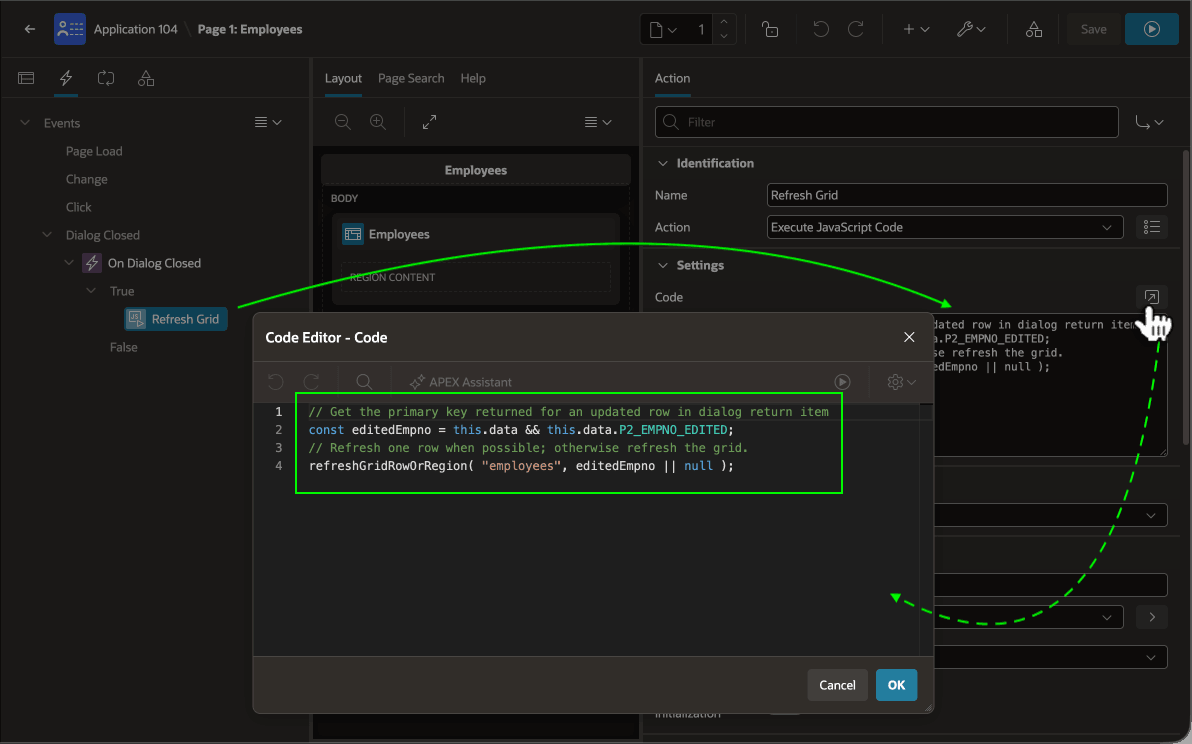
// Get the primary key returned for an updated row in dialog return item
const editedEmpno = this.data && this.data.P2_EMPNO_EDITED;
// Refresh one row when possible; otherwise refresh the grid.
refreshGridRowOrRegion( "employees", editedEmpno || null );
The figure shows these two lines of dynamic action JavaScript in the Code Editor. This handy window is one click away from the Property Editor whenever you want a more developer-friendly editing experience. It features code completion and syntax highlighting for JavaScript, PL/SQL, SQL, HTML, and CSS.
Figure 9-13 Calling Helper Function to Refresh Grid Row on Dialog Close
Configuring Modal Dialog to Return Edited Primary Key or Null Otherwise
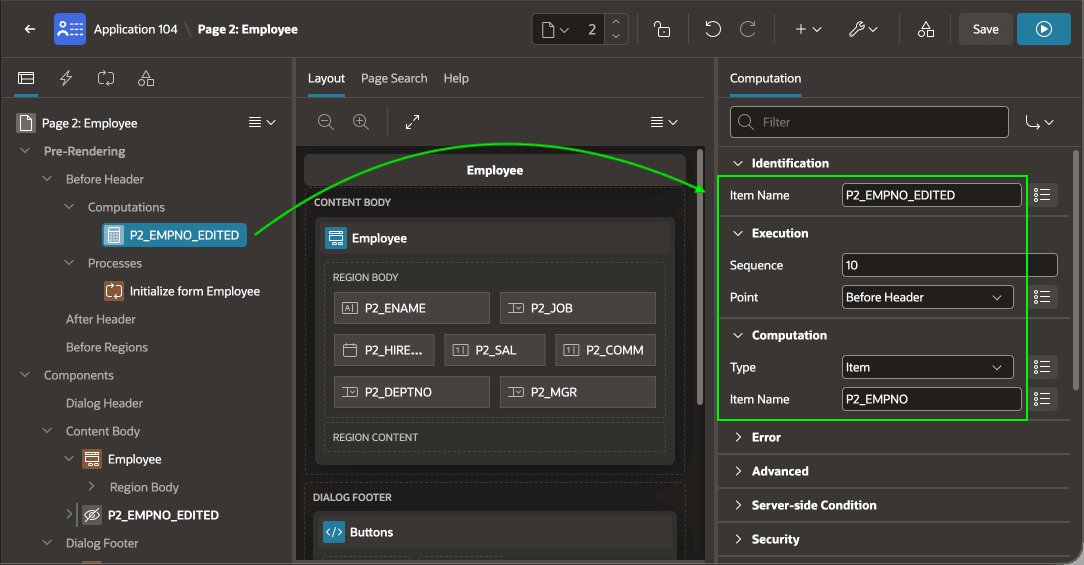
In the modal dialog page, as shown below, a Pre-Rendering computation
sets the value of a hidden P2_EMPNO_EDITED page item to the
P2_EMPNO item value passed in for the edit case.
Figure 9-14 Storing Primary Key Being Edited in a Hidden Item with a Computation
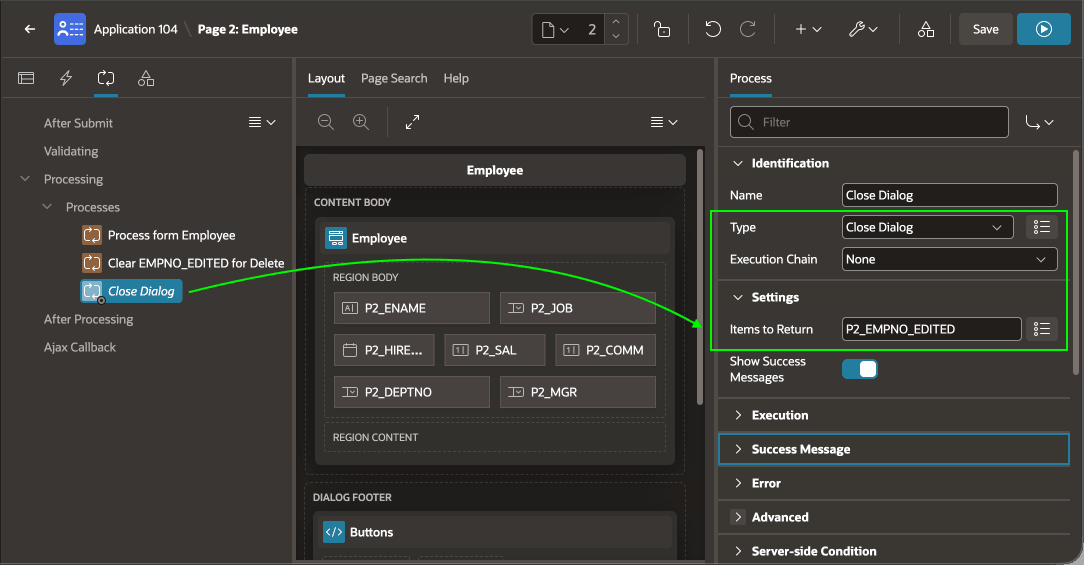
The following figure shows the Close Dialog page process
returns P2_EMPNO_EDITED as a dialog return item by configuring its
Items to Return setting.
Figure 9-15 Configuring Item Values to Return to Calling Page on Dialog Close
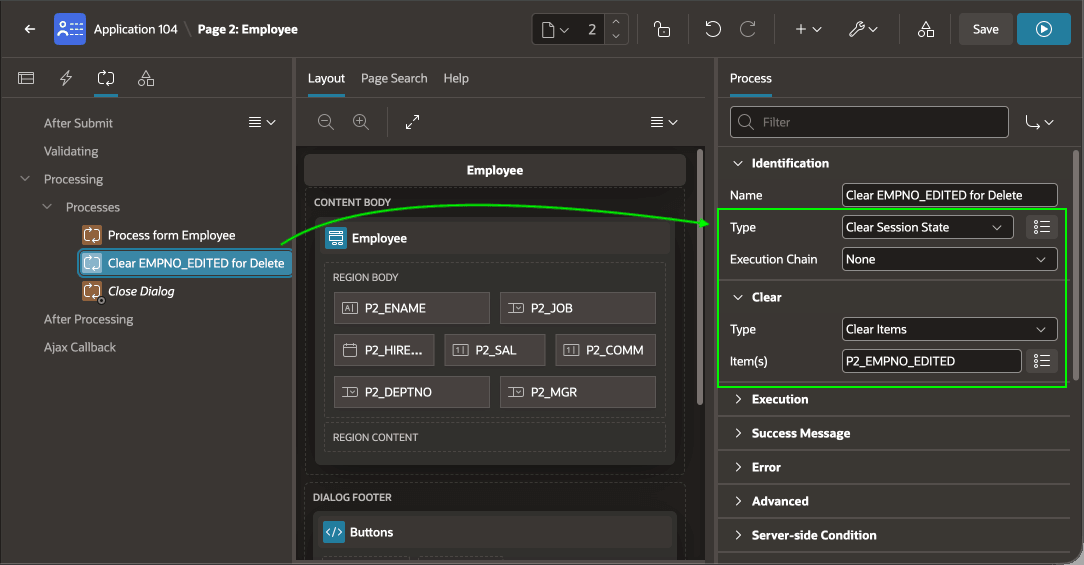
Just before closing the dialog, the figure shows the Clear EMPNO_EDITED
for Delete page process of type Clear Session State clears
P2_EMPNO_EDITED when the DELETE button is
pressed. This ensures the Close Dialog handler on the calling page does a full grid
refresh if a row is deleted.
Figure 9-16 Clearing the Edited Primary Key on Delete
Finally, the modal dialog can avoid the end user's ever seeing a database referential integrity violation error by showing the (Delete) button only when the employee being edited is not referenced as another employee's manager. Using the Server-side Condition type of No Rows Returned, it configures the following SQL query. If an employee is found with the current employee as manager, then a row is returned and the button does not display.
select empno
  from emp
 where mgr = :P2_EMPNO
This combination produces an Employees grid page that automatically updates just the edited row on return from the modal dialog.
Parent topic: Editing Data in a Grid