9.2 Editing Collection Data with a Grid
Edit session collection rows in an Interactive Grid using a stable key and custom save code.
Collections are useful for temporary storage of row values in a session. Normally your business logic works with them programmatically, but you can also let users directly edit collection members with an Interactive Grid. Consider the use case shown in the figure below: a simple shopping cart holding one or more rows with an item code, quantity, and need by date until the customer is ready to checkout. The item code column can be a Select List for a small number of items, or an inline Popup LOV if the list of products is large. The Need By Date can be a Date Picker.
Figure 9-10 Editing Shopping Cart Items in a Collection with Interactive Grid
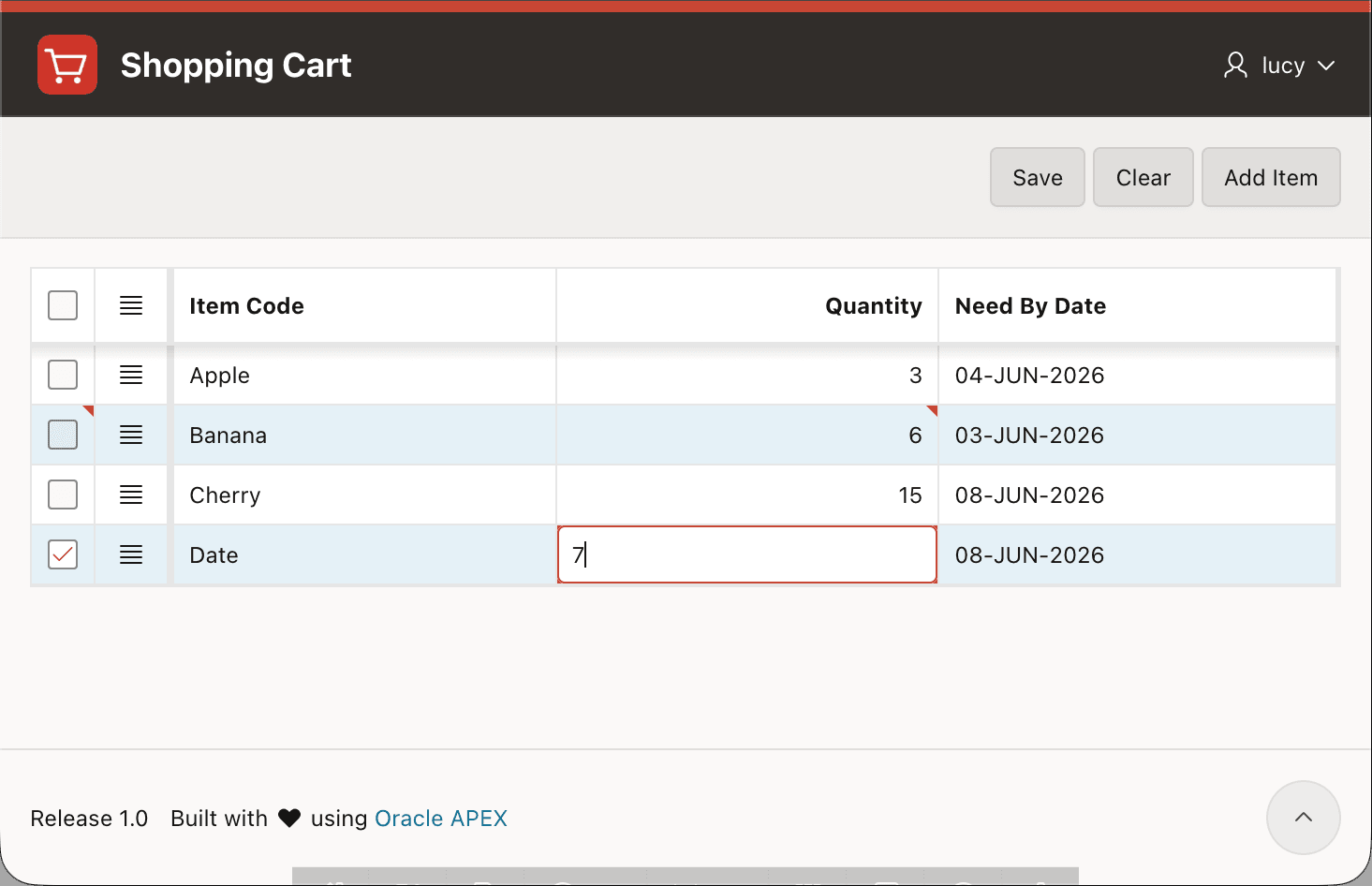
Interactive Grids use an Interactive Grid - Automatic Row Processing
(DML) page process to edit a data source with no code. However, editing a
collection requires a few lines of PL/SQL to call an APEX_COLLECTION
API to save the rows instead. After first understanding a few details about how the grid
works, and how collections assign their sequence id, configuring this use case is
easy.
Changing a Grid Row's Primary Key is Not Allowed
An Interactive Grid manages an in-memory record set in the browser. This is called the model. An editable grid’s model also tracks rows the end user has added, modified, and deleted. When the user submits the page or clicks the grid toolbar’s (Save) button, the changes in the model are sent to the server where the Interactive Grid – Automatic DML page process saves any rows that were created, updated, or deleted.
The client-side model uniquely identifies rows using the values of the grid's Primary Key column and assumes those values won’t change. For rows the user creates, the model generates a temporary unique key in the browser. Then, when the page process saves a new row, the database-assigned primary key replaces the client-assigned temporary value. That’s the only key-change the grid allows.
Understanding Why Collection Sequence ID of a Member Row Can Change
Each collection member has a unique system-assigned sequence ID
(SEQ_ID). It's an integer row index. When a member is added, if
it's the first row its SEQ_ID is one (1),
otherwise it's one more than the maximum sequence ID in the collection. As
collection members are added, removed, moved, or sorted, using the
APEX_COLLECTION API, a member's index can change. So,
SEQ_ID is not the unchanging primary key the Interactive
Grid requires.
Instead, generate a unique key value with SYS_GUID()
and store it in the collection in an additional generic VARCHAR2
column. The shopping cart uses the following collection columns, with the
ID storing the unique GUID value for each member in
C002:
C001asITEM_CODEN001asQUANTITY, andD001asNEED_BY_DATEC002asID
Simplifying Collection Access with a View and Package
Create a view like following SHOPPING_CART_V to use as
your Interactive Grid's data source. This way its column names are
self-documenting:
create or replace view shopping_cart_v as
select c001 as item_code,
       c002 as id,
       n001 as quantity,
       d001 as need_by_date
  from apex_collections
 where collection_name = 'SHOPPING_CART'
Then create a PL/SQL package like the one below to encapsulate the use
of the APEX_COLLECTION API. This lets your page's grid work with
function and procedure names related to the task at hand. The
add_item returns the unique GUID id the grid uses as its
unchanging primary key. The update_item and
remove_item accept this item id value as the unique identifier
as well.
create or replace package shopping_cart_api is
    ----------------------------------------------------------
    procedure clear_cart;
    ----------------------------------------------------------
    function add_item(
        p_item_code    in varchar2,
        p_quantity     in number,
        p_need_by_date in date)
        return            varchar2;
    ----------------------------------------------------------
    procedure remove_item (
        p_item_id in varchar2);
    ----------------------------------------------------------
    procedure update_item (
        p_item_id      in varchar2,
        p_item_code    in varchar2,
        p_quantity     in number,
        p_need_by_date in date);
end shopping_cart_api;
The corresponding package body appears below:
create or replace package body shopping_cart_api is
    c_collection_name constant varchar2(40) := 'SHOPPING_CART';
    ----------------------------------------------------------
    procedure ensure_collection
    is
    begin
        if not apex_collection.collection_exists(c_collection_name) then
            apex_collection.create_collection(c_collection_name);
        end if;
    end ensure_collection;
    ----------------------------------------------------------
    procedure clear_cart
    is
    begin
        ensure_collection;
        apex_collection.truncate_collection(c_collection_name);
    end clear_cart;
    ----------------------------------------------------------
    function get_seq_id(
        p_item_id in varchar2)
    return number
    is
        l_ret number;
    begin
        for j in (select seq_id as seq
                    from apex_collections
                   where collection_name = c_collection_name
                     and c002 = p_item_id)
        loop
            l_ret := j.seq;
        end loop;
        return l_ret;
    end;
    ----------------------------------------------------------
    function add_item (
        p_item_code    in varchar2,
        p_quantity     in number,
        p_need_by_date in date)
    return varchar2
    is
        l_ret varchar2(255) := sys_guid();
    begin
        ensure_collection;
        apex_collection.add_member (
            p_collection_name    => c_collection_name,
            p_c001               => p_item_code,
            p_c002               => l_ret,
            p_n001               => p_quantity,
            p_d001               => p_need_by_date
        );
        return l_ret;
    end add_item;
    ----------------------------------------------------------
    procedure remove_item (
        p_item_id in varchar2)
    is
        l_seq_id number;
    begin
        ensure_collection;
        l_seq_id := get_seq_id(p_item_id);
        if l_seq_id is not null then
            apex_collection.delete_member (
                p_collection_name => c_collection_name,
                p_seq             => l_seq_id);
        end if;
    end remove_item;
    ----------------------------------------------------------
    procedure update_item (
        p_item_id      in varchar2,
        p_item_code    in varchar2,
        p_quantity     in number,
        p_need_by_date in date)
    is
        l_seq_id number;
    begin
        ensure_collection;
        l_seq_id := get_seq_id(p_item_id);
        if l_seq_id is not null then
            apex_collection.update_member(
                p_collection_name => c_collection_name,
                p_seq             => l_seq_id,
                p_c001            => p_item_code,
                p_c002            => p_item_id,
                p_n001            => p_quantity,
                p_d001            => p_need_by_date);
        end if;
    end update_item;
end shopping_cart_api;
Configuring Interactive Grid to Save Using an API
With the view and package in place, set the Interactive Grid to use the
view as its data source and configure its ID column as Primary Key.
Page Designer adds the related page process to handle saving its rows when you
enable editing on the Attributes tab in the Property Editor.
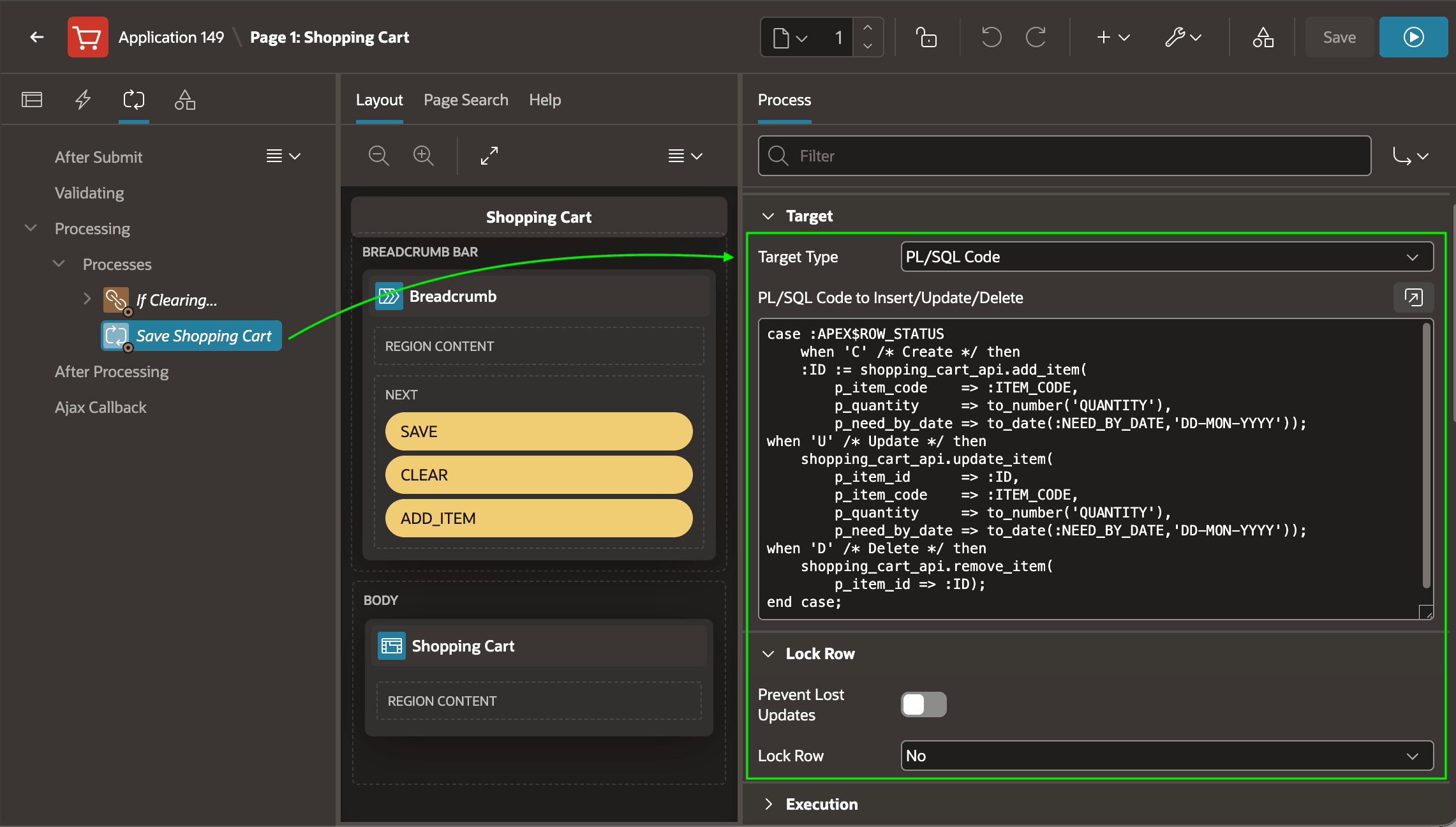
You can rename the page process to Save Shopping Cart. The
figure shows it selected in the processing tree. Its type is Interactive
Grid - Automatic Row Processing (DML), and its Editable
Region property is set to the name of the Interactive Grid whose
data it saves. As shown, set its Target Type to
PL/SQL Code. The code appears below and uses the
SHOPPING_CART_API package. You can also disable row locking and
lost update protection as highlighted. Since the collection data is private to the
current user session, there’s no chance another user can lock or inadvertently
change the same collection row.
Figure 9-11 Configuring Custom Grid PL/SQL to Save Cart Data to Collection
The complete code for the PL/SQL Code to Insert/Update/Delete
appears below. Since the page process' Editable Region
property is set to an Interactive Grid, the code runs once for each row that the
user created, updated, or deleted. Notice the CASE statement uses
the built-in bind variable :APEX$ROW_STATUS to know if the current
row being processed is for create ('C'), update
('U'), or delete ('D'). For the create, it
assigns the unique item id GUID returned by the add_item function
directly to the ID primary key grid column using the
:ID bind variable.
case :APEX$ROW_STATUS
when 'C' /* Create */ then
    :ID := shopping_cart_api.add_item(
        p_item_code    => :ITEM_CODE,
        p_quantity     => to_number(:QUANTITY),
        p_need_by_date => to_date(:NEED_BY_DATE,'DD-MON-YYYY'));
when 'U' /* Update */ then
    shopping_cart_api.update_item(
        p_item_id      => :ID,
        p_item_code    => :ITEM_CODE,
        p_quantity     => to_number(:QUANTITY),
        p_need_by_date => to_date(:NEED_BY_DATE,'DD-MON-YYYY'));
when 'D' /* Delete */ then
    shopping_cart_api.remove_item(
        p_item_id => :ID);
end case;
Tip:
When accessing grid columns of type date or timestamp, convert the
VARCHAR2 value using to_date or
to_timestamp using an appropriate format mask. For columns
of NUMBER type, use to_number instead.
Wiring Button to Grid Action Declaratively
The Shopping Cart page's Interactive Grid has its toolbar and footer
turned off, so the normal (Add Item) toolbar button does not
appear. The page saves the grid data using a normal (Save) button that
submits the page. It clears the shopping cart with another
(Clear) button that submits the page to trigger an Invoke
API page process with When Button Pressed = CLEAR that calls
shopping_cart_api.clear_cart. It adds its own (Add Item)
button that triggers the grid's built-in selection-add-row action in the
browser.
To setup this declarative button behavior:
- Assign the grid an HTML DOM ID like
shoppingcart - Set the Action of the button to Defined by Dynamic Action, and
- Set Custom Attributes to have the following text:
data-action="[shoppingcart]selection-add-row" data-no-update="true"The grid region’s HTML DOM ID shoppingcart appears in
square brackets, and the selection-add-row action name follows. The
same approach works for any of the built-in actions explained in the Actions
section of the Interactive Grid's JavaScript API reference documentation. The
data-no-update custom attribute asks the
selection-add-row action to not automatically
update your declaratively wired button at runtime to use the action's label and
icon.
Customizing the No Rows Found Message
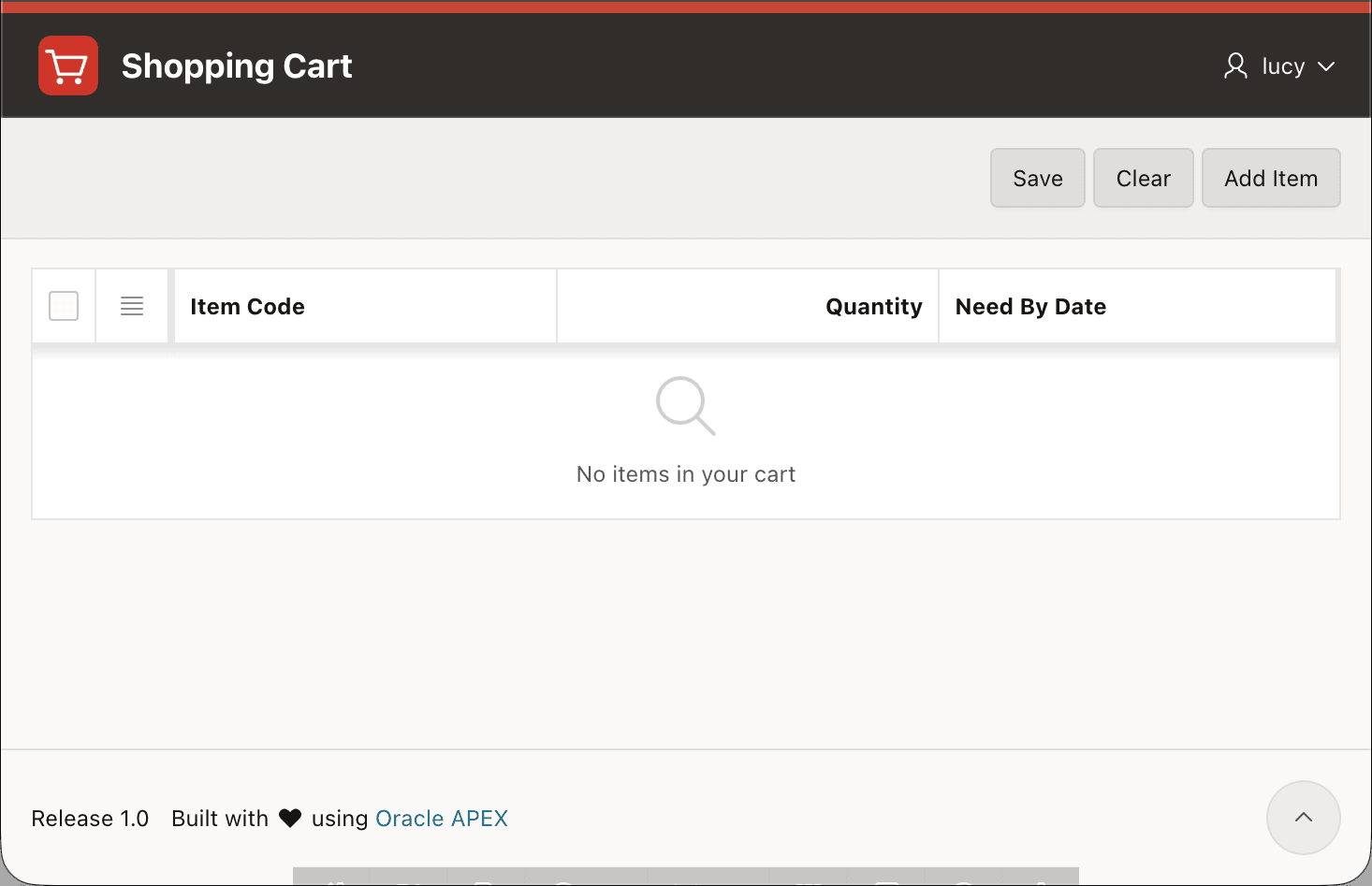
By default, a grid region with no rows will display the text No data found. To configure a more user-friendly message specific to what the grid is showing in your app, set its When No Data Found message on the Attributes tab of the Property Editor. For example, if you set it to "No items in your cart", then an empty shopping cart looks like the figure below.
Figure 9-12 Custom When No Rows Found Message Improves Usability
Processing the Shopping Cart Contents
At checkout time, to process the shopping cart rows, your app can use code like the following using the view you create to give your collection members more meaningful names:
for j in (select item_code, quantity, need_by_date
            from shopping_cart_v)
loop
    -- Reference j.item_code, j.quantity, j.need_by_date
end loop;
Parent topic: Editing Data in a Grid