9.1 Getting to Know the Interactive Grid
Explore Interactive Grid features for reporting, editing, selection, clipboard work, scrolling, and rich column display.
The Interactive Grid region presents query results as a rich data grid. Like Interactive Report, it lets users search, sort, filter, break rows into groups, add aggregates, highlight, chart, download, rearrange columns, and save personalized report layouts. Interactive Grid also adds grid-specific behaviors such as column resizing and freezing, scroll pagination, keyboard navigation and selection, clipboard operations, and optional in-place editing. When editing is enabled, users can add, update, duplicate, delete, refresh, and revert rows without leaving the page. Let users save one grid at a time without refreshing the page, or have them submit the page to process all changes together.
Exploring a Simple Employees Editable Grid
Consider the page shown in the figure below with an Interactive Grid based on the
familiar EMP table. If editing is enabled, the user can click or
navigate using the keyboard into the first row's Name column
and edit an employee's name from KING to
KINGSTON.
Figure 9-1 User Can Insert, Update, and Delete Multiple Rows Then Save All the Changes
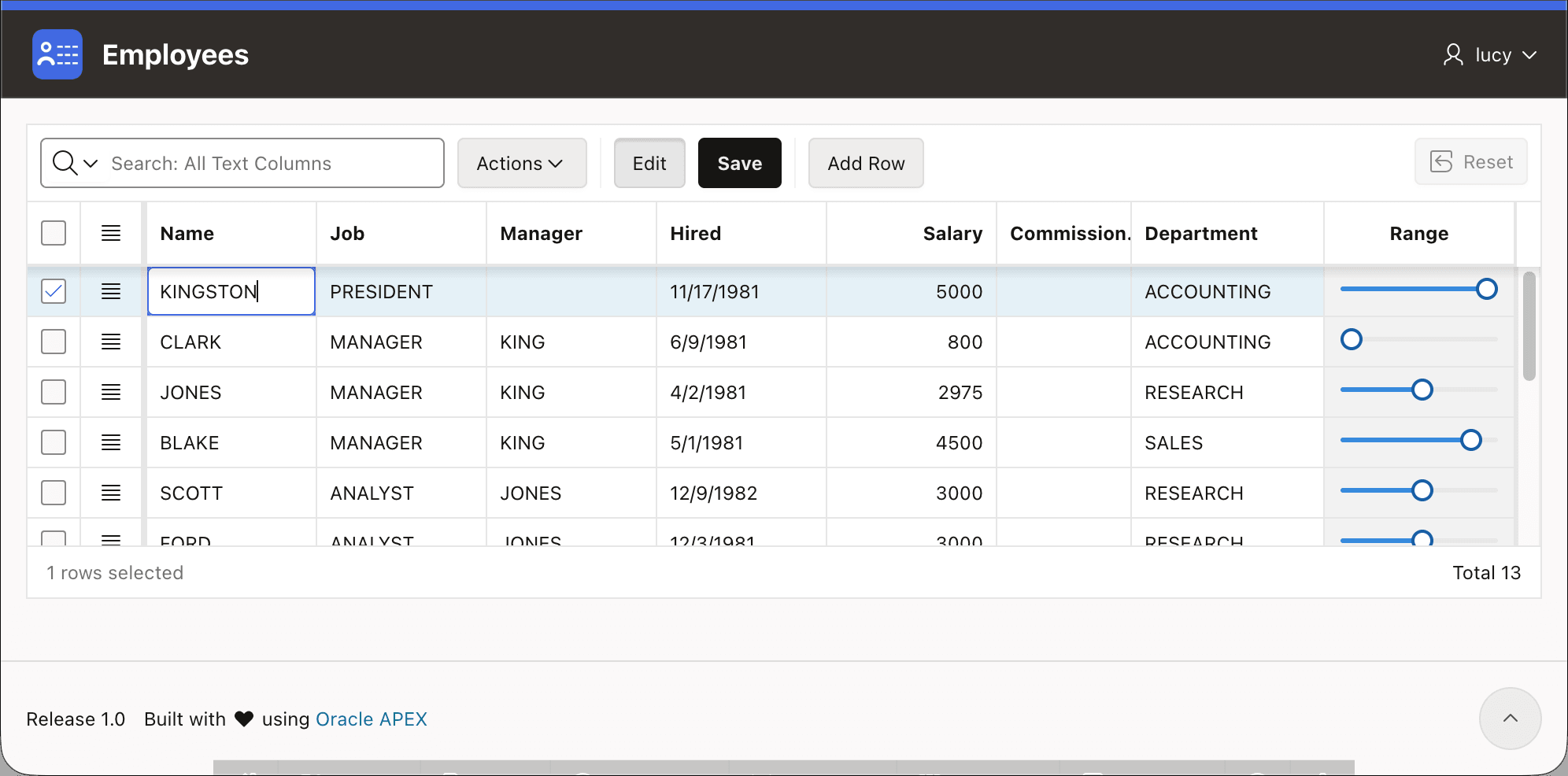
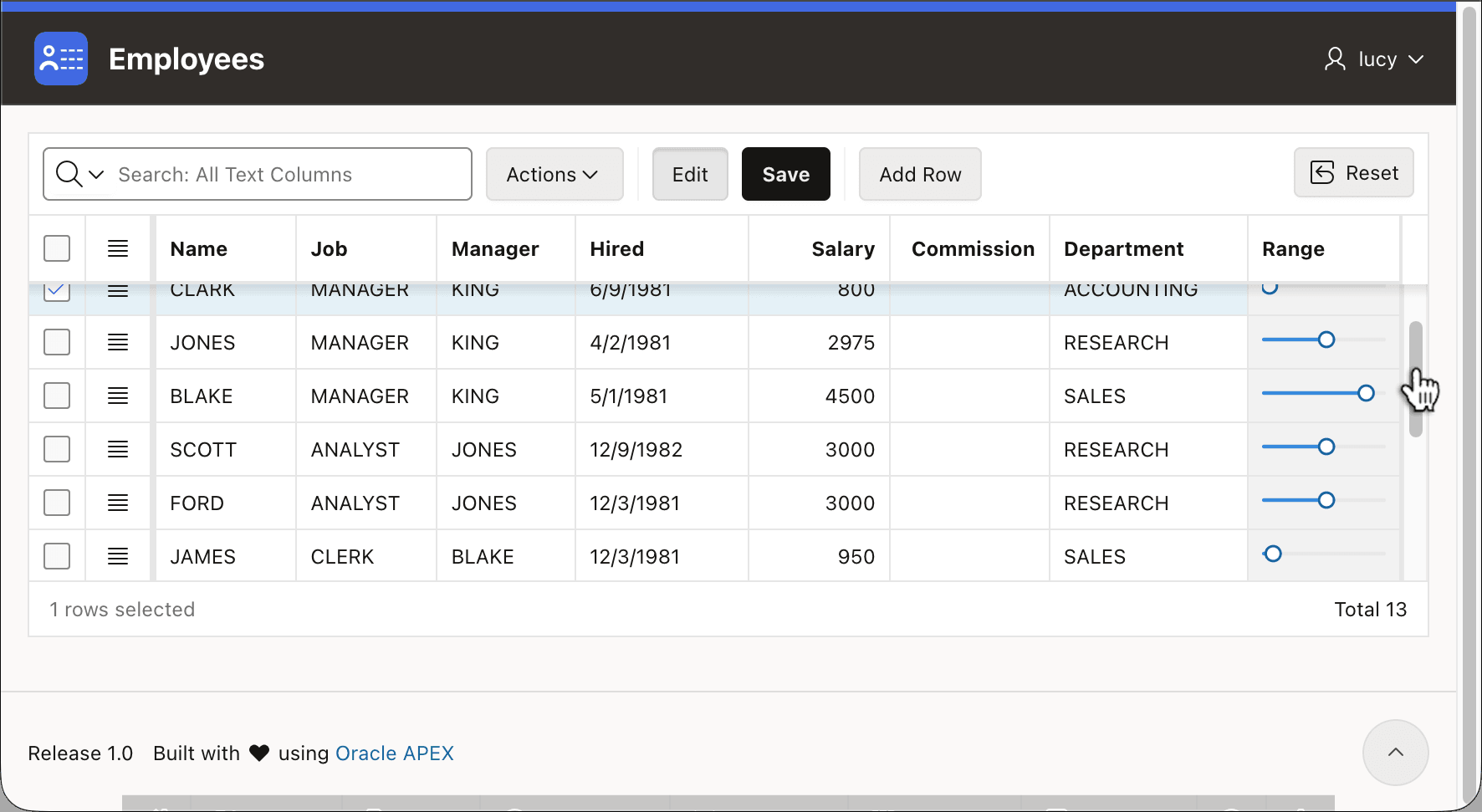
If you configure the grid to let users move through the data by scrolling, as shown below, the headings can stay visible as the user inspects even very large data sets. You configure which columns and rows are editable. Assuming they are authorized, the user can click into any editable row and any editable column to edit required values. When they save the grid or submit the page, all their changes are saved automatically.
Figure 9-2 Grid Offers Scrolling Pagination with Fetch on Demand
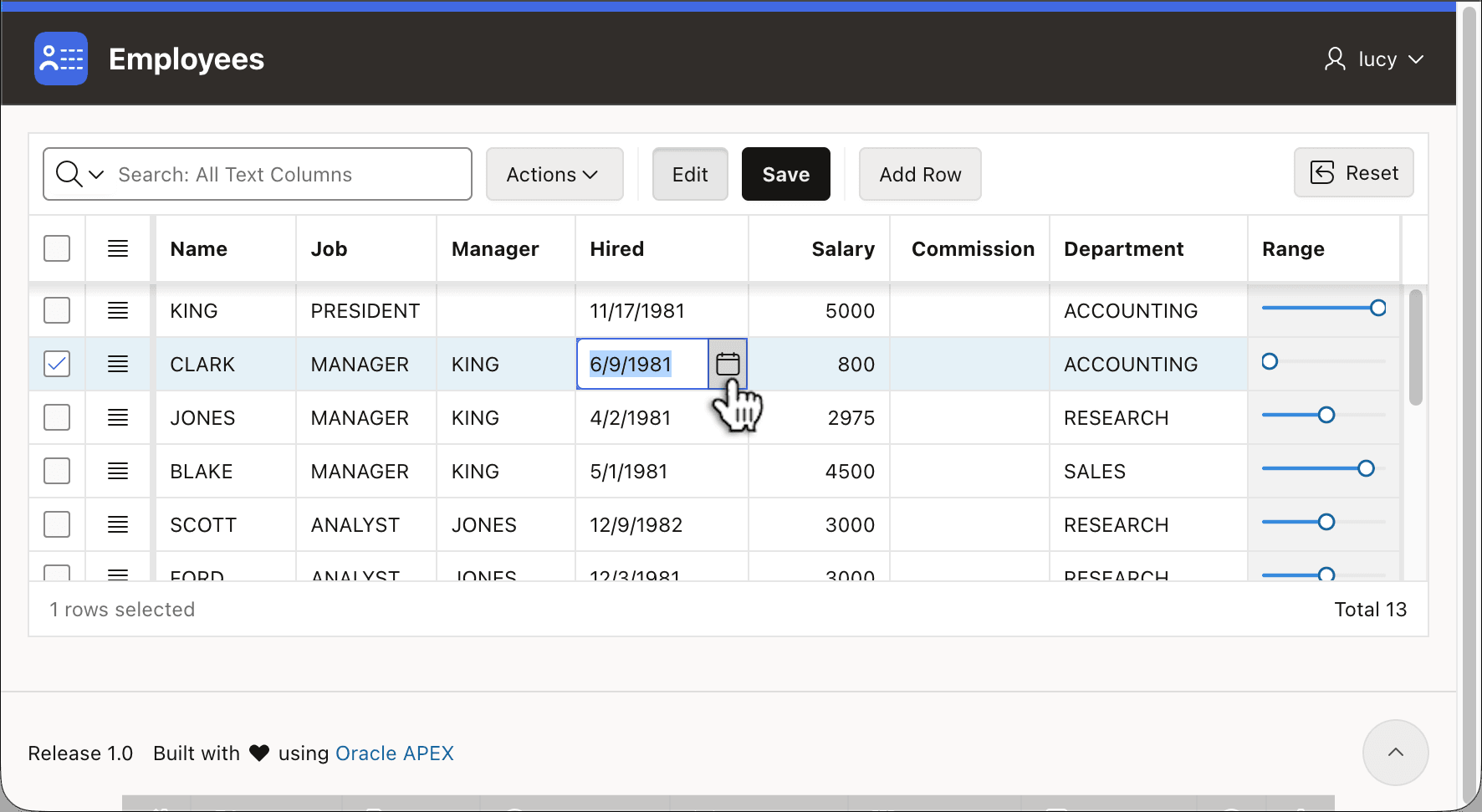
You also pick the type of input control for each editable column that best serves end users. Available item types include many of the same kinds you can use in a form page. For example, in the figure below the user is about to pop open the Date Picker mini calendar to change employee CLARK's date of hire.
Figure 9-3 Date Picker is One of Many Item Types Available for Grid Column Editing
Tip:
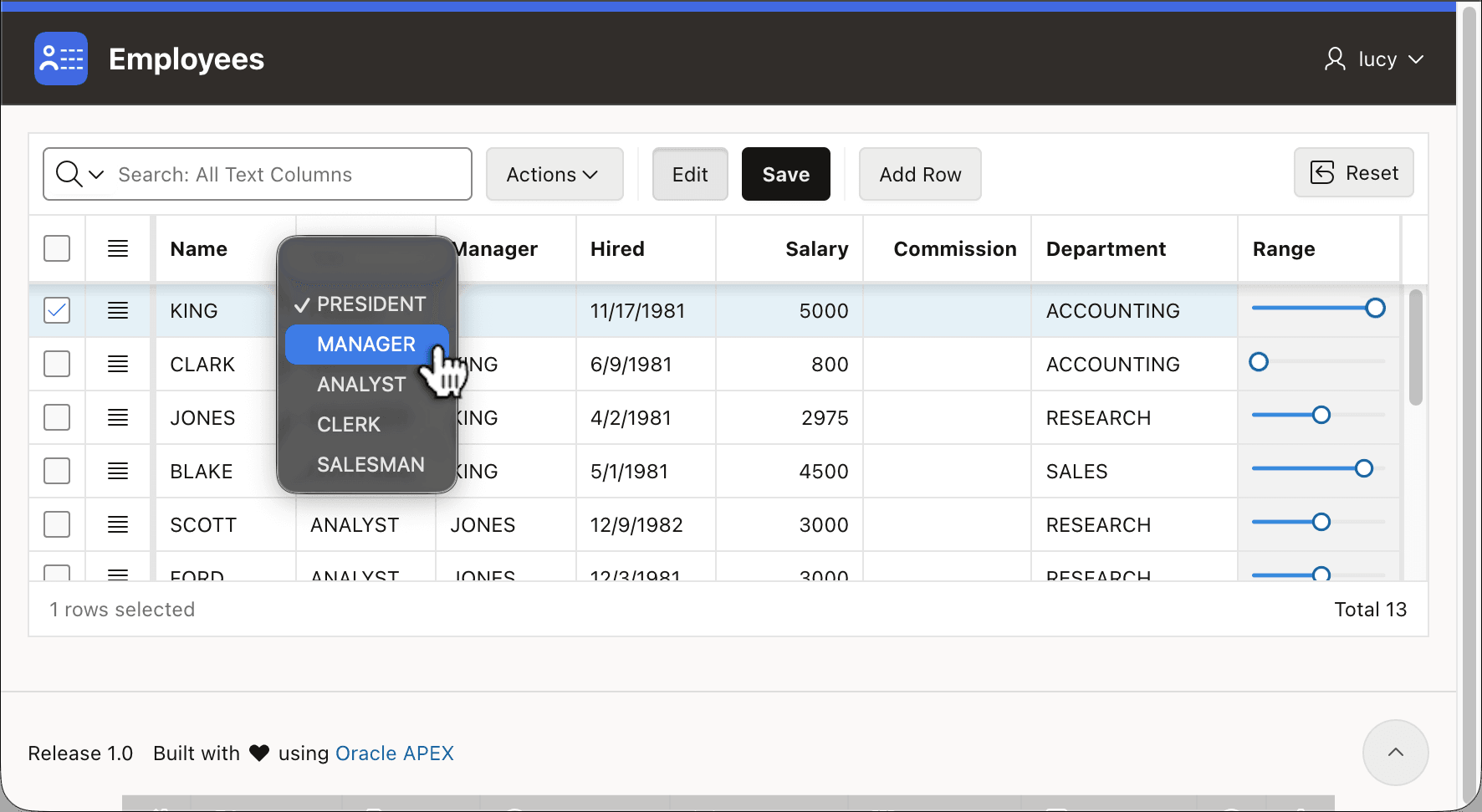
The Range column in the figure shows you can also use a Template Component to display column data. A later section explains how this one shows each employee’s salary as a dot positioned along a salary range line.
Figure 9-4 Grid Columns Can Use List-Driven Items for Data Entry
Understanding the Grid's Core End-User Capabilities
Interactive Grid shares Interactive Report's focus on letting end users control how reports look and behave, but gives them a more direct way to navigate and select rows and cells. When editing is enabled, they can also paste ranges of data directly into the grid. Depending on what features you enable, users access these capabilities through the default toolbar, Actions menu, column headers, keyboard shortcuts, and direct grid interactions. If you allow it, users can:
- Search across rows, optionally constraining search to a selected column.
- Choose, reorder, resize, freeze, and stretch columns.
- Sort by one or more columns and create filters using row-level or column-level conditions.
- Add aggregates, highlights, control breaks, groupings, and charts to summarize or reshape the displayed data.
- Use flashback, when enabled and supported, to view data as it existed at an earlier point in time.
- Save, rename, switch, reset, or delete saved reports, including private or public reports depending on authorization.
- Download or email the report in the formats made available by the developer and current APEX configuration.
- Use Help and keyboard shortcuts to navigate, select, edit, and invoke grid commands.
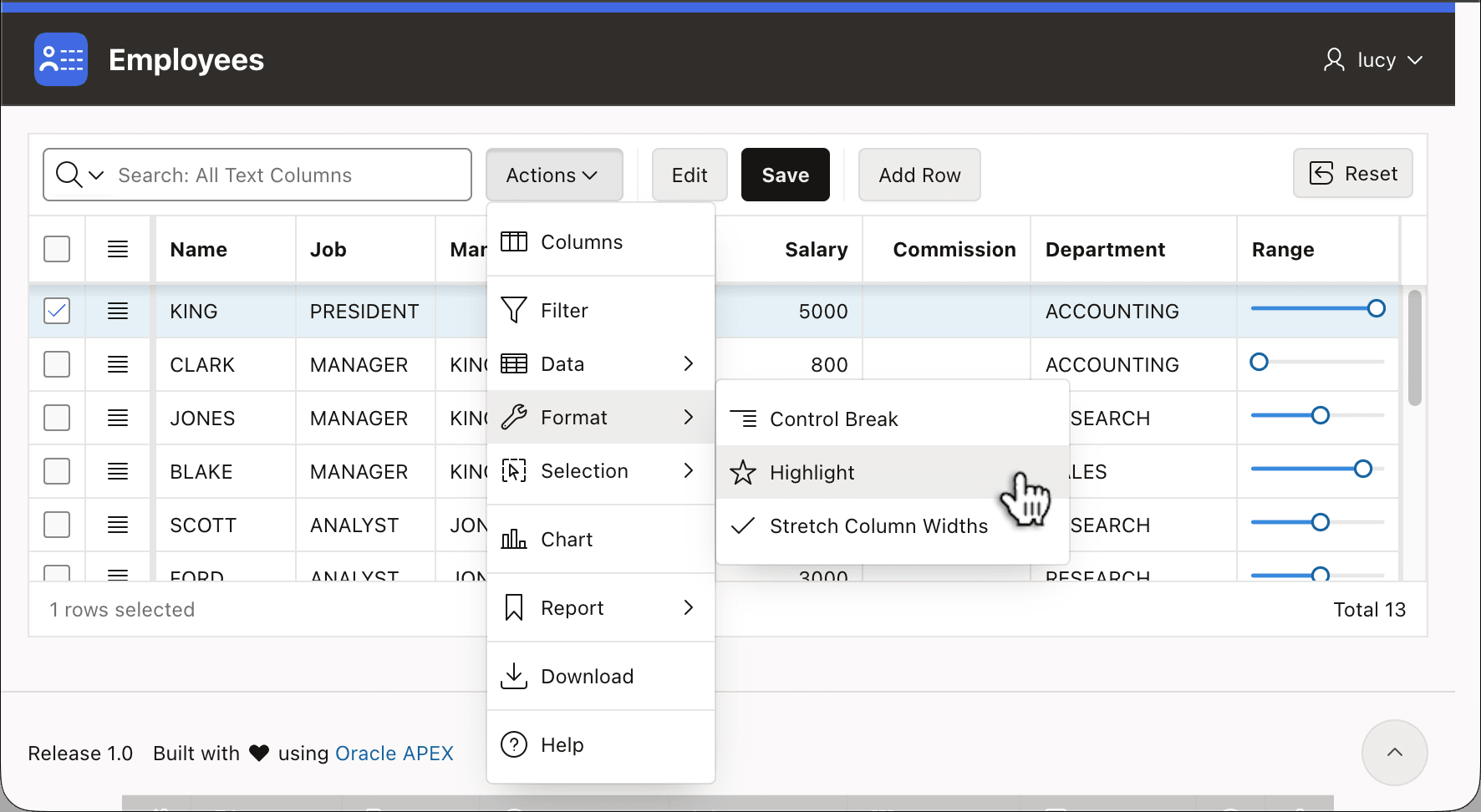
The figure below shows the Interactive Grid's Actions menu with the features you let users access.
Figure 9-5 Actions Menu Presents the Grid Features You Enable for Users
Examining Editable Grid Behavior
When you enable editing, the grid is a multi-row data entry component backed by a native page process that saves inserted, updated, and deleted rows automatically. When needed, you can customize processing to accommodate more advanced scenarios.
Editable grids have navigation mode and edit mode. In navigation mode, the user moves through cells, selects rows or ranges, opens row actions, and invokes toolbar or menu commands. In edit mode, the active cell hosts the appropriate form control. Double click a cell, press [Enter], or click the (Edit) toolbar button to go into edit mode. Press [Esc] to return to navigating. Only one cell editor is active at a time; this avoids rendering an input control for every visible cell, improving performance, keyboard navigation, and accessibility.
You define whether users may add rows, update rows, delete rows, and whether the grid adds an empty row when the query returns no data. You can also use an Allowed Row Operations column to compute permitted actions dynamically, for example allowing updates only while a row is in a draft status. To make a column read-only in certain cases, just configure a condition. It can also depend on a user's authorization.
Like Form regions, editable grids can protect users from concurrency problems. The Lost Update Type setting compares row values by checksum or using a row version column. This ensures one user's edits don't silently overwrite a colleague's recent changes to the same record.
Using Row, Cell, and Selection Actions
The grid exposes both row actions and selection actions. Row actions work on the current row and typically include add, duplicate, delete, refresh, and revert. Selection actions work on selected rows or cell ranges and include duplicate, delete, refresh, revert, copy down, fill, clear, and clipboard operations where allowed.
Interactive Grid supports row selection and cell selection. In row selection mode, users can select one or more rows. In cell selection mode, users can select a rectangular range of cells, including keyboard support for selecting columns, rows, or all cells. Using simple JavaScript, you can opt to maintain selection across page-by-page pagination, and specify a selection state item to store the selected primary keys in a hidden page item for use in SQL, PL/SQL, branching, or other regions. See Understanding and Customizing Grid Behavior for examples.
These selection features are especially useful for business workflows such as approving several rows, recalculating values for selected rows, refreshing a dependent chart, passing selected keys to another page, or running a custom action on a batch of records.
Working with Clipboard and Spreadsheet Paste
Interactive Grid supports full copy, cut, paste, paste insert, and drag-and-drop of tabular data. This lets a user copy a range of cells from a spreadsheet and paste it into an editable grid.
Clipboard operations apply in navigation mode. Copy can place selected rows or cell ranges on the clipboard as plain text and HTML table data, and APEX also uses a custom JSON format when possible to preserve underlying model values for grid-to-gI rid copy and paste. Cut deletes selected rows or clears selected cells after copying, when the affected records and cells allow editing. Paste overwrites values starting at the current cell; Paste Insert uses the Shift-modified shortcut or command to insert new rows as needed.
Pasted values are set as if the user typed them, so dynamic actions and client-side validations can run. Read-only rows, read-only columns, and cells that cannot be edited are skipped. LOV-backed columns require care: the pasted value should match the return value that APEX stores, not merely the display value the user sees. Because APEX uses browser clipboard APIs for these operations, paste behavior can also depend on the browser and deployment context. For example, a browser might require HTTPS, a keyboard shortcut, or explicit user permission before exposing clipboard data to the page.
Navigating Larger Data Sets with Pagination and Scrolling
Users can move through Interactive Grid rows page-by-page like in an Interactive Report, showing a bounded set of rows with navigation controls. The grid also offers scroll pagination that presents a viewport into the data. Both approaches fetch only the necessary rows as the user moves through the data. The grid also supports fixed headers, frozen columns, column resizing, and drag-and-drop column reordering. These features help users work with larger result sets while staying oriented in the data.
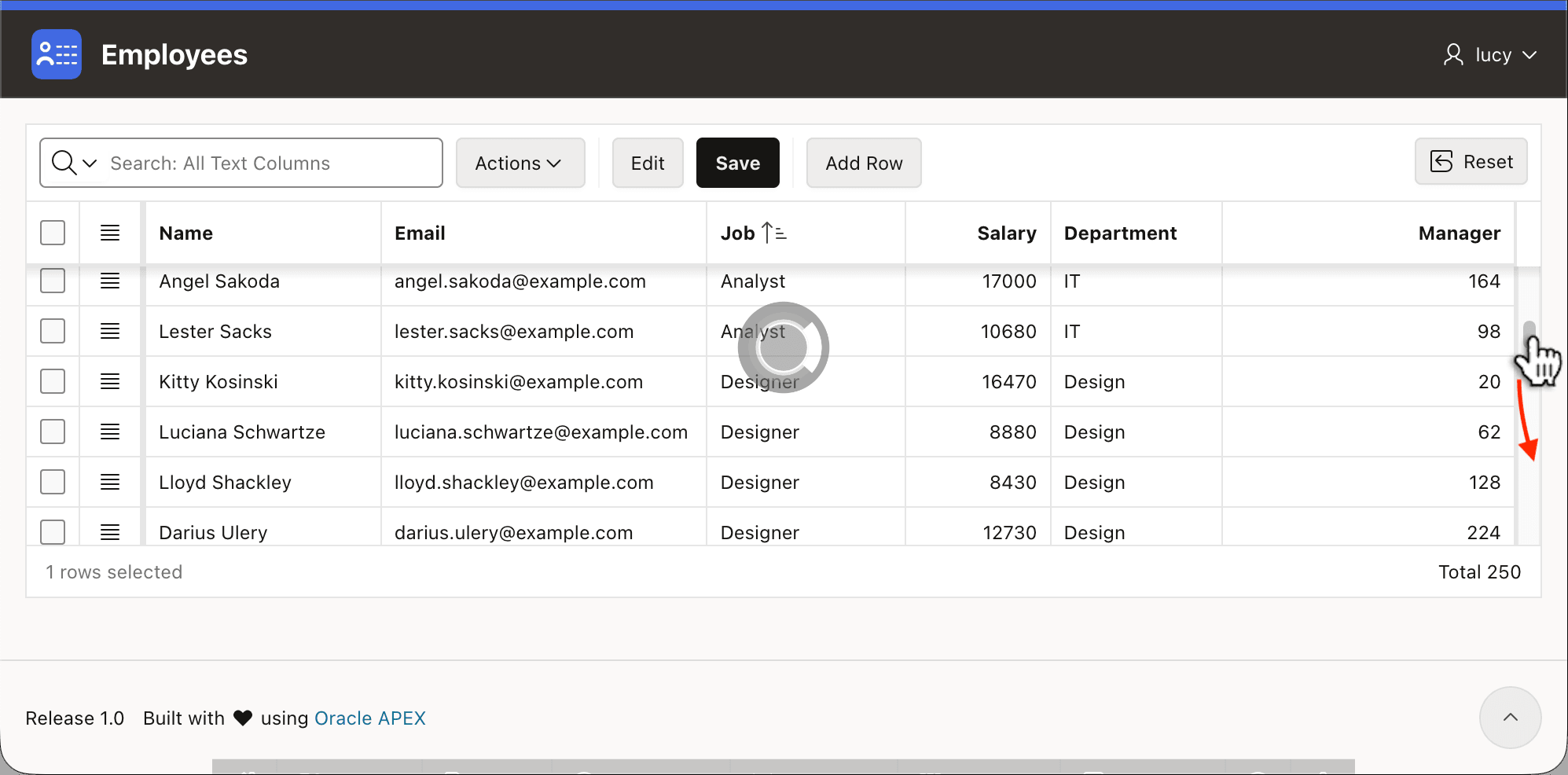
The EMP table is small enough to keep examples easy to
follow. But to illustrate scroll pagination, the figure below shows an Interactive
Grid scrolling the built-in Employees sample data instead. Its 250 employees
make scrolling behavior and on-demand data fetching easier to witness. The figure
shows the progress indicator that appears when the user tugs the scrollbar down and
the grid fetches additional data on demand.
When Show Total Count is off, Interactive Grid loads more rows as users scroll farther down, and the scrollbar can only indicate whether more rows remain. When Show Total Count is on, APEX knows the total row count and can use virtual scrolling, so the scrollbar reflects the size of the result set. This can improve the browsing experience, but requires an additional query to calculate the count.
Figure 9-6 Scrolling Through Large Dataset, Interactive Grid Fetches More Data On Demand
By default, when the Interactive Grid does scrolling pagination it uses the available vertical space on the page. Use the Heading > Fixed To setting on the Attributes tab to choose how the grid heading behaves:
- Page: heading stays pinned to the top of the page as rows scroll beneath it.
- Region: heading is above a scrolling grid sized by the Fixed Report Height setting.
- None: heading is not fixed, and scrolls normally with the page content.
Editing Rows with Form Controls
An editable Interactive Grid row is conceptually like a horizontal form. Each editable column specifies a column type that determines its cell editing experience for users. A column's form control behaves much like a page item, but the value belongs to the column's cell in the current row. This lets users edit many rows in place while still getting familiar APEX item behavior.
Grid columns can use many common item types, including text fields,
number fields, date pickers, select lists, popup LOVs, switches, and checkboxes.
This makes editable grids useful for more than simple text entry. For example, a row
of an Interactive Grid on the familiar EMP table can include a
select list for DEPTNO, a popup LOV for MGR, a
date picker for HIREDATE, and number fields for amounts or
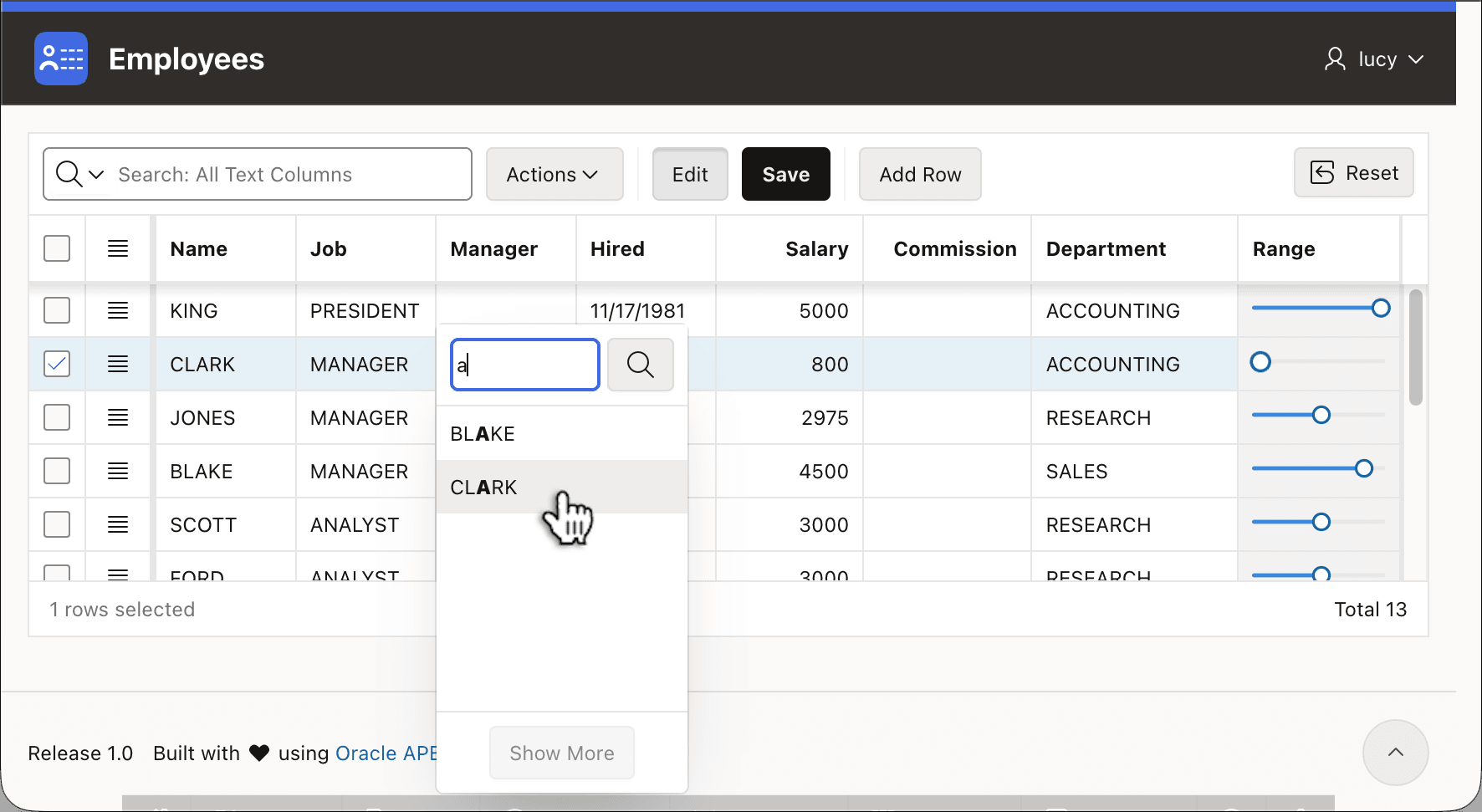
percentages. The figure below shows the user choosing a new manager for employee
CLARK by searching the popup LOV for names containing a letter
A.
Figure 9-7 Updating a Grid Cell Using a Popup LOV
Column form controls can also participate in familiar form behaviors. Cascading lists can depend on other column values in the same row. Dynamic actions can react when a user changes a column value, validate input, calculate another column, enable or disable related fields, or refresh a dependent LOV. These behaviors make the editable row feel less like a plain table and more like a small data-entry form available on-demand for each row.
Caution:
Cascading lists and dynamic actions that execute code on the server can slow down grid bulk grid operations like paste, copy down, fill, and clear because they may make calls to the server for every row edited. When practical, consider doing calculations and validations in JavaScript on the client, then recompute them at save time using a page process with Editable Region set to the grid.
Using a Template Component in a Grid Column
Template Components let any developer familiar with HTML markup create reusable components other team members can easily use in Page Designer. You'll see a simple example here, but for more information on creating them, see Reusable Components Using HTML Skills.
The Percent Dot on Bar template component displays a percent value as a dot on a bar using Scalable Vector Graphics. SVG is a W3C standard set of tags representing vector drawing instructions. All major modern browsers support it. This makes it a practical choice for lightweight, scalable graphics in web applications.
The template component uses the following fragment of SVG to draw the
bar and the dot. Notice the markup references two Template Component custom
attributes LABEL and PERCENT. When using this
component on a page, developers provide appropriate values for these two attributes
in the Property Editor that make sense for the context they use it in.
<svg xmlns="http://www.w3.org/2000/svg"
     viewBox="0 0 100 16" width="100%" height="16">
  <title>#LABEL#</title>
  <!-- Light gray rectangle with rounded ends -->
  <rect x="0" y="6.5"
        width="100" height="3"
        rx="1.5" fill="#e8e8e8"/>
  <!-- Blue rectangle with rounded ends -->
  <rect x="0" y="6.5"
        width="#PERCENT#" height="3"
        rx="1.5" fill="#378ADD"/>
  <!-- White circle with dark blue 2-wide border, radius 6 -->
  <circle cx="#PERCENT#" cy="8" r="6"
          fill="white" stroke="#185FA5" stroke-width="2"/>
</svg>
The viewBox attribute is for the author. It sets
up a math-friendly coordinate space. The viewbox="0 0 100 16"
specifies a rectangle 100 units wide and 16 units tall. In contrast,
width and height are for the browser,
controlling how that space maps to the page. The width="100%" asks
it to use the full width of the container and height="16" makes the
shape 16 pixels tall. The width and height of the
rectangles (<rect>) and circle
(<circle>) elements are expressed in logical units. The
browser handles converting logical units into page units.
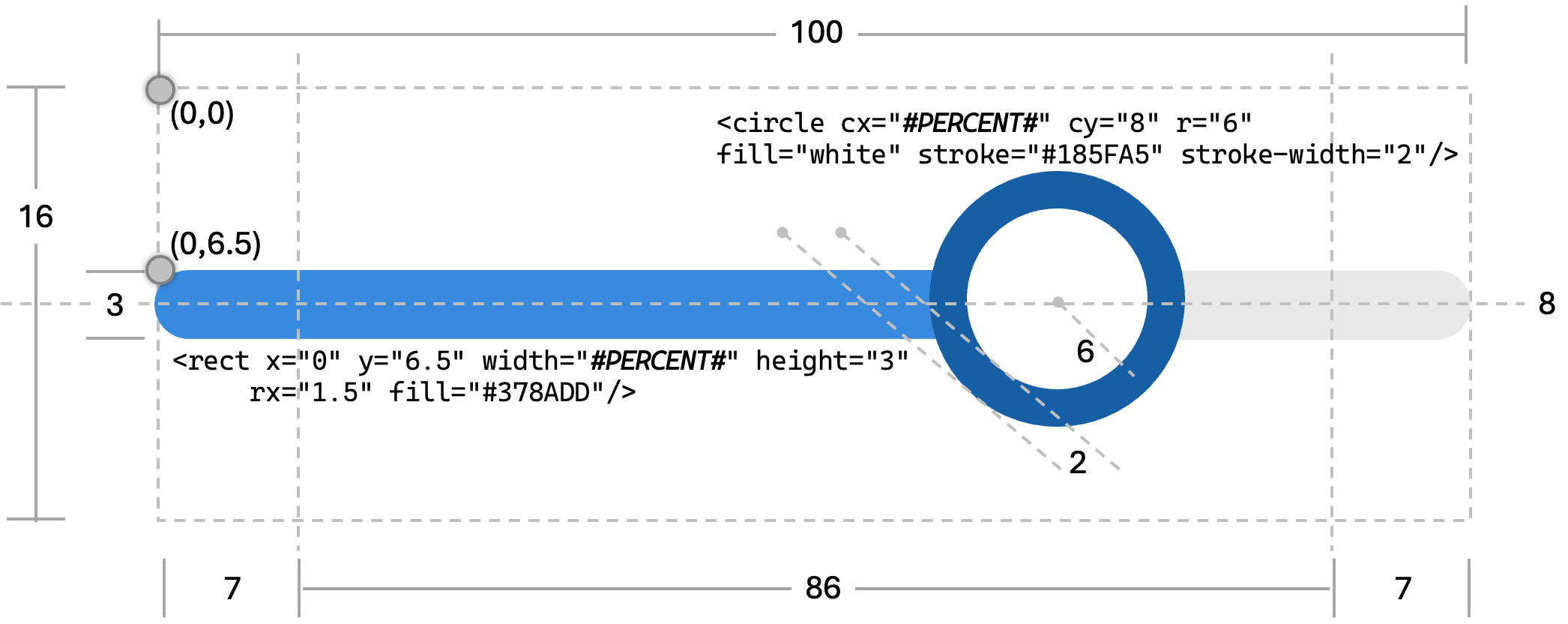
The figure below shows how the three SVG shapes get drawn into the
viewBox area. The light grey rounded rectangle is 3 units tall
and 100 units wide. The y-axis grows down from the origin (0,0) in
the upper left corner. So drawing it at logical y coordinate 6.5
makes the 3-unit tall rectangle vertically centered. The blue rounded rectangle is
similarly anchored, but only stretches #PERCENT# units across. The
dark blue circle of radius 6 has a 2 unit border stroke, which SVG centers on the
path of the circle, so the visual circle plus its border has an effective radius of
7 units. This means the circle's center needs to be shifted by 7 units if we don't
want it to be clipped when showing percentage values near the left and right edges.
So, the effective number range for drawing the circle's center needs to go from 7 to
93, which is a range of 86 units.
Figure 9-8 SVG viewBox Area Used by Percent Dot on Bar Template
Component Graphics
Tip:
This example omits accessibility attributes and clipboard configuration for simplicity. Production use should consider both. Grid JavaScript APIs provide control over what a cell copies to the clipboard.
Adding SQL Expression Column to the Grid
To preserve the editability of the grid's data source, to support any requirement you
can add additional computed columns that are read-only. This comes in handy to
calculate the appropriate PERCENT value to pass to the template
component to show where each employee's salary falls in the range of all salaries.
Choose Create Column on context menu of the
Interactive Grid's nested Columns node in the component tree.
Use the Property Editor to name it PERCENT. Set it's column type to
Hidden. Its Source >
Type defaults to SQL Expression.
Lastly, set its Data Type to NUMBER and
enter the following into the SQL Expression area:
ROUND(
  7 + (                      /* start 7 units from left edge  */
    (SAL - MIN(SAL) over ()) /* distance from the minimum     */
    /
    NULLIF(                  /* divided by total range        */
      MAX(SAL) over ()       /* guarding against              */
    - MIN(SAL) over (), 0)   /* divide-by-zero                */
    *
    86                       /* scale to 86-unit drawing area */
  )
)
This SQL formula converts a salary (SAL) into a position on a scale
from 7 to 93. It works in three steps:
- Find where this salary sits relative to the range: subtract the lowest salary from the current salary, then divide by the difference between the highest and lowest. This gives a number between 0 and 1, where 0 means "at the bottom" and 1 means "at the top".
- Stretch that onto an 86-unit scale: multiply by 86, the width of the drawable area inside the graphic.
- Shift it 7 units in from the left:add 7 to keep the circle indicator from being cut off at the edges.
MIN(SAL) over () and MAX(SAL) over ()
are SQL window functions. The over () part with empty parentheses
means "look across all rows in the result set". So MIN(SAL) over ()
gives the single lowest salary across all employees, repeated on every row. Without
the over () you would need a GROUP BY, which would
collapse the rows and lose the per-employee detail.
The NULLIF(..., 0) function prevents a divide-by-zero
error in the rare case where all values in the range are identical. The
ROUND() removes any decimal places since SVG coordinates work
best as whole numbers.
Tip:
To use this technique for a different NUMBER
column, replace every reference of SAL with your column
name.
Displaying a Template Component in a Grid Column
Now add a column to represent the salary range indicator. Repeat the
Create Column step above. Since this column doesn't need
a SQL Expression and doesn't come from a Database Column, set its
Source > Type to
None. Configure the column type to be an HTML
Expression, and enter the four lines below into the HTML
Expression area. This uses the {with/}…{apply/}
template directive to include the PERCENT_DOT_ON_BAR template
component, passing the value of the current row's SAL column for
the LABEL attribute and the value of its PERCENT
column for the component's PERCENT attribute.
{with/}
    LABEL   := &SAL.
    PERCENT := &PERCENT.
{apply PERCENT_DOT_ON_BAR/}
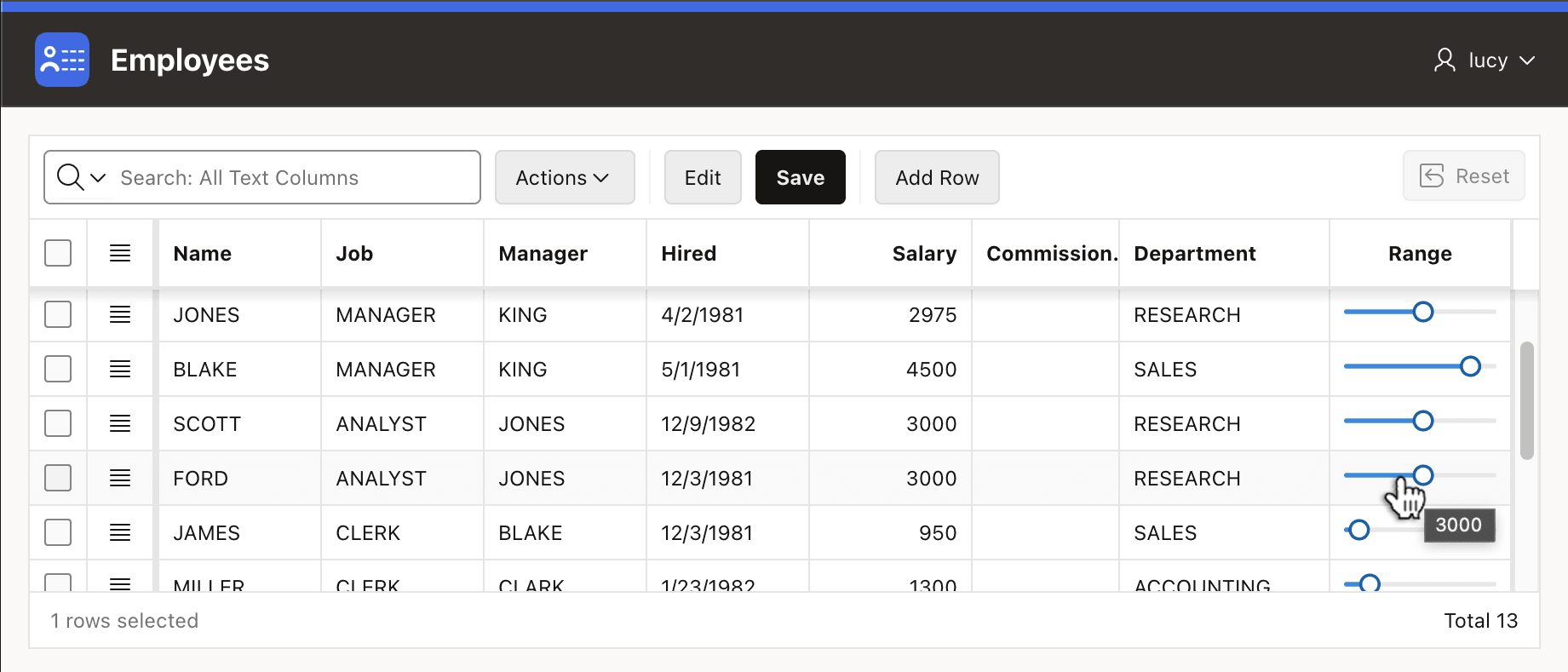
This combination produces the result shown in the figure below, where each employee's
salary renders as a percent dot on a bar, proportional to the range of all employees
salaries. Hovering the mouse over an individual bar like the one for FORD,
the tooltip shows the salary amount you passed as the template component's
LABEL attribute. In FORD's case, that is
3000.
Figure 9-9 Visualizing Salaries as a Dot on a Bar Using a Template Component
Tip:
In practice, you could have configured the PERCENT column
directly as an HTML Expression instead of
Hidden, and used the template directive above on it.
However, sometimes having separate columns makes the solution easier to
understand, and it is generally useful to know you can add grid columns with no
source when needed.
Parent topic: Editing Data in a Grid