25.4.3.3 Viewing Debug Trace Information
View workflow debug traces by clearing page filters in the Debug Message Data window.
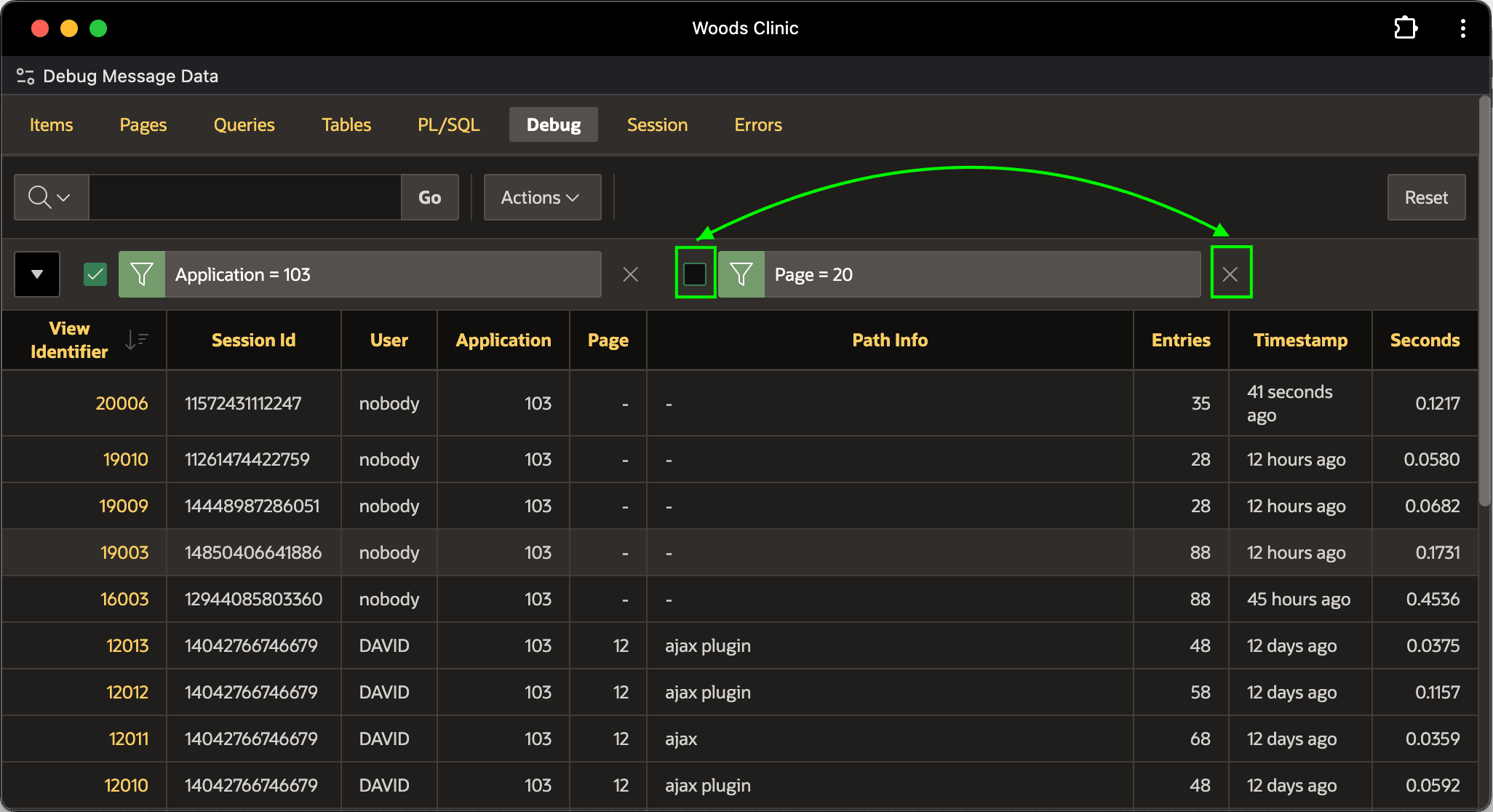
Use the Developer Toolbar's Debug > View Debug menu option to open the Debug Message Data window shown below. By default, the Interactive Report showing debug trace requests is filtered by the current application id and the current page. Since workflow activities execute in the background, they are not associated to a page. They also have no logged-in username. To see the workflow debug messages, as shown below, either:
- Disable the Page filter by unchecking its checkbox, or
- Clear the Page filter by clicking its "x" icon.
Then workflow messages for user nobody with no associated page appear.
Figure 25-157 Disabling Page Filter to View Recent Workflow Debug Requests
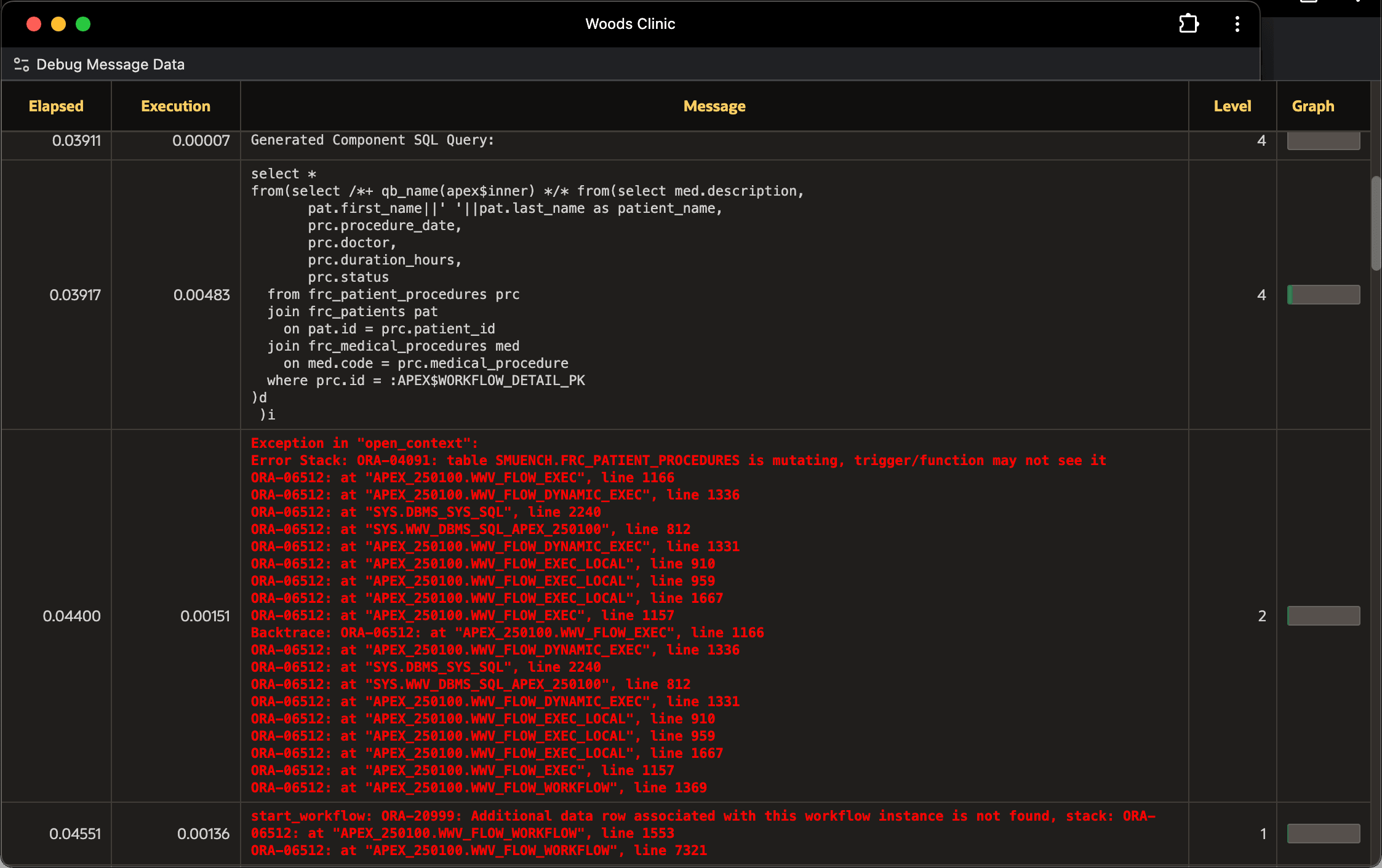
AFTER INSERT trigger. The call to APEX_WORKFLOW.START_WORKFLOW encountered an ORA-04091 exception while running its Additional Details query. As shown below, the debug log includes:
- The query executing when the error occurred
- The
ORA-04091exception with call stack - A related mention of:
start_workflow: ORA-20999: Additional data row … not found
The debug trace log usually includes enough information to provide clues on where the issue is happening.
Tip:
The ORA-04091 error is known as a "Mutating Table" exception. It occurs when a database trigger initiates logic that queries the table that is in the process of being changed.
Figure 25-158 Examining Debug Exception Call Stack in Debug Viewer
Parent topic: Debugging Business Process Logic