5.2 Choosing an Application Creation Method
Learn about available creation methods when creating a new application.
Tip:
The first time you access the App Builder home page, a Get Started Now region appears. Click Create New App to access the launch the Create Application Wizard. Click Install a Starter or Sample App to access the Gallery. See Using the App Gallery.
To create a new application, click Create on the App Builder home page. The Create an Application page appears and prompts you to select a method of creating your application.
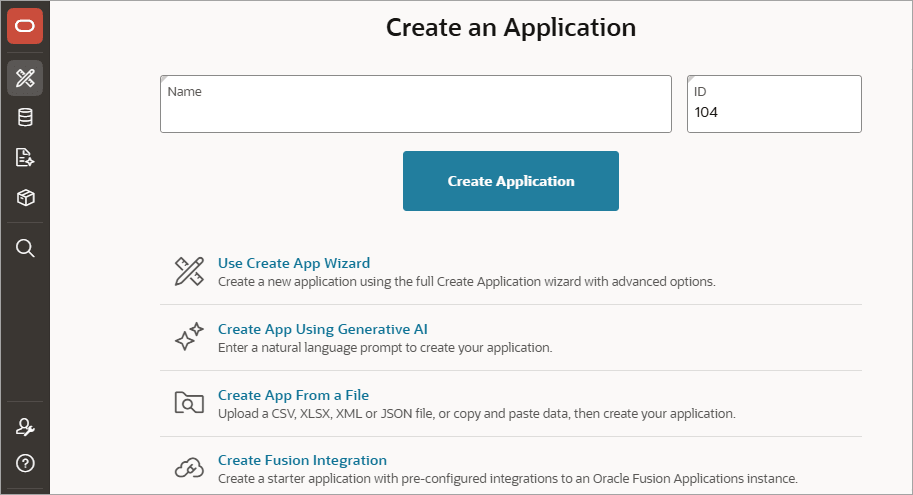
Available options include:
-
Create Application - Create a simple application with one click. Enter the application Name and click Create Application. This option creates an application which contains only a Global Page, Home page, and Login page. Add pages later by running the Create Page Wizard.
-
Use Create App Wizard - Create a new application using the full Create Application Wizard. The full Create Application Wizard creates a fully functional application based on tables you select or by providing a valid SQL. Add pages that include various components, add application-level features, and configuration options to enable or disable specific functionality.
See Using the Full Create Application Wizard and Understanding Page Types, Features, and Settings.
-
Create App Using Generative AI - Enter a natural language prompt to create your application. This option only displays if you have configured a Generative AI Service and enabled the Used by App Builder flag.
See Managing Generative AI Services and Creating an App Using Generative AI.
-
Create App From a File - Upload a CSV, XLSX, XML, or JSON file, or copy and paste data and then create your application.
-
Create Fusion Integration - Create a starter application with pre-configured integration to an Oracle Fusion Applications instance.
Parent topic: Creating Applications