10.3.6 Creating a Dashboard Page

Create a Dashboard page which can contain up to four charts.

10.3.6.1 Creating a Dashboard Page Using the Create Application Wizard

Create a new application that contains a Dashboard page with up to four charts.

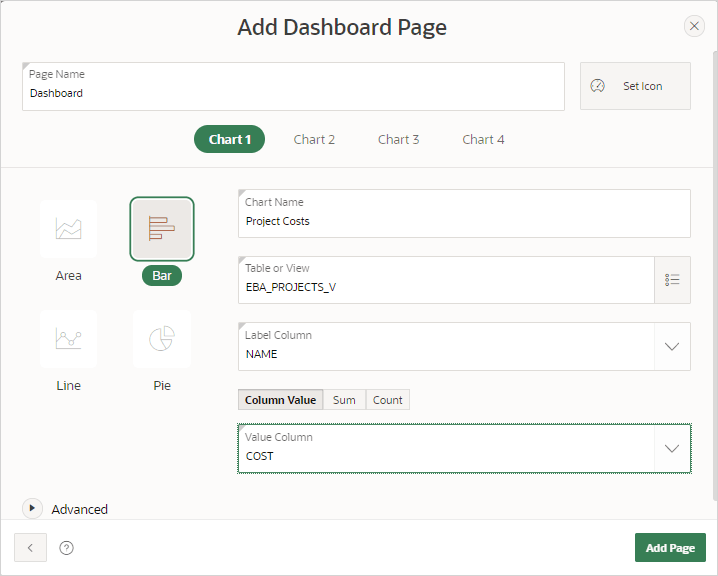
A Dashboard page can contain up to four charts. To create a chart, select the chart (Chart 1, Chart 2, Chart 3, or Chart 4), the Chart Type, and then define the remaining attributes.

To add a Dashboard page using the Create Application Wizard:

  1. On the Workspace home page, click the App Builder icon.
  2. Click Create.

    The wizard prompts you to select a method of creating an application.

  3. Click Use Create App Wizard.

    The Create an Application page appears.

  4. Set Icon - Click Set Icon to select an application icon. The icon you select is used as the Favicon, the PWA icon, the Apple touch icon, and the App Builder icon.
  5. Name - Enter the name used to identify the application to developers.
  6. Appearance - Accept the default or click Set Appearance to change it.
  7. Click Add Page and select Dashboard.
  8. Add Cashboard Page:
    1. Page Name - Enter a name for this page.
    2. Set Icon - Select an icon to display in the navigation menu for this page.
  9. Create Chart 1:
    1. Chart Type - Select Area, Bar, Line, or Pie.
    2. Chart Name - Enter the name for the chart.
    3. Table or View - Click the LOV icon (bullet points and lines) and select a table or view on which to build the chart.
    4. Label Column - Select the column from the table or view to use as the label for the chart.
    5. Value Aggregation - Select how to aggregate the chart Value Column (Column Value, Sum, or Count.

      For example, selecting Count bases the aggregation on the selected Label Column. For all other aggregation types, if no Value Column is selected, the aggregation is based on the select Label Column.

    6. Value Column - Select the column name to be used for defining the value on this chart.
  10. Create Chart 2:
    1. Chart Type - Select Area, Bar, Line, or Pie.
    2. Chart Name - Enter the name for the chart.
    3. Table or View - Click the LOV icon (bullet points and lines) and select a table or view on which to build the chart.
    4. Label Column - Select the column from the table or view to use as the label for the chart.
    5. Value Aggregation - Select how to aggregate the chart Value Column (Column Value, Sum, or Count.

      For example, selecting Count bases the aggregation on the selected Label Column. For all other aggregation types, if no Value Column is selected, the aggregation is based on the select Label Column.

    6. Value Column - Select the column name to be used for defining the value on this chart.
  11. Repeat the previous step for Chart 3 and Chart 4. When you are done creating charts, click Add Page.
  12. Features - Select features to include with the application. Features provide application-level functionality and can only be added once per application. To learn more, click the Help icon adjacent to Features.
  13. Settings - Specify settings used to generate this application. To learn more about an attribute, click the Help icon adjacent to Settings.
  14. Click Create Application.

10.3.6.2 Creating a Dashboard Page Using the Create Page Wizard

Run the Create Page Wizard to create a first-cut Dashboard page based on sample data.

The Create Page Wizard creates a first-cut Dashboard page based on sample data that you can easily customize later in Page Designer. Choose from a number of different chart layouts as the starting point for your page.

To create a Dashboard page using the Create Page Wizard:

  1. On the Workspace home page, click the App Builder icon.
  2. Select an application.
  3. Click Create Page.

    Create a Page appears.

  4. Click Component and select Dashboard.
  5. Page Definition:
    1. Page Number - The page number is an integer value that identifies a page within an application.
    2. Name - Specify a text name for this page.

      Tip:

      This text is also used for page Title. After page creation, you can modify the Title in Page Designer.
    3. Dashboard Layout - Create a first-cut dashboard based on sample data that you can easily customize using Page Designer. Select a chart layout as the starting point for your page.
  6. Navigation - If needed, expand the region. Enable or disable the following flags:
    1. Use Breadcrumb - Enable to create a breadcrumb entry for this page. By default, the page name is used as breadcrumb entry name.
    2. Use Navigation - Enable to create a navigation menu entry for this page. By default, the page name is used as navigation menu name.

    If either flag is enabled, additional attributes appear. To learn more about an attribute, see field-level Help.

  7. Click Create Page.