13.3 Managing Buttons
You can use buttons to direct users to a specific page or URL, or to post or process information (for example, by creating Create, Cancel, Next, Previous, or Delete buttons). You can also configure buttons to display conditionally or warn users of unsaved changes.
- About Actions Buttons Can Perform
Use buttons to submit a page or redirect to a different page or different URL. - About Branching with Buttons
Learn about branching with buttons. - Creating a Button
Create buttons in Page Designer. - About the Relationship Between Button Names and REQUEST
The name you give a Submit button (that is, a button with an Action of Submit Page) determines the value of the built-in attributeREQUESTwhen the page is submitted. - Editing a Button
Edit buttons in Page Designer. - Displaying a Button as a Menu
Display a button as a menu by editing button attributes. - Hiding a Button or Displaying It as Disabled
Learn how to hide a button. - Displaying a Button Conditionally
You can choose to have a button display conditionally by editing the Server-side Condition attribute in Page Designer. - Configuring Button Attributes to Warn Users of Unsaved Changes
Use the Warn on Unsaved Changes attribute to warn users of unsaved changes when they attempt to navigate away from a page. - Avoiding Multiple Page Submits by Enabling Show Processing
Prevent users from double-clicking a button by enabling the Show Processing attribute. - Adding a Trigger Action to a Button
Define a dynamic action directly beneath a button by creating a Trigger Action. - Displaying a Button Confirmation Dialog
Display a Confirmation dialog after the button is clicked by enabling the Requires Confirmation attribute.
Parent topic: Managing Application Controls
13.3.1 About Actions Buttons Can Perform
Use buttons to submit a page or redirect to a different page or different URL.
The Behavior, Action attribute determines the action to be performed when a button is clicked. Available options include:
-
Submit Page - Submit the current page with a
REQUESTvalue equal to the Button Name. -
Trigger Action - The button's behavior is defined by one or more Trigger Actions. Does not submit the page or redirect to another page.
-
Redirect to Page in this Application - Redirect to a page in the current application with optional additional attributes for resetting pagination, setting the request value, clearing cache, and setting item values on the target page.
-
Redirect to Page in a different Application - Redirect to a page in a different application with optional additional attributes for resetting pagination, setting the request value, clearing cache, and setting item values, on the target page.
Note:
Redirecting to a page in different application relies on deep linking being enabled in the target application. To enable deep linking, go to the application's Security attributes and enable Deep Linking. -
Redirect to URL - Redirect to the target URL you specify.
-
Defined by Dynamic Action - Does not submit the page or redirect to another page. Instead the button's behavior is defined by a Dynamic Action.
Parent topic: Managing Buttons
13.3.2 About Branching with Buttons
Learn about branching with buttons.
Each page can include any number of branches. A branch links to another page in your application or to a URL. The Oracle APEX engine considers branching at different times during page processing. You can choose to branch before processing, before computation, before validation, and after processing. Like any other control in App Builder, branching can be conditional. For example, you can branch when a user clicks a button. When you create a branch, you associate it with a specific button. The branch is only be considered if a user clicks the button.
See Also:
Parent topic: Managing Buttons
13.3.3 Creating a Button
Create buttons in Page Designer.
To create a button in Page Designer:
Related Topics
Parent topic: Managing Buttons
13.3.4 About the Relationship Between Button Names and REQUEST
The name you give a Submit button (that is, a button with an Action of Submit Page) determines the value of the built-in attribute REQUEST when the page is submitted.
You can reference the value of REQUEST from within PL/SQL using the bind variable :REQUEST. By using this bind variable, you can conditionally process, validate, or branch based on which button the user clicks. You can also create processes that execute when the user clicks a button. And you can use a more complex condition as demonstrated in the following examples:
If :REQUEST in ('EDIT','DELETE') then ...
If :REQUEST != 'DELETE' then ...
These examples assume the existence of buttons named EDIT and DELETE. You can also use this syntax in PL/SQL Expression conditions. Be aware, however, that the button name capitalization (case) is preserved. In other words, if you name a button LOGIN, then a request looking for the name Login fails. For example:
<input type="BUTTON" value="Finish" onclick="apex.submit('Finish');">
In this example Finish is the name of the REQUEST and this example is case-sensitive.
Parent topic: Managing Buttons
13.3.5 Editing a Button
Edit buttons in Page Designer.
To edit a region button in Page Designer:
Parent topic: Managing Buttons
13.3.6 Displaying a Button as a Menu
Display a button as a menu by editing button attributes.
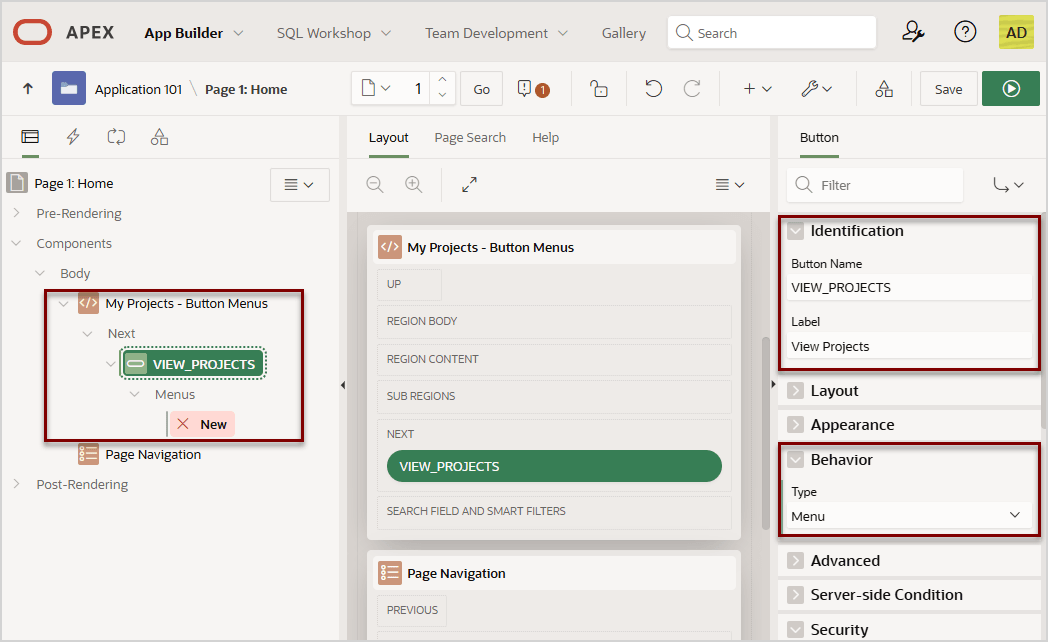
By default, when you create a button, the Type attribute in the Property Editor is set to Standard. You can display a button as a menu by changing the Type attribute to Menu.
This task describes how to edit an existing button to display as a menu
and define menu entries to link to other pages in the application. Then, this task
explores some of the attributes that change how the button displays, including
hiding a menu entry, adding a separator, hiding the menu, and changing the button
template. The follow example assumes you have already created an application with
three report pages built on the built on the Project Data sample
dataset.
Note:
Many of the attributes described in this topic require Universal Theme 25.1. If your application is from an older release or if the button templates have modified manually, these options and behaviors described in this topic may not be available. To learn more, about updating the theme in an existing application, see About Updating or Migrating to the Universal Theme.To display a button as a menu:
- Name the button and change the button Type:
- Behavior, Type - Select Menu.
A menu entry named
Newappears under Menus.
- Behavior, Type - Select Menu.
- View the new menu:
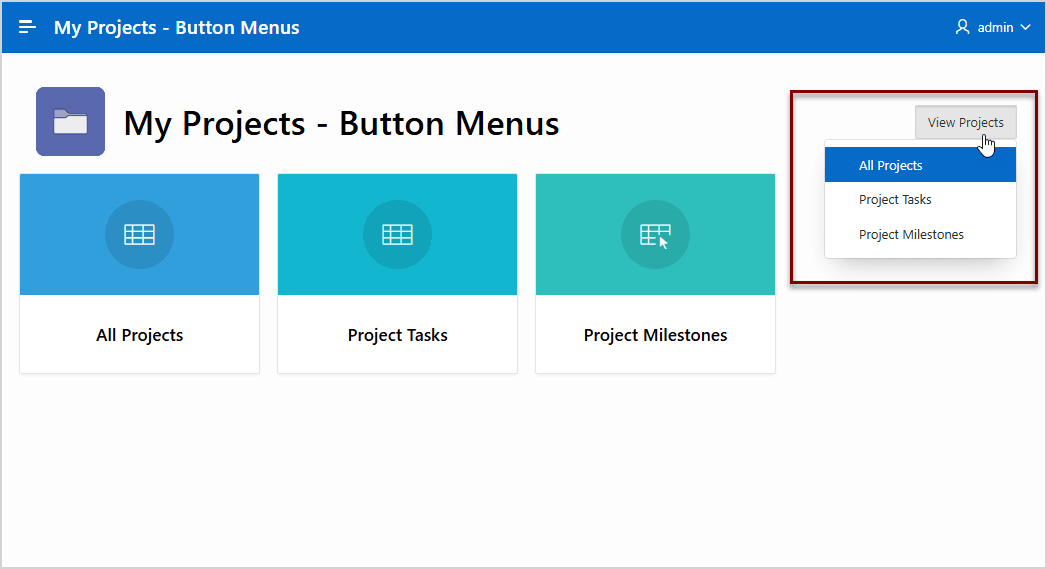
- Click the new button and test it.The following example shows a button named
View
                                    Projects
with three menu entries.
- Click the new button and test it.
Parent topic: Managing Buttons
13.3.7 Hiding a Button or Displaying It as Disabled
Learn how to hide a button.
Note:
Some of the attributes described in this topic require Universal Theme 25.1. If your application is from an older release or if the button templates have modified manually, these options and behaviors described in this topic may not be available. To learn more, about updating the theme in an existing application, see About Updating or Migrating to the Universal Theme.To hide a button or a display it as disabled:
Parent topic: Managing Buttons
13.3.8 Displaying a Button Conditionally
You can choose to have a button display conditionally by editing the Server-side Condition attribute in Page Designer.
To have a button display conditionally:
Related Topics
Parent topic: Managing Buttons
13.3.9 Configuring Button Attributes to Warn Users of Unsaved Changes
Use the Warn on Unsaved Changes attribute to warn users of unsaved changes when they attempt to navigate away from a page.
To configure the Warn on Unsaved Changes attribute:
Tip:
The Warn on Unsaved Changes attribute is implemented using the apex.page.warnOnUnsavedChanges API.
See Also:
Configuring Pages to Warn Users of Unsaved Changes and warnOnUnsavedChanges in Oracle APEX JavaScript API Reference
Parent topic: Managing Buttons
13.3.10 Avoiding Multiple Page Submits by Enabling Show Processing
Prevent users from double-clicking a button by enabling the Show Processing attribute.
To enable Show Processing:
Parent topic: Managing Buttons
13.3.11 Adding a Trigger Action to a Button
Define a dynamic action directly beneath a button by creating a Trigger Action.
Trigger Actions enable you to define a dynamic action, action directly beneath the button in the Page Designer tree. To define a Trigger Action, edit the button attributes and change Behavior, Type to Trigger Action.
To create a button Trigger Action:
Parent topic: Managing Buttons
13.3.12 Displaying a Button Confirmation Dialog
Display a Confirmation dialog after the button is clicked by enabling the Requires Confirmation attribute.
To display a button confirmation dialog:
Parent topic: Managing Buttons