10.4.6 Editing Maps
Edit map region components in Page Designer.
- Viewing and Editing a Map in Page Designer
View and edit the components that comprise a map by viewing attributes in Page Designer. - Adding a New Layer to an Existing Map
Edit the map region definition to add more spatial geometry objects. - Controlling Layer Visibility
Control layer visibility by editing attributes in Page Designer or by using JavaScript at runtime. - Connecting a Map Region with a Report Region
Connect a map region with a classic report region.
Parent topic: Creating Maps
10.4.6.1 Viewing and Editing a Map in Page Designer
View and edit the components that comprise a map by viewing attributes in Page Designer.
EARTHQUAKE_TABLE which features a Heat Map spatial geometry layer.
- View the page in Page Designer:
- On the Workspace home page, click the App Builder icon.
- Select an application.
- Select a page.
Page Designer appears displaying Page attributes in the Property Editor (right pane). - Review the map Region attributes.
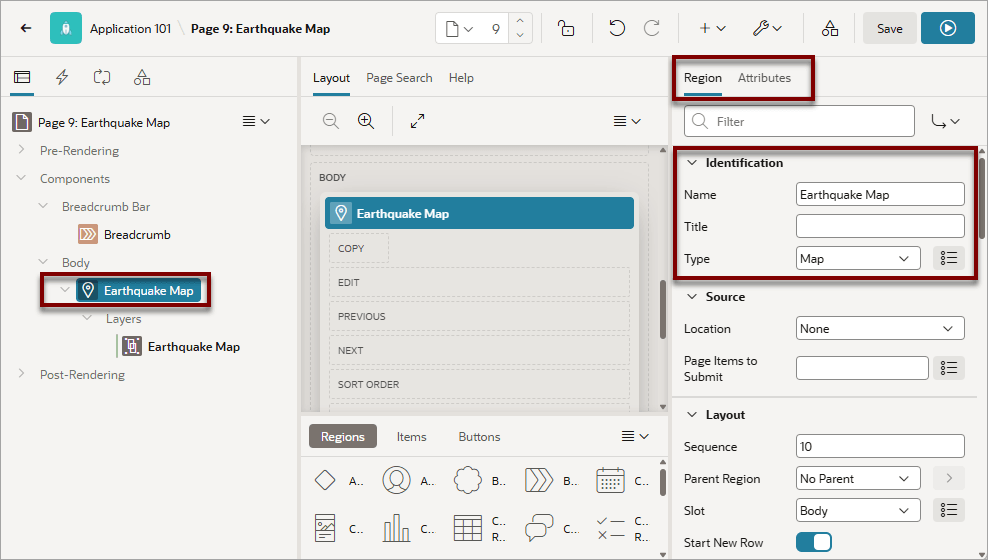
- In the Rendering tab select the Map region. The Property Editor (right pane) displays two tabs: Region and Attributes.
- Identification:
- Identification, Name - Identifies the region in the Rendering tab (left pane) and Layout tab (Central tab). The region Displays at runtime if a region Title is not defined.
- Identification, Title - (Optional) Only displays when defined in the region template.
- Identification, Type - Type determines how region is rendered.
In the previous example, note that Identification, Name indicates the map is named States and the Type is Map.
To learn more about other map Region attributes, see Page Designer Help.
- Review the map Attributes.
- In the Property Editor, click the Attributes
tab.
Map Attributes determine basic map characteristics.
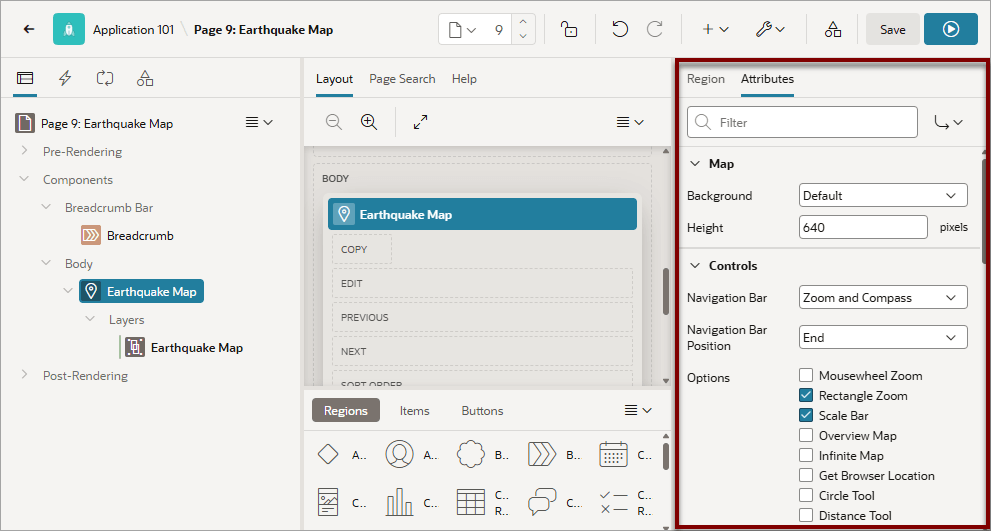
Description of the illustration map_attributes.png - Controls - Controls determine the various ways users can change the map
display at runtime. Available attributes include:
-
Controls, Navigation Bar - Options include None, Zoom Only and Zoom and Compass.
-
Controls, Navigation Bar Position - Start positions the navigation bar on the starting position (typically to the left side) of the map. End positions the navigation bar on the ending position (typically to the right side) of the map.
-
Options, Mousewheel Zoom - Zoom in or out by using the mouse wheel.
-
Options, Rectangle Zoom - Zoom the map to an area by drawing a rectangle onto the map.
-
Options, Scale Bar - Display a scale bar on the map.
-
Options, Overview Map - Display an overview map in the lower right.
-
Options, Infinite Map - Enables infinite map scrolling. This control is enabled by default when you create a map region.
Note:
If Infinite Map is enabled, Bounding Box is not available. Disable Infinite Map before defining a bounding box. -
Options, Get Browser Location - Displays the user's current location from their browser.
-
Options, Circle Tool - Enables end users to draw a circle onto the map. When finished, an event is triggered, so that the circle can be processed by Dynamic Actions or JavaScript code.
-
Options, Distance Tool - Enables end users to measure distances between points on the map.
-
- In the Property Editor, click the Attributes
tab.
- Initial Position and Zoom:
- Initial Position and Zoom, Type - Specify how to determine the initial map position and zoom level for a new APEX session or after a map region Clear or Reset operation. Within an APEX session, the map region memorizes the current position and zoom level across page requests. To learn more, see Page Designer Help.
- Initial Position and Zoom, Zoom Level - Specify the initial zoom level. If Based on Spatial Results is used as Type, this denotes the maximum zoom level to allow when the map zooms in. Use integer values between 1 and 24.
- Bounding Box:
A bounding box in a map is a rectangular area defined by two coordinate pairs, latitude and longitude.
Note:
Disable the Control, Infinite Map, before defining a bounding box. If Infinite Map is enabled, Bounding Box is not available.- Bounding Box, Type - Specify whether to use a map bounding box. Options
include:
- None - Use no map bounding box.
- Static Values - Provide Static Values for the initial map bounding box.
- SQL Query - Provide a SQL query returning values for the map bounding box.
The Bounding Box, Type determines the UI that displays next.
- Bounding Box, Type - Specify whether to use a map bounding box. Options
include:
- Review the map Layers. Maps have spatial geometry
objects (or layers) which are drawn on the map based on data in a table.
In the Rendering tab, select the Layer (for example, Earthquake Map).
Note that the following example has a Heat Map layer which is sourced from a local database using a SQL Query.
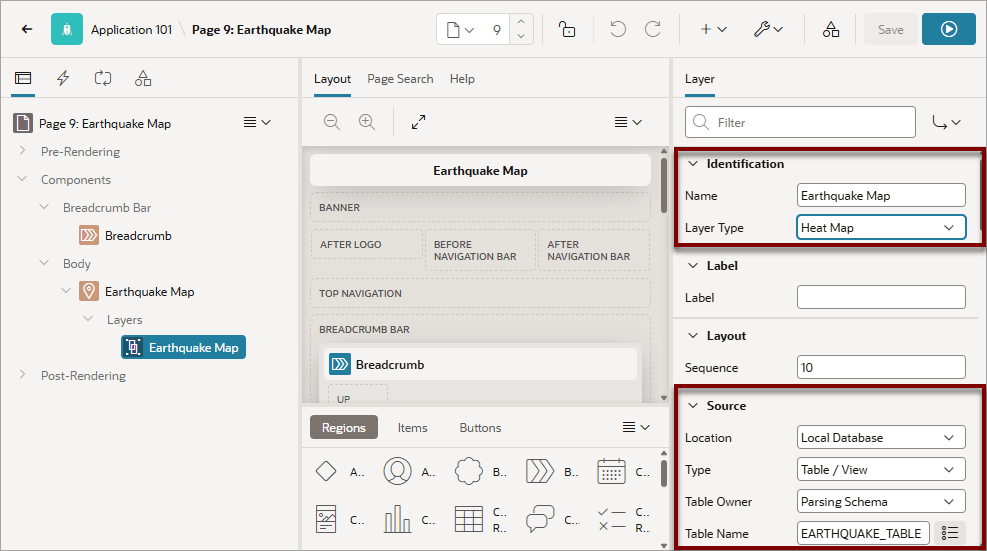
Description of the illustration map_layer_att_source.pngTip:
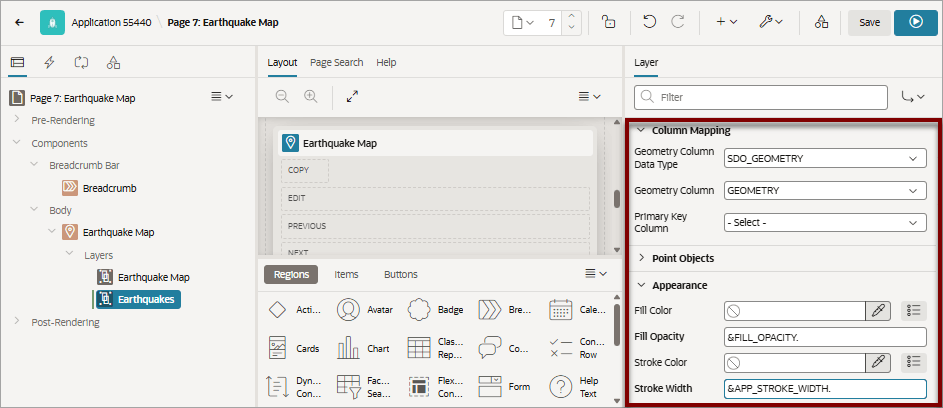
You can use page or application item syntax in supported attributes. For example, the Appearance, Fill Opacity and Stroke Width attributes both support substitutions. If an attribute supports substitutions, Page Designer Help includes additional information about the supported substitution strings. - Review the Column Mappings. In the Property Editor, scroll down to Column
Mappings.
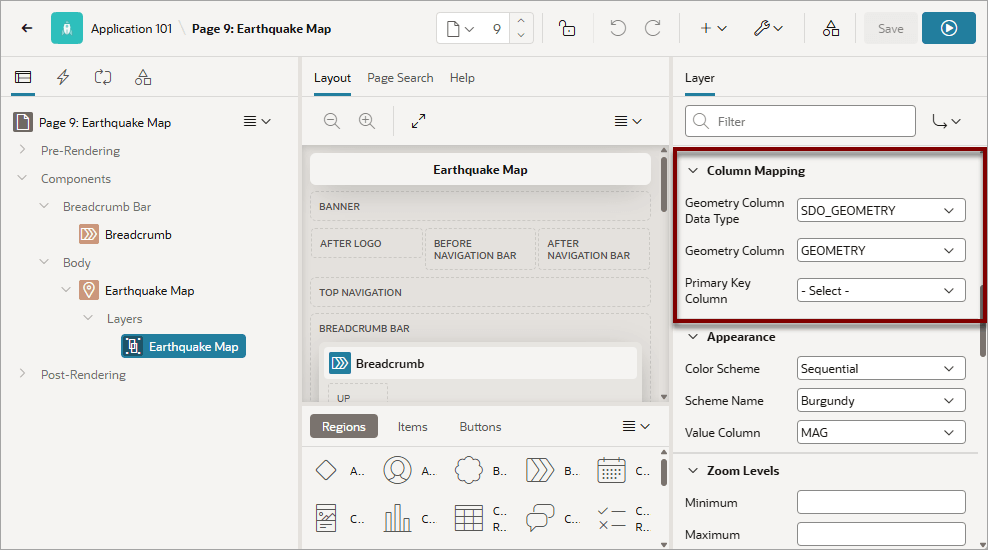
Description of the illustration map_layer_att_columns.pngIn the previous example, note that the Column Mapping attributes indicate the Geometry Column Data Type is SDO_GEOMETRY and the Geometry Column is GEOMETRY.
Tip:
To learn more about Layer attributes, see Adding a New Layer to an Existing Map.
Parent topic: Editing Maps
10.4.6.2 Adding a New Layer to an Existing Map
Edit the map region definition to add more spatial geometry objects.
Earthquakes sourced from a local table named
EARTHQUAKE_TABLE and mapped to the GEOMETRY
column.
To add a new object layer to an existing map:
- View the page in Page Designer:
- On the Workspace home page, click the App Builder icon.
- Select an application.
- Select a page.
Page Designer appears displaying Page attributes in the Property Editor (right pane). - Add a spatial geometry layer. In the Rendering tab, right-click Layers and select Create Layer.
- Page Designer indicates what to do next. If there is an error, the Show
Messages icon displays in the Page Developer toolbar.
- Click the Show Messages icon on the Page
Designer toolbar.The Messages dialog displays errors that must be addressed.
- Select an error to highlight the associated attribute in the Property Editor.
- Click the Show Messages icon on the Page
Designer toolbar.
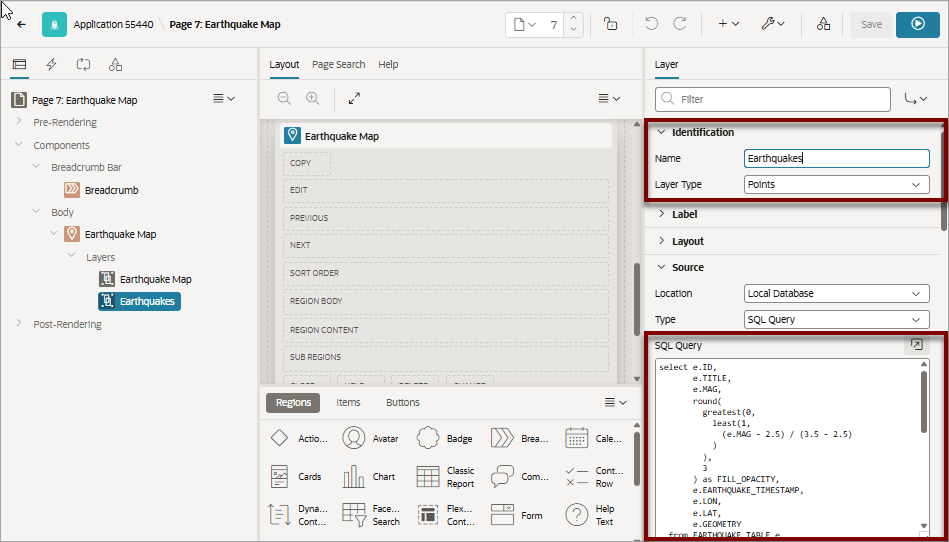
- Identification:
- Identification, Name - Enter a descriptive name (for example, Earthquakes).
- Identification, Layer Type - Select the type of this layer (for example, Points). See Page Designer Help for more information.
- Source:
- Source, Location - Determines the location of the data (for example, Local Database).
- Source, Type - Select how the data is queried (for example, SQL Query).
- Source, SQL Query - Enter the SQL source for this component.
- Column Mapping:
- Column Mapping, Geometry Column Data Type - Select the data type of the geometry column (for example, SDO_GEOMETRY).
- Column Mapping, Geometry Column - Select the data type of the geometry column (for example, GEOMETRY).
- Column Mapping, Primary Key Column - Choose the column containing the unique key to identify a row. Use this to provide the primary key value to custom JavaScript code or map event handlers.
- Appearance:
Note:
You can use page or application item syntax in some attributes. For example, the Appearance, Fill Opacity and Stroke Width attributes both support substitutions. If an attribute supports substitutions, Page Designer Help includes additional information about the supported substitution strings.- Appearance, Fill Color - Specify the fill color. For this example, leave this attribute empty.
- Appearance, Fill Opacity - Specify fill opacity. Ranges from zero
(fully transparent) to 1.0 (opaque). This attribute supports
substitutions. For example:
&FILL_OPACITY. - Appearance, Stroke Color - Specify the stroke color. For this example, leave this attribute empty.
- Appearance, Stroke Width - Specify the stroke width. Allowed values
range from 0.05 to 10.0. This attribute supports substitutions. For
example:
&APP_STROKE_WIDTH.
Tip:
The Appearance attributes available vary depending upon Layer Type. The previous example assumes the Layer Type is Points. - Tooltip - The Tooltip displays when the user's mouse hovers over a polygon. The
following example uses an HTML expression with column substitutions. However,
you can also use the Template Directives, as with the Cards Region type.
- Tooltip, Advanced Formatting - Specify whether the tooltip displays using a column or advanced formatting using HTML expressions and supported substitution strings. Enabling Advanced Formatting causes additional attributes to display. For this example, enable Advanced Formatting.
- Tooltip, HTML Expression - Enter HTML expressions to be shown as
tooltip when hovering over an object on the map. Use
&COLUMN.syntax to show column values in HTML. For example:<strong>Earthquake mag: &MAG.</strong>If the expression includes untrusted values, use the appropriate escape filter. For example,
&COLUMN_NAME!HTML.or&COLUMN_NAME!ATTR.. - Tooltip, CSS Classes - Enter CSS classes to use when rendering the tooltip. You may add multiple classes by separating them with spaces.
Tip:
For more information on the supported Template Directives, see applyTemplate in Oracle APEX JavaScript API Reference. - Info Window - The Info Window displays as a pop-up when clicking an object on
the map.
- Info Window, Advanced Formatting - Specify whether the information window displays using columns or advanced formatting using HTML expressions and supported substitution strings.
- Info Window, Title Column - Select the column to be used as the title for the information window. For example, select TITLE.
- Info Window, Body Column - Select the column to be used as body for the information window. For example, select EARTHQUAKE_TIMESTAMP.
- Zoom Levels:
- Zoom Levels, Minimum - Specify the minimum zoom level for this layer to become visible. Minimum value is 1 and Maximum value is 24.
- Zoom Levels, Maximum - Specify the maximum zoom level for this layer to remain visible. Minimum value is 1 and Maximum value is 24.
- Legend - The attributes that display depend upon the configured options:
- Legend, Show - Specify whether this layer is being shown in the legend.
- Legend, Advanced Formatting - Specify whether the legend items displays
using default template or advanced formatting using HTML expressions.
For example:
- Advanced Formatting - Enable Advanced Formatting.
- HTML Expression - Enter HTML expressions to be shown
as legend item. For example:
<span class="custom-legendItem">&LAYER_NAME.</span>
- Legend, Enable to Hide - This attribute does not display if
Advanced Formatting is turned on. Determines whether layer visibility can be toggled by clicking layer name in the legend. Disable Enable to Hide if the layer must always remain visible.
- Legend, Icon CSS Classes - This attribute does not display if Advanced Formatting is turned on. Specify the Icon to display for this layer in the legend.
- Click Save and Run Page.
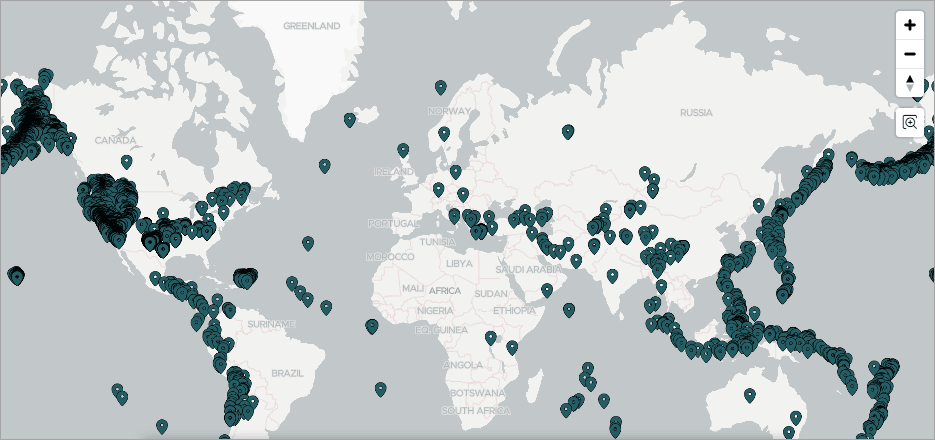
The map appears showing two layers: Earthquake Map and Earthquakes.
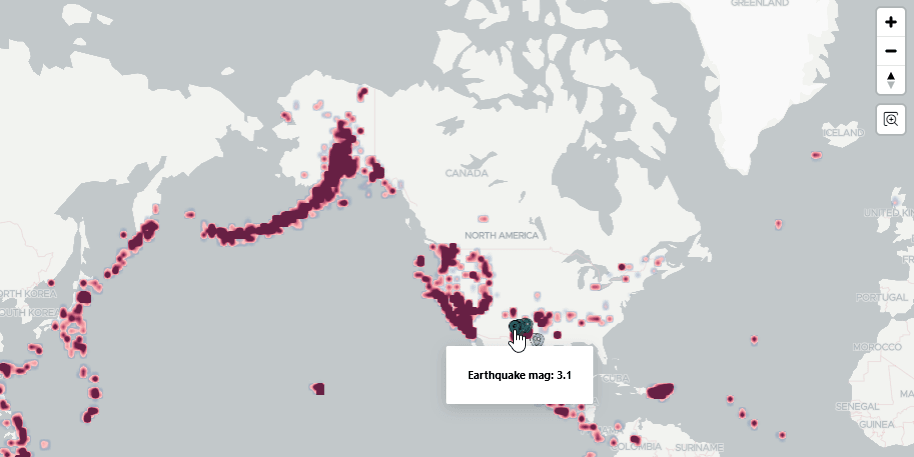
Description of the illustration sample_map_two_layers.png
Parent topic: Editing Maps
10.4.6.3 Controlling Layer Visibility
Control layer visibility by editing attributes in Page Designer or by using JavaScript at runtime.
This topic assumes you have a map that has two spatial geometry objects layers:
Earthquake Map and Earthquakes sourced from a local table named
EARTHQUAKE_TABLE and features a Heat Map spatial geometry
layer.
This task demonstrates how to use zoom levels and server-side conditions to control layer visibility.
Note:
You can also control runtime visibility using the Map Region JavaScript interface by creating a dynamic action that uses Execute JavaScript Code to hide a layer identified by a name or ID.To control layer visibility:
- View the map page in Page Designer:
Page Designer appears. In the following example, the map has two spatial geometry objects layers: Earthquake Map and Earthquakes.
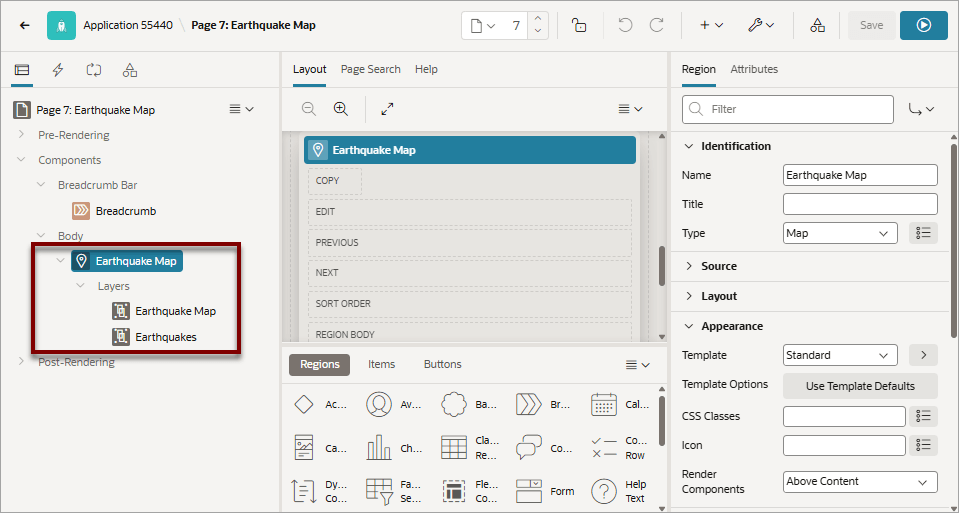
Description of the illustration quake_map_2_layers.png - In the Rendering tab (left pane), under Layers, select
Earthquakes.Layer attributes display in the Property Editor.
- In the Property Editor, edit Zoom Levels:
Zoom Levels must have a Minimum value of 1 and a Maximum value of 18.
- Zoom Levels, Minimum - Specify the Minimum zoom level for this layer to
become visible ( for example, enter
1). - Zoom Levels, Maximum - Specify the Maximum zoom level for this layer to
become visible (for example, enter
8).
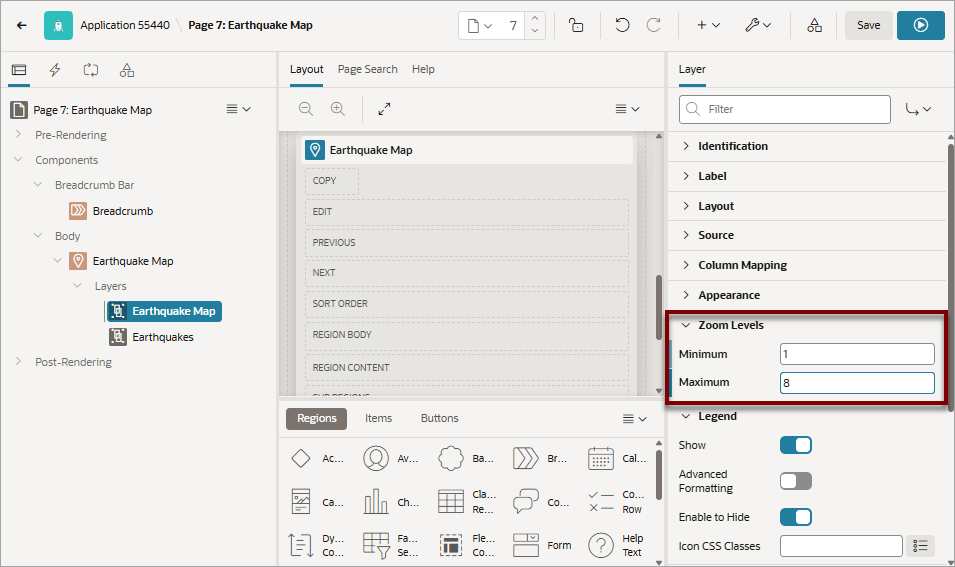
Description of the illustration quake_map_zoom.pngThese settings decrease the available zoom levels from the default (1 to 18) to 1 to 8. When the user zooms outside of specified Zoom Levels, the layer disappears.
- Zoom Levels, Minimum - Specify the Minimum zoom level for this layer to
become visible ( for example, enter
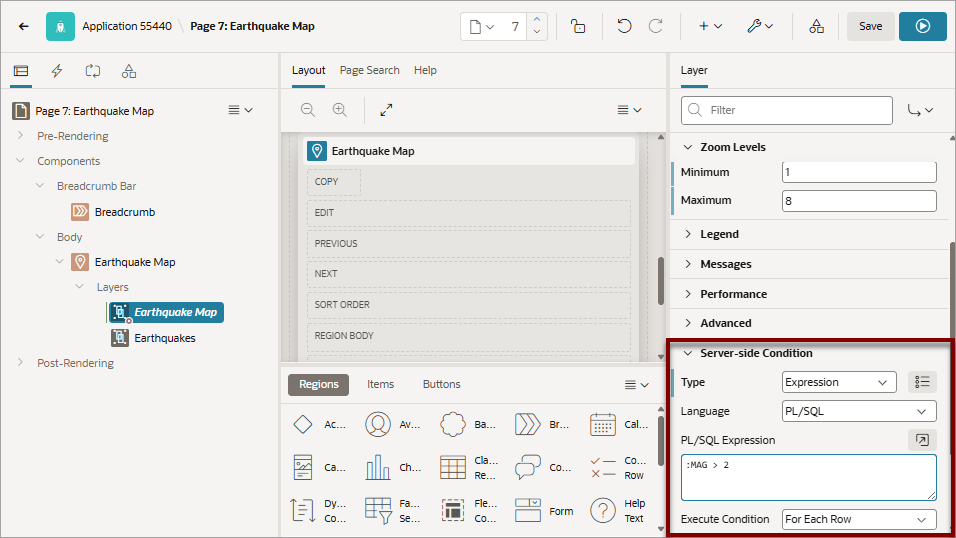
- Create a server-side condition:
- Server-side Condition, Type - Select Expression.
- Server-side Condition, PL/SQL Expression - Enter
:MAG > 2 - Server-side Condition, Execute Condition - Select For Each Row.
- Click Save and Run Page to view the application
runtime.The map appears. Only eight zoom levels are available and only earthquakes with a magnitude greater than 2 display.
Parent topic: Editing Maps
10.4.6.4 Connecting a Map Region with a Report Region
Connect a map region with a classic report region.
This topic explains how to connect a map region with a classic report so that whenever the map region changes (that is, moves or zooms in or out), the report region refreshes to reflect the change. In order to connect a map region with a report region, this example creates a page which includes the following:
- A map containing an object layer named
Earthquake Mapsourced from a local table namedEARTHQUAKE_TABLE. - A classic report based on a SQL query also based on
EARTHQUAKE_TABLE. - To sync the map with the report, a hidden page item is used to store the current map bounds (BBOX). A bounding box (BBOX) is an area defined by minimum and maximum latitude and longitude values.
Note:
Because of restrictions within Oracle Spatial, this example only works if the map shows less than half of the earth. Therefore, the report will not refresh for zoom levels 1 and 2 of the map. See Coordinate Systems (Spatial Reference Systems) in Oracle Spatial Developer's Guide.To connect map with a report region:
- Run the Create Application Wizard and create an application.
- Run the Create Page Wizard and create a new map page:
- On the Application home page, click Create Page.
- Under Component, select Map.
- Page Definition:
- Name - Specify a text name for this page (for
example,
Earthquake Map and Report). - Page Mode - Accept the default Normal.
- Name - Specify a text name for this page (for
example,
- Data Source:
- Data Source - Select a Data Source for the page (for example, Local Database).
- Source Type - Specify the source of the new page (for example, Table).
- Table/View Name - Select a table on which to build the map (for example, EARTHQUAKE_TABLE).
- Navigation - Expand the region and enable or disable navigation. If either flag is enabled, additional attributes appear. To learn more about an attribute, see field-level Help.
- Click Next.
- Map Style - Select the spatial geometry layer type (for example, Points).
- Map Attributes:
- Geometry Column Type - Select how spatial objects are sourced. (for example, Geometry Column).
- Geometry Column - Pick the spatial geometry column (for example, GEOMETRY).
- Tooltip Column - Select the column to be used as tooltip (for example, MAG).
- Click Create Page.
- If you run the page, an earthquake map appears.
- Return to Page Designer. Click Page X on the Developer toolbar, where X is the page number.
Page Designer appears. - Add a classic report adjacent to the map:
- In the Rendering tab, select Earthquake Map and Report region.
- In the Gallery, select Regions tab at the bottom of the central pane, locate Classic Report.
- Right-click Classic Report and select
Add To, Body,
Earthquake Map, and then Column
after.A New Classic Report region appears next to the Earthquake Map in the Layout tab.
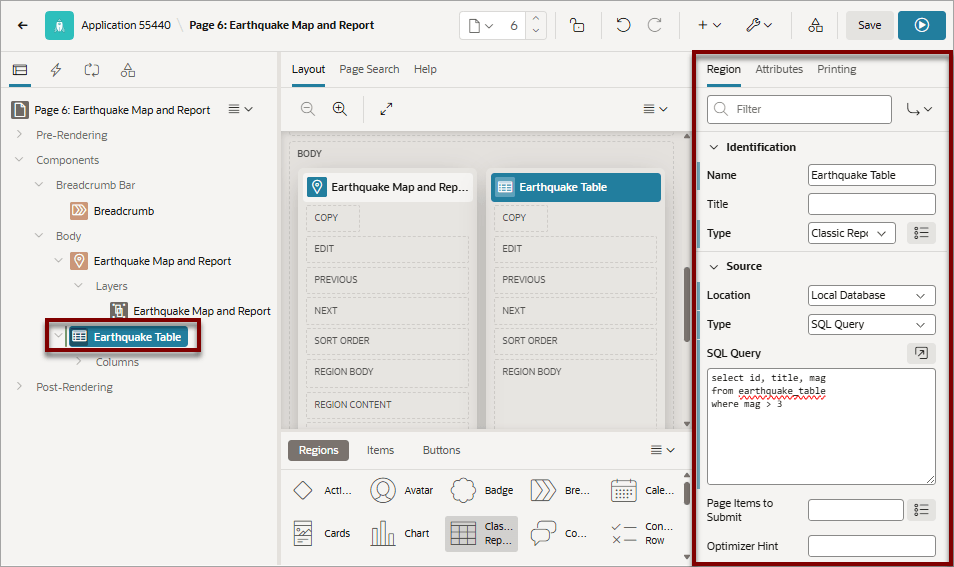
- In the Property Editor, edit the following Region attributes:
- Identification, Title - Enter
Earthquake Table - Source, Location - Select Local Database.
- Source, Type - Select SQL Query.
- Source, SQL Query - Enter:
select id, title, mag from earthquake_table where mag > 3 - Layout, Sequence - Enter
20
Description of the illustration quake_rpt_region_att.png - Identification, Title - Enter
- Edit the Classic Report region Attributes:
- Click the Attributes tab.
-
Messages, When No Data Found - Enter:
No features on the map. If you're zoomed out to the whole earth, zoom in to see data.
- Click Save and Run Page.
The new classic report displays to the right of the earthquake map.
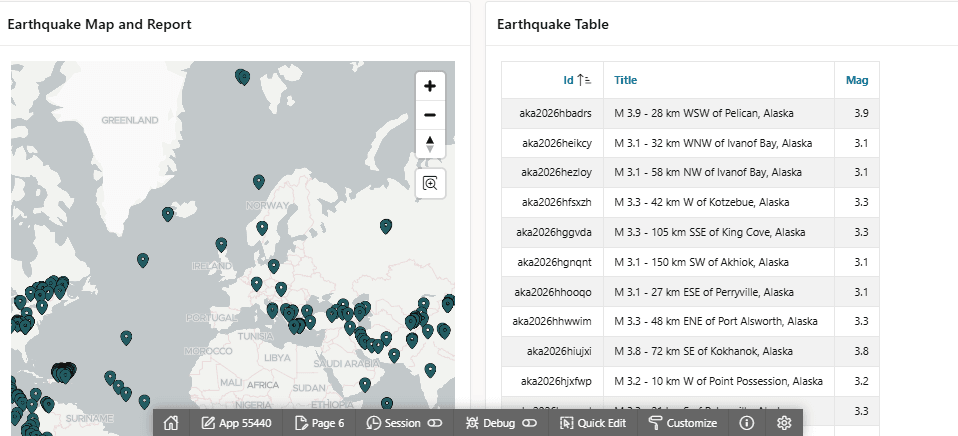
Description of the illustration quake_map_rpt.png - Return to Page Designer. Click Page X on the Developer toolbar, where X is the page number.
- Add a hidden page item to store the current map bounds:
- In the Rendering tab, right-click Earthquake Table and Report and select Create Page Item Below.
- Edit the following Page Item attributes in the Property Editor:
- Identification, Name - Enter
PX_BBOX, where X is the page number. - Identification, Type - Select Hidden.
- Settings, Value Protected - Disable this option.
This page item stores the current map bounds and is used by the report query. It does not restrict where users can navigate on the map.
- Identification, Name - Enter
- Update the Earthquake Map region:
- In the Rendering tab, select the Earthquake Map region.
- In the Property Editor, click Attributes.
- Advanced, Bounding Box Item - Select PX_BBOX ,
where X is the page number.
The Bounding Box Item stores the current bounds of the map in a page item. To restrict navigation to a fixed area, use the map region Bounding Box attributes instead.
- Click Save.
- Update the SQL query that defines the classic report to include the spatial
filter:
- In the Rendering tab, select the Earthquake Table region.
- In the Property Editor, update the following:
-
Source, SQL Query - Enter:
select id, title, mag from earthquake_table where (mag > 3) and sdo_anyinteract (geometry, sdo_util.from_geojson ( :PX_BBOX)) = 'TRUE'Where X in PX_BBOX is the page number.
-
Source, Page Items to Submit - Select PX_BBOX , where X is the page number.
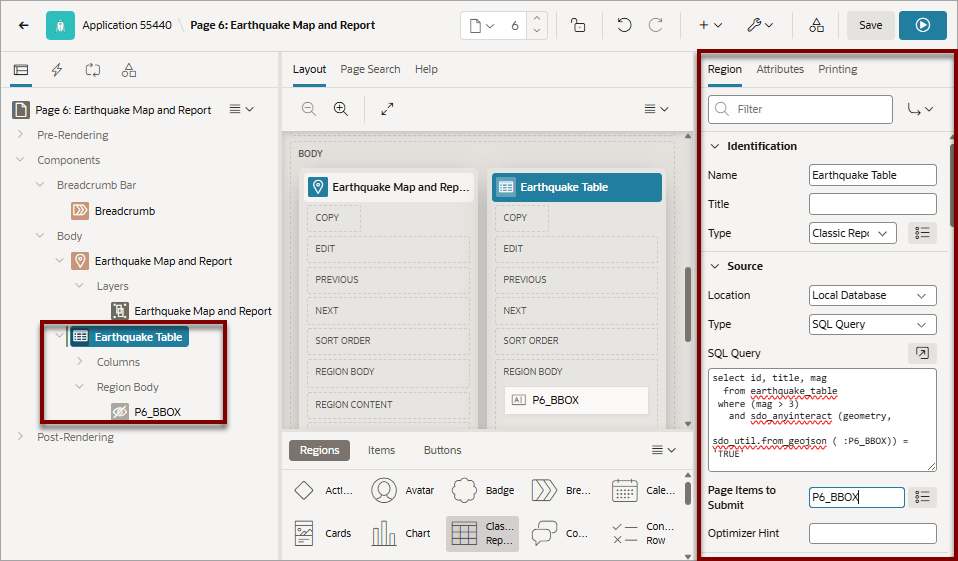
Description of the illustration update_quake_rpt_source.pngNote:
If the classic report should always reflect a fixed geographic area, you can also define the map region Bounding Box. Use Bounding Box Item to store the current bounds. Use Bounding Box to restrict the visible map extent. -
- Add a dynamic action to refresh the report as the map display changes:
- In the Rendering tab, right-click the map region, Earthquake Map and Report and select Create Dynamic Action.
- In the Property Editor, edit the following Dynamic Action
attributes:
- Identification, Name - Enter a name for this dynamic action (for example,
Map Change). - When, Event - Select Map Changed [Map].
- Client-side Condition, Type - Select Item is not null.
- Client-side Condition, Items - Select PX_BBOX , where X is the page number.
Next, add TRUE actions.
- Identification, Name - Enter a name for this dynamic action (for example,
- Add a Set Value Action which resets the PX_BBOX item (which is set by
the map region) to NULL, if the current zoom level is below 3.
- In the Rendering tab, select the existing True action, Show.
- Edit the following attributes in the Property Editor:
- Identification, Name - Enter the name of the action
(for example,
NULL if zoom < 3). - Identification, Action - Select Set Value.
- Settings, Set Type - Select Static Assignment.
- Affected Elements, Item(s) - Select PX_BBOX , where X is the page number.
- Client-side Condition, Type - Select JavaScript expression.
-
Client-side Condition, JavaScript expression - Enter:
this.data && this.data.zoom < 3
- Identification, Name - Enter the name of the action
(for example,
- Add a Show Action to show the report region if PX_BBOX is not NULL. This
action in combination with the Set Value action will hide the report for zoom
levels 0, 1 and 2.
- In the Rendering tab, select the Map Change dynamic action and select Create TRUE Action.
- Edit the following attributes in the Property Editor:
- Identification, Name - Enter the name of the action
(for example,
Hide if zoom 0, 1, 2). - Identification, Action - Select Show.
- Affected Elements, Selection Type - Select Region.
- Affected Elements, Region - Select Earthquake Table.
- Client-side Condition, Type - Select Item is not null.
- Client-side Condition, Item - Select PX_BBOX , where X is the page number.
- Identification, Name - Enter the name of the action
(for example,
- Add Hide Action to hide the classic report if PX_BBOX is NULL.
- In the Rendering tab, right-click the Map Change dynamic action and select Create TRUE Action.
- Edit the following attributes in the Property Editor:
- Identification, Name - Enter the name of the action
(for example,
Hide if BBOX NULL). - Identification, Action - Select Hide.
- Affected Elements, Selection Type - Select Region.
- Affected Elements, Region - Select Earthquake Table.
- Client-side Condition, Type - Select Item is null.
- Client-side Condition, Item - Select PX_BBOX , where X is the page number.
- Click Save.
- Identification, Name - Enter the name of the action
(for example,
- Add Refresh Action to refresh the classic report if it is visible (that is, if
PX_BBOX is not NULL).
- In the Rendering tab, right-click the Map Change dynamic action and select Create TRUE Action.
- Edit the following attributes in the Property Editor:
- Identification, Name - Enter the name of the action
(for example,
Refresh report). - Identification, Action - Select Refresh.
- Affected Elements, Selection Type - Select Region.
- Affected Elements, Region - Select Earthquake Table.
- Client-side Condition, Type - Select Item is not null.
- Client-side Condition, Item - Select PX_BBOX , where X is the page number.
- Click Save.
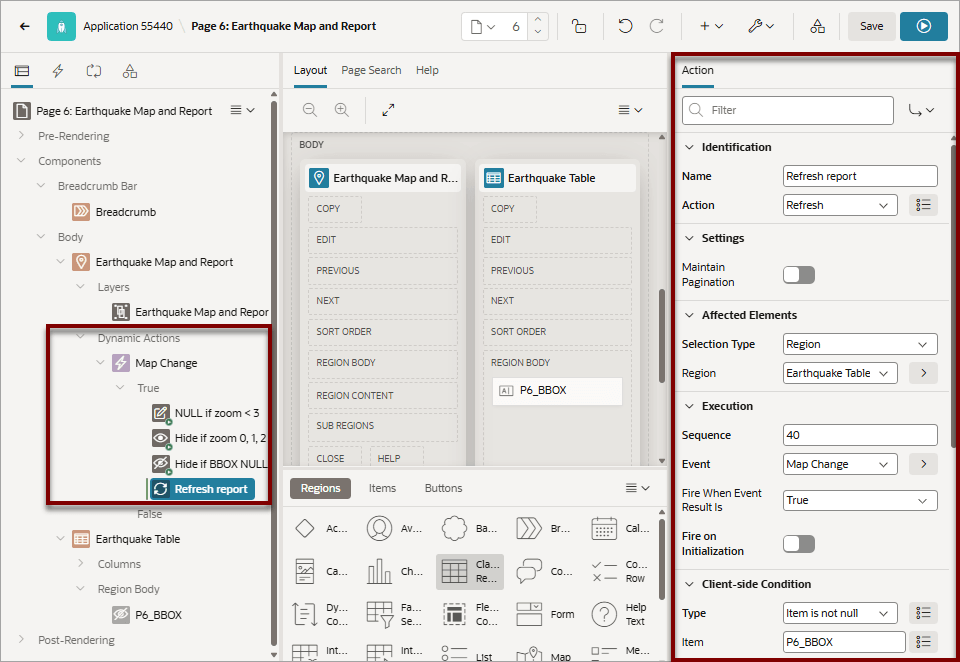
Description of the illustration refresh_action.png - Identification, Name - Enter the name of the action
(for example,
- Click Save and Run Page.
Initially, the report does not appear.
- Reposition the map over North America and click Zoom (+)
twice.
The Earthquake Table appears.
If you reposition the map, Earthquake Table updates as well.
Parent topic: Editing Maps