4.1 Getting Started with Team Development
Access Team Development, complete the setup process, and learn about the Team Development toolbar.
- Accessing Team Development
Access Team Development by clicking the Team Development in the right region the Workspace home page, or from Workspace Utilites. - Setting Up Team Development
Complete the setup process by installing sample labels, sample templates, sample milestones, and selecting a default language. - Team Development Toolbar
Use the toolbar at the top of the most Team Development pages to link to notifications, jump to other pages, or create a new issue.
Parent topic: Managing Team Development
4.1.1 Accessing Team Development
Access Team Development by clicking the Team Development in the right region the Workspace home page, or from Workspace Utilites.
You can access Team Development in two ways:
-
From the Workspace home page, click Team Development in the right region on the Workspace home page.
-
From Workspace Utilities:
- On the Workspace home page, click the App Builder icon.
- On the App Builder home page, click the Workspace Utilities icon.
- Click Team Development.
The Team Development appears.
Parent topic: Getting Started with Team Development
4.1.2 Setting Up Team Development
Complete the setup process by installing sample labels, sample templates, sample milestones, and selecting a default language.
When you access Team Development for the first time in a new workspace, a welcome screen appears. Oracle recommends you follow the on-screen instructions and completing the setup process.
To setup Team Development:
Parent topic: Getting Started with Team Development
4.1.3 Team Development Toolbar
Use the toolbar at the top of the most Team Development pages to link to notifications, jump to other pages, or create a new issue.
Team Development Toolbar
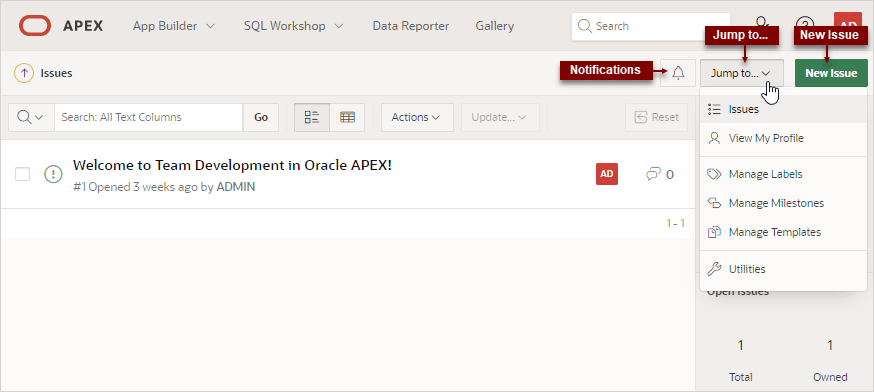
Description of the illustration team_dev_toolbar.png
The Team Development toolbar contains the following controls:
- Notifications - Links the Notifications page where you can view or clear notifications for all issues which you own or are monitoring. See Viewing Your Notifications.
- Jump to - Access other Team Development pages. Available links include:
- Issues - Links to the Issues page. See Issues Page.
- View My Profile - Links to the User Profile page where you can view a report of all issues you own or are monitoring. See Viewing Your Issues.
- Manage Labels - Links to the Labels page. Use labels and label groups to classify issues. See Managing Labels.
- Manage Milestones - Links to the Milestones page. Create milestones to track events. See Managing Milestones.
- Manage Templates - Links to the Templates page. Templates provide starter text for issues and issue comments. See Managing Templates.
- Utilities - Links to the Team Development Utilities page. See Using Team Development Utilities.
- New Issue - Create new issues. See Creating an Issue.
Parent topic: Getting Started with Team Development