2.3 Understanding the Workspace Home Page
When you sign in to Oracle APEX, the Workspace home page appears.
Each Oracle APEX development instance can contain multiple workspaces. A workspace is a virtual private database which enables multiple users to work within the same APEX installation while keeping their objects, data and applications private. This section describes the regions that make up the Workspace home page.
- Development Tools
Learn how to access the development tools, App Builder, SQL Workshop, Data Reporter, and the App Gallery. - Top Apps and Top Users Dashboards
Learn about the Top Apps and Top Users regions. - Summary and Messages Regions
Learn about the Summary and Messages regions. - Resources and Available Updates Regions
Learn about the Resources and Available Updates regions.
Parent topic: Quick Start
2.3.1 Development Tools
Learn how to access the development tools, App Builder, SQL Workshop, Data Reporter, and the App Gallery.
On the Workspace home, you can access these development tools in two ways:
- Selecting the development tool name.
- Selecting options from the menu bar.
The example that follows shows the Workspace home page.
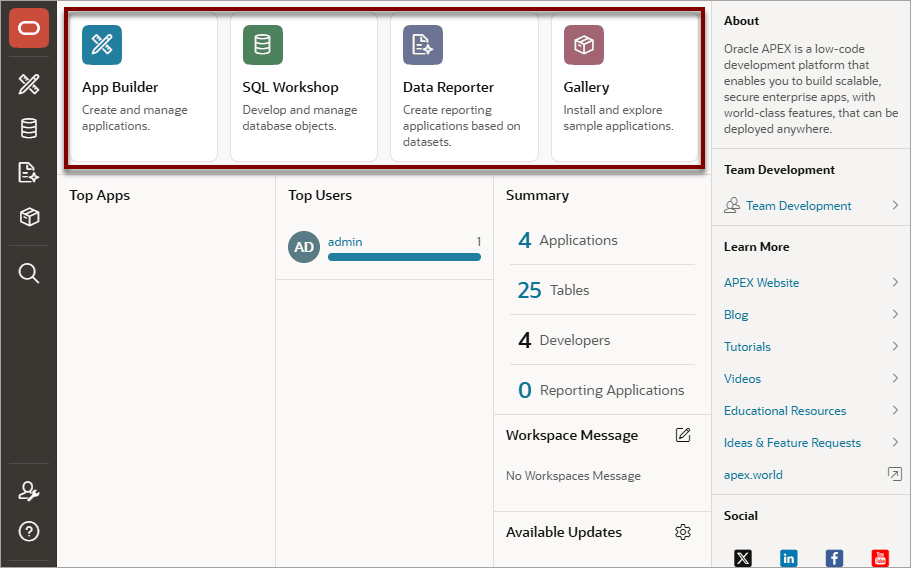
A.menu bar displays in the left side bar. The following developer tools display next:
-
App Builder - Create an application, composed of a set of HTML pages, based on database objects.
-
SQL Workshop - Access tools for viewing and managing database objects.
-
Data Reporter - Develop powerful reports without any knowledge of the APEX development environment. Create datasets, manage users, and build new reporting applications all from the Data Reporter home page.
-
Gallery - The Gallery (or App Gallery) enables you to access to Starter Apps, Sample Apps, and Custom Apps.
Sample Apps highlight specific functionality and are intended to serve as a developer guide on how to make use of a particular feature. Starter Apps are functional apps that provide standalone point-solutions, designed to meet simple requirements that do not require a large and unnecessarily complex solution. You can use these apps "out of the box" or extend them with your own custom functionality. Custom Apps are custom applications that can be installed on your workspace if made available by your Instance Administrator.
2.3.2 Top Apps and Top Users Dashboards
Learn about the Top Apps and Top Users regions.
The Top Apps and Top Users regions display real time information about development
activities in the current workspace. In the previous image, no apps displays in the
Top Apps region, but the Top Users region displays the admin
user.
Parent topic: Understanding the Workspace Home Page
2.3.3 Summary and Messages Regions
Learn about the Summary and Messages regions.
Summary Region
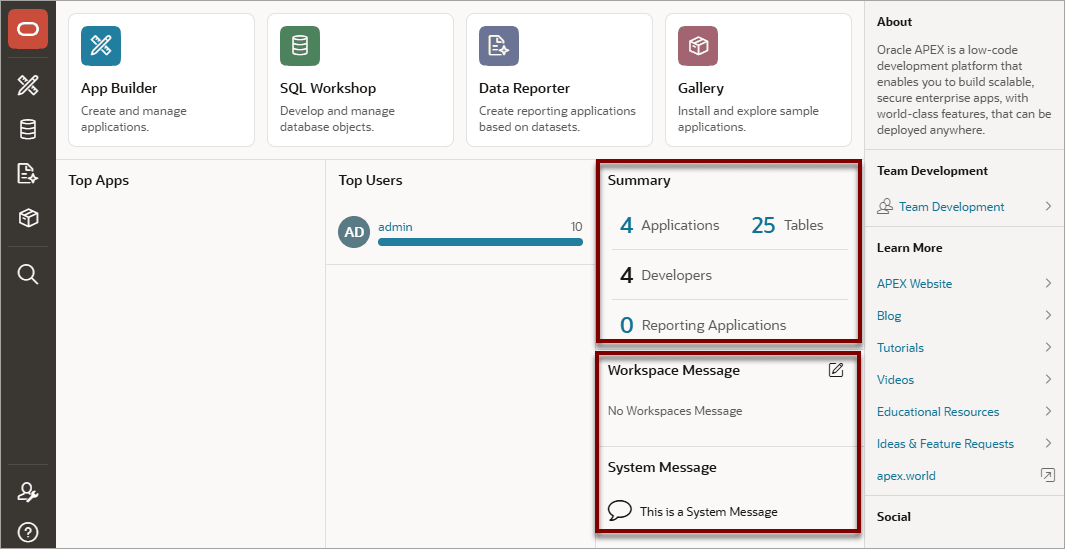
The Summary region list total applications, tables, developers, and reporting applications in the current workspace. In the following example, this workspace has 4 application, 25 tables, and 4 developers.
Workspace Message and System Message Regions
The Workspace Message region displays beneath the Summary region. In the
previous image, no message is defined so the region reads No Workspaces
Message. Administrators can update or edit a workspace message by
clicking the Edit icon.
The System Message region displays next. Instance administrator can
create a System Message to communicate with other users within an instance. In the
previous image, the System Message reads Sample System Message.
2.3.4 Resources and Available Updates Regions
Learn about the Resources and Available Updates regions.
Resources
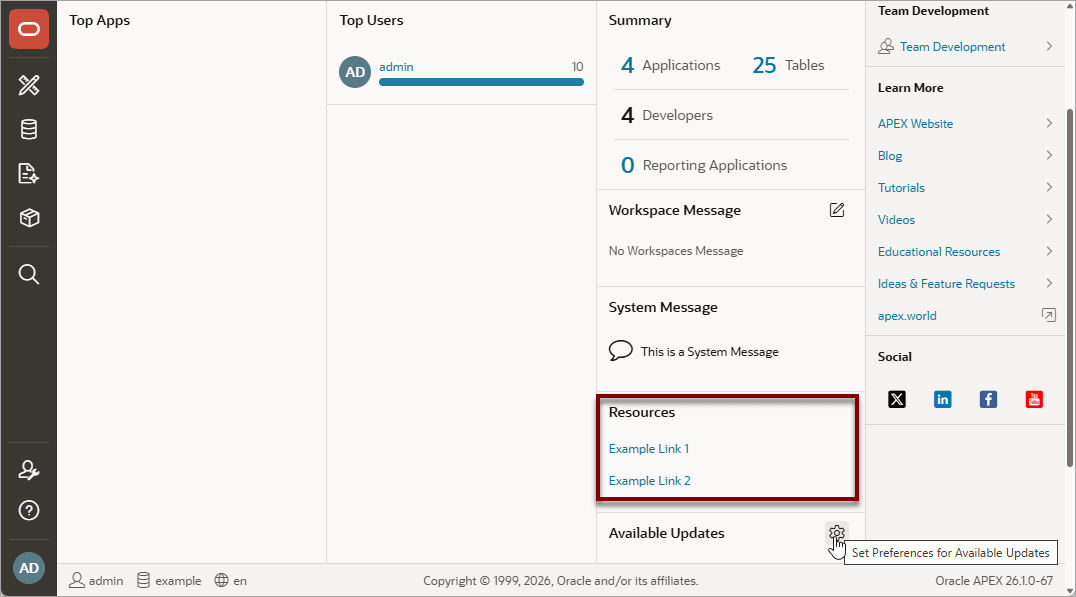
The Resources region displays below System Message. Administrators can add links to the Resources list to communicate important user information such as training, discussion forums, and user feedback applications. The Resources region only appears if resources have been defined in Administration Services.
Tip:
To learn more, see Managing the Site-Specific Resources List in Oracle APEX Administration GuideAvailable Updates
Note:
APEX updates on Autonomous AI Database are managed by Oracle. See APEX Apply Defer Updates in Using Oracle Autonomous AI Database Serverless. To learn how to programmatically determine the upgrade status and initiate the upgrade, seeAPEX_INSTANCE_ADMIN,
Available Parameter Values in Oracle APEX API
Reference.
The Available Updates region displays on the lower right side of the page and indicates if updates are available for APEX and Oracle REST Data Services. If your installation is current the following message displays:
System is up-to-date
To configure updates, click the Set Preferences for Available Updates icon which displays on the right side of the region. In the dialog, enable or disable updates by selecting Yes or No from the Check for Available Updates list and click Apply Changes.
Note:
To perform this check, APEX transmits the version number of APEX and other system components to Oracle Corporation. In order to continuously improve our products, Oracle is interested in learning about product usage. To that end, statistics can occasionally be sent to Oracle describing the product features in use. No personally identifiable information is sent. To review Oracle's privacy policy see http://www.oracle.com/us/legal/privacy/overview/index.html.Parent topic: Understanding the Workspace Home Page