17 Upgrading Oracle APEX Applications
Installing a new release of APEX updates existing applications to the latest release, but does not alter application user interface or application components.
Once you upgrade an APEX instance from a previous release, existing applications will work without modification. However, to keep applications maintainable, up-to-date, and to leverage new functionality, perform the following steps after an upgrade or after an application has been imported which was exported from a previous release.
Tip:
At the completion of each task described in this section, Oracle recommends running and thoroughly testing your application.- Reviewing Release Notes
After you upgrade from a previous APEX release, review the Oracle APEX Release Notes. - Refreshing the Universal Theme
Update an application to use the latest Universal Theme to take advantage of new features, enhancements, and bug fixes as well as styling for new APEX components. - Updating App Compatibility Mode
The Compatibility Mode attribute controls the backward compatibility of the APEX runtime engine when executing an application. - Running Application Upgrade
Learn about the Application Upgrade Wizard. - Reviewing Old JavaScript
For applications using jQuery Migrate or legacy JavaScript, review the User Interface, JavaScript settings.
17.1 Reviewing Release Notes
After you upgrade from a previous APEX release, review the Oracle APEX Release Notes.
Oracle APEX Release Notes contain important information not included in the APEX documentation. Key sections to review include:
- Changed Behavior - Describes changes in application and component behavior compared to previous releases.
- Deprecated Features - Lists features which Oracle plans to desupport or remove in a future APEX release. If a feature is related to application metadata or an API, existing applications can still use the feature, but Oracle strongly recommends that developers start to modify their applications as described in this section. Use APEX Advisor to scan existing applications for deprecated attributes.
- Deprecated in Previous Releases - Lists features which were deprecated in a previous release but have not been fully removed or desupported from APEX. Oracle strongly recommends that developers start to modify their applications as described in this section. Run APEX Advisor to scan existing applications for deprecated attributes.
- Desupported Features - Lists features that are no longer available. If a desupported feature is related to application metadata or APIs, then existing applications may not work as they did previously. Oracle recommends modifying the application to replace the feature.
-
Desupported in Previous Releases- Lists features that were desupported in a previous release.
Parent topic: Upgrading Oracle APEX Applications
17.2 Refreshing the Universal Theme
Update an application to use the latest Universal Theme to take advantage of new features, enhancements, and bug fixes as well as styling for new APEX components.
Tip:
Before starting this procedure, Oracle recommends backing up your application by either exporting it or creating a copy. See Exporting an Application and Copying an Application.
To update an application to use the latest Universal Theme
- Navigate to the App Builder home page:
- Click Refresh Theme.
- Run and test your application.
Parent topic: Upgrading Oracle APEX Applications
17.3 Updating App Compatibility Mode
The Compatibility Mode attribute controls the backward compatibility of the APEX runtime engine when executing an application.
Certain runtime behaviors change from release to release. To not break or change the behavior of existing applications, this attribute is automatically set during upgrade if necessary.
To keep applications maintainable, set Compatibility Mode to the latest release after reviewing the changed behavior in the Release Notes and making the necessary changes.
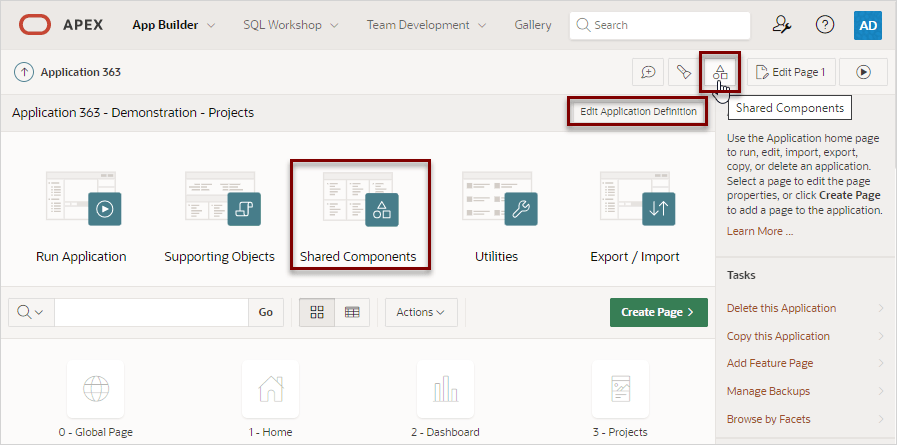
To update the Compatibility Mode within an application:
- Select an application.
The Application home page appears.
Parent topic: Upgrading Oracle APEX Applications
17.4 Running Application Upgrade
Learn about the Application Upgrade Wizard.
Use the Application Upgrade Wizard to perform a bulk update after upgrading to a new release or importing an application from a previous APEX release.
The Application Upgrade Wizard enables you to bulk update your application to leverage new features, or to automatically enable new functionality for existing components.
To upgrade an application to use new components:
Related Topics
Parent topic: Upgrading Oracle APEX Applications
17.5 Reviewing Old JavaScript
For applications using jQuery Migrate or legacy JavaScript, review the User Interface, JavaScript settings.
If your application uses jQuery Migrate or legacy JavaScript, review this logic to determine if it is still necessary. Removing this dependency benefits the application by not only ensuring you are only reliant on current, supported technology, but also a performance benefit because APEX will not need to load the corresponding library code.
jQuery 3.x breaks compatibility with earlier 2.x versions. For applications that still rely on removed 2.x functionality, you can use the jQuery Migrate plug-in. To include the jQuery Migrate plug-in, go to the User Interface page and enable Include jQuery Migrate as described in the task that follows.
If your application relies on removed 1.x jQuery APIs, that functionality no longer works as of Oracle Application Express release 18.1. You must update the JavaScript to only use jQuery 3.5 or later APIs. To learn more, see Known Issues for jQuery Upgrade in Oracle APEX Release Notes.
To review the User Interface, JavaScript settings:
Parent topic: Upgrading Oracle APEX Applications