Editing Rows in an Interactive Grid
Edit rows of an editable interactive grid with the Row Actions Menu, Edit button, and other functions in the interface.
About the Row Actions Menu in an Editable Interactive Grid
The Row Actions Menu appears in editable interactive grids. Users can quickly edit the rows of an editable grid with functions such as adding, duplicating, deleting, refreshing, and reverting rows.
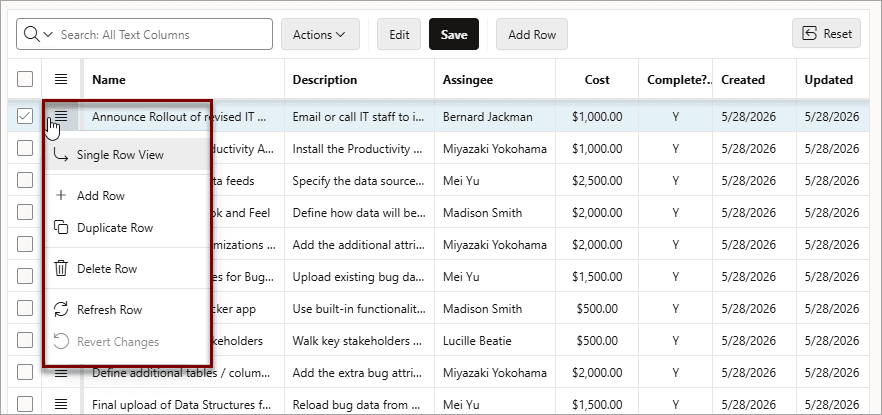
Description of the illustration ig_row_actions_menu.png
Single Row View
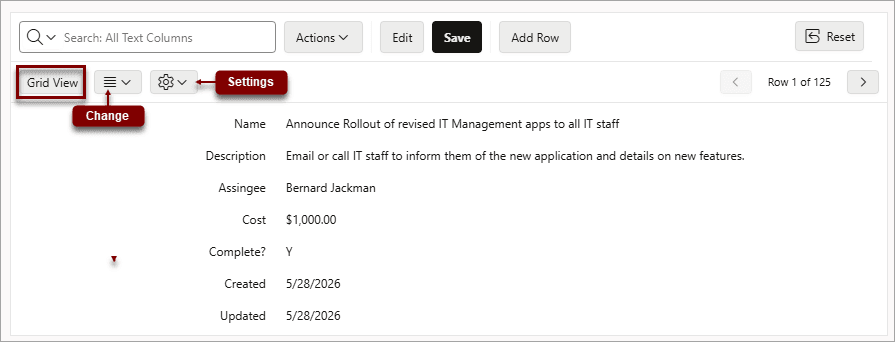
Single Row View changes the grid display to a single-page view of a row’s contents. Used for viewing an individual row in detail, one row at a time.
Description of the illustration ig_single_row_view.png
Available controls include:
-
Grid View - Closes the Single Row View and returns to the grid.
-
Change:
-
Add Row - Adds a new row below the current one.
-
Duplicate Row - Creates a copy of the currently selected row and inserts the copy below the original.
-
Delete Row -Deletes the current row.
-
Refresh Row - Reloads the row by calling the database and pulling in any updates. Refreshes a row to without reloading the entire application page.
-
Revert Changes - Undoes any changes to the row since the grid was last saved
-
-
Settings - Enable or disable Exclude Null Values and Display Values settings.
-
Previous and Next- Click the Previous and Next buttons to navigate between rows in the grid.
See Also: Editing Multiple Rows in an Editable Interactive Grid
About the Edit Button in an Editable Interactive Grid
The Edit button toggles Editing mode in editable interactive grids. When enabled, you can single-click a cell to edit it; when disabled, you must double-click. While Editing mode enables quicker editing of multiple cells in succession, it can impede navigation in larger grids.
Editing a Cell in an Interactive Grid
Double-click a cell in an editable interactive grid to edit the contents.
To edit the contents of a single cell in an editable interactive grid:
-
Double-click a cell.
Editing mode engages and a cursor displays in the cell.
-
Edit the cell contents.
-
Press Tab or Shift + Tab to edit an adjacent cell in the row or Enter or Shift + Enter to edit an adjacent cell in the column.
-
To exit editing mode, press Escape.
-
Click Save to save your changes.
Changes to the interactive grid are saved.
Editing Multiple Rows in an Editable Interactive Grid
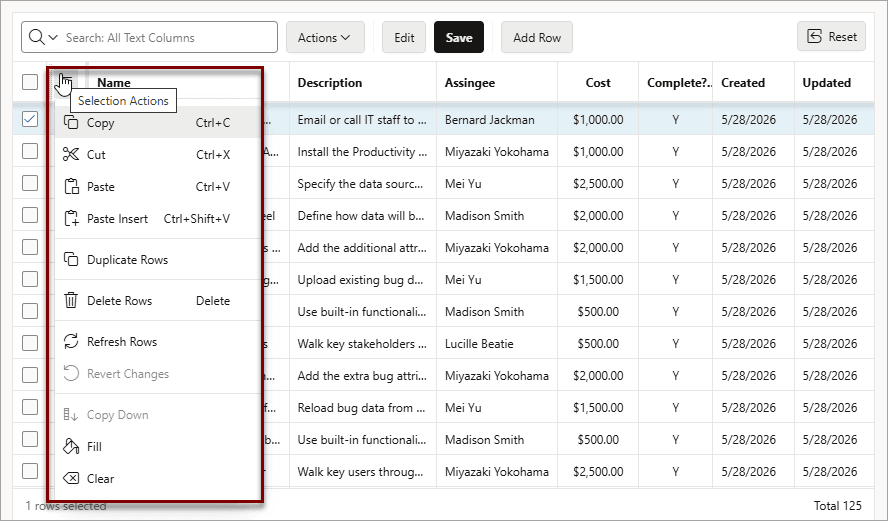
Select the desired rows of an editable interactive grid to edit, then select an option from the Selection Actions menu.
To edit multiple rows in an editable interactive grid:
-
In Row Selection mode, select rows by selecting check boxes in the check box column.
Tip: Click the check box in the column heading to select all rows. With all rows selected, click it again to deselect all rows.
-
In the column heading of the interactive grid, click the Selection Actions menu.
Description of the illustration ig_selection_actions_menu.png
-
Select a valid option. Options include Copy, Cut, Paste. Paste Insert, Duplicate Rows, Delete Rows, Refresh Rows, Revert Changes, Copy Down, Fill, and Clear.
Tip:
All options act on the current selection except for Paste and Paste Insert, which act on the current cell.
Copy, Cut, Copy Down, Fill, and Clear also work in Cell Selection mode.
The selected change applies.