Saving an Interactive Report
Save a private or public interactive report. Only the user who creates a private report can view, save, rename, or delete that private report.
About the Report List
You can view different versions of an interactive report by selecting reports from a Reports list of default or primary reports and private reports.
The following illustration shows the Reports list on the Search bar of an interactive report.
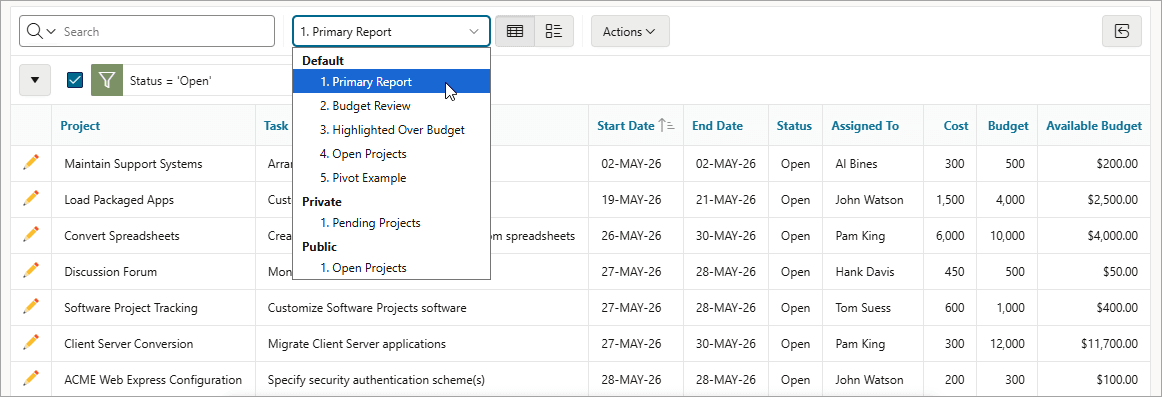
Description of the illustration ir_reports_list.png
This example shows three types of reports:
-
Default - Primary Report
This are the initial reports created by the application developer. Default, Primary reports cannot be renamed or deleted.
-
Private - 1. Pending Projects
This is a Private report. Only the user who creates a private report can view, save, rename, or delete it.
-
Public - 1. Open Projects
This is a Public report. Only the user who creates a public report can save, rename, or delete it. Other users can view and save the layout as another report.
About Configuration Dependencies
The ability to save an interactive report is configurable by the application developer who creates the interactive report.
See Also:
-
Customizing the Interactive Report Search Bar in Oracle APEX App Builder User’s Guide
-
Saving Interactive Reports in Oracle APEX App Builder User’s Guide
Saving a Public or Private Interactive Report
End users can save an interactive report and classify it as Public or Private.
A Public report can be saved, renamed, or deleted by the end user who created it. Other users can view and save the layout as another report. Only the user who creates a Private report can view, save, rename, or delete it.
To save a public or private interactive report:
-
Go to the page containing the interactive report you want to save.
-
Customize the report (for example, hide columns, add filters, and so on).
-
Click the Actions menu and select Report then Save Report.
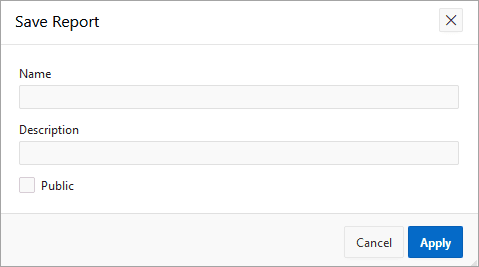
The Save Report dialog appears.
-
In Save Report:
-
Select either As Named Report or As Default Report Settings option.
Tip: This option is only available for developers.
-
Name - Enter a name for the report.
-
Description - Enter an optional description.
-
Public - Select this check box to make the report viewable to all users. Deselect this check box to make the report private.
Tip: Your application developer determines whether you have the ability to save an interactive report as a Public report.
-
Click Apply.
-
Renaming a Public or Private Interactive Report
Rename a public or private report that you have created by clicking its report name.
To rename a public or private interactive report:
-
Select a public or private interactive report to rename.
-
Click the Saved Report filter which displays in the Report Settings area above the report.
-
In the Rename Report dialog, edit the attributes (for example, enter a new name).
-
Click Apply.
Deleting a Public or Private Interactive Report
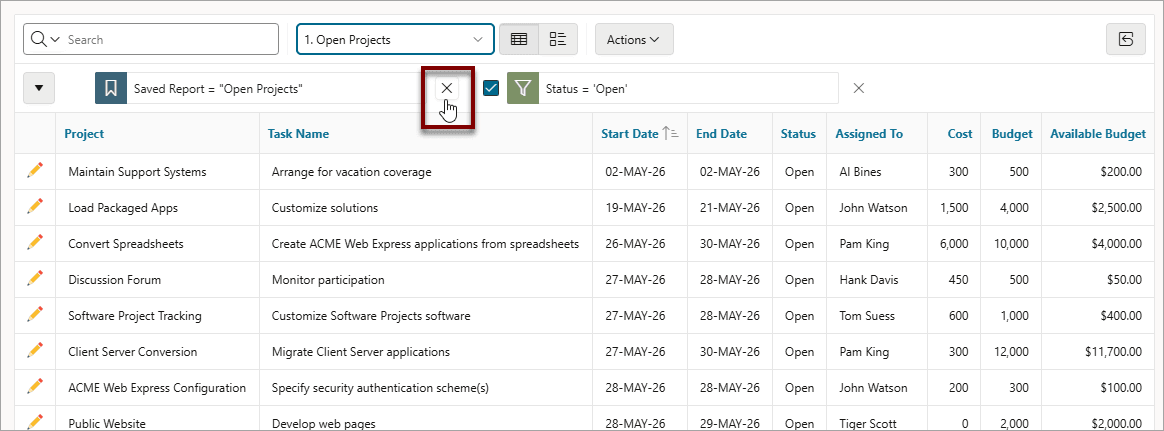
Remove a public or private report that you have created by clicking its Remove Report icon.
To delete a public or private interactive report:
-
Click the Remove Report icon (X) next to the report name.
-
Click Apply.