APEX Menu Bar
Learn about the APEX menu bar.
About the APEX Menu Bar
Learn about the APEX menu bar.
The APEX menu bar displays in a side bar on most Oracle APEX pages and enables developers to access key development tools, components, and functions.
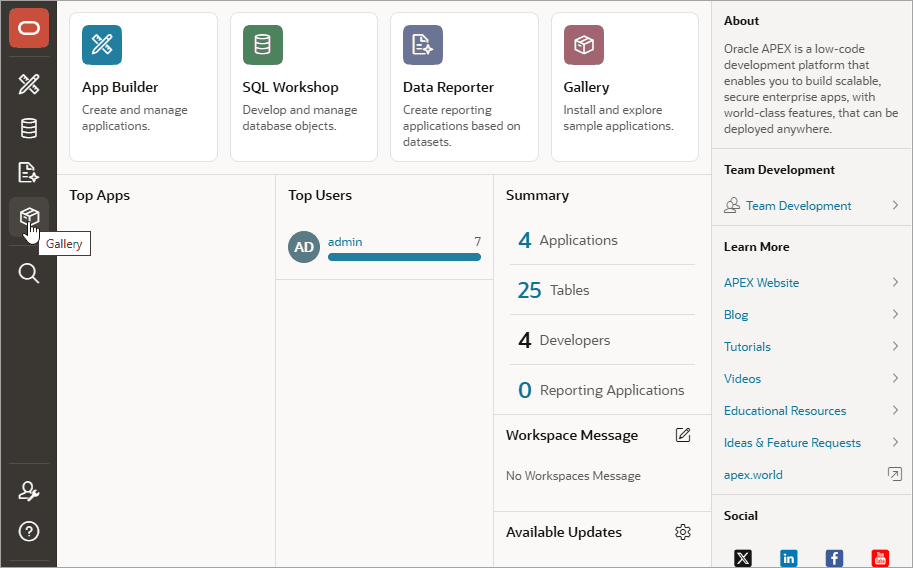
Description of the illustration bldr_hm_menus.png
Options on the menu bar include:
-
 Oracle APEX Home - Links to the current application home page.
 -
 App Builder - Create an application, composed of a set of HTML pages, based on database objects. See App Builder Concepts.
 -
 SQL Workshop - Access tools for viewing and managing database objects. See Getting Started with SQL Workshop.
 -
 Data Reporter - Enables business users to quickly and easily build reporting applications with no developer expertise or knowledge of the APEX development environment. See Introduction to Data Reporter.
 -
 Gallery - Install Sample Apps, Starter Apps, Custom Apps, and Utility Apps. See Using the App Gallery.
 -
 Search - Displays the Global Search window. See Global Search.
 -
 Extension menu - If enabled, add custom links to the Extensions menu on the APEX menu bar. See Extension Menu.
 -
 Help menu - Menu options include Documentation, Discussion Forum, Learn More about Oracle APEX, and About. See Help Menu.
 -
 Account menu - Configure appearance settings, edit your user profile or preferences, or sign out. See Account Menu.
Global Search
Search all applications in a workspace using Global Search.
The Global Search field (also known as Spotlight Search) displays in the menu bar.
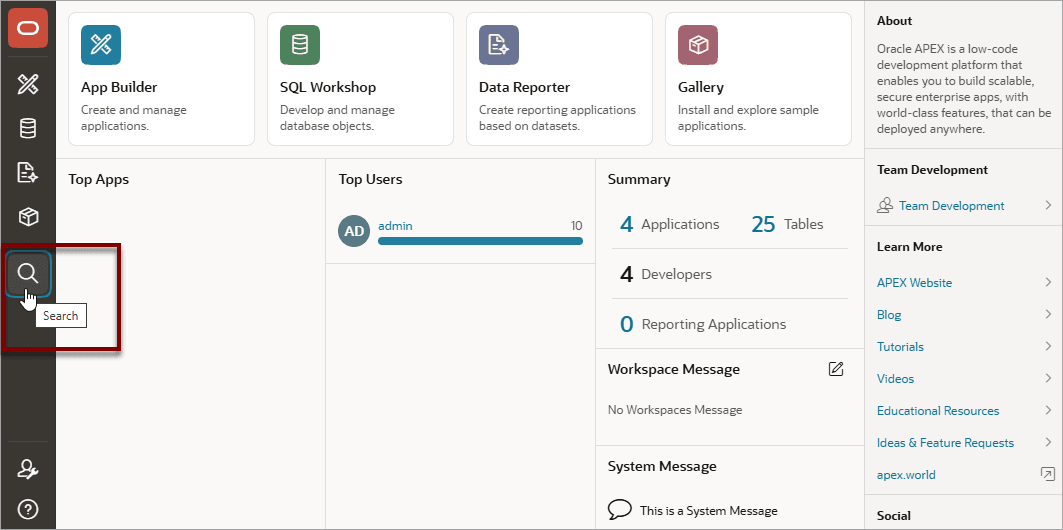
Description of the illustration spotlight_search.png
Key features of Global Search include:
-
Offers effortless navigation within a workspace enabling you to quickly find applications, pages, Shared Components, APEX menus, and so on.
-
Search for component names and immediately set focus to those items in Page Designer.
-
Provides a unified search experience throughout APEX.
About Using Global Search
You can activate Global Search in two ways:
-
Click the Search in the menu bar
-
Use the keyboard shortcut (
Ctrl + Quote) (') (US Keyboards only)
Use Global Search to search all applications in the workspace no matter what your location in the current workspace. For example, if your workspace contains the Sample Reporting sample app, entering Sample will find it. Similarly, you can access global navigation menus that appear at the top window adjacent to the Oracle logo. For example, enter SQL Commands in the Global Search field to instant access SQL Commands.
To close the Global Search dialog, press the Esc key, or click anywhere outside the results.
Syntax to Run Searches
Search by page name and page alias. With in an in-app, use a colon (:) or dash (-) between the application ID or alias and the page ID, name, or alias.
Within App Builder and on the Application home page, APEX supports the following search types and syntax:
-
Pages:
Page Name, ID, or Alias
-
Applications:
App Name, ID, or Alias
-
App Shared Components and Actions:
Examples include workflows, lists of values, templates, and so on.
-
Workspace Utilities, SQL Workshop Utilities
-
Advanced Search
Advanced Search
For Advanced Search use in the following formats:
application_ID:{search term}
application_ALIAS:{search term}
application_ID-{search term}
application_ALIAS-{search term}
Search terms can be a page ID, Name, Alias, or Shared Component.
Where:
-
application_ID - A numeric identification number (or ID) that identifies an application.
-
application_ALIAS - An alternate alphanumeric application identifier. You can use this identifier in place of the application name.
-
page_ALIAS - An alternate alphanumeric page identifier. You can use this identifier in place of the page name.
-
page_ID - Numeric identification number (or ID) that identifies a specific page.
-
page_NAME - An alphanumeric name that identifies a specific page.
The following example navigates you to page 10 of application 570:
10
570-10
570:10
You can also use this syntax to navigate to the Shared Components page of a given application:
application_ID:s
application_ID-s
Where:
- application_ID is the numeric identification number (or ID) that identifies an application.
The following example demonstrates how to navigate to the Shared Components page of application 570:
570:s
570-s
Navigating Search Results
Global Search results display in a dialog. Use the Up and Down arrows keys to navigate the results and press Enter to make a selection. Since the the Global Search icon displays on nearly every page in APEX, you can continue to narrow your search until you find the app, page, or component (such as the item, button, or region) which contains the keyword.
Other available shortcuts change depending on where you are in App Builder, for example:
-
In Page Designer - To search for a page, press
Ctrl + 4. -
In App - To search within an application, press
Ctrl + 3. -
All Apps - To search all applications, press
Ctrl + 2. -
Current Workspace - To search a workspace, press
Ctrl + 1.
Tip: Some browsers map these Ctrl key shortcuts for quick tab navigation. In that case, the shortcut does not work as described above. Instead, they simply activate a particular open browser tab.
Search Example
Suppose you need to find an application called Employees which includes interactive grid built on the EMP table.
Note: In the following example, references to templates appear because they contain the text string emp.
-
Find the application.
-
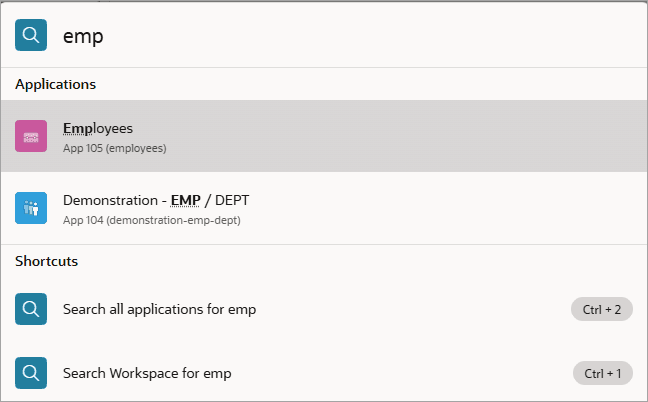
On the Workspace home page, click the Global Search field and enter
emp.Global Search would return results in the following order:
-
Applications
Employees
App 105 (employees)
-
Pages
Employees
App 105/Page 2 (employees)
-
Global
Templates
Team Development / Templates
-
Shared Components:
- Templates
App 105 / Shared Components
- Email Templates
App 105 / Shared Components
-
Actions
- Email Templates
App 105 / Shared Components
-
Shortcuts
-
Search this App for emp (
Ctrl + 3) -
Search all applications for emp (
Ctrl + 2) -
Search Workspace for emp (
Ctrl + 1)
-
-
-
Under Applications, select Employees to view that application.
The Employees application appears.
-
-
Search the application.
-
On the Application home page, click Search and enter
emp.Global Search returns the results.
-
Under Pages, select the Employees page.
The page appears in Page Designer.
-
-
Search the page.
-
In Page Designer, click Search and enter
empagain. Then, select the shortcut, Search Page for emp (or click Crtl+4).Global Search returns the results and displays them in the Page Search tab in the Central pane.
-
Select a component (such as a process, column, region, and so on).
-
Extension Menu
Workspace administrators can add custom links to the Extensions menu on the APEX menu bar.
The Extension menu only appears on the menu bar if a Workspace Administrator has added links to it. When configured, the Extension menu displays on the menu bar between the Global Search field and the Administration menu.
In the following example shows an Extensions menu with links to APEX Blogs, APEX Events, and APEX Office Hours.
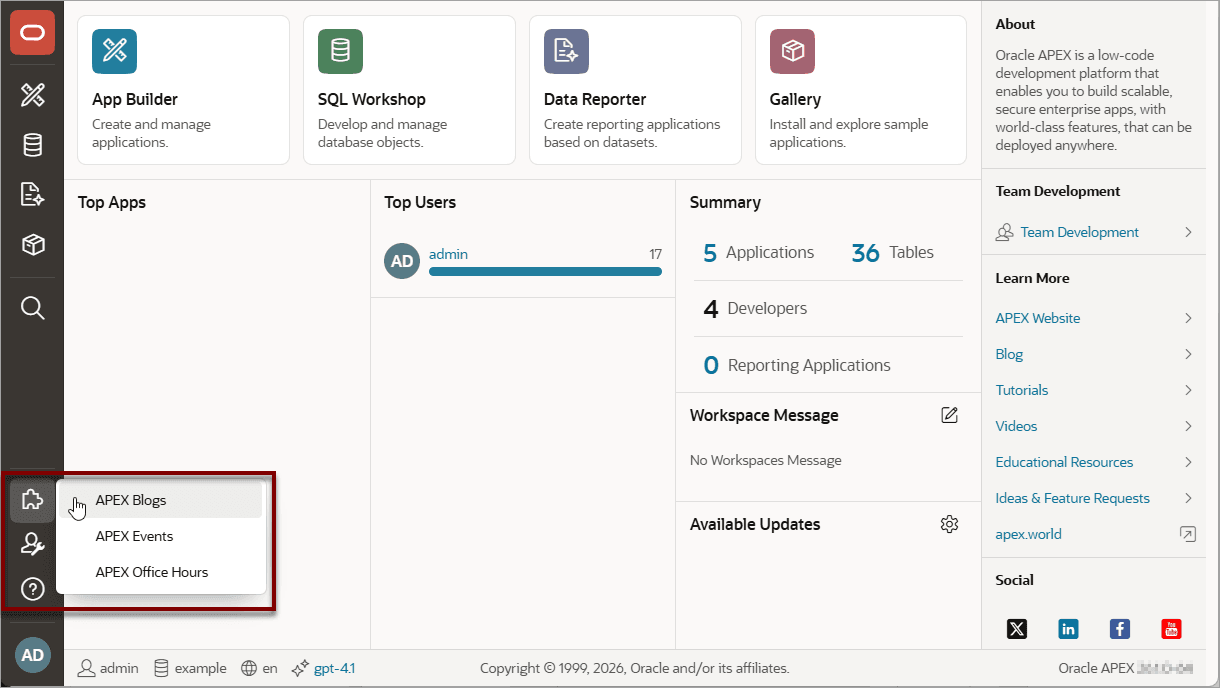
Description of the illustration extensions_menu.png
To learn more about the Extension menu, see Managing Links on the Extension Menu in Oracle APEX Administration Guide.
Administration Menu
Click the Administration menu to access Workspace Administration pages such as Manage Service, Manage Users and Groups, Monitor Activity, Dashboards, or Change My Password.
The Administration menu displays after Search on the menu bar and features an image of a person with a wrench.
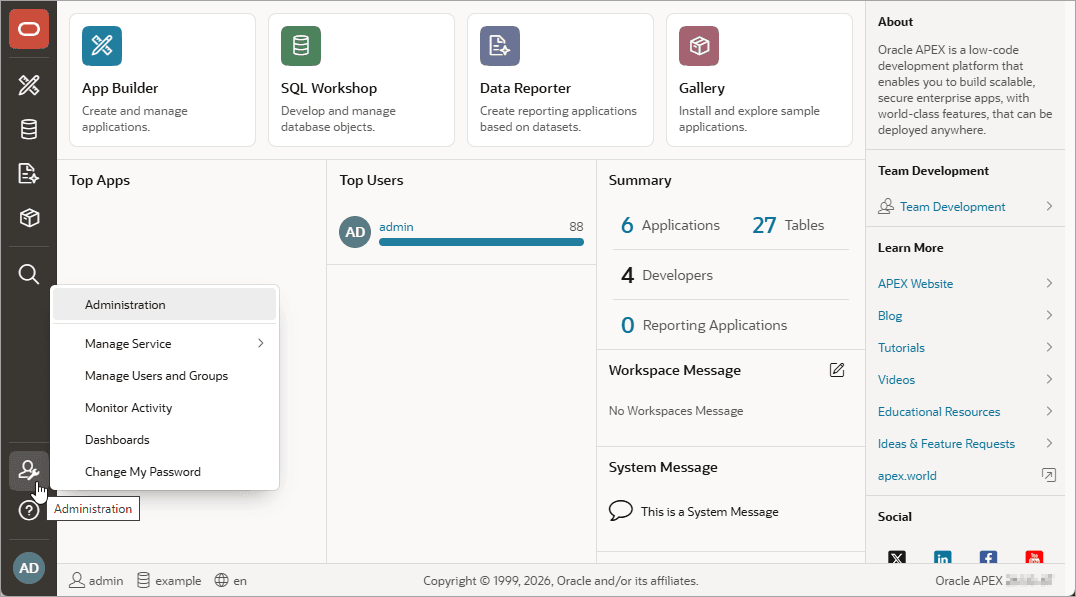
Description of the illustration admin_menu.png
Clicking the Administration menu displays the following options:
-
Administration links to the Workspace Administration page. To access the Oracle APEX development environment, users sign in to a shared work area called a workspace. Workspace administrators monitor and administer a workspace. Common workspace administration tasks include managing service requests, configuring workspace preferences, creating workspace announcements, managing session state, creating user accounts, and managing groups. See Workspace Administration Page in Oracle APEX Administration Guide.
-
Manage Service displays a submenu of options on the Manage Service page. Administrators use the Manage Service page to manage service requests, configure workspace preferences, define workspace messages, enable a workspace-level banner, view the Workspace Summary report, and configure Extension menu links. See Manage Service Page in Oracle APEX Administration Guide.
-
Manage Users and Groups links to Manage Users and Groups page. Workspace administrators can create new user accounts, manage existing user accounts, and change user passwords. See Managing Users in a Workspace in Oracle APEX Administration Guide.
-
Monitory Activity links to the Monitor Activity page. Use this page to monitor changes to page views, developer activity, page view analysis, and active sessions. It also shows reports on such information as login attempts and external click counts. See Monitoring Activity Within a Workspace in Oracle APEX Administration Guide.
-
Dashboards links to the Dashboard page. Use this page to view details about the current workspace and monitor users, activity, developer activity, performance, application development, and view database details. See Viewing Workspace Dashboards in Oracle APEX Administration Guide.
-
Change My Password links to the Change Password section of the Edit Profile dialog box. See Changing Your Profile or Password.
For more information, see:
Help Menu
Learn about the links available on the Help menu.
The Help menu resembles a question mark enclosed with a circle.
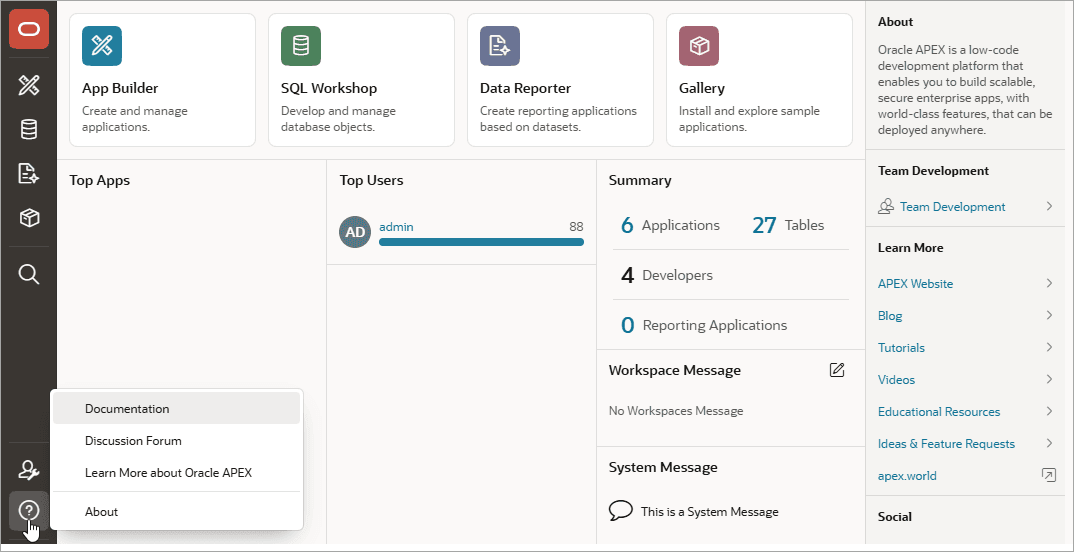
Description of the illustration help_ico.png
Click the Help menu to access the following menu items:
-
Documentation links to Oracle APEX, Oracle Help Center. To learn more, Using Oracle APEX Documentation.
-
Discussion Forum links to the APEX page in Oracle Forums.
-
Learn More about Oracle APEX links to https://www.oracle.com/apex/.
-
About links to the About Oracle APEX page which displays details about the current instance including product details, CGI environment details. database information, currently selected character sets, database initialization parameters, and Oracle legal notices.
To learn more, see Viewing the About Oracle APEX Page in Oracle APEX Administration Guide.
Account Menu
Click the Account menu on the menu bar to configure appearance settings, edit your user profile or preferences, or sign out.
The Account menu displays on the menu bar after the Help menu.
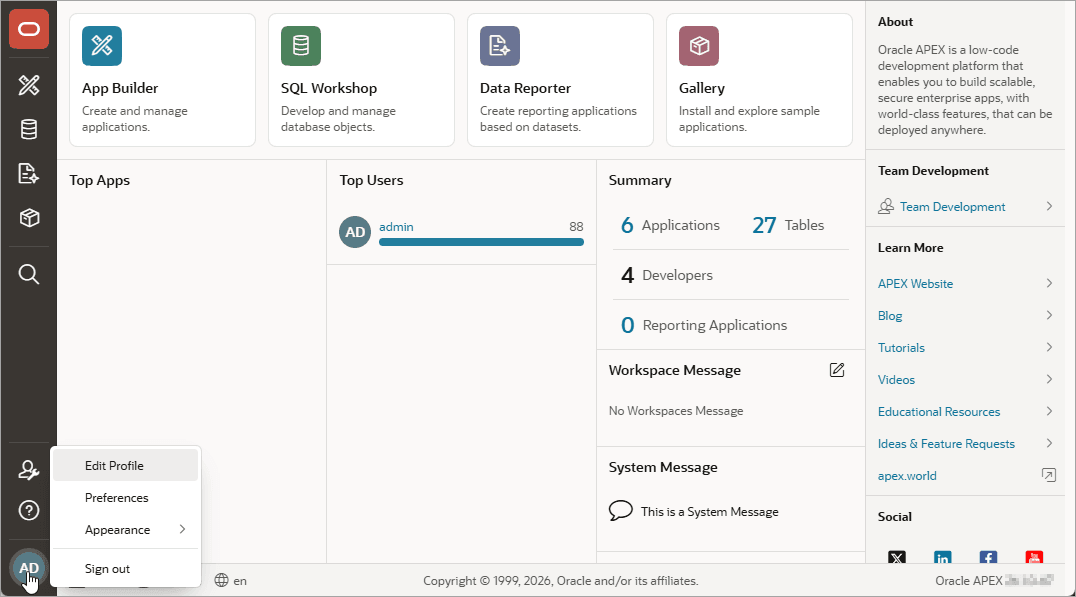
Description of the illustration edit_profile.png
Account menu options include:
-
Edit Profile. Click Edit Profile to edit the options. Click Apply Changes to save your changes.
-
Profile Details:
-
Email Address - Specifies the email address for use with general correspondence, notifications about resetting passwords, and so on.
-
First Name - Specify the first or given name to further identify the user. This optional field is used for informational purposes only.
-
Last Name - Specify the last or family name to further identify the user. This optional field is used for informational purposes only.
-
-
Profile Photo - Select a photo to further identify the user. This optional field is used for informational purposes only.
-
Password - If you wish to change your password, enter a new password. Otherwise, leave the password fields empty and the current password will not be changed.
-
Enter Current Password - Enter your current password. Do not enter a password unless you want to change the current password.
-
Enter New Password - The password used to log in to the system. Do not enter a password unless you want to change the current password.
-
Confirm Password - Enter the password again. Do not enter a password unless you want to change the current password.
-
-
-
Preferences. Click Preferences to configure the options. Click Apply Changes to save your changes.
-
Default Scheme - Specifies the default schema used for data browsing, application creation, and SQL script execution.
-
Default Date Format - Specify the default Oracle date format for the user. This option controls the default date format within SQL Workshop.
-
Unicode CSV Downloads - Specify whether to provide SQL Workshop CSV downloads in Unicode. This only affects SQL Workshop and not custom applications.
-
Run application in new window - Specify how Oracle APEX manages windows or tabs when running applications from the App Builder when using Mozilla Firefox and Microsoft Internet Explorer.
-
Use single window to run all applications - Specify whether different applications reuse the same application runtime window or tab.
-
-
Appearance. Configure how the Oracle APEX user interface displays. Options include:
-
Automatic (default) detects the appropriate setting based on existing system or browser settings.
-
Light Mode renders the user interface using dark-colored text, icons, and graphical user interface elements on a lighter background.
-
Dark Mode renders the user interface using light-colored text, icons, and graphical user interface elements on a darker background.
-
-
Sign Out. Click Sign Out to log out of the current workspace.
For more information, see: