Creating a List Search
Create a List search of an APEX List.
This topic demonstrates how create a search page based on an APEX list of search pages.
Note: This example assumes you have already created the search pages in Creating a Standard Search Page and Creating an Oracle Text Search.
Creating an APEX List
Create an APEX list in Shared Components.
The following task demonstrates how to create a list on which to base a List search.
See Also: Creating Static Lists
To create a static list:
-
Access the Create List Wizard:
-
On the Workspace home page, click the App Builder icon.
-
Select an application.
-
On the Application home page, click Shared Components.
-
Under Navigation and Search, click Lists.
-
Click Create.
The Create List Wizard appears.
-
-
For Name and Type:
-
Name - Enter a numeric or alphanumeric name for the list (for example,
Project Pages List). -
Type - Select Static.
-
Click Next.
-
-
For Query or Static Values - Enter the labels and target pages. For example:
-
Row 1:
-
List Entry Label - Search Projects - Standard
-
Target Page ID or custom URL - 6
-
-
Row 2:
-
List Entry Label - Search Tasks - TEXT
-
Target Page ID or custom URL - 7
-
-
Click Next.
-
-
Click Create List.
-
Click the Application ID breadcrumb to return to the Application home page.
Creating a List Search Configuration
Create a List search configuration.
A search configuration contains information about searchable data source. This task creates a search configuration using the list you created in Creating an APEX List.
To create a List search configurations:
-
Access the Search Configurations page:
-
On the Workspace home page, click the App Builder icon.
-
Select an application.
-
On the Application home page, click Shared Components.
-
Under Navigation and Search, click Search Configurations.
The Search Configurations page appears.
-
-
On the Search Configurations page, click Create.
The Create Search Configuration Wizard appears.
-
Detail:
-
Name - Enter a name for the search configuration (for example,
Search Project Page - List). -
Search Type - Select a type of search. Options include:
-
Standard - Defines a searchable data source such as a table, SQL Query, or REST Data Source. Searches is executed by a SQL Query using
LIKEexpressions. -
Oracle TEXT - Define a searchable table or SQL Query which already has an Oracle TEXT index created. Search is executed by using Oracle TEXT functionality, which provides linguistic and fuzzy search capabilities.
-
Oracle Ubiquitous Search - Search using an Oracle ubiquitous search index (requires Oracle AI Database 26ai or later). The index must be located in the parsing schema of the application.
-
List - Search within a selected List from Shared Components.
For this example, select List.
-
-
List - Select this list you previously created (for example, Project Pages List).
-
Click Next.
-
-
Column Mapping:
-
Primary Key Column - Select the primary key column for the search configuration Data Source (for example, LIST_ENTRY_ID).
-
Title Column - Select the column to be used as title (for example, ENTRY_TARGET).
-
Description Column - Select the column to be used as the description (for example, ENTRY_TEXT).
-
Icon Source - Configure the icon that displays in the header of the search result. Options include:
-
Initials - Use the Title column to display the icon as initials.
-
CSS Classes - Use the entered CSS classes to display the icon.
-
Class Column
For this example, accept the default, Initials.
-
-
-
Click Create Search Configuration.
The search configuration is created and the Search Configuration, Edit page appears and displays the message
Search configuration created. -
Click the Application ID breadcrumb to return to the Application home page.
Creating a List Search Page
Create a List Search page by running the Create Page Wizard.
A Search page features a Search field and a Search Results region. In Page Designer, the Search Results region contains Search Sources which map to the search configurations defined in Shared Components.
When you create a search page with the Create Page Wizard, the wizard creates a Search field for you and prompts you to select search configurations. You can also add additional search configurations later in Page Designer.
To create a search page by running the Create Page Wizard:
-
Navigate to the Application home page:
-
On the Workspace home page, click the App Builder icon.
-
Select the application.
-
-
Click Create Page.
Create a Page appears.
-
Click Component and select Search Page.
-
Page Definition:
-
Page Number - The page number is an integer value that identifies a page within an application.
-
Name - Specify a text name for this page (for example,
Search Project Pages List).This text is also used for page Title. After page creation, you can modify the Title in Page Designer.
-
Page Mode - Identify the page mode. Accept the default, Normal.
-
-
Search Configurations - Select the search configuration to be used by this page (for example, select Search Project Page - List).
-
Navigation - Accept the default and enable Use Breadcrumb and Use Navigation.
-
Click Create Page.
Page Designer appears.
In the Rendering tab, notice the page item, P8_SEARCH and the Search Results region. P8_SEARCH is the search field which enables users to submit search terms. The Search Results region contains both the search results and the Search Source (Search Project Page - List) which maps to search configurations maintained in Shared Components. You can further refine and control the search display and behavior by editing attributes in the Property Editor.
-
Run and test the page:
-
Click Save and Run Page.
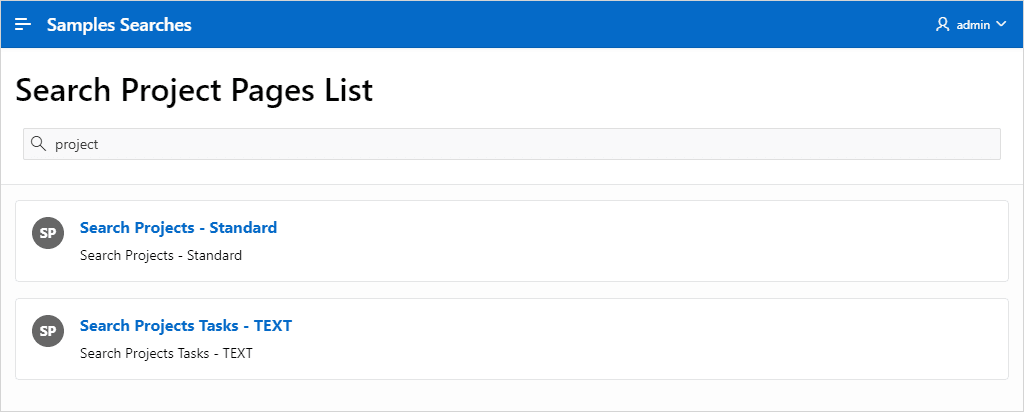
The search page appears.
-
In the search field, enter a search (for example,
bug) and press Enter.
The search results appear.
-