Locking and Unlocking a Page
Prevent conflicts during application development by locking pages in your application. By locking a page, you prevent other developers from editing it.
For more information, see:
Determining If a Page Is Locked
Learn how to determine if a page is locked.
You can identify locked pages on the Application home page by a lock indicator icon. The lock indicator icon appears in Report View under the Actions column.
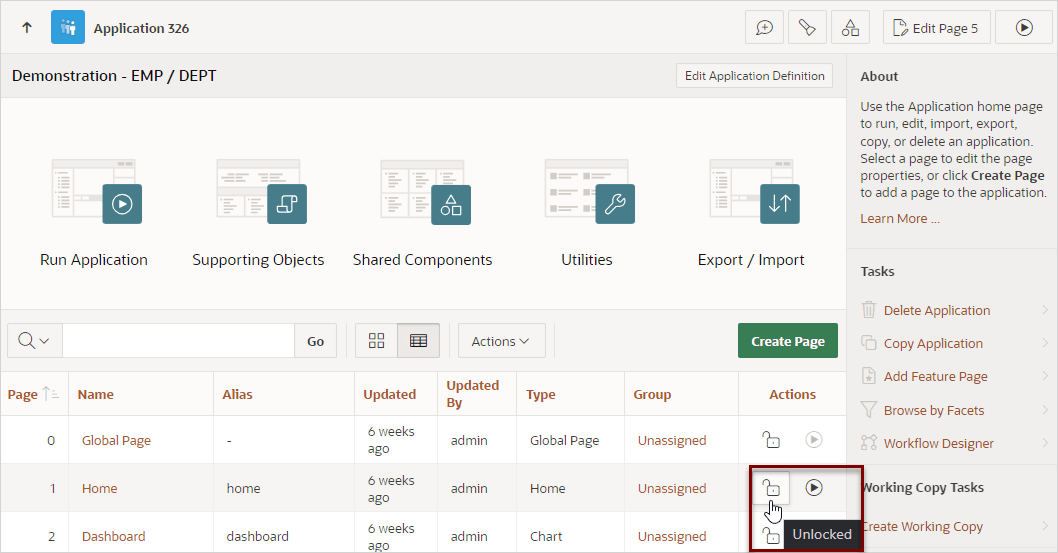
Description of the illustration lock_ico.png
Different lock indicator icons display depending upon the lock status and who locked the page:
-
Unlocked - Displays as an open paddock (
 ).
). -
Locked (current user) - If locked by the current user, the lock indicator displays as a closed padlock (
 ).
). -
Locked (another user) - If locked by the another user, the lock indicator displays a closed padlock with the outline of a person (
 ).
).
Locking a Page
Learn how to lock a page.
Developers can lock a page on the Application home page, in Page Designer, and on the Page Locks page.
Locking a Page from the Application Home Page
Lock a page from the Application Home page.
To lock a page:
-
On the Workspace home page, click the App Builder icon.
-
Select an application.
-
On the Applicatiom home page navigation bar, click the View Report icon.
Report View appears displaying the information in a report.
-
Under Actions, click the Lock icon.
-
In Lock Page:
-
Enter a comment in the Comment field.
-
Click Lock Page(s).
-
Locking a Page in Page Designer
Lock a page in Page Designer.
The Page Lock button on the Page Designer toolbar indicates whether a page is locked. If the page is unlocked, the Page Lock button displays as an unlocked padlock.
To lock a page in Page Designer:
-
Navigate to the appropriate page in Page Designer.
-
On the Page Designer toolbar, click Page unlocked.
-
In Lock Page:
-
Enter a comment in the Comment field.
-
Click Lock.
When a page is locked, the Page Lock button displays as a locked padlock.
-
For more information, see:
Locking a Page from Utilities
Lock a page from the Cross Page Utilities, Page Locks page.
To lock a page from the Page Locks page:
-
On the Workspace home page, click the App Builder icon.
-
Select an application.
-
Click the Utilities icon.
-
Under Page Specific Utilities, select Cross Page Utilities.
-
Click Page Locks.
-
Select the appropriate pages and click Lock Checked.
-
In Lock Page:
-
Enter a comment in the Comment field.
-
Click Lock Page(s).
-
Unlocking a Page
Learn how to unlock a page.
Only the developer who locks a page can unlock it. However, a developer with administrative privileges can unlock pages locked by other developers.
Tip: To view information about an existing page lock, navigate to the Lock Details page and expand the Lock History region.
Unlocking Pages from the Application Home Page
Unlock a page from the Application Home page.
To unlock a page from the Application Home page:
-
On the Workspace home page, click the App Builder icon.
-
Select an application.
-
On the Applicatiom home page navigation bar, click the View Report icon.
Report View appears displaying the information in a report.
-
Under Actions, click the Locked icon.
The Lock Details page appears.
-
To edit the Comment, enter a new comment and click Apply Changes.
-
To unlock the page, click Unlock.
Unlocking a Page in Page Designer
Unlock a page in Page Designer.
The Page Lock button on the Page Designer toolbar indicates whether a page is locked.
To unlock a page in Page Designer:
-
Navigate to the appropriate page in Page Designer.
If the page is locked, the Page Lock button displays as a locked padlock. Passing your cursor over a locked Page Lock button displays a tooltip that indicates who locked it. You cannot unlock a page locked by another user.
-
On the Page Designer toolbar, click the Page Lock button.
The Unlock page dialog appears.
-
To edit the Comment:
-
Enter a comment in the Comment field.
-
Click Apply Changes.
-
-
In unlock the page, click Unlock.
When a page is unlocked, the Page Lock button displays as an unlocked padlock.
For more information, see:
Unlocking Pages from Utilities
Unlock a page from the Cross Page Utilities, Page Locks page.
To unlock a page from the Page Locks page:
-
On the Workspace home page, click the App Builder icon.
-
Select an application.
-
Click the Utilities icon.
-
Under Page Specific Utilities, select Cross Page Utilities.
-
Click Page Locks.
-
Select the appropriate pages.
-
Click Unlock Checked.
Unlocking Pages As a Workspace Administrator
Unlock pages as a Workspace Administrator.
To unlock pages as a Workspace Administrator:
-
On the Workspace home page, click the App Builder icon.
-
Select an application.
-
Click the Utilities icon.
-
Under Page Specific Utilities, select Cross Page Utilities.
-
Click Page Locks.
-
Click Lock Administration.
-
Select the appropriate pages.
-
Click Unlock Page(s).