Creating Credentials for Oracle Select AI
This topic describes the procedure to create credentials to work with Oracle Select AI profiles.
You can create user credentials that are used to access language models corresponding to an LLM provider. When used along with an AI profile, the credential allows you to use the LLMs, which in turn receive access to your connected databases.
Follow these steps to create a new credential for Select AI:
- From the DB Assistant window, click the Profile Setup (gear) icon to open the DB Navigator - Select AI Profiles and Credentials window.
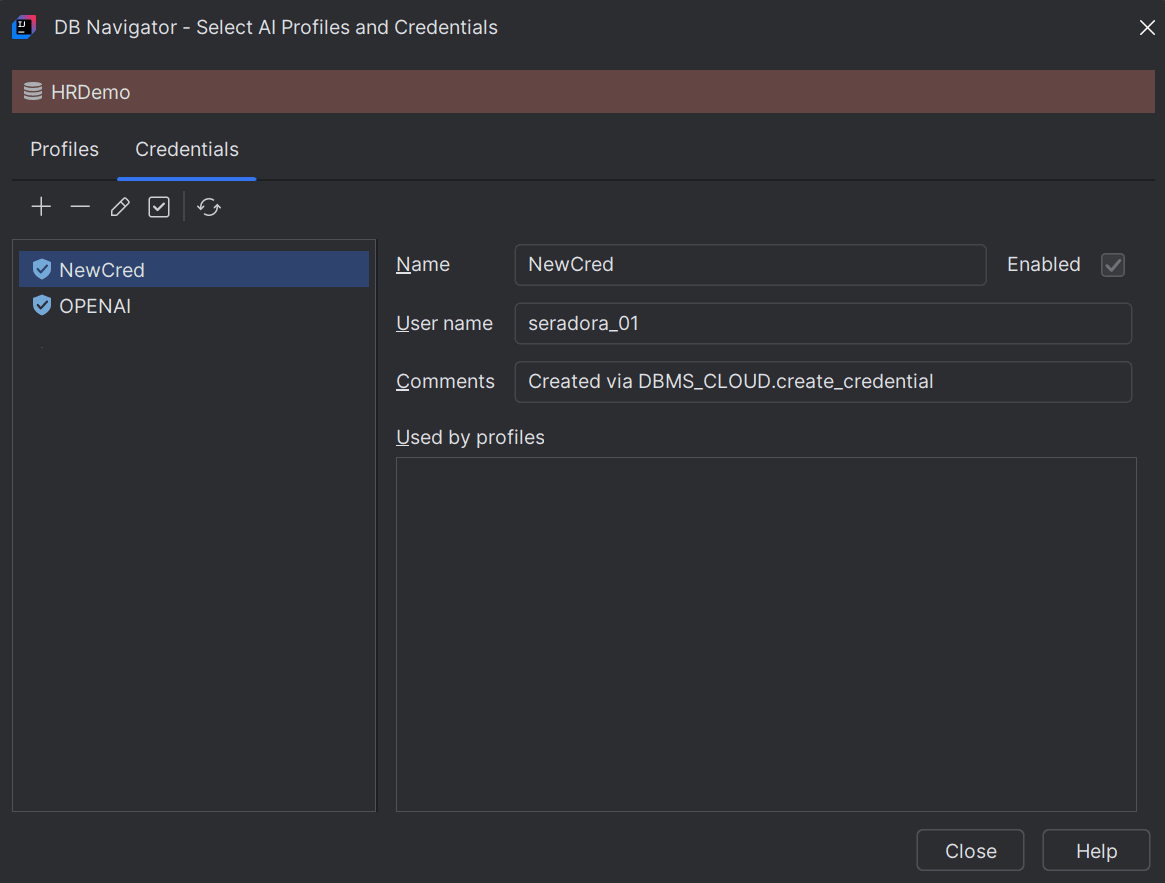
- In the Credentials tab, click the Create Credential (+) icon to open the DB Navigator - Create Credential dialog box.
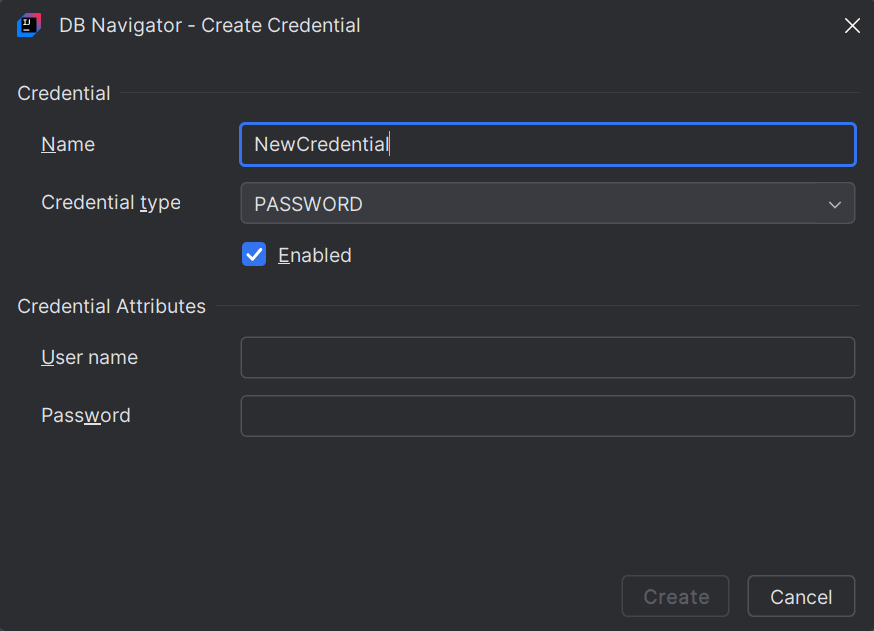
- Provide the following details in the DB Navigator - Create Credentials dialog box:
- Name - Provide a name to identify the credential.
- Credential Type - Select from Password or OCI type user credential.
- Enabled - Select this check box to indicate whether the credential is enabled or disabled for use.
If you select Password credential type, enter the Username and Password to use the credential.
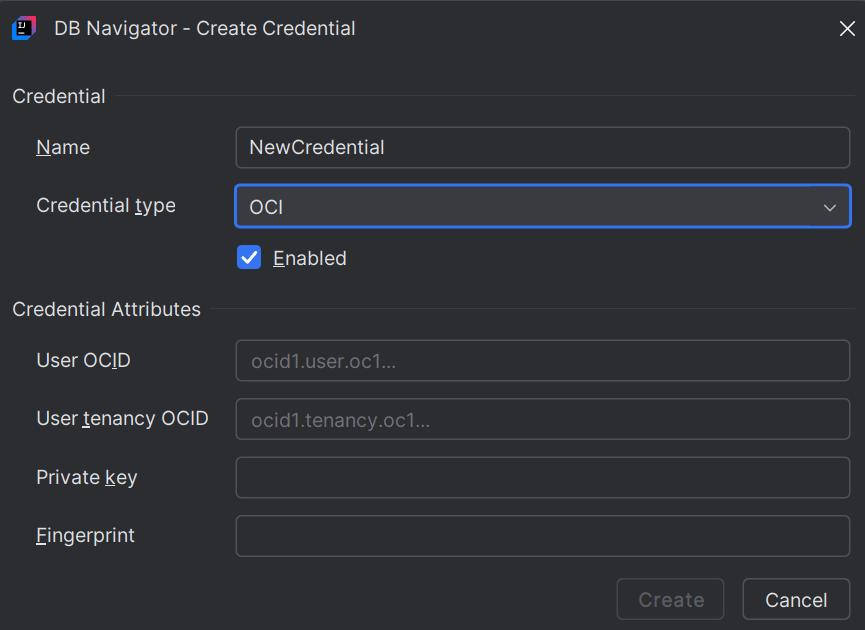
If you select OCI credential type, provide the following OCI attributes:- User OCID - Enter the unique OCID of the user.
- User Tenancy OCID - Enter the unique OCID of the connection tenancy.
- Private Key - Select the downloaded Private key file saved in your
.ocidirectory. - Fingerprint - Provide the fingerprint of the Private key that you added.
Parent topic: Oracle Select AI