Creating AI Profiles for Oracle Select AI

This topic describes the procedure to create AI Profiles to work with Oracle Select AI.

AI Profiles enables you to use a Language Model to interact with your database and generate responses catering to that data. In order to utilize Oracle Select AI features of DB Assistant, the user credential should have execution privileges for the AI cloud packages, while the chosen AI provider should have necessary network access.

Follow these steps to create a new AI Profile when working with Oracle Select AI:

  1. Click the DB Assistant icon on your IDE platform to open the DB Assistant window.
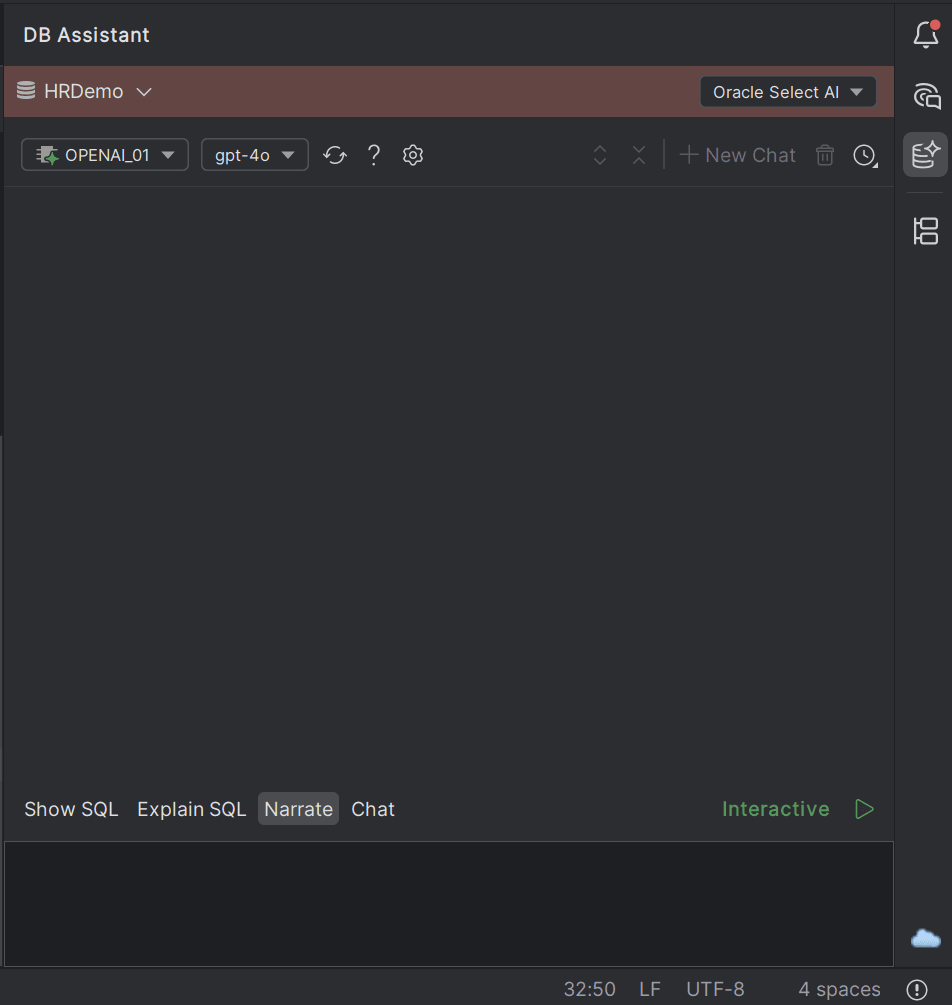
    DB Assistant window for Oracle Select AI

  2. From the DB Assistant window banner drop-down, select Oracle Select AI.
  3. Click the Help (?) icon on the DB Assistant window toolbar. The DB Navigator - Select AI Help dialog box opens.
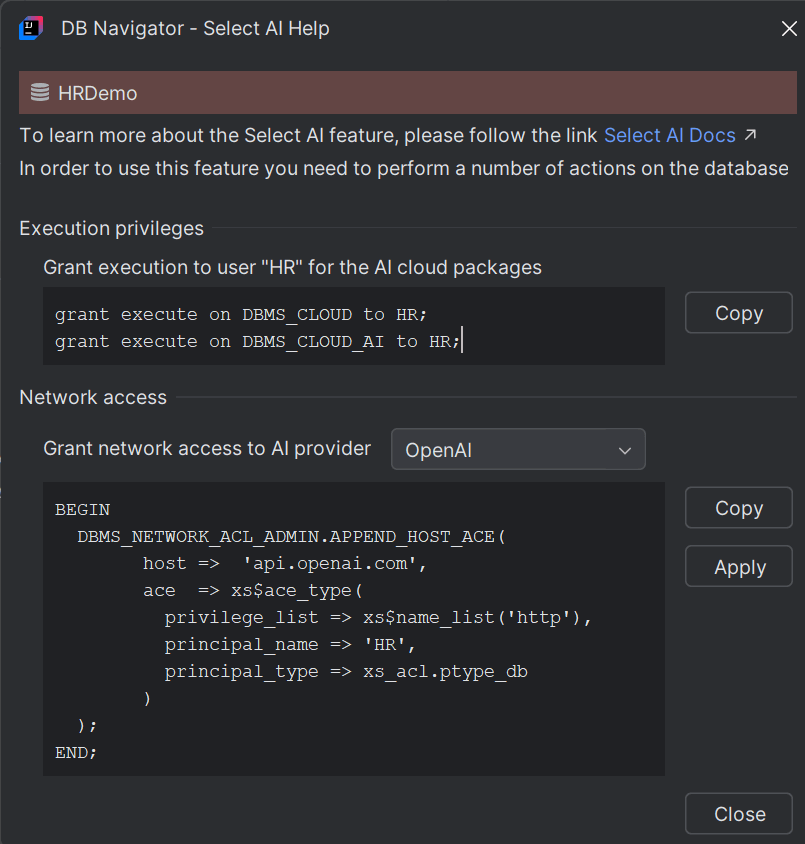
    DB Navigator Select AI Help window

  4. Perform the actions for the connected database as instructed in the Help window and then Close it.
  5. Next, from the DB Assistant window, click the Profile Setup (gear) icon.
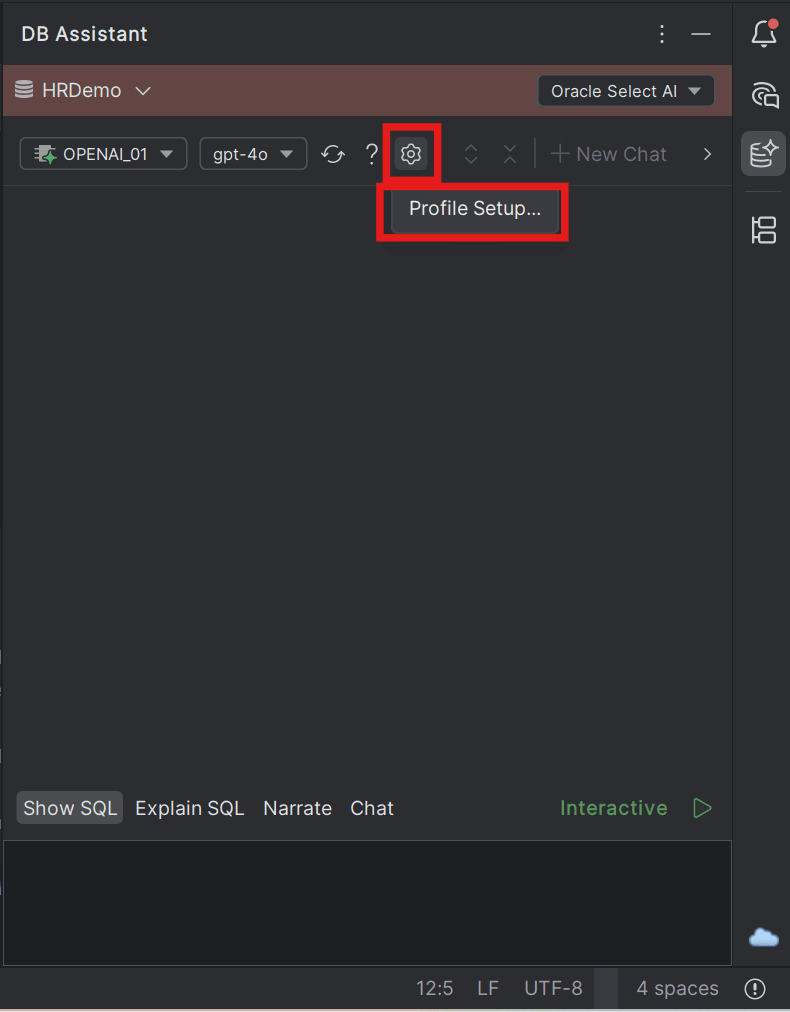
    Profile Setup icon

    The DB Navigator - Select AI Profiles and Credentials dialog box opens.
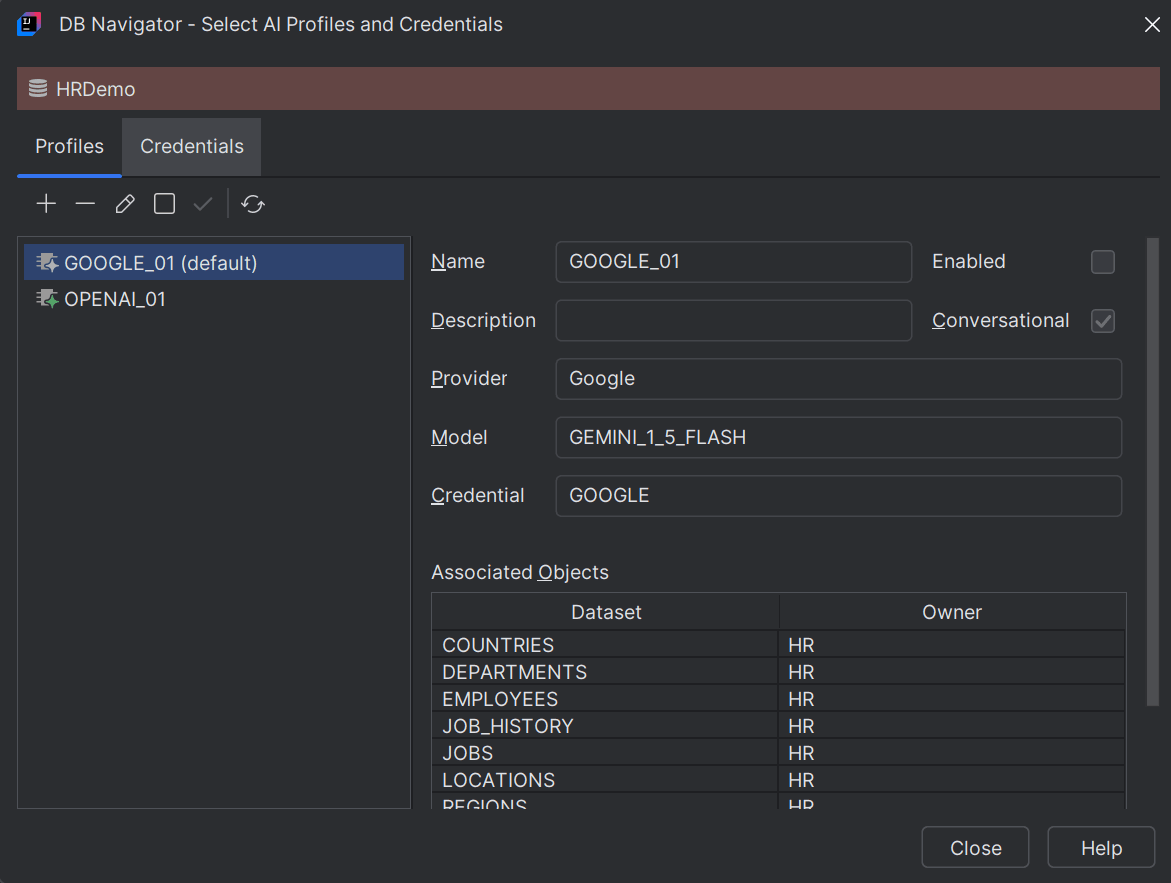

    DB Navigator Select AI Profiles and Credentials dialog box

  6. On the Profiles tab, click the Create Profile (+) icon. The Profile Configuration - General Settings dialog box is displayed.
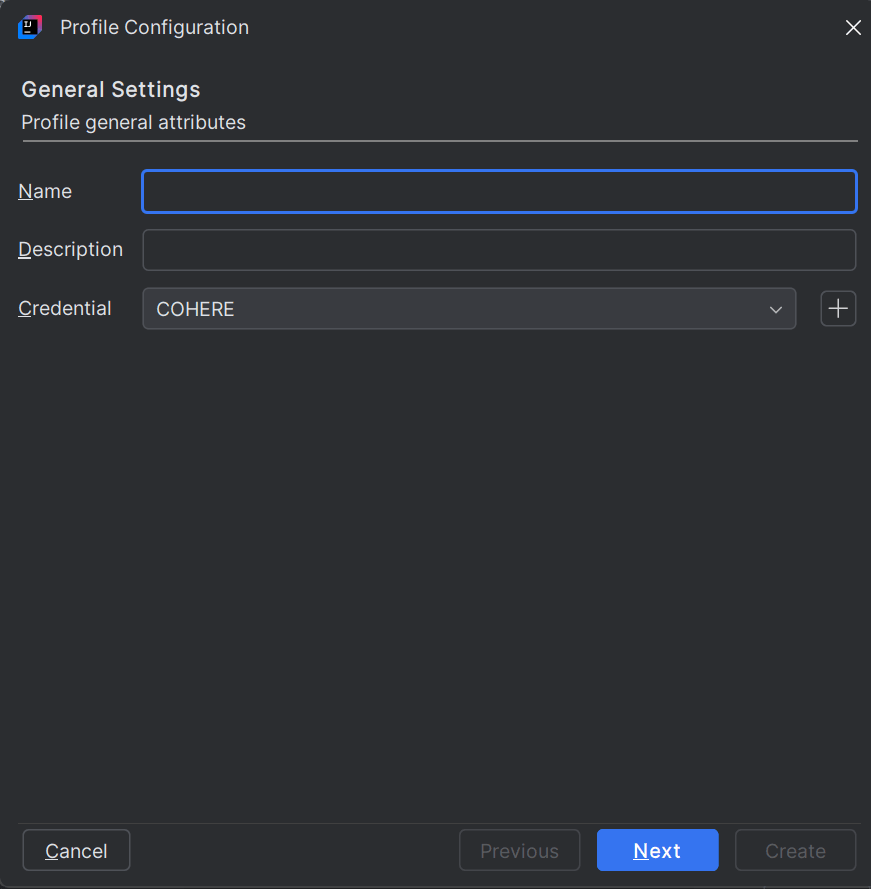
    Project Configuration General Settings dialog box

  7. Enter the following General Settings information:
    • Name - AI profile name
    • Description - Short description for the profile
    • Credential - Select one from the drop-down list of existing AI profile credentials. You can also create a new credential for the AI profile by clicking the Create Credential (+) icon next to the Credential drop-down list.

    Note:

    To create a new user credential, in the Create Credential dialog box enter the credential information such as the Name and Credential Type, and based on the type, the Password (Secret) or other Credential Attributes including User OCID, User Tenancy OCID, Private Key and Fingerprint. Once you click Create, the credential gets listed on the Credential drop-down list to select for the AI Profile.
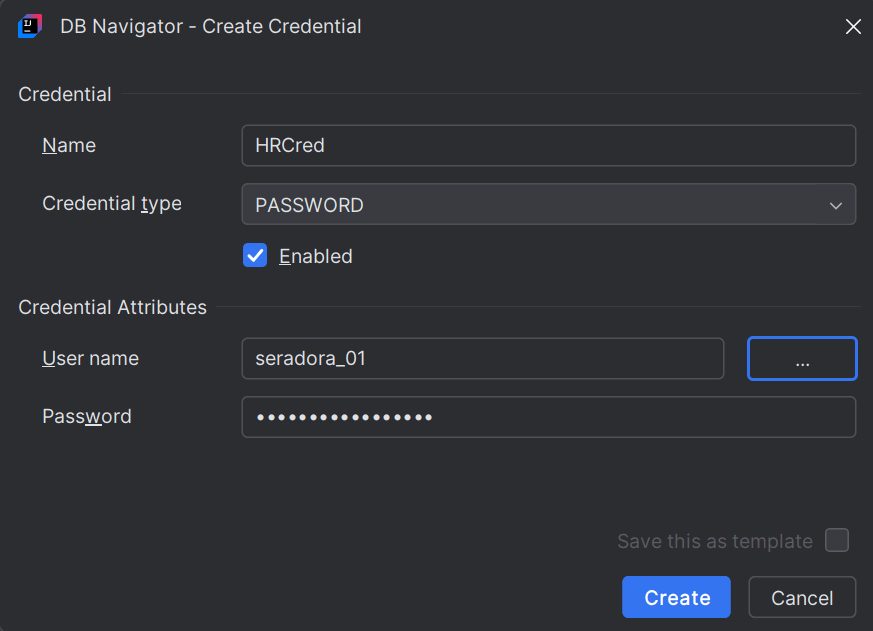
    DB Navigator Create Credential dialog box

  8. On the Profile Configuration dialog box, click Next.
    The Profile Configuration - Provider Settings dialog box is displayed.
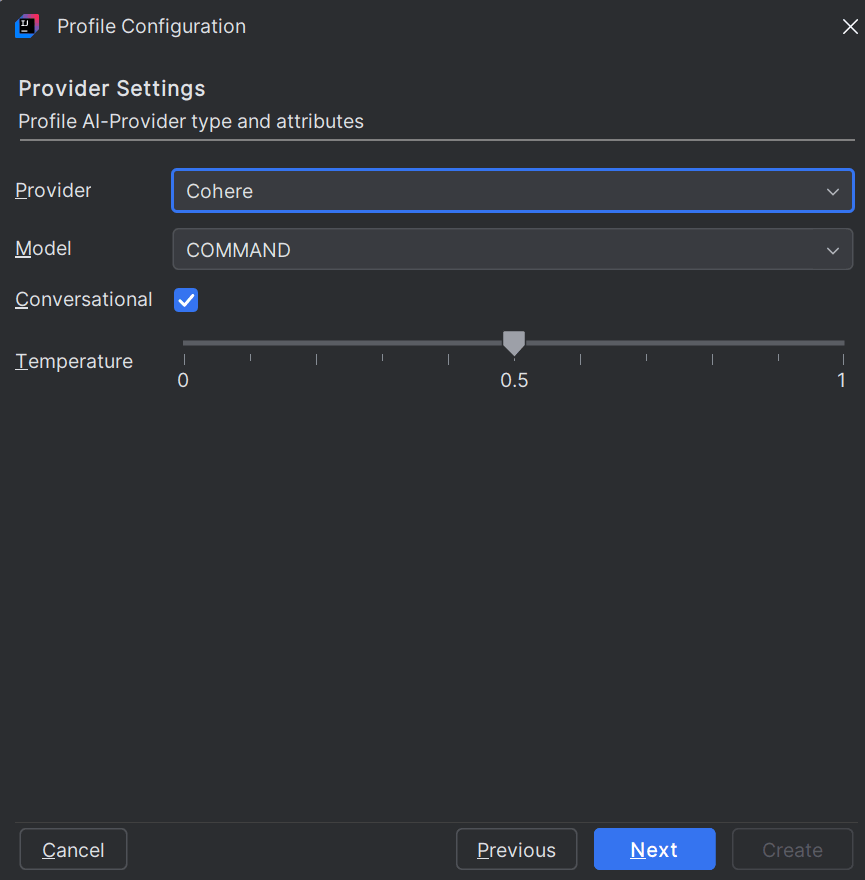

    Profile Configuration Profider Settings dialog box

  9. Enter the following Provider Settings information:
    • Provider - From the drop-down list, select the AI provider for the profile. Following LLM providers are available:
      • OCI Generative AI
      • Open AI
      • Cohere
      • Google
      • Anthropic
      • Hugging Face
    • Model - From the drop-down list, select the LLM corresponding to the AI provider.
    • Select the Conversational check box to indicate that the "Interactive" mode is enabled for the profile. Interacting through a profile in conversational mode allows follow-up prompts by remembering the context of the previous prompt(s) and provide responses without the need of explicitly adding the context each time. For example, if you type "How many tables are there in HR schema?" followed by "what about the Views?" in the chat box, the second prompt will still fetch the Views from the HR schema without mentioning that detail.

      Not selecting the check box indicates that the profile is in "Non-Interactive" mode. Every prompt you enter is considered as an isolated query independent from the context of previous prompts.

    • Set the Temperature for the LLM using the slider to control the 'randomness' of the output response. Lower temperature yields more predictable results that are more precise, while higher temperature yields less predictable results that are more elaborate.
  10. Click Next.
    The Profile Configuration - Profile Object Settings dialog box is displayed.
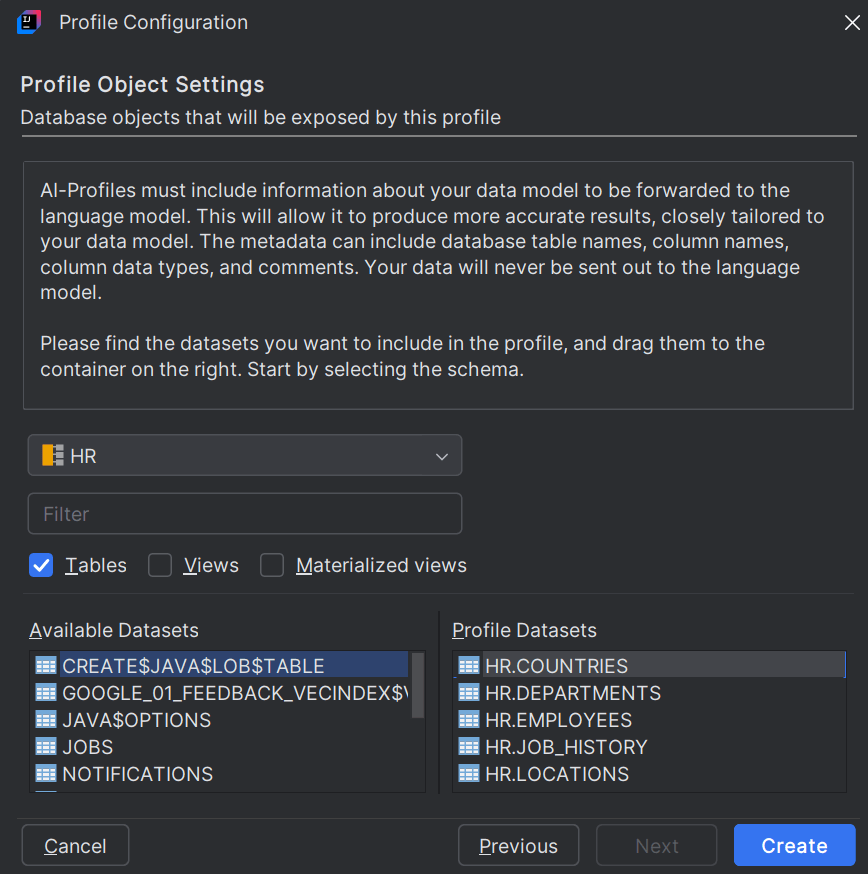

    Profile Configuration - Profile Object Settings dialog box

  11. Configure the following Profile Object Settings:
    • From the drop-down list, select the database schema you want to associate with the AI Profile. You can select only one schema for each profile. Based on your selection the list of Available Datasets is populated.
    • Add a Filter to view only selective database schemas in the drop-down list.
    • Select the check boxes corresponding to Tables, Views and/or Materialized Views to include those data sets for the AI profile to have access.
    • From the Available Datasets, double-click or drag and drop the ones that you want to include for the AI profile for access. The selected datasets move to the list of Profile Datasets.
  12. Click Create.

The new AI Profile is stored in the database and can be viewed under the database Schema > AI Profiles section in the DB Browser window. The new Profiles are also listed on the DB Navigator - Select AI Profiles and Credentials dialog box > Profiles tab.