Working with Select AI
This topic provides an overview of interaction with DB Assistant module using Select AI.
You can start interacting with the DB Assistant through the available chat box by entering your input prompts in natural language. You can also click the + New Chat icon on the DB Assistant window and start a dedicated chat, which you can save by providing a Chat Name. Conversations that are saved with a Chat Name can be accessed later from the Chat History. You can also delete a saved chat thread from the Chat History.
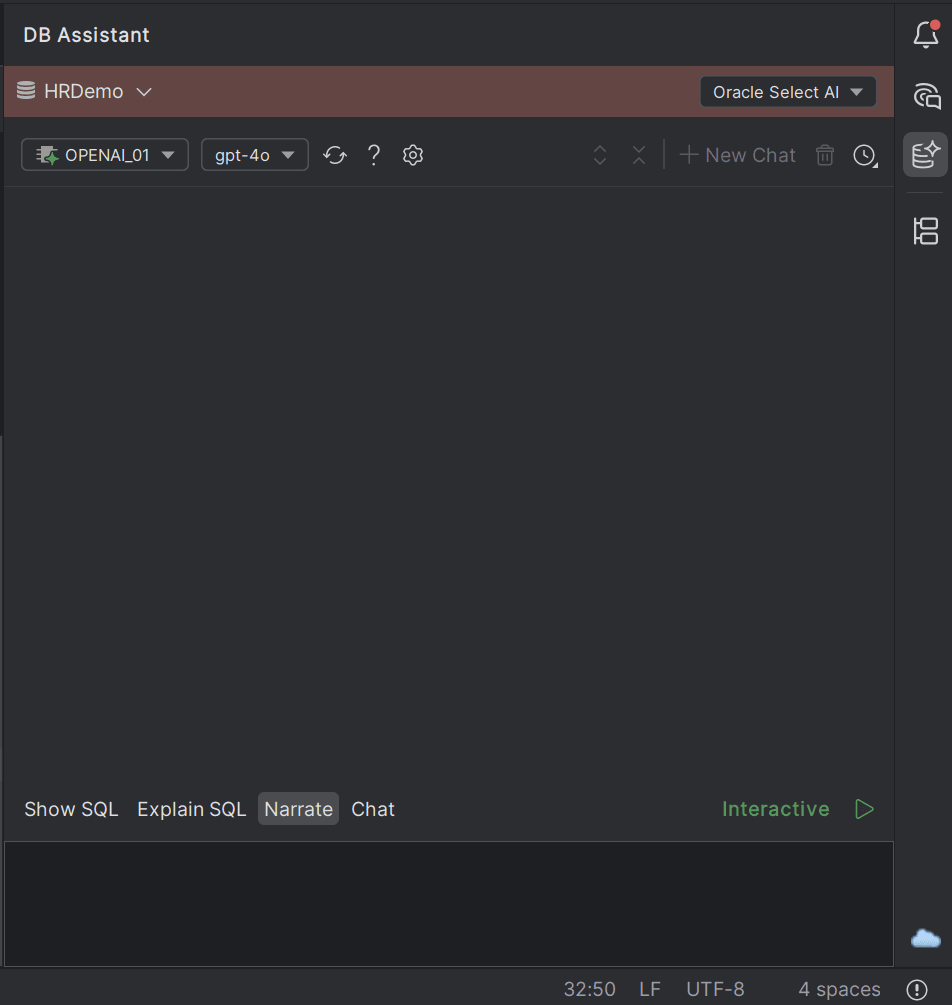
- Interactive (Submit icon on chat box is Green in color) - If the Profile has the "Conversational" flag enabled (profile name displays a green icon), Select AI remembers the context of the last 10 prompts you enter, and generates responses based on previous prompts.
- Non-Interactive (Submit icon on chat box is Yellow in color) - If the Profile has "Conversational" flag disabled (profile name displays a yellow icon), each prompt you enter is considered independent of each other and you have to specify the context explicitly each time.
The following actions are available on the chat box to provide further insights into the generated AI response:
- Show SQL - get an executable SQL query in the response
- Explain SQL - get the explain plan for the SQL query generated in the response
- Narrate - ask for the DB assistant to narrate the generated response
- Chat - get explanations in natural language
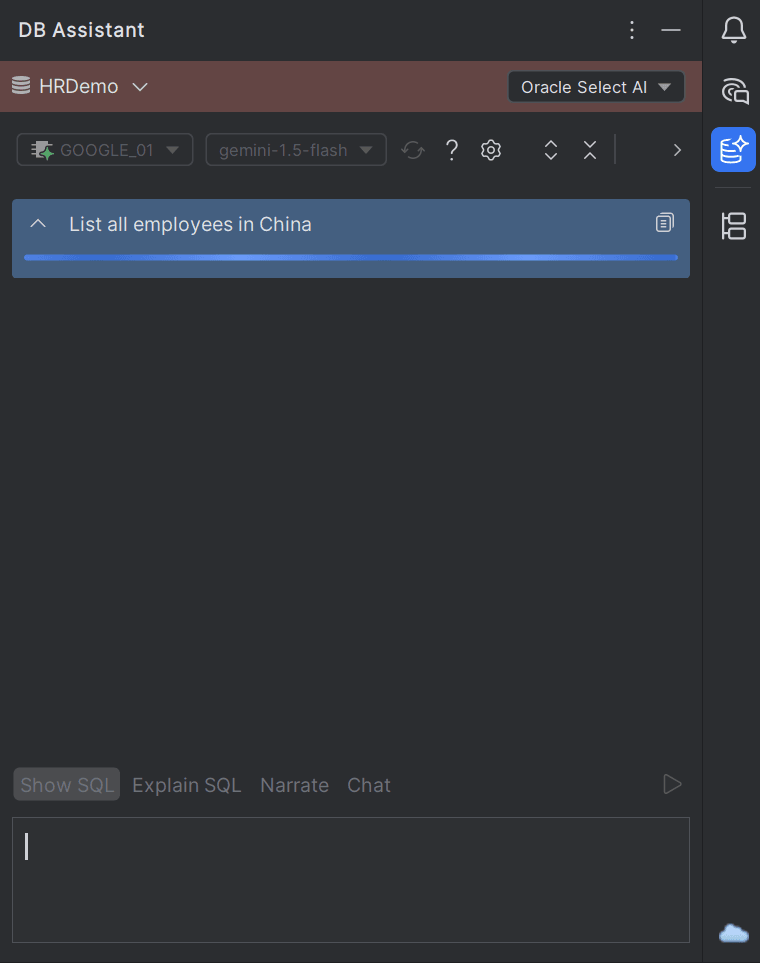
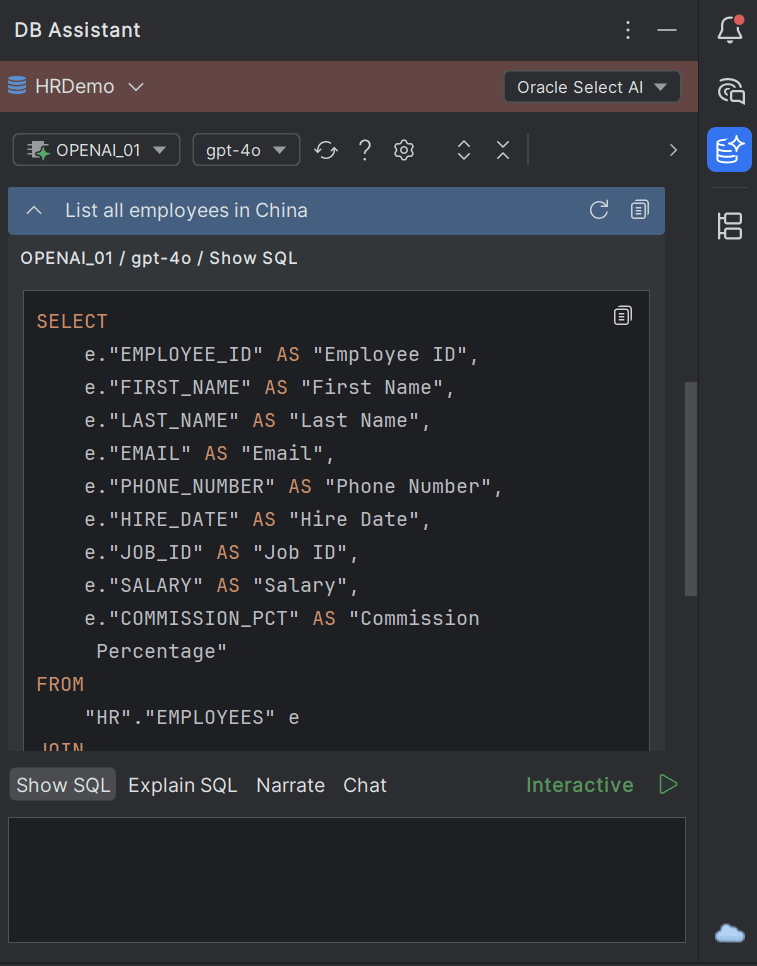
Submitting a prompt in the chat box of the DB Assistant window triggers execution of the input by Oracle Select AI and the output is displayed in the window. You can re-run the input prompt multiple times to get variations of the output. Additionally, you can copy the generated response and use it for further data manipulation.
Sample input submitted in DB Assistant chat window
Sample response generated for the input prompt
Oracle Select AI features are also integrated within the data/code editors. To use the Select AI capabilities directly in the editors and consoles, you must have Oracle Select AI enabled for that connection. You must also have enabled AI Profiles available for that database connection.
For example, you can generate a SQL statement directly on a console by clicking the Show Console Actions (bulb) icon and then selecting the Select AI - Generate SQL option.
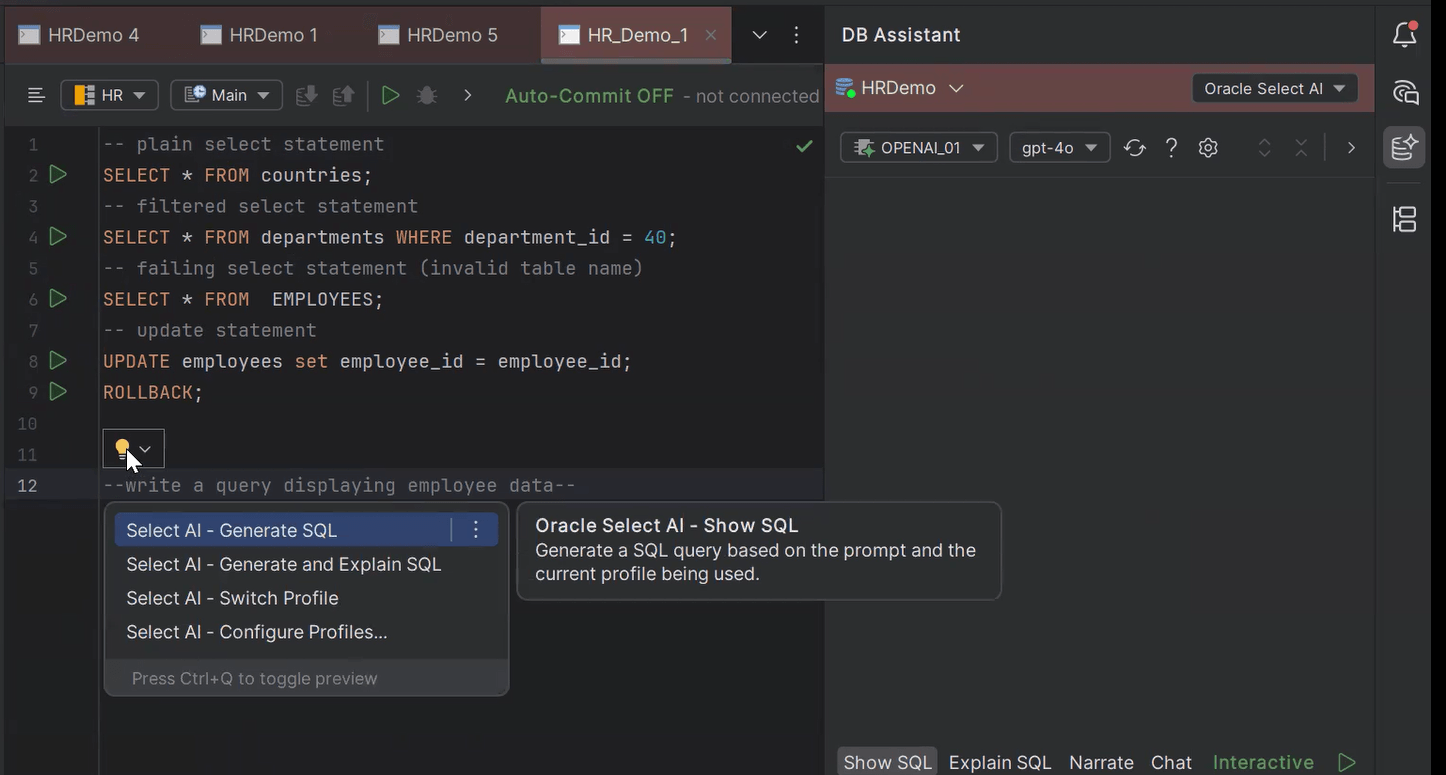
The Select AI generated SQL statement displays on the console window.
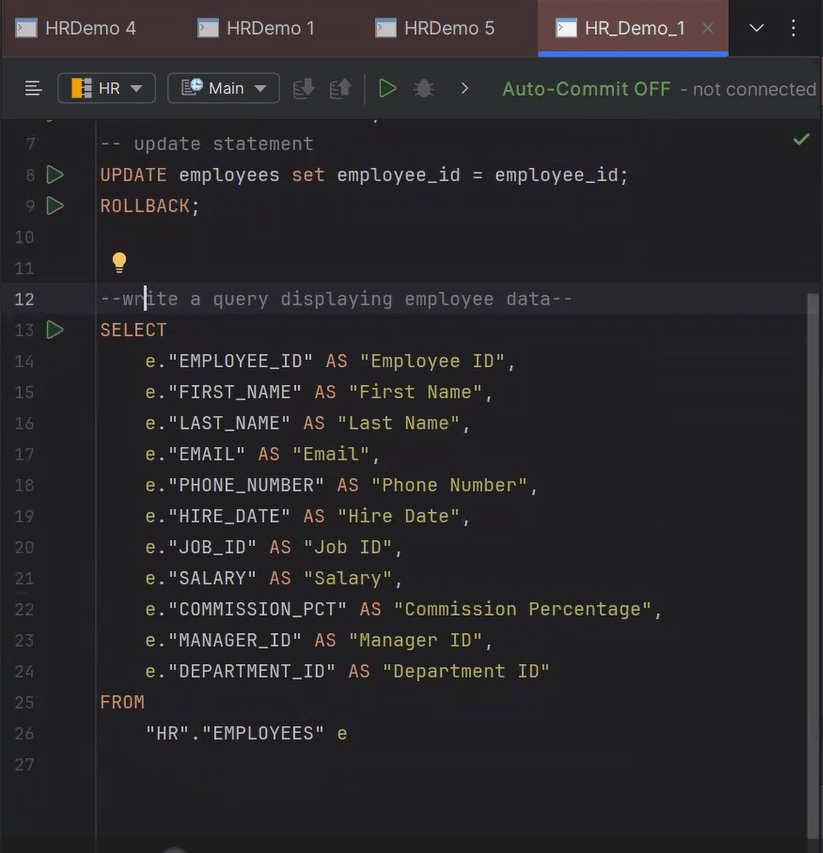
Following context actions can be performed on DBN data editor integrated with Select AI:
- Select AI - Generate SQL - Generates the SQL statement corresponding to the current context of the code.
- Select AI - Generate and Explain SQL - Generates the requested SQL statement and also provides explanatory comments for the statement.
- Select AI - Switch Profile - Displays the list of available Profiles in Select AI that you can select and switch over to generate SQL statements.
- Select AI - Configure Profiles - Opens the DB Navigator - Select AI Profiles and Credentials window to add/edit/view the AI profiles and credentials for Select AI.
Parent topic: Oracle Select AI