Creating Database Connections using OCI Toolkit Plug-in
This topic describes the procedure to create OCI based database connections through OCI Toolkit Plug-in.
The integration of OCI Toolkit plug-in (an Oracle open-source tool), with Oracle Database Navigator allows you to create new OCI based database connections. The OCI Toolkit plug-in is provided for various IDEs to enhance developer productivity when managing Oracle Cloud Infrastructure (OCI) autonomous databases. For Oracle Cloud Infrastructure database connections, default authentication is done via Oracle wallets, (over Mutual TLS authentication process) using digital certificates. The OCI database configuration file corresponding to a profile contains the user credentials, tenancy information, and token information for the Oracle Cloud autonomous connections.
Note:
The integration of these two plug-ins is available for Oracle Database Navigator version 3.6.0 and later and Oracle OCI Toolkit version 1.2.0 and later.If you have the OCI Toolkit plug-in installed in your IDE, then click the corresponding icon to open the Oracle Cloud Infrastructure Explorer window. The Autonomous Databases tab opens, by default, listing all existing autonomous database connections. To create a new OCI database connection:
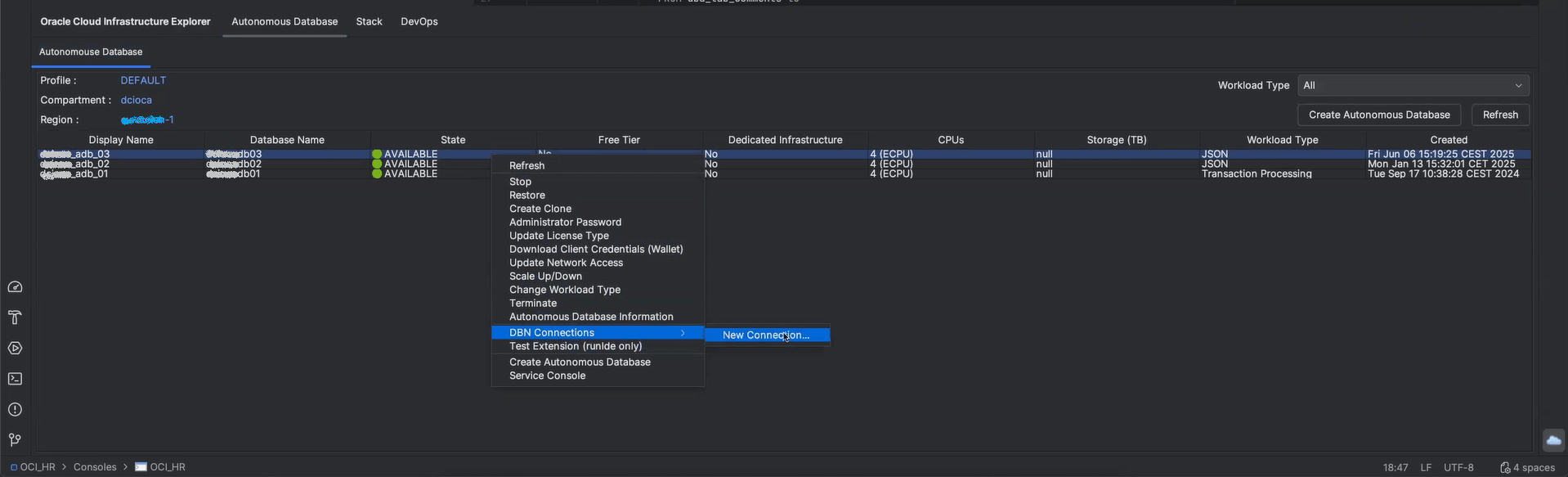
- Right-click on any of the rows displaying the database connection in the Autonomous Databases tab and select DBN Connections > New Connection. The DB Navigator - Connection Details dialog box is displayed.
- Enter the Oracle Wallet name and upload the wallet.
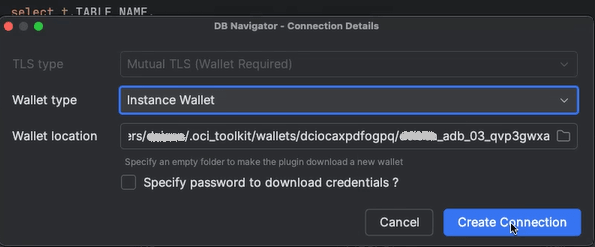
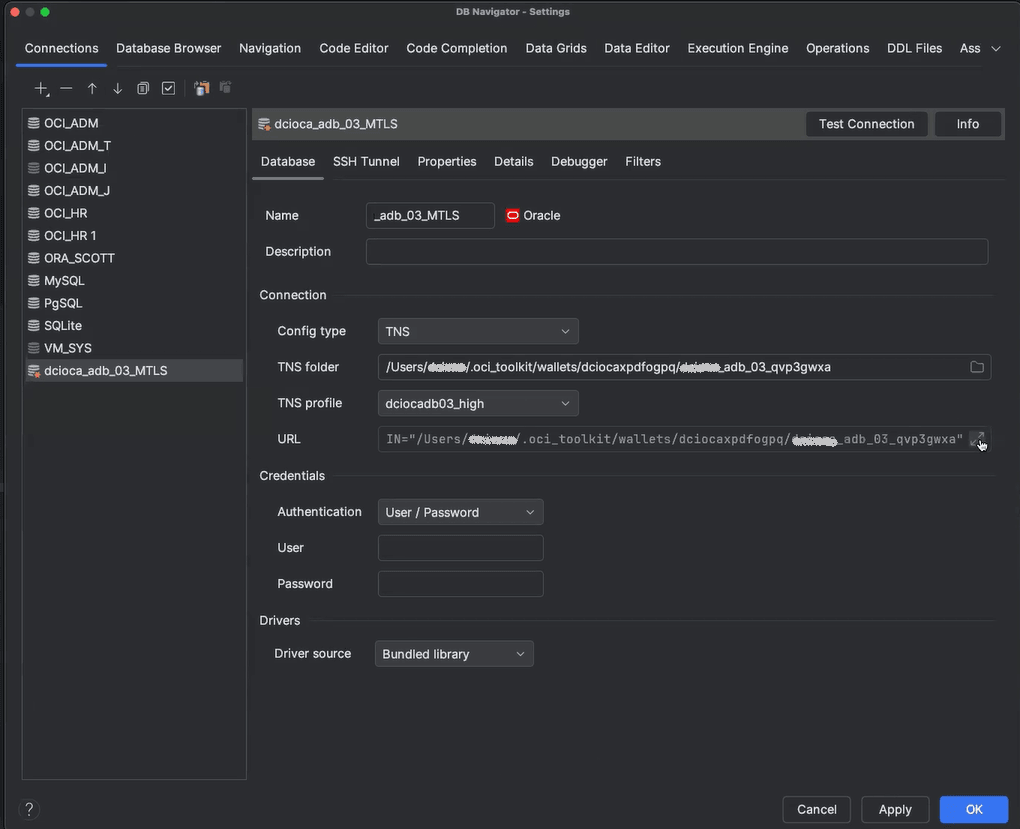
- Click Create Connection. After the wallet is successfully downloaded, the new database connection details are displayed in the Connection tab of the DB Navigator - Settings window.
Parent topic: Creating Database Connections