Creating Database Connections
This topic describes the procedure to create a new database connection in Oracle® Database Navigator.
- Click the New Connection icon on the DB Browser window and select the type of database connection you want to create.
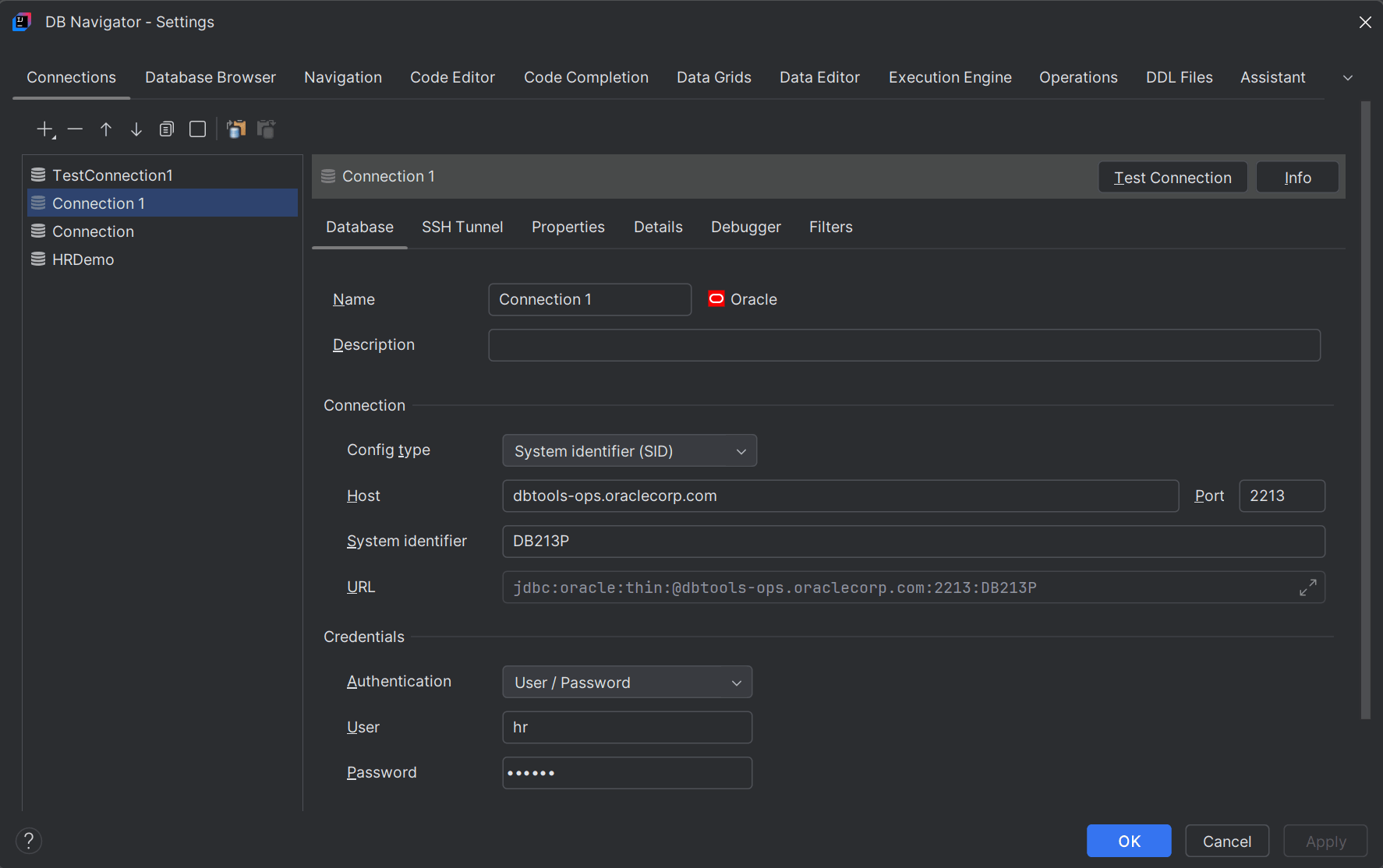
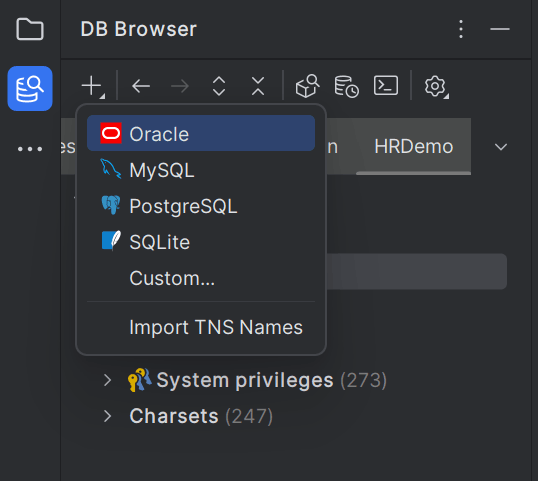 The DB Navigator - Settings > Connections > Database tab opens to create a new DB connection.
Alternatively, from the Main menu of Oracle® Database Navigator toolbar, select DB Navigator > Settings > Connections tab to open the wizard for creating a new database connection.
- Creating Database Connections using OCI Toolkit Plug-in
This topic describes the procedure to create OCI based database connections through OCI Toolkit Plug-in.
Parent topic: Database Connection Management