Creating Database Sessions
This topic describes the procedure to create new sessions within connected databases.
- From the toolbar menu of the editor, click the drop-down field displaying available database session as options and select New Session.
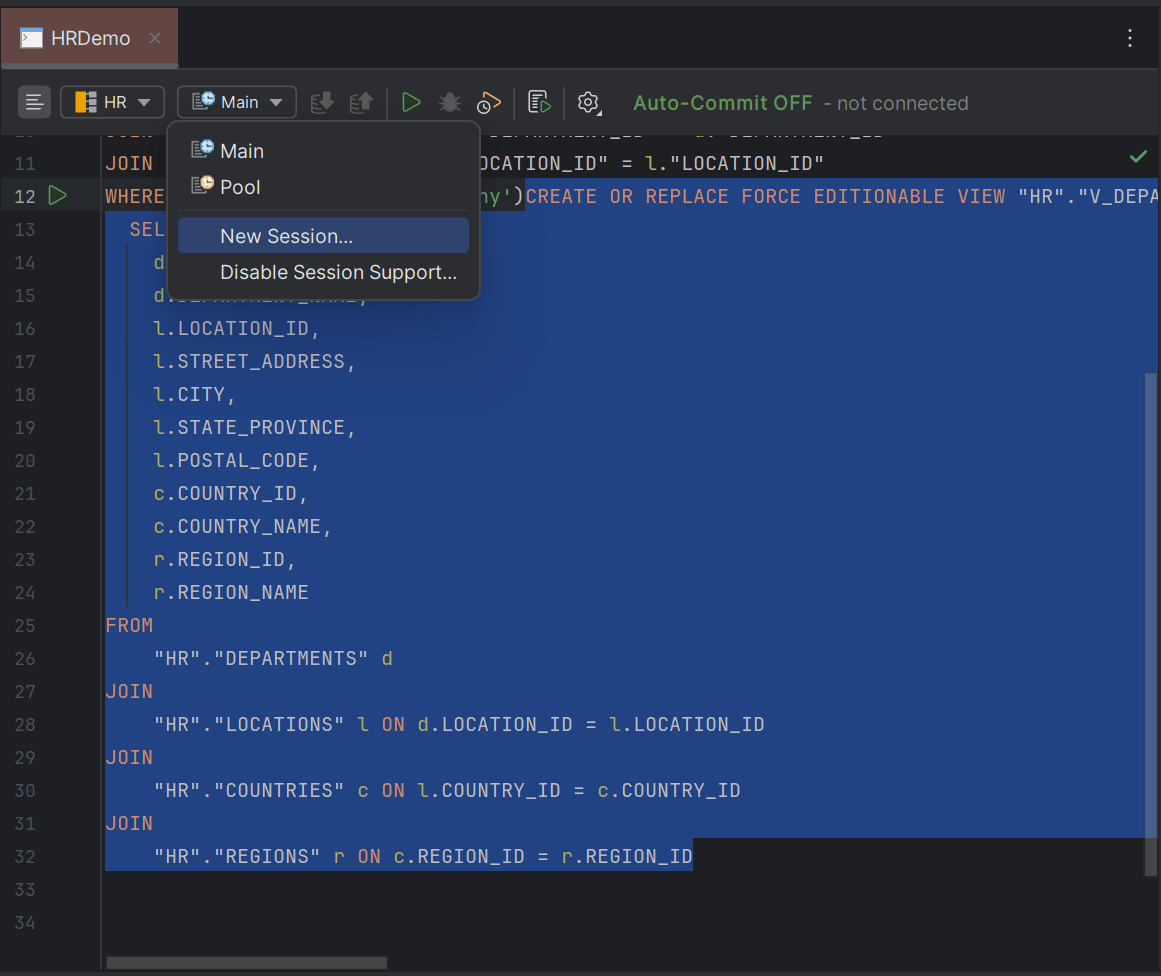
The DB Navigator - Create Session dialog box opens displaying the name of the database connection in which the session is created.
- Enter the Session Name and click Create.
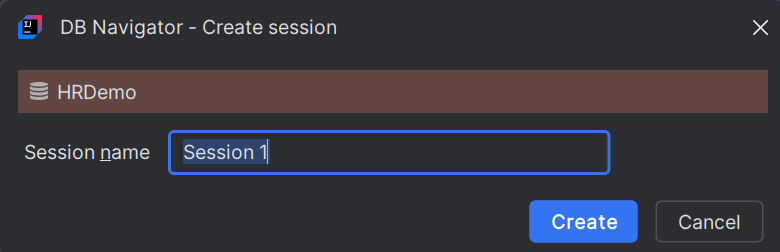
The new session is created for the respective database connection and displayed in the drop-down to select DB session. You can associate the new session within a database connection with your local project files.
Once a session is created within a DB connection, you can perform the following operations from the Resource Monitor window:Note:
The new session you create gets listed on the Resource Monitor window to monitor the open and uncommitted transactions pending for the session.- Rename an existing database session
- Disconnect an ongoing session
- Delete a database session
- Manually commit open transactions using the database session
- Roll back any uncommitted changes using a session
To control which connections should be issued sessions, use the Disable Session Support option to disable session creation for that database connection.
Parent topic: Session Management