Creating File Connection Mappings

This topic describes the procedure to build new file connection mappings.

  1. On your IDE platform, open the Project view in a separate pane to view the project folders.
  2. Navigate to the project root folder (source folder) containing the required SQL files.
  3. Right-click the project folder and select DB Navigator > Associate Connection.

    By default, your local project and files are not associated with any database connection and defaults to "No Connection".
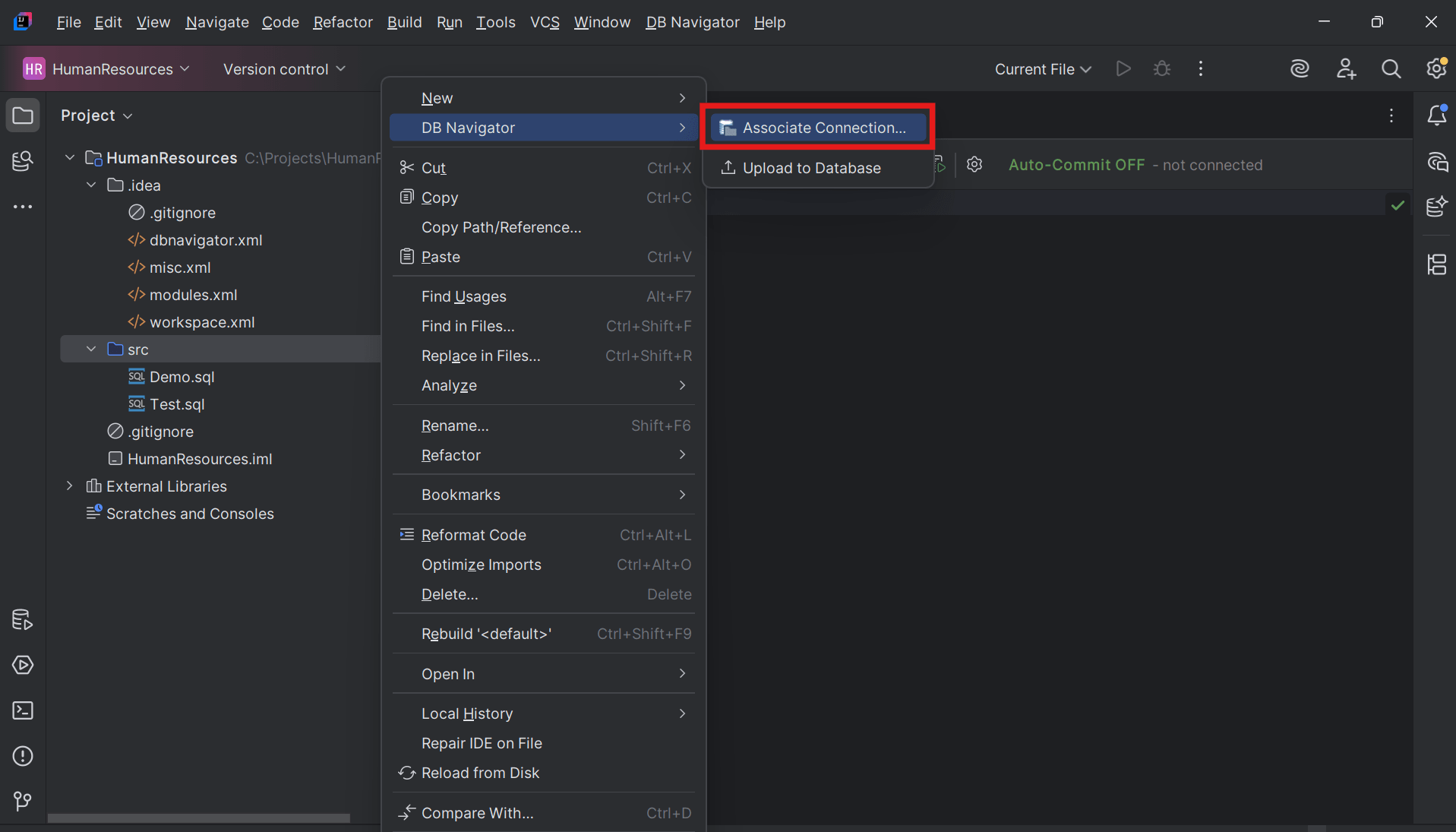

    Associate database connection with project folder or file

  4. From the list of available DB connections that are displayed as options in the Select Connections list, select the connection to which the project should have access.

    By default, all the files in the project will have access to the database connection to which the project folder is mapped.
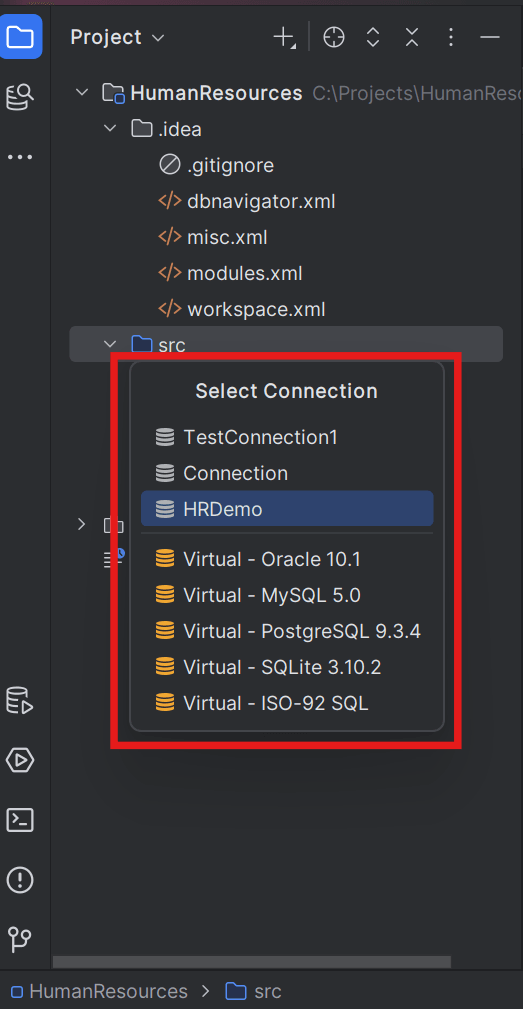

    Select database connection for file mapping

  5. To associate the SQL files in the project to a different database connection, open the file in the SQL explorer window.
  6. From the toolbar menu, select the target:
    • DB connection that you want the file to access from the Connection drop-down list. All active and inactive DB connections display as options.
    • DB schema that you want the file to access from the Schema drop-down list. All available DB schemas display as options.
    • DB session that you want the file to access from the Session drop-down list. All available sessions in the DB connection display as options.

    Note:

    If parent or root folder is already mapped to a DB connection, the default connection for the individual file (or sub-folders) is inherited from the parent project. If not, they default to "Connection". The connection you map for the individual file overwrites the inherited database context, if any.