Debugging Java Programs
This topic describes the procedure to debug Java programs in Oracle® Database Navigator.
- Opening a listener for "Remote JVM Debug" on the IDE platform.
- Giving appropriate privileges to a database schema for:
- debugging Java program
- connecting to the Listener
- Connecting to the Listener using Java Debug Wire Protocol (JDWP) from the database schema.
- Executing the Java program.
Follow these steps to debug a Java program:
- Right-click the Java class file or a method within the Java class and select Debug option from the context menu.
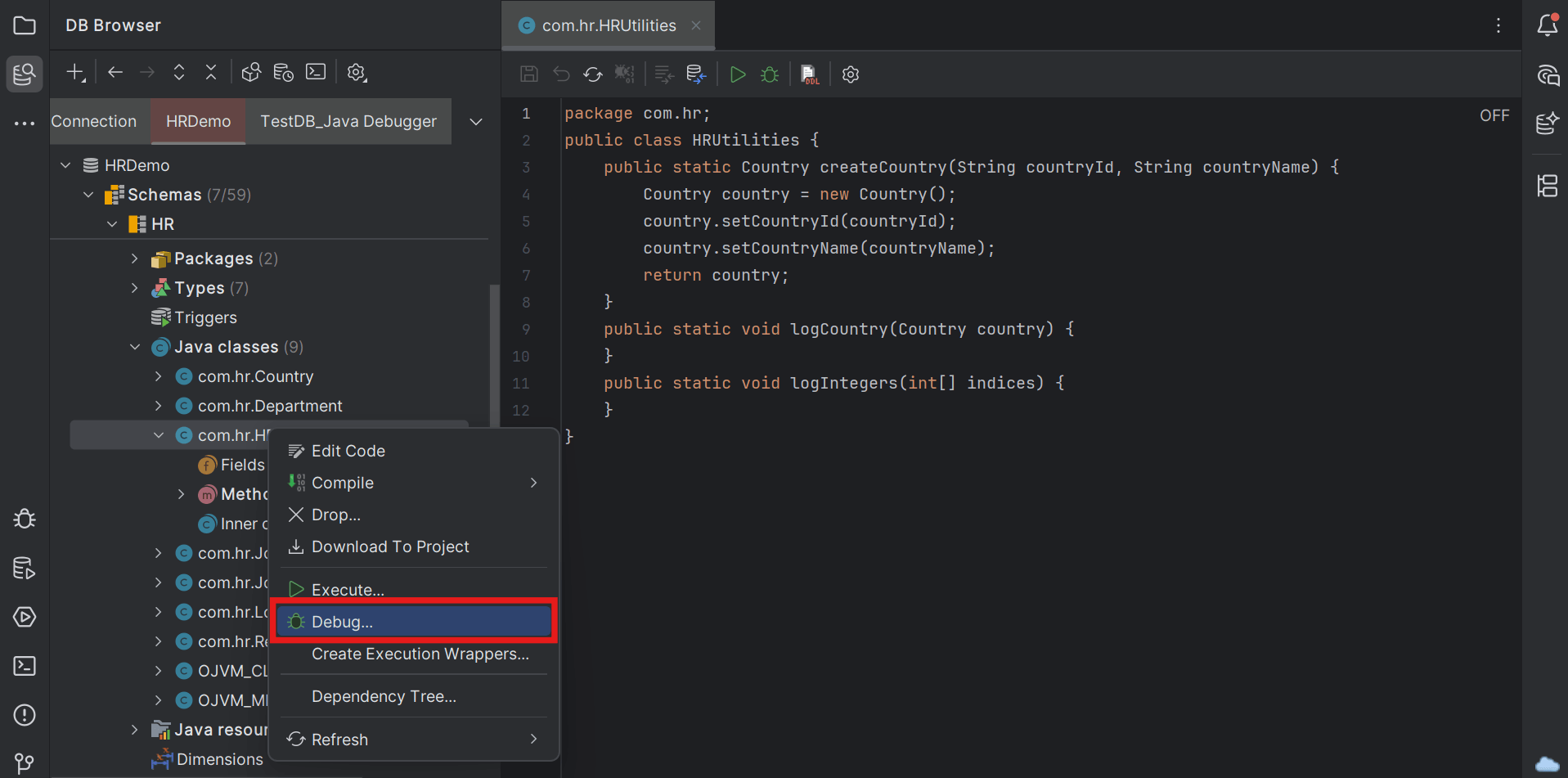
Alternatively, double click the Java class file to open it in the Java Editor window and from the editor toolbar menu, click the Debug Method icon.
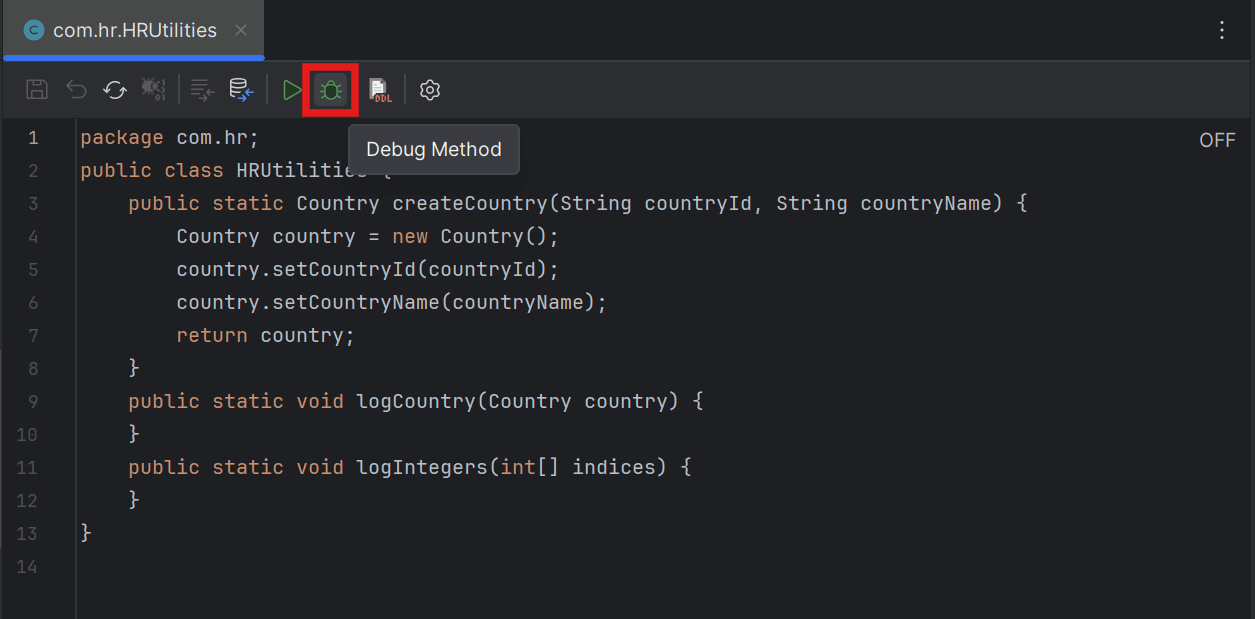
- Select the public static method that you want to debug in that Java class file.
The system starts verifying the pre-requisites for performing the debug operation.
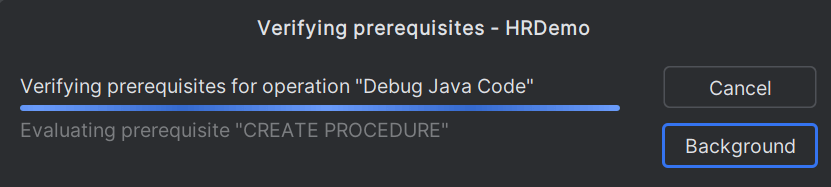
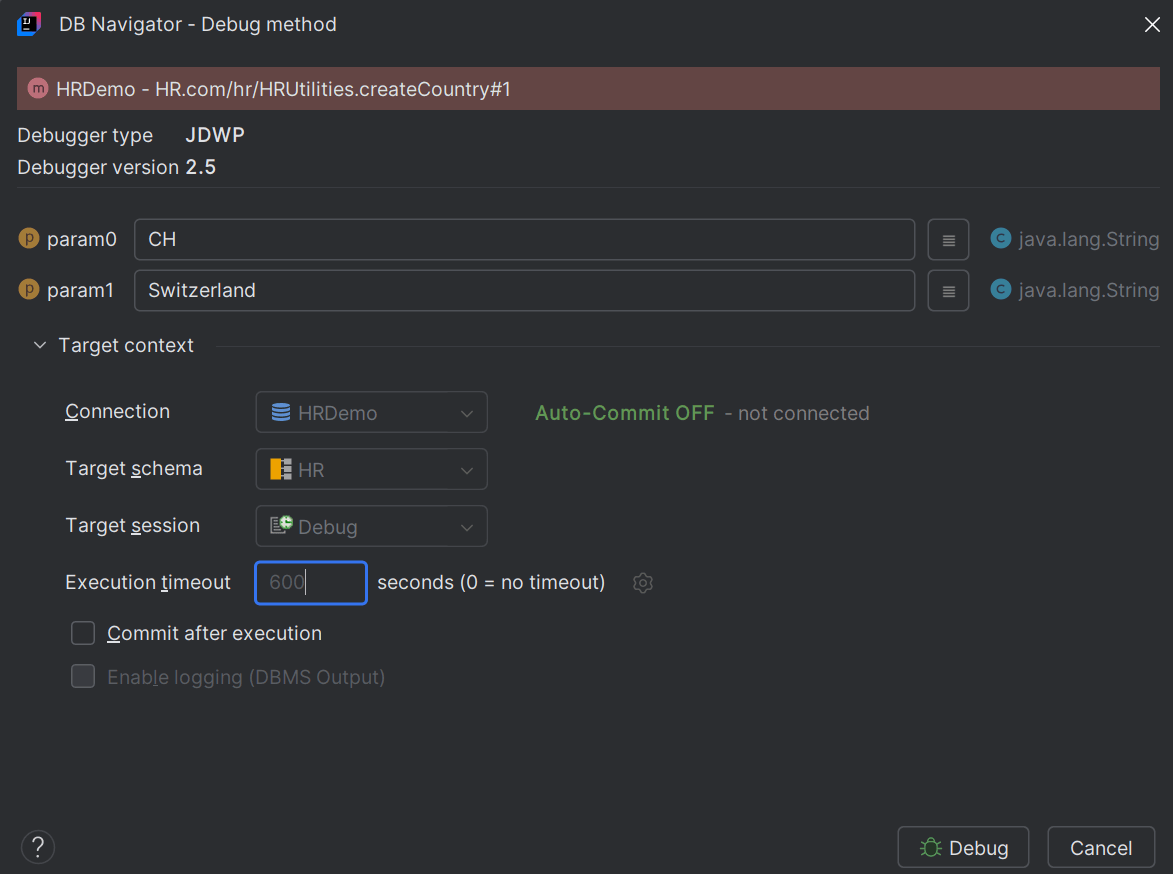
Once all the required permissions are successfully verified, the DB Navigator - Debug Method window opens displaying the Debugger Type being used and the Debugger Version.
If you do not have all the pre-requisites met, the DB Navigator - Missing Prerequisites dialog box pops-up with a confirmation message to either continue by ignoring the required privileges for debugging the program or view the required privileges for that connection.
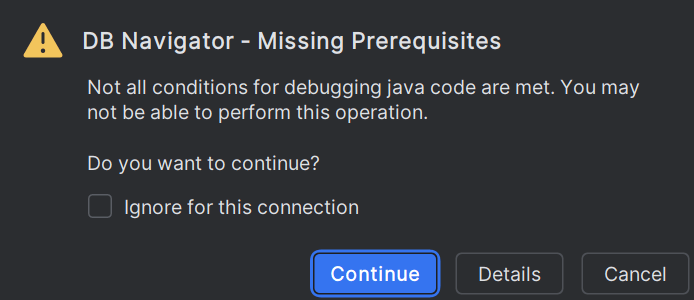
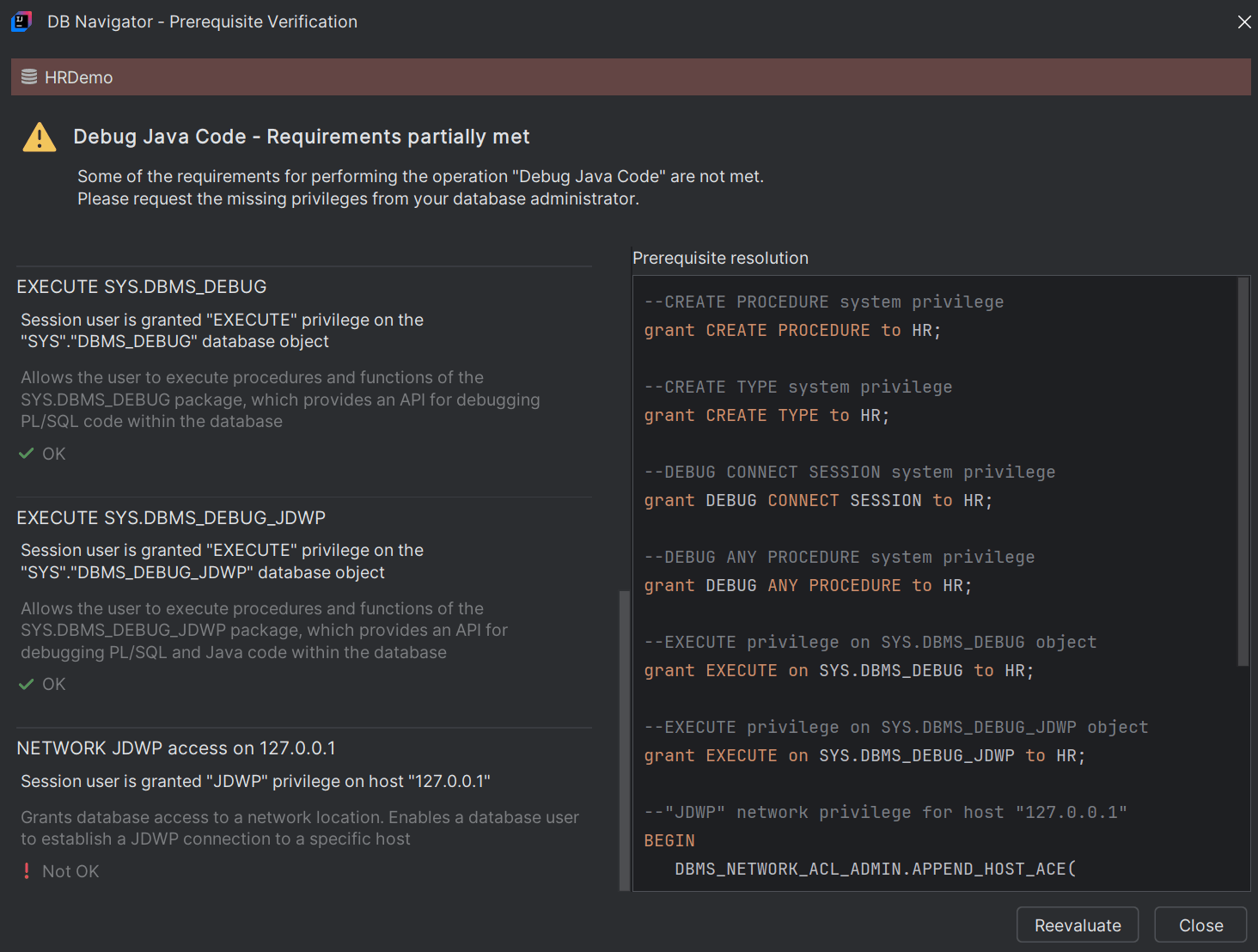
- Click Details on the dialog box to open the DB Navigator - Prerequisites Verification dialog box that lists all the required permissions for debugging the Java code. Contact your database administrator to provide you the required privileges.
- Click Continue to proceed with the debugging session without the required privileges.
- Click Details on the dialog box to open the DB Navigator - Prerequisites Verification dialog box that lists all the required permissions for debugging the Java code. Contact your database administrator to provide you the required privileges.
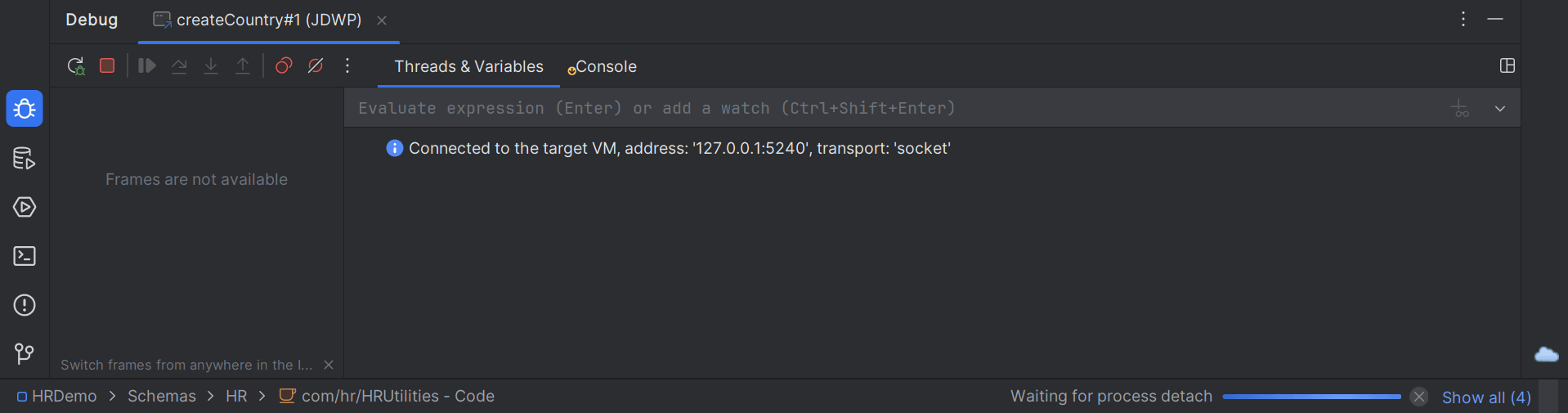
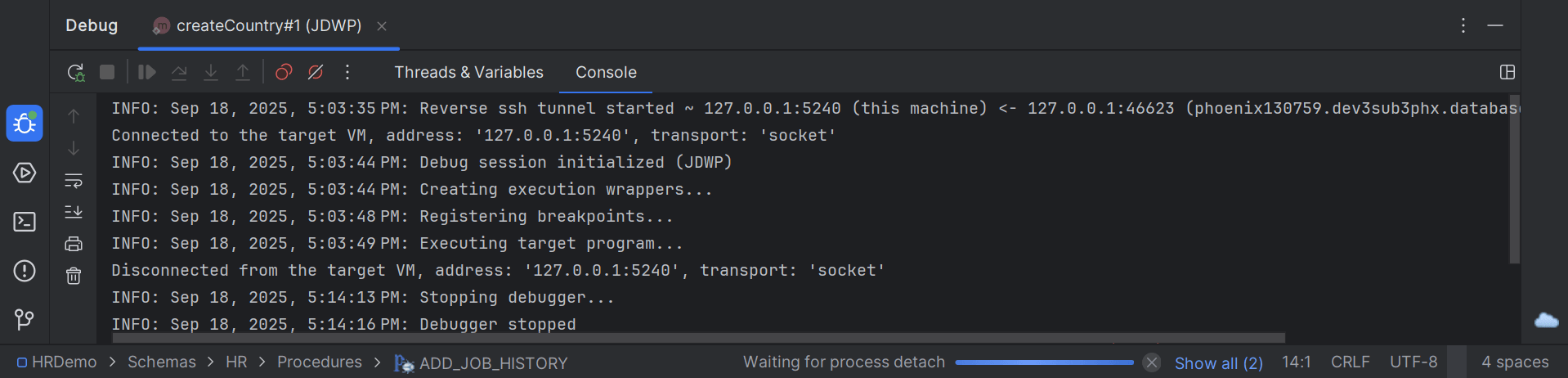
- Click Debug. The debug session starts, and the processes are listed on the Debug Console window. The Debug Console displays the following tabs:
- Threads & Variables - displays the list of live threads (expressions) and variables along with the watches added to the variables. You can evaluate and switch between threads and also add a watch to analyze the state of the program.
- Console - displays the program output in addition to the debugger output and the debugger session status messages.
- Threads & Variables - displays the list of live threads (expressions) and variables along with the watches added to the variables. You can evaluate and switch between threads and also add a watch to analyze the state of the program.
Parent topic: Debugging Engine