Debugging Methods
This topic describes the procedure to debug PL/SQL methods in Oracle® Database Navigator.
Debugging a PL/SQL program through Oracle® Database Navigator plug-in uses the execution engine and attaches the debugger agent to target process. If the run configuration in your IDE supports debugging and the method is compiled in debug mode, a green bug icon displays next to the object in the DB Browser window, indicating that you can run the program in debug mode.
Follow these steps to debug a PL/SQL method:
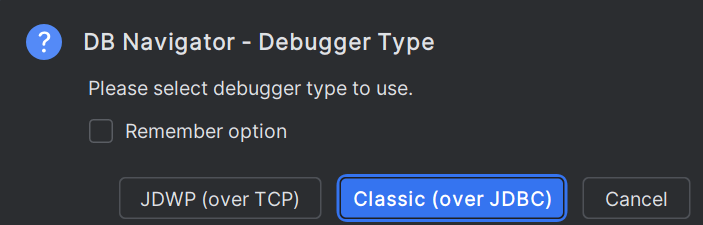
- Right-click the method on the DB Browser window and select Debug from the context menu. Alternatively, double-click the method to open it in the editor window and then click the Debug Method icon from the editor toolbar menu.A confirmation dialog box to select the debugger engine type to use pops up. This confirmation message only appears if the default debug engine type is not already configured to either JDBC or JDWP methods.
Note:
You can choose to first compile the function or procedure by selecting Compile > Compile Function/Compile Procedure from the context menu of the method and then select Debug, or the Compile Function (Debug)/Compile Procedure (Debug) option. - Select the Debugger Type (JDWP over TCP or Classic over JDBC) to initiate the debug session.
If the method or any of its dependencies are not compiled, the debug execution can result in inconsistencies. You will be prompted to first compile the program you are trying to debug.
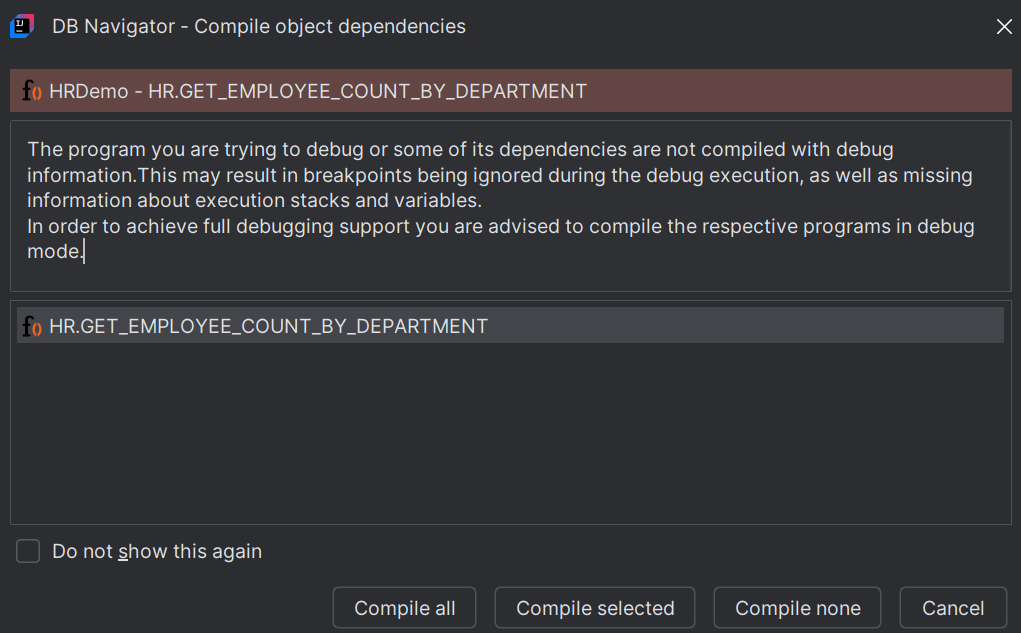
- Select Compile all or Compile selected to start compiling dependencies for program execution. The DB Navigator - Debug Method dialog box opens with the name of the method being debugged and the selected Debugger Type and Debugger version specified.
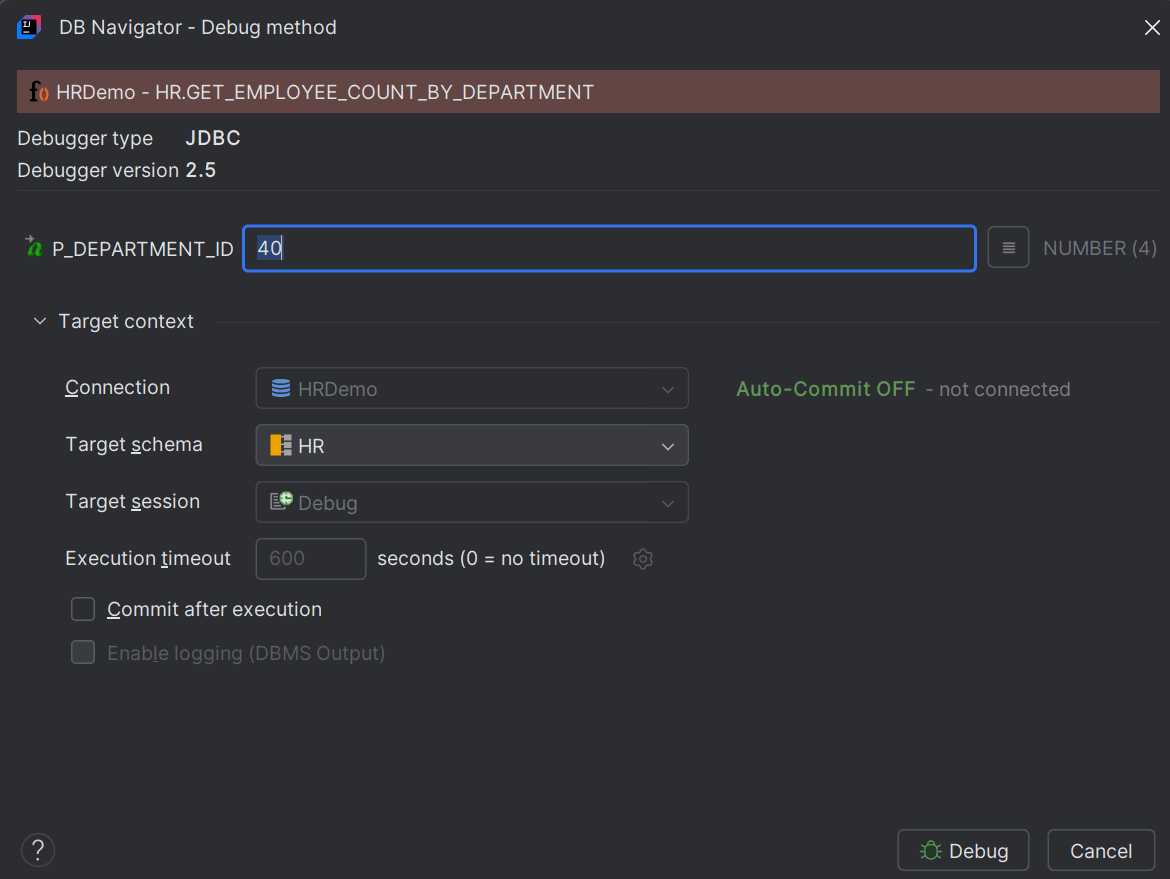
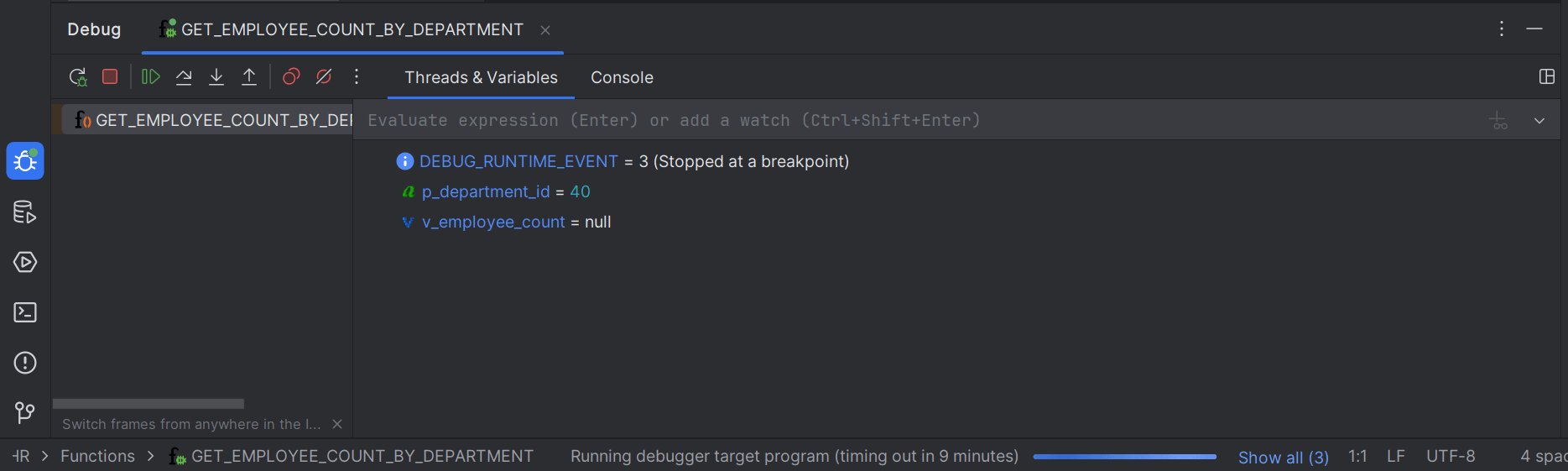
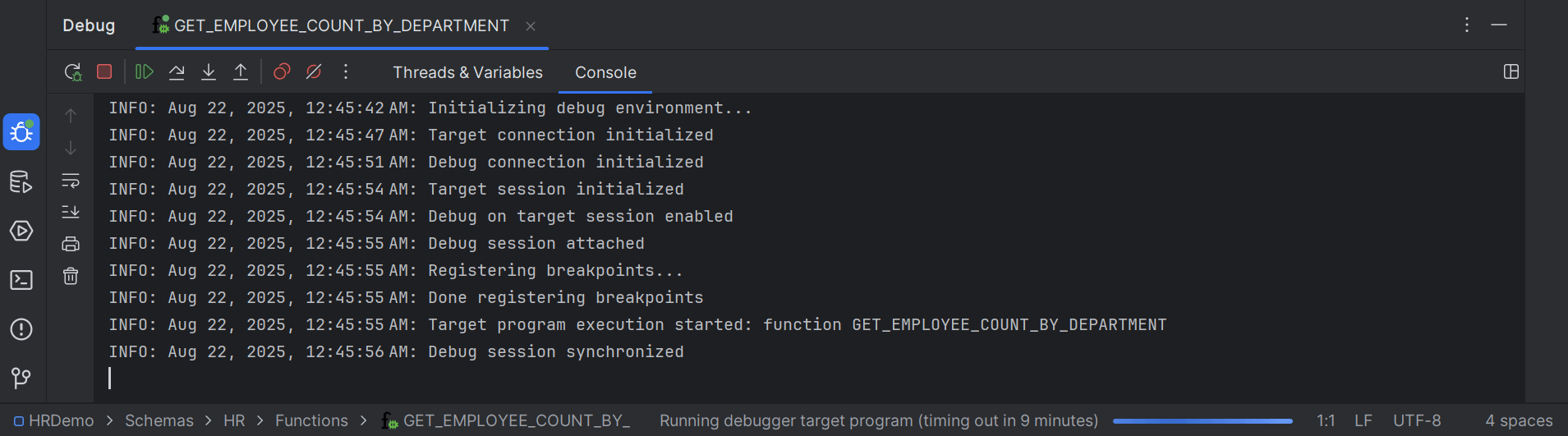
- Click Debug.The debugger session starts, and the processes are listed on the Debug console window.The Debug console displays the following tabs:
- Threads & Variables - displays the list of live threads (expressions) and variables along with the watches added to the variables. You can evaluate and switch between threads and also add a watch to analyze the program state.
- Console - displays the program output in addition to the debugger output (such as log messages from breakpoints)
- Threads & Variables - displays the list of live threads (expressions) and variables along with the watches added to the variables. You can evaluate and switch between threads and also add a watch to analyze the program state.
Parent topic: Debugging Engine