Executing Methods
This topic describes the procedure to execute methods or functions.
Method execution in Oracle® Database Navigator tool helps in executing complex data types such as procedures or functions. The results of the executed method is displayed on the DB Execution Console window. To run a method (function or procedure):
- Click the Run Method icon from the toolbar menu of the program editor window.
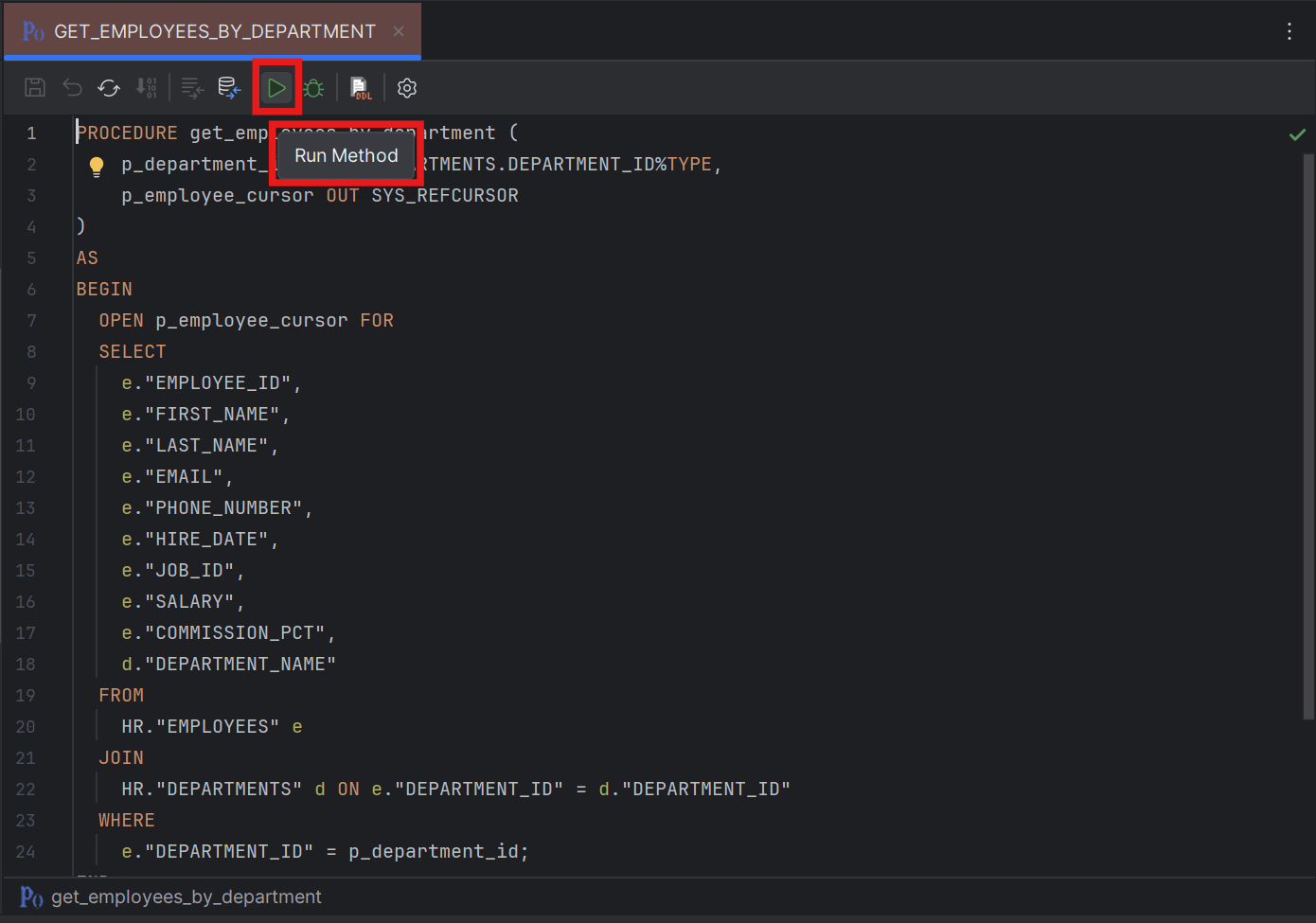
The DB Navigator - Execute Method dialog box opens with details of the target database connection, schema, and session in which the method will be run.
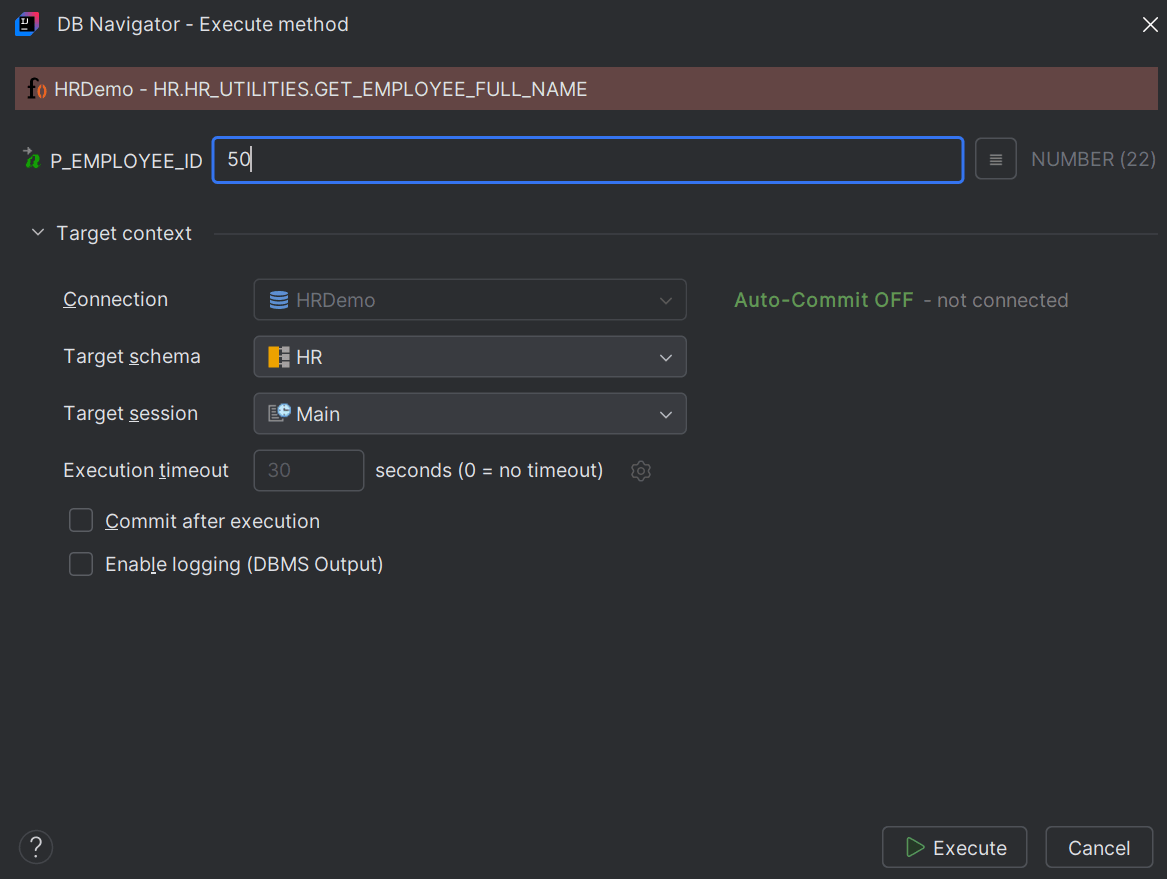
- Click Execute.
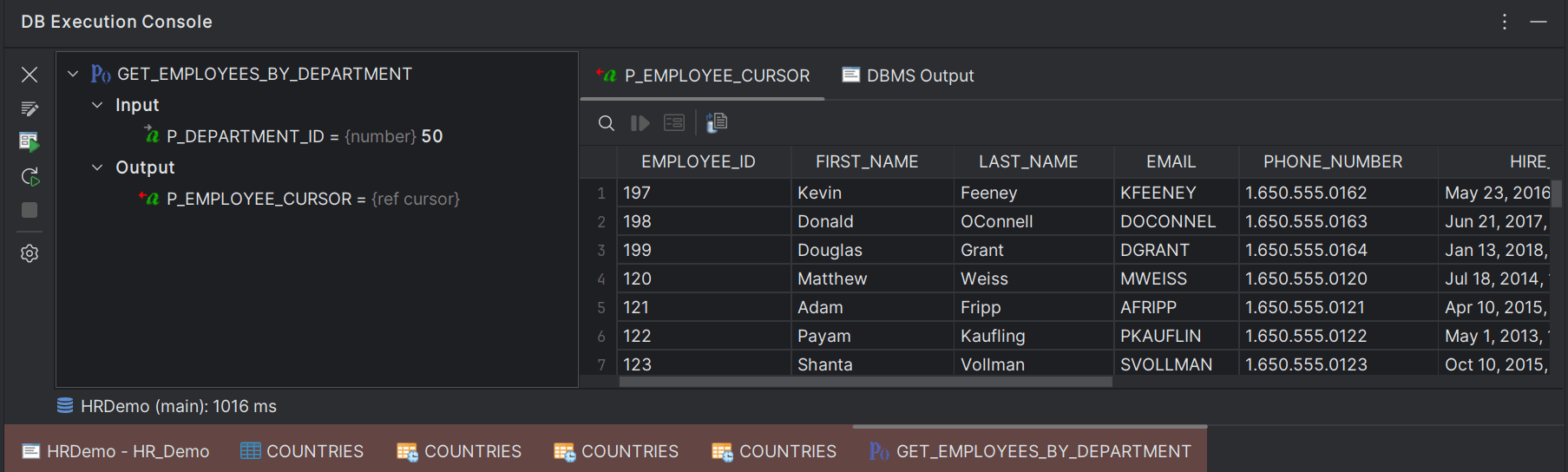
The results of the executed method displays in the DB Execution Console window. The results include the method input and its output along with the fetched records corresponding to the output in a separate tab.
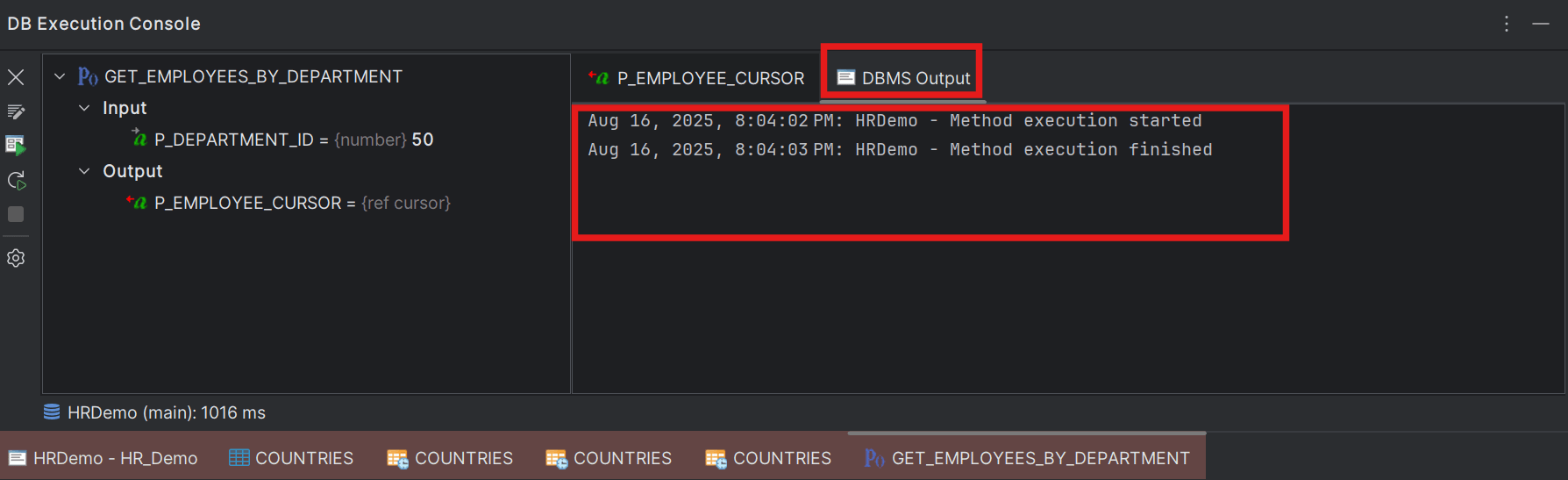
If Enable logging (DBMS Output) option was enabled, the DBMS Output tab displays the method execution event statistics.
From the DB Execution Console toolbar menu options, you can edit the method (in the editor), execute the method again, open the execution dialog box to change the input parameters or target context. Furthermore, you can export the records fetched in the result and search for a specific record and view record details.
- Method Execution History
This topic provides an overview of maintaining a history of input parameters for executed methods.
Parent topic: Execution Engine