Exporting Database Records

This topic describes the procedure for exporting database records to a specific destination in desired file format.

  1. Select the cell record and click the Export Data icon from the Data Viewer toolbar menu.
    1. Alternatively, right-click the record and select Export Data from the context menu.
    The qualified name of the database object displays in the DB Navigator - Export Data dialog box to indicate the table/view/materialized view from which you want to export data.
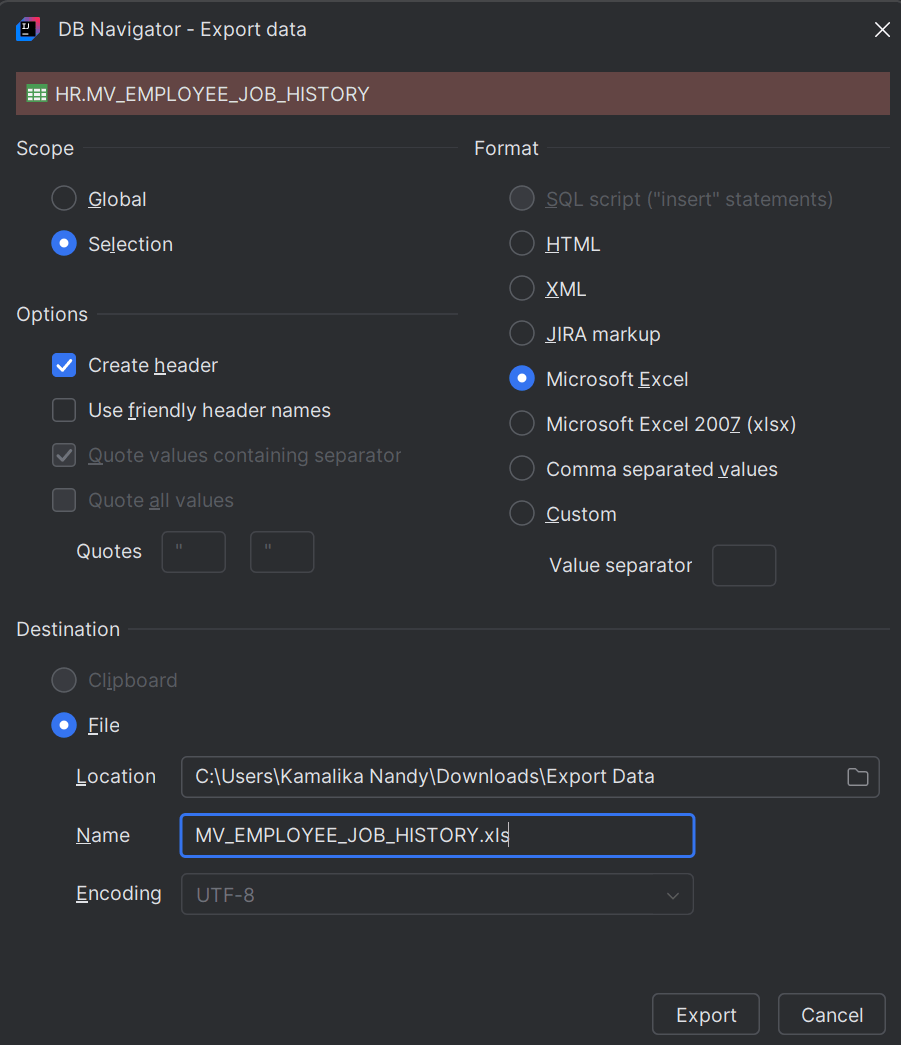

    Export Data dialog box

  2. Select the Scope of data to export:
    • Global - Export the entire table (or any other object type you are viewing/editing)
    • Selected - Export only the record from the table you have selected
  3. Select the format in which you want to export the data. File formats include:
    • SQL Script
    • HTML
    • XML
    • JIRA Markup
    • Microsoft Excel (.xsx)
    • Microsoft excel 2007 (.xlxs)
    • Comma Separated Value
    • Custom
  4. Based on the selected file format, select from the Options that are enabled.
  5. Optionally, create a header for the file to be exported, with friendly header names.
  6. If the selected file format is CSV, you can choose to quote the values containing separator and enter the values.
    1. Also, enter the type of Value Separator.
  7. Select the Destination where you want to export the file, by selecting the folder Location, file Name, and specify the Encoding method (if required for that file format). Alternatively, you can export the file to a Clipboard (copied locally).
  8. Click Export to successfully export the file containing the data into the specified location.
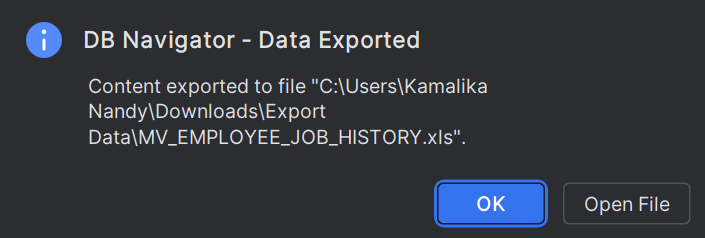
    Data exported

  9. Click OK to close the confirmation message or click Open File to view the exported file.