Table Editors
This topic provides an overview of the table editor features.
When you view the data for a database table in the Table Editor, based on the settings configured for the DB connection or the environment, inline editing is automatically enabled. Double-clicking the table from the DB Browser window opens the table data in the Table Editor window.
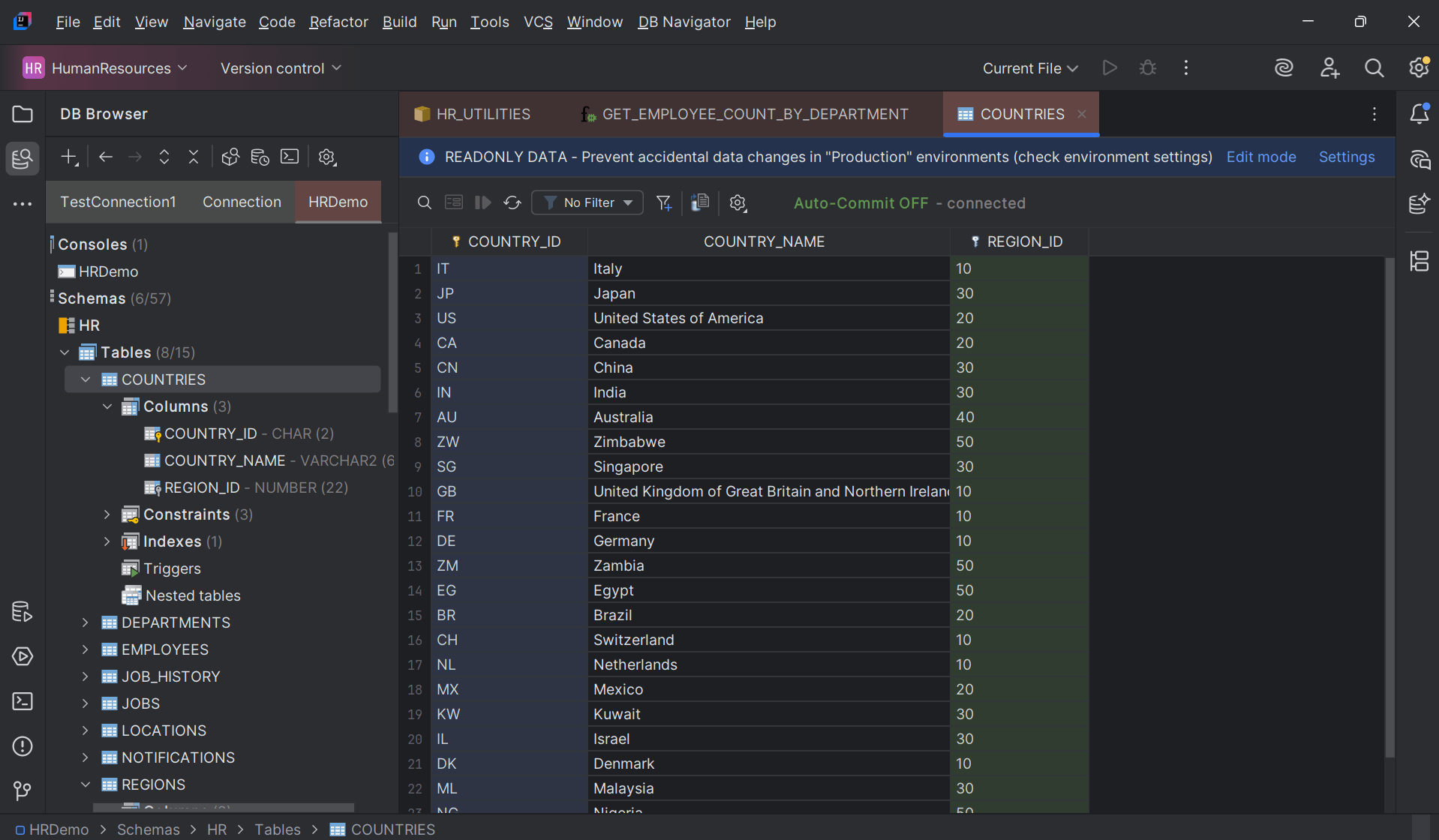
Note:
For database connections or environments that are set to read-only, you can either change the specific table into Edit mode or access the DB environment Settings to modify configuration for that environment type.- Hovering the cursor over the column name displays information about the column including the name, data type, maximum data size of the column, whether the column values are primary key or foreign key.
- Sorting the columns in ascending/descending order or by the column name, or a cell value is possible
- For primary keys column(s) of the table (color-coded), the context menu enables you to view any constraints, indexes associated with the primary key value, and referencing records/datasets.
- For foreign key column(s) of the table (color-coded), the context menu enables you to view any constraints and referenced primary key column(s).
- Export selected records of the database table (or entire table) to specific locations and in different file formats, such as Excel, CSV, XML, HTML, Markdown, etc.
The Table Editor window provides a top toolbar ribbon from where you can perform following operations in the table records:
| Toolbar Option | Description |
|---|---|
| Lock Editing | Click to make the data in the table non-editable. |
| Find Data | Search for specific record by matching the keywords you type in the search box |
| Edit Record | Select a specific record to view (and edit) it's details in the DB Navigator - Edit Record dialog box |
| Fetch Next 100 Records | Fetch next 100 records in the table (if available) to display in the editor block |
| Reload | Reload all the records of the table to fetch updated values in the cells |
| Select Filter | Filter the table records by the column headers or a cell value. Options include No filter, Basic Filter, or any Custom Filter |
| Create Filter | Add new filters by creating joins with other tables and adding conditions. Manage filters to modify parameters any existing filter or delete a custom filter created for the table |
| Duplicate Record | Create a duplicate copy of the selected record |
| Insert Record | Add a new record to the table |
| Delete Record | Delete a record from the table |
| Commit | Manually commit changes for any unsaved transactions |
| Rollback | Rollback any changes made to the table data |
| Export Data | Export the data of the table (entire table or a selection) in different file formats and desired location |
| Options | Access Data Editor settings options |
- Creating Filters in Table Editors
This topic describes the procedure to create and apply filters to view data in table editors. - Viewing Database Records
This topic describes the procedure for viewing database records and their details in the data viewer. - Editing Database Records
This topic describes the procedure for editing database records to modify their details in the data editor. - Exporting Database Records
This topic describes the procedure for exporting database records to a specific destination in desired file format.
Parent topic: Data Viewers and Editors