Introduction to DB Browser Window
This topic provides an overview of the database browser window and its features.
To open the DB Browser window on your IDE platform, from the Main menu of Oracle® Database Navigator select View > Tool Windows > DB Browser option. The DB Browser window opens, and the corresponding icon is displayed on the sidebar of the IDE interface. You may choose to dock and pin the DB Browser window or choose other View modes as per your preference.
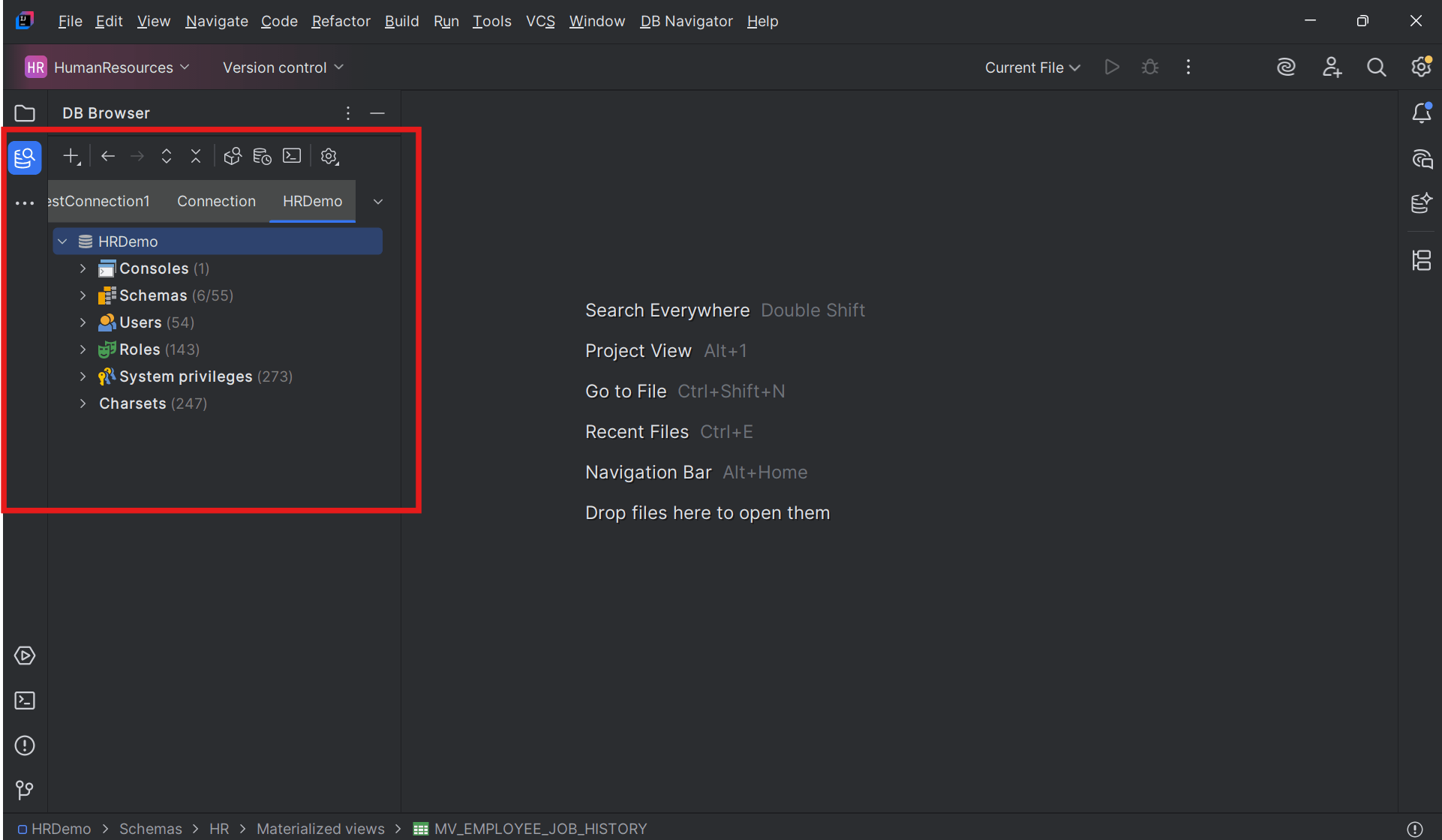
You can perform the following tasks from the DB Browser window:
- Add new database connections.
- View all the database connections in desired Browser Type mode.
- View database objects in a tree structure for every connected database.
- Sort and filter specific databases objects that you want to view in the database.
- View details of each database object in Object Properties.
- Perform various operations on the database objects.
- Create or open existing SQL consoles to write and execute SQL statements.
- Open the session browser for connected databases to view session information.
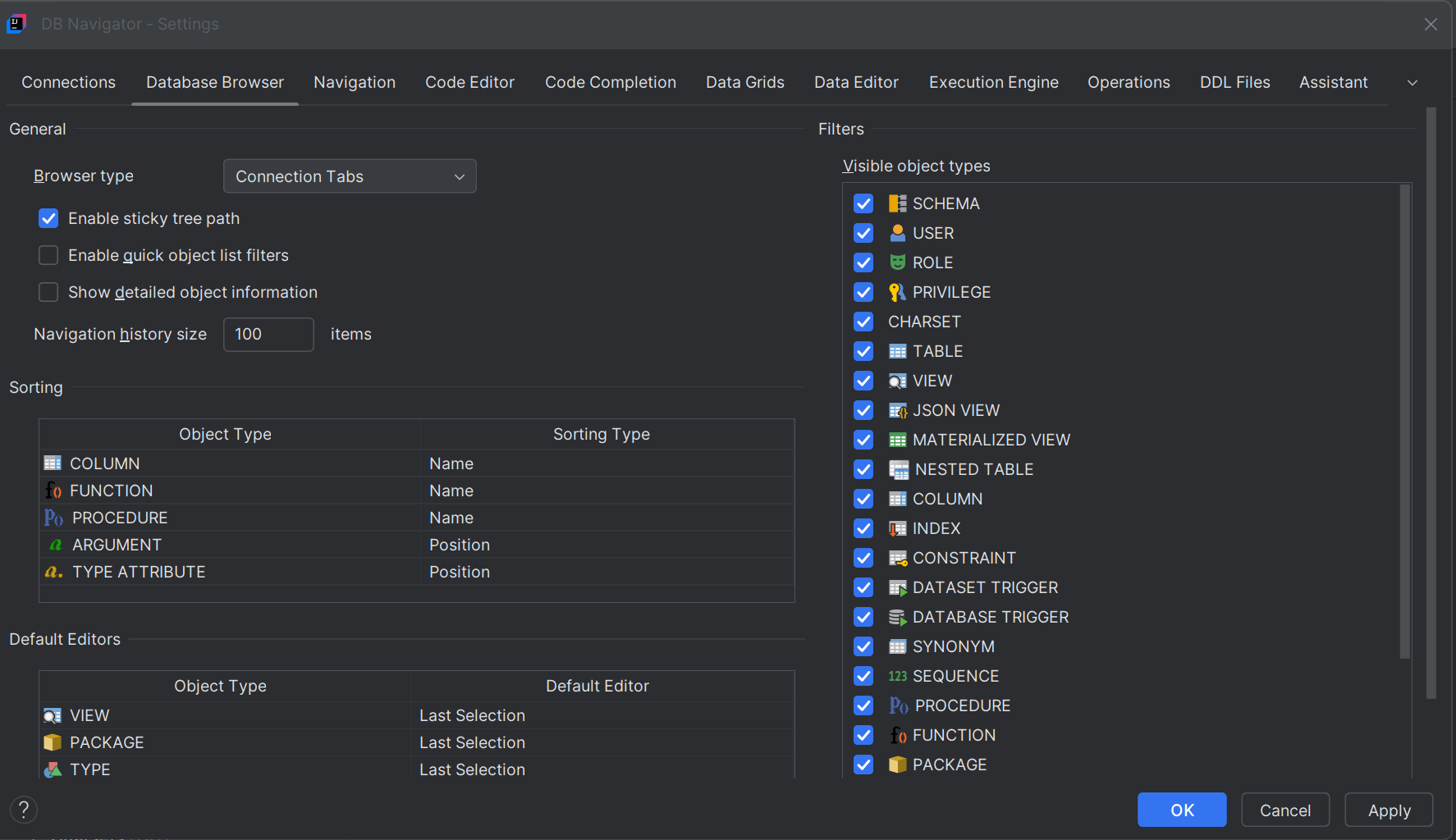
To configure the Database Browser settings, from the Main menu of Oracle® Database Navigator, select DB Navigator > Settings > Database Browser tab.
Parent topic: Database Browser