Java Editor
This topic provides an overview of the Java Editor features.
Oracle® Database Navigator plug-in supports editing a source code written in Java programming language. The Java editor offers basic editing features that lets you add, select, move, copy, edit, fold, and save the Java code. For more information on the offered editing capabilities, see Code Editor Features.
For example, to access the Java editor, open a Java class from the DB Browser window. The file opens in the active code editor tab with the name of the Java class.
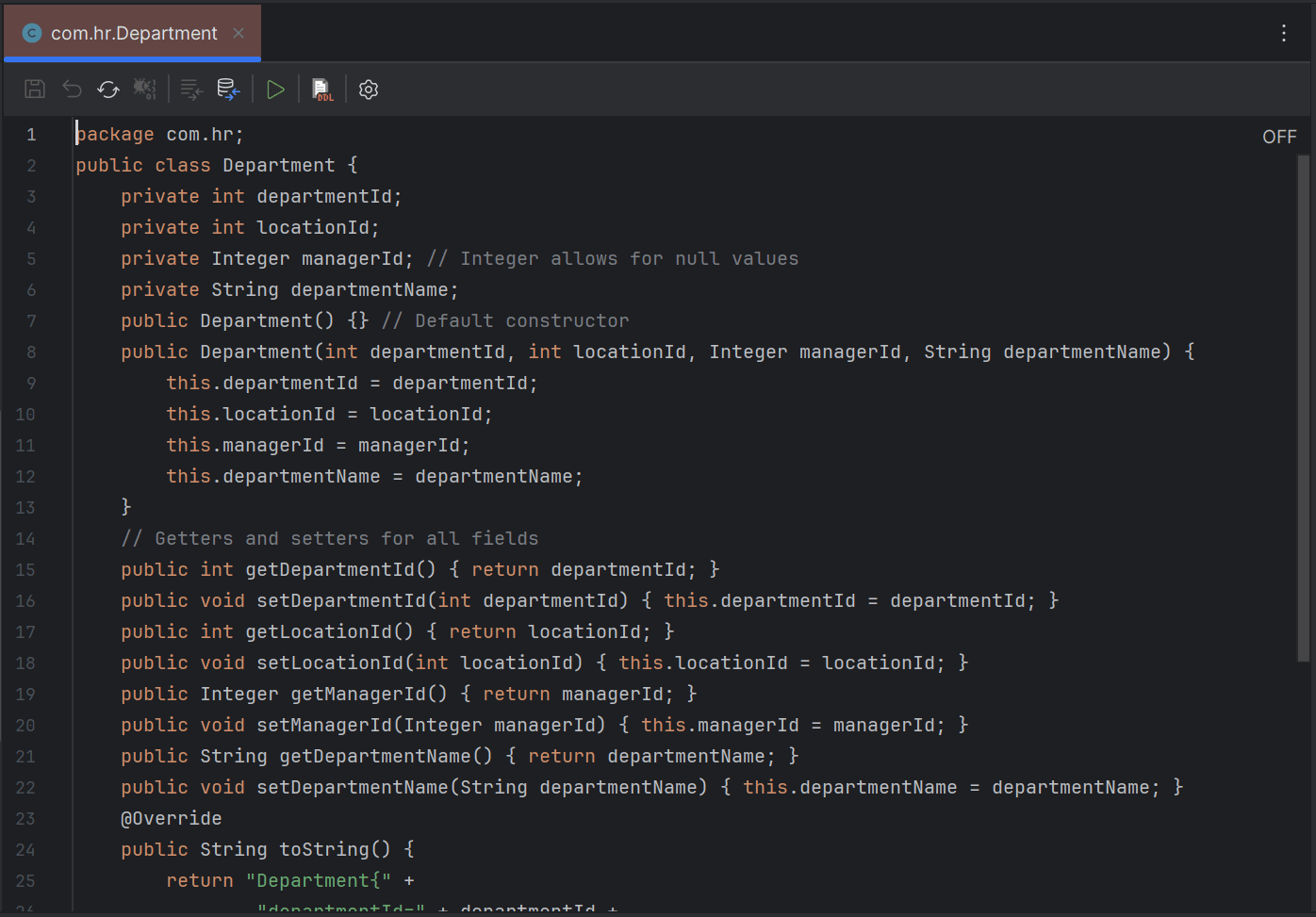
The Java editor toolbar allows you to perform the following operations when you make changes to a Java program:
| Toolbar Options | Description |
|---|---|
| Save | Lets you save the changes made to the Java code into the database; alternatively you can use Ctrl+S. |
| Revert Changes | Lets you revert the changes made to the Java code before committing to the database. |
| Reload | Reloads the latest version of the Java code on the editor. |
| Compile (Debug) | Lets you compile and debug the code. |
| Compare with Original | Produces the local version of your code alongside the original version of the code for comparison and marks out the differences. |
| Compare with Database | Produces the local version of your code alongside the version of code available in the database for comparison and marks out the differences. |
| Run Method | Opens the DB Navigator - Execute Method dialog box where you can enter the input parameters to execute the code. |
| DDL Files | Let you create/attach/detach DDL file for the Java class you are editing. You can also access the DDL File settings from this option. |
| Settings | Lets you access the Code Editor settings for common configurations of the editor panel. |
Parent topic: Code Editors