Project Code Base Synchronization
This topic provides an overview of synchronizing Java code base in a Java project.
Executing Java programs in Oracle databases using Oracle Java Virtual Machine (OJVM), requires loading the Java source files or Java classes and resources into the database schema. With OJVM support added for Oracle® Database Navigator plug-in, you can upload/download Java content from your Java project to a database connection and vice versa. This facilitates synchronization of your Java code base with the database connection within a project.
Follow these steps to load Java files into a database schema:
- In the IDE platform, open the Project folder that contains the Java class/source/resource files.
- Right-click the Java file and select DB Navigator > Upload to Database from the context menu.
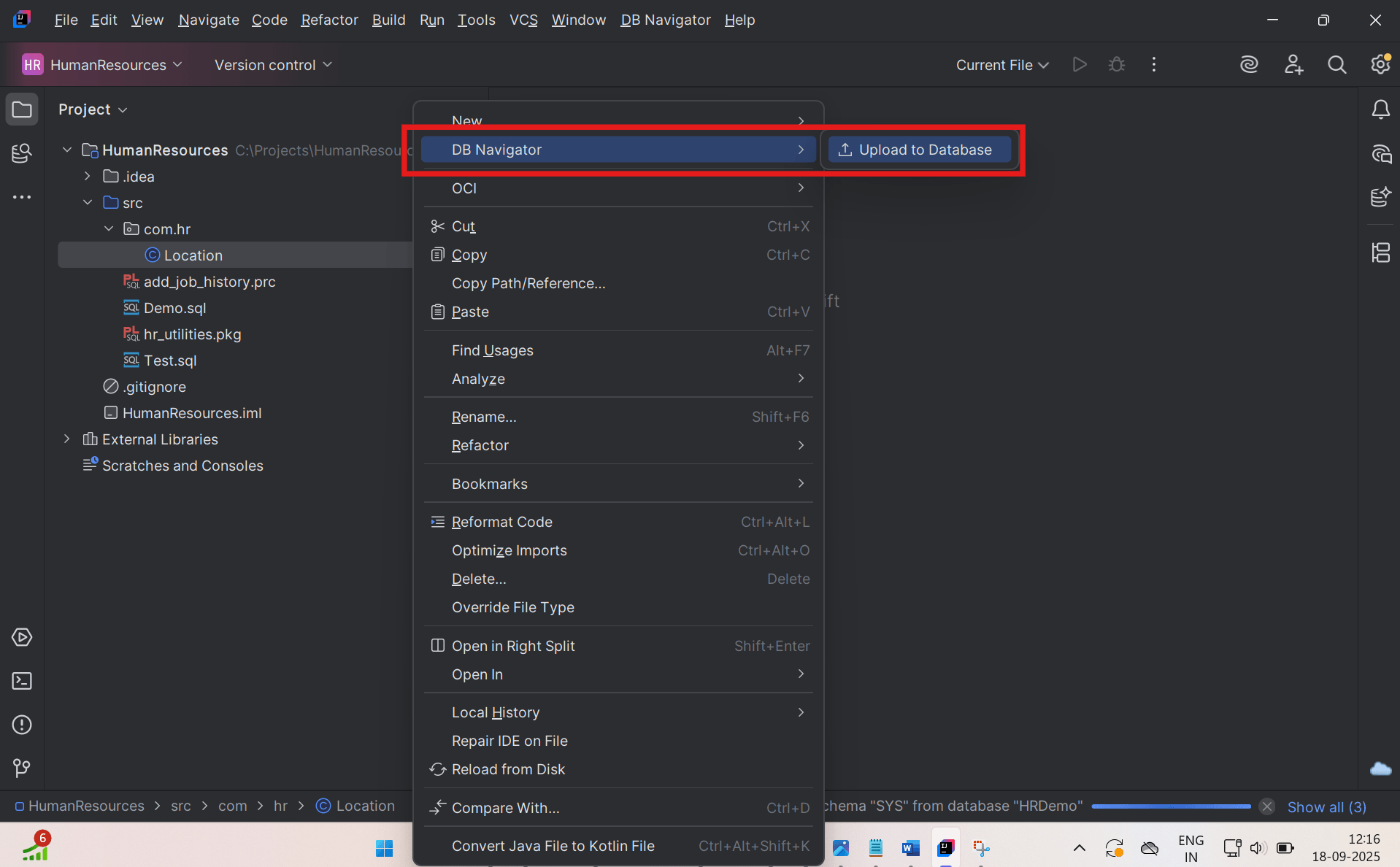
The DB Navigator - Upload Java Content window opens.
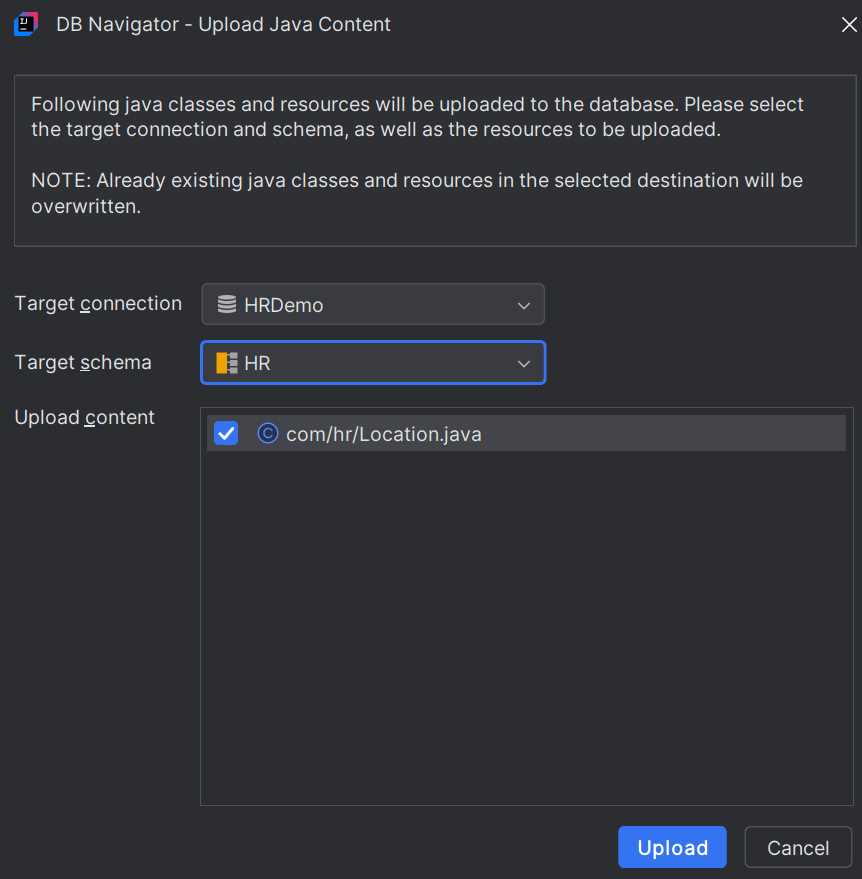
- From the drop-down fields, select the Target Connection and Target Schema to which you want to upload the Java classes and resources.
- Select the required java content check box(es) from the files/resources listed in the Upload content section.
- Click Upload. The upload process begins. Once successfully completed, the DB Navigator - Java Upload Process window displays the status.
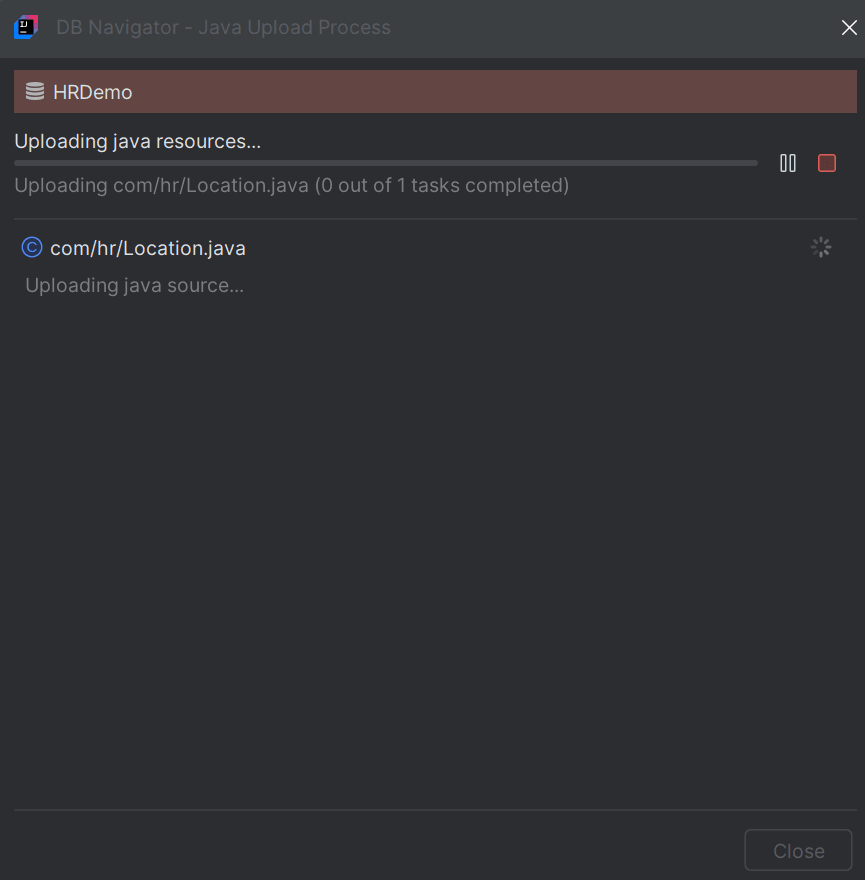
- Click Show Results to view all the Java classes and resources uploaded to the selected DB schema in the DB Navigator - Java Upload Result dialog box.
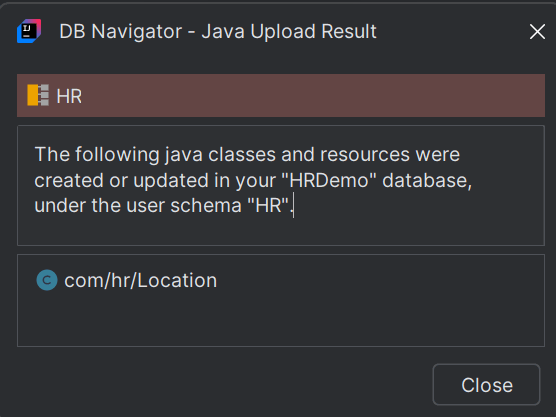
- Click Close.
- Open the DB Browser window and navigate to the target DB schema to verify the uploaded Java content.
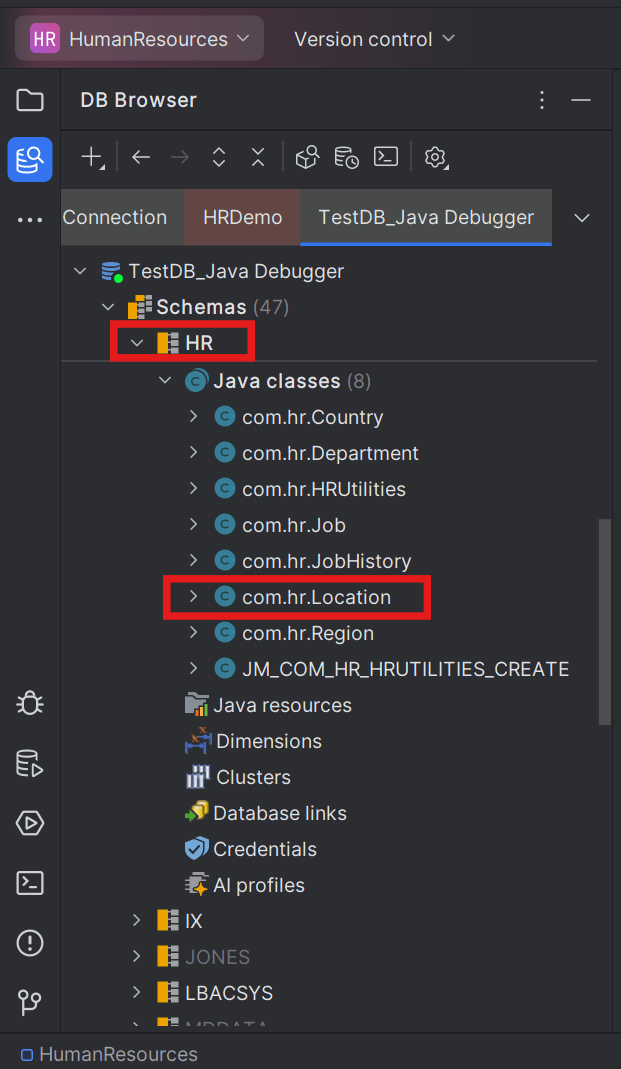
To download Java files and Java resources from a database schema to your project folder:
- Open the DB Browser window and navigate to the Java class file/source file or Java resource in the DB schema.
- Right-click the Java content you want to download and select Download to Project option from the context menu.
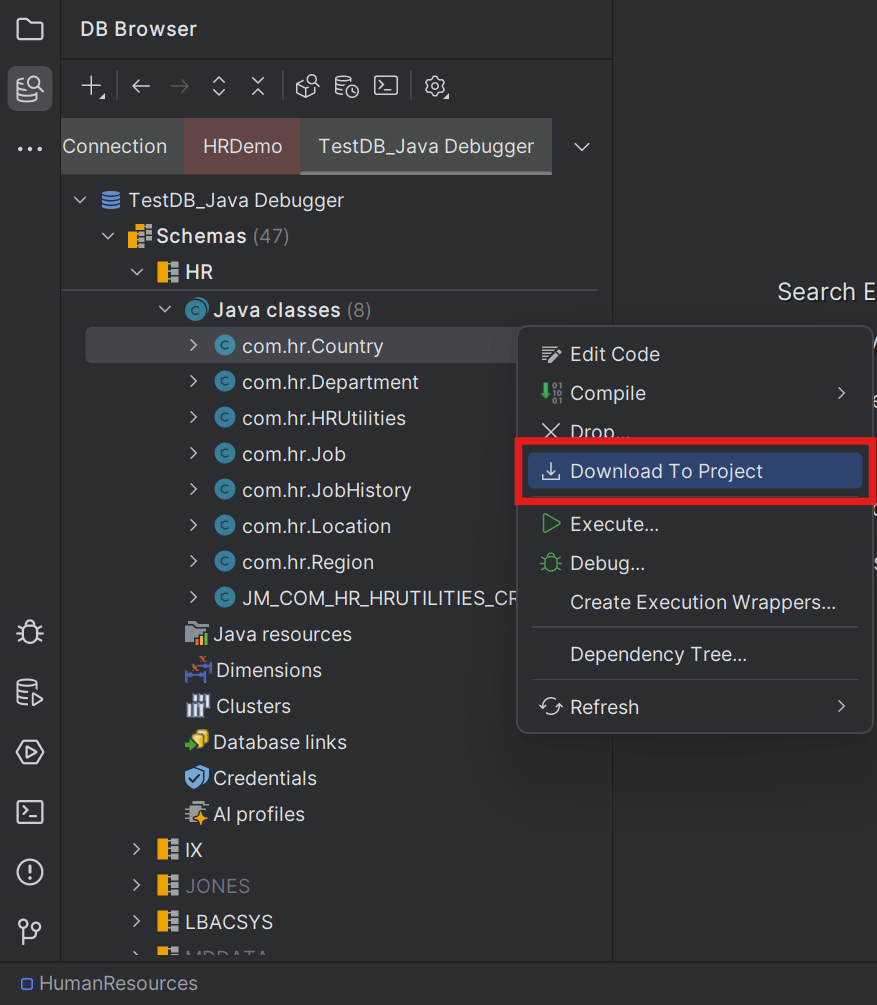
The DB Navigator - Download Java Content window opens.
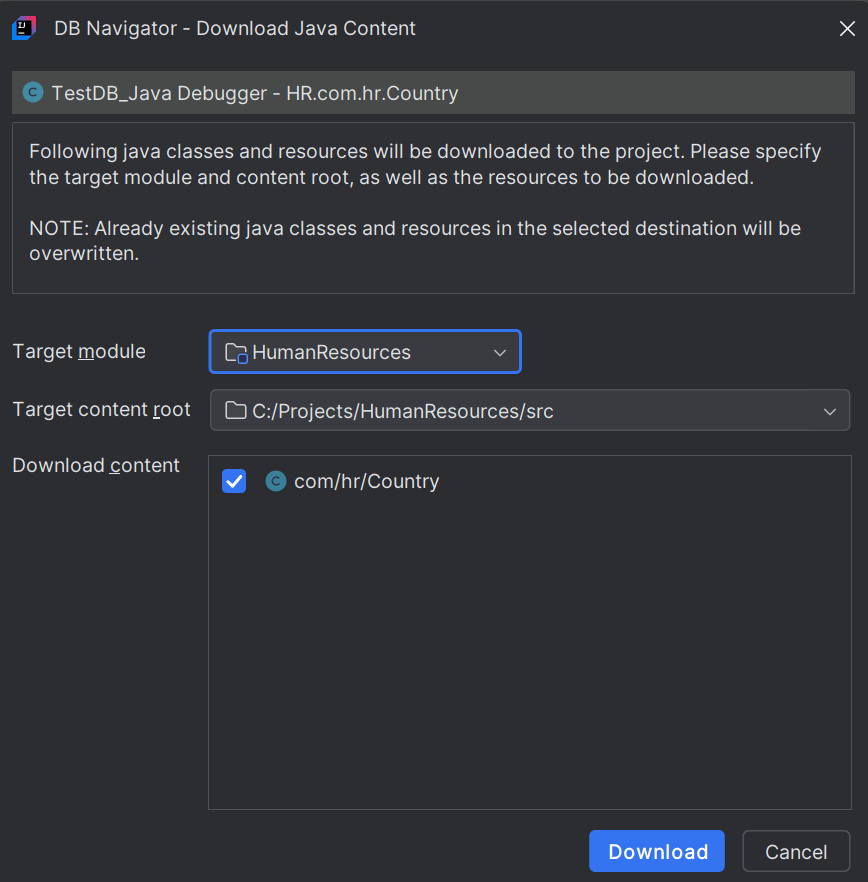
- Select the Target Module (of the project) where the Java files will be compiled and deployed.
- Select the Project root folder from the Target Content Root field.
- Select the check boxes next to the files contained in the Java class that you want to download in the Download content section.
- Click Download. Once the download process is successfully complete, the DB Navigator - Java Download Process window opens displaying the status.
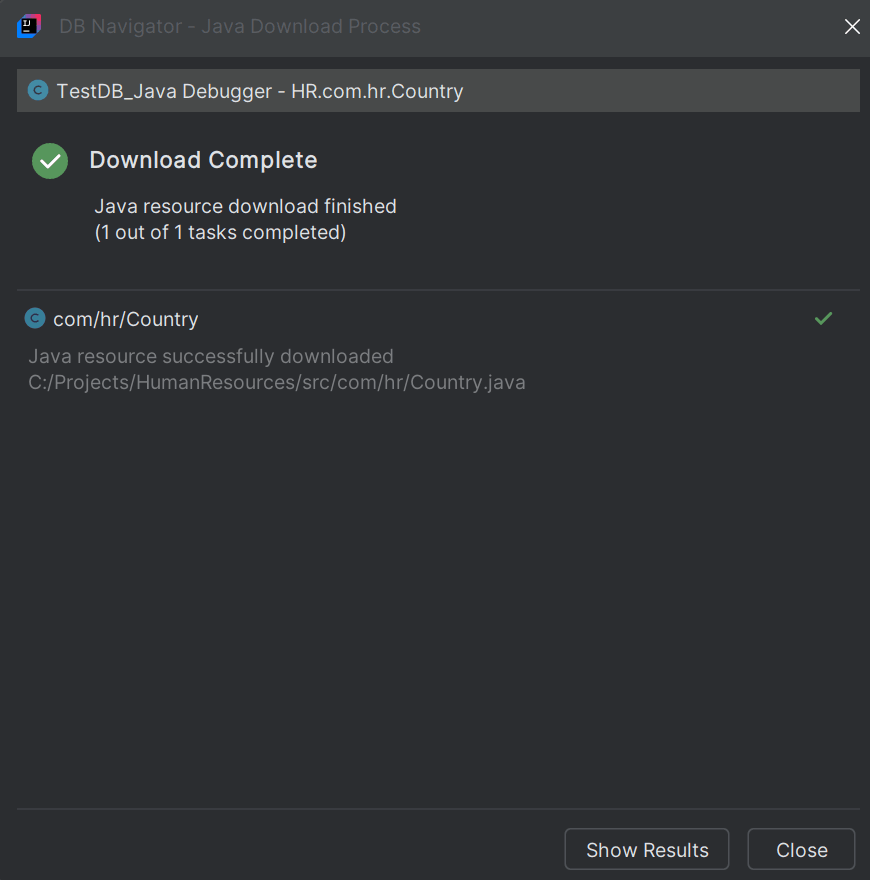
- Click Show Results to open the DB Navigator - Java Download Result dialog box that lists all the Java classes/resources that were created or updated in your project.
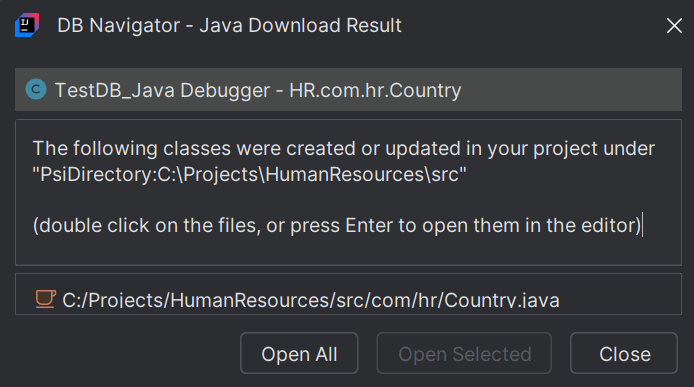
- Double-click any of the listed files to open them in Java editor window or click Open All/Open Selected.
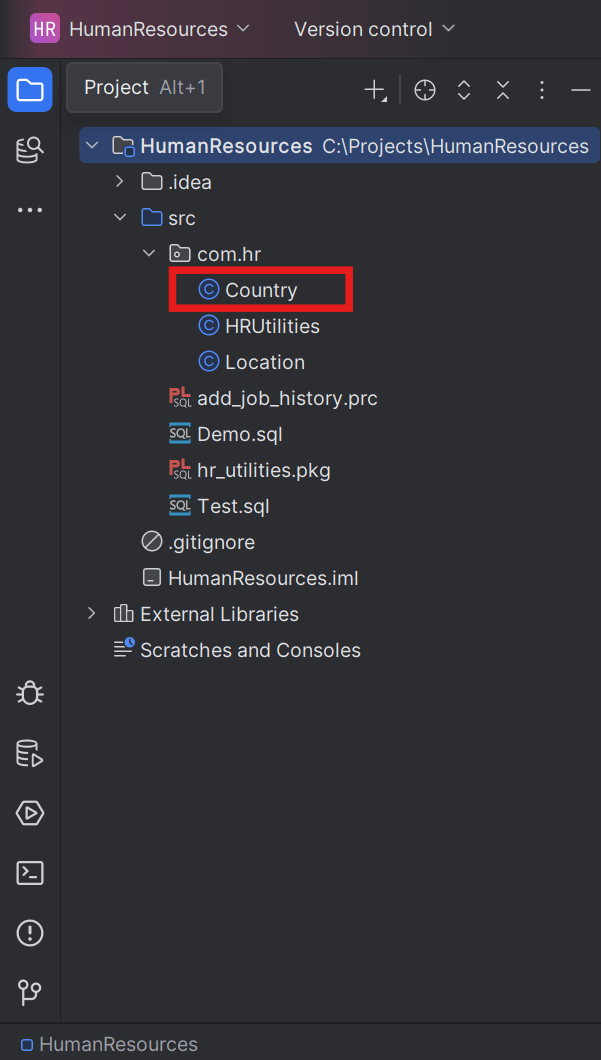
- Open the project folder in your IDE platform to verify the classes/resources are added to the specified project folder location.
Parent topic: Executing Java Programs