Executing Java Programs
This topic describes the procedure to execute Java programs.
Oracle® Database Navigator tool enables you to compile and execute Java programs and display the result on the DB Execution Console window. To run a Java method:
- Select the public static method in the Java class file you want to run.
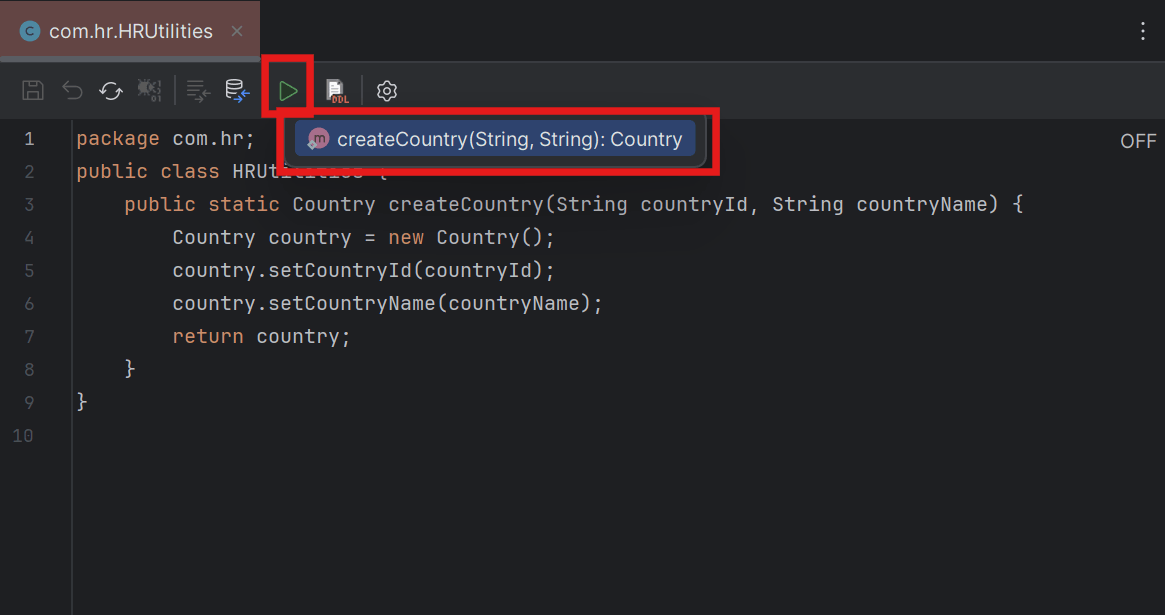
- Alternatively, from the DB Browser window, right-click the Java Class file (or a public static method within it) and select Execute from the context menu.
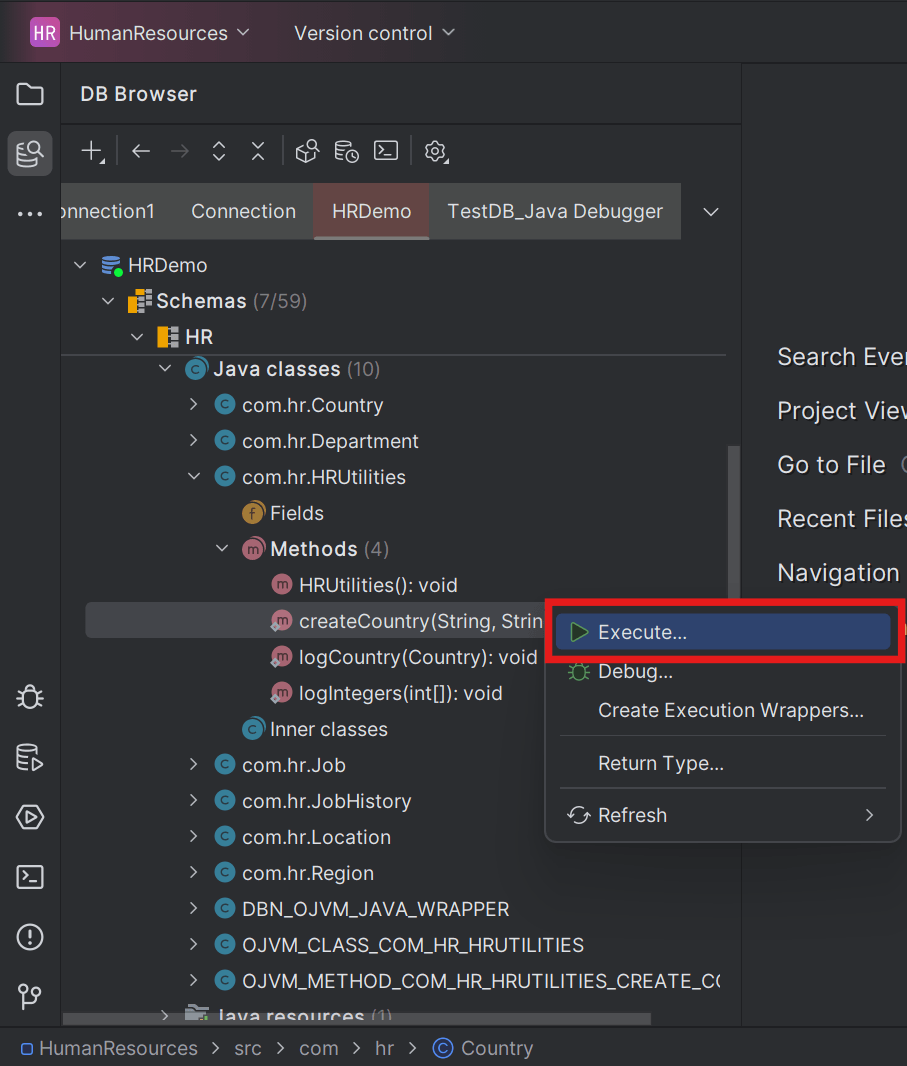
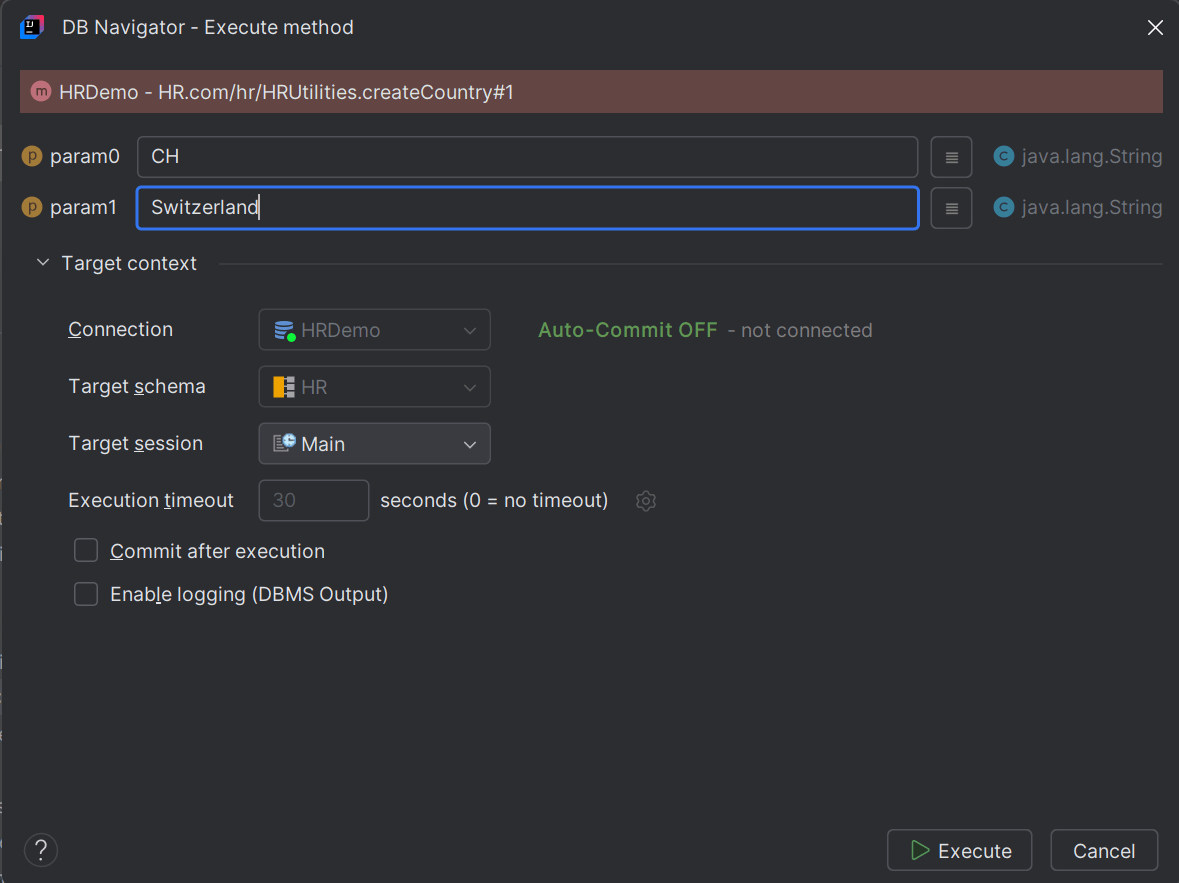
The DB Navigator - Execute Method dialog box opens with details of the target database connection, schema, and session in which the Java method will be run.
- Alternatively, from the DB Browser window, right-click the Java Class file (or a public static method within it) and select Execute from the context menu.
- Enter the values of the input parameters in the text box. The permissible character type and max character length for the input parameter(s) displays for each text box. Clicking the Open Value History icon displays the history of parameter values used for previous Java method execution.If the input parameter is defined as type array, then clicking the ellipsis (...) icon next to the parameter field opens the Array Editor.
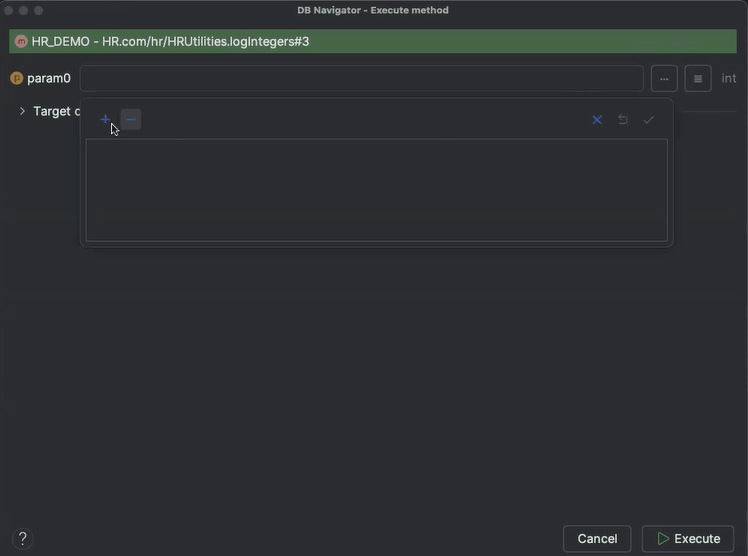 You can add rows in to insert the values to the array (of the declared data type) and save the entry. The input parameter field displays the entered array of values.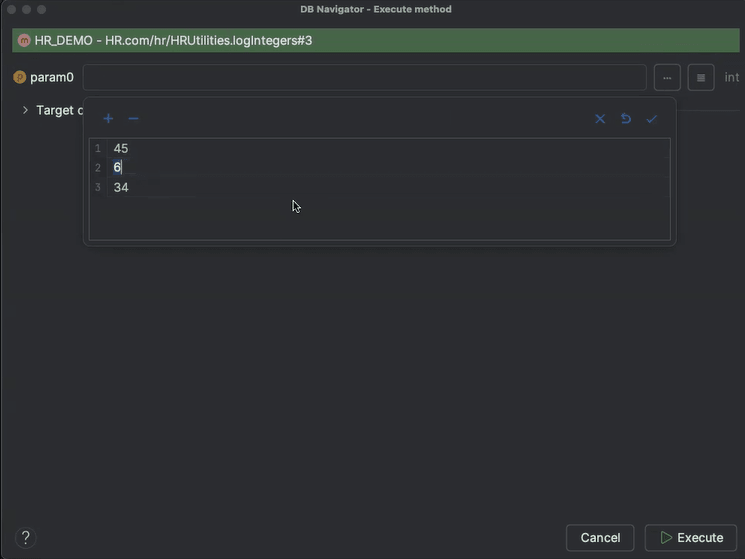
- Click Execute.
Once the execution is successfully complete, the results of the executed method displays in the DB Execution Console window. The results include the method input parameter(s) and its output string.
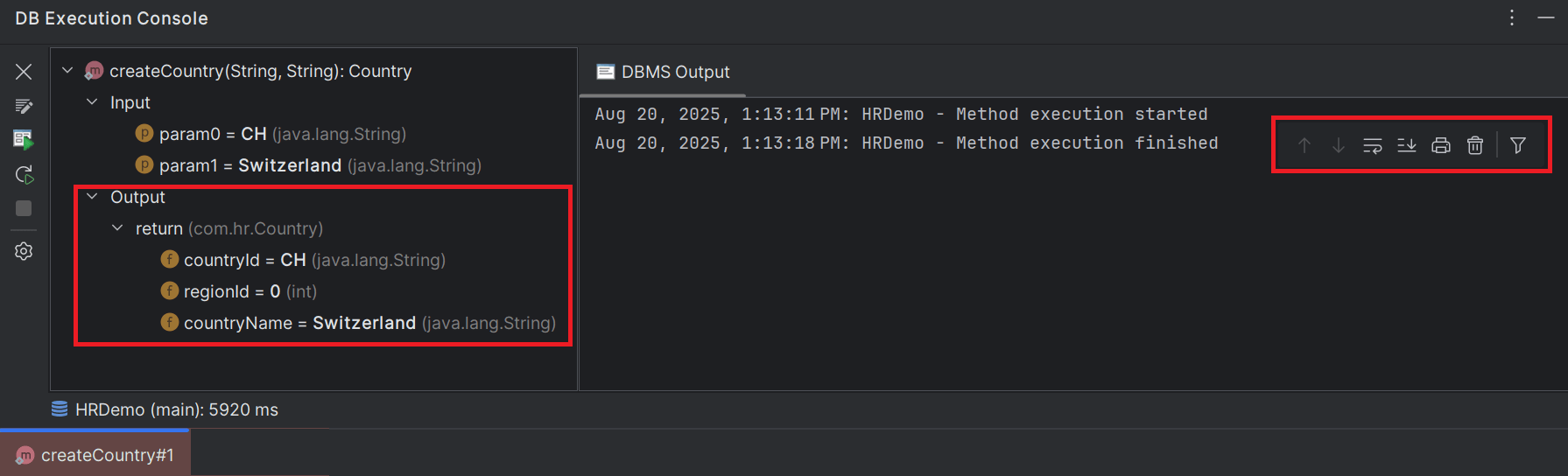
If the Enable logging (DBMS Output) option was enabled, the DBMS Output tab displays the method execution event statistics.
- Java Execution History
This topic provides an overview of maintaining a history of input parameters for executed Java programs. - Creating Java Execution Wrappers
This topic describes the procedure for creating Java execution wrappers in Oracle® Database Navigator. - Project Code Base Synchronization
This topic provides an overview of synchronizing Java code base in a Java project.
Parent topic: Execution Engine