Tool Approvals and Tool Data
This topic provides an overview of the tools invoked by language models to access data and database information.
To process a query, the AI agent invokes certain tools and services. Each invocation first verifies that access to use that tool is provided. If an invoked tool is not already approved for access, the DB Assistant asks for access in a confirmation message, describing the tool’s capabilities and the information that will be exposed to the LLM. You can "Allow" or "Deny" or "Block" access to a Tool (or Tool Category).
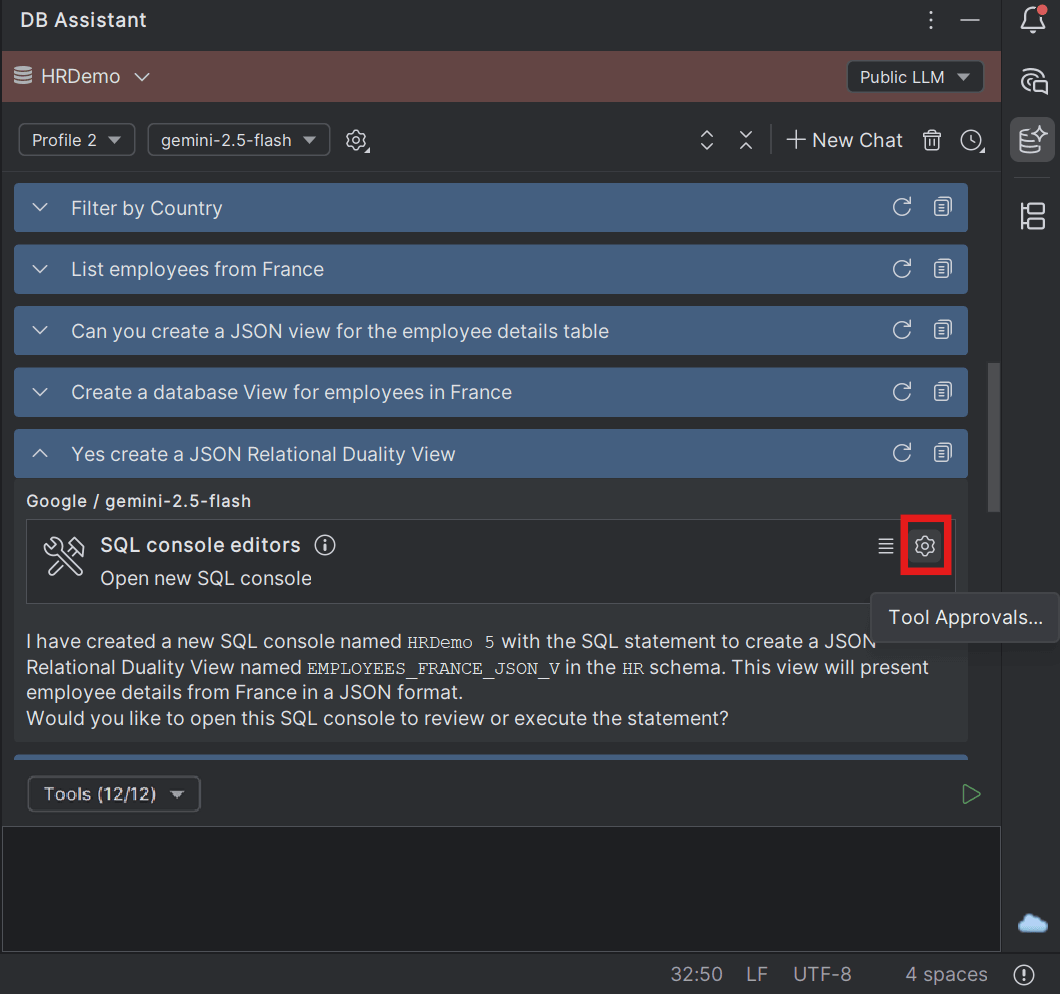
- Tools (or tool categories) marked as "Approved" are invoked automatically.
- Tools (or tool categories) marked as "Blocked" are not visible to the LLMs.
- Tools (or tool categories) marked as "Prompted" throw a confirmation prompt for approval before every invocation.
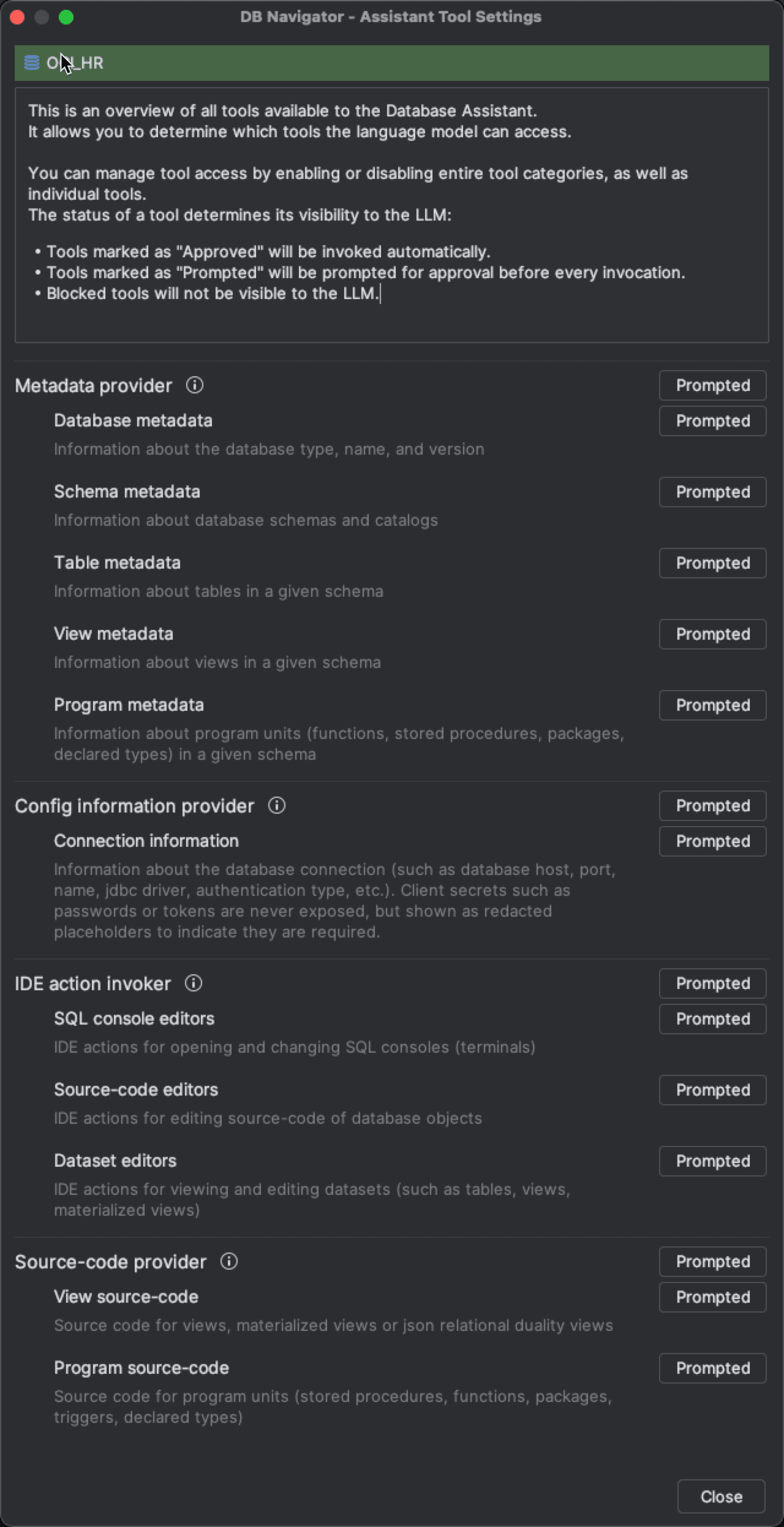
- single-click the "Prompted" button to changed them into "Approved" status providing access to those tools by the LLM
- double-click the button(s) to change them into "Blocked" status denying access to those tools by the LLM.
You can choose to block a specific tool or an entire category of tools or allow unsupervised execution (depending on the sensitivity of the exposed information and the information exposure policies the developer may be subject to).
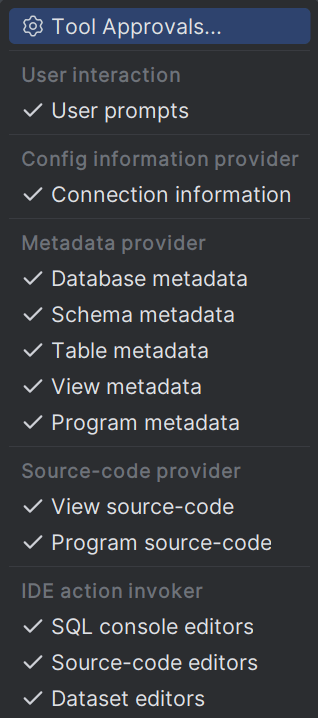
A consolidated list of all Tools and Tool Categories is accessible from the Tools button over the chat box. The button displays the count of tools that are approved or prompted out of the total available tools. A check mark next to the Tool Name indicates that it is either "Prompted" or "Approved".
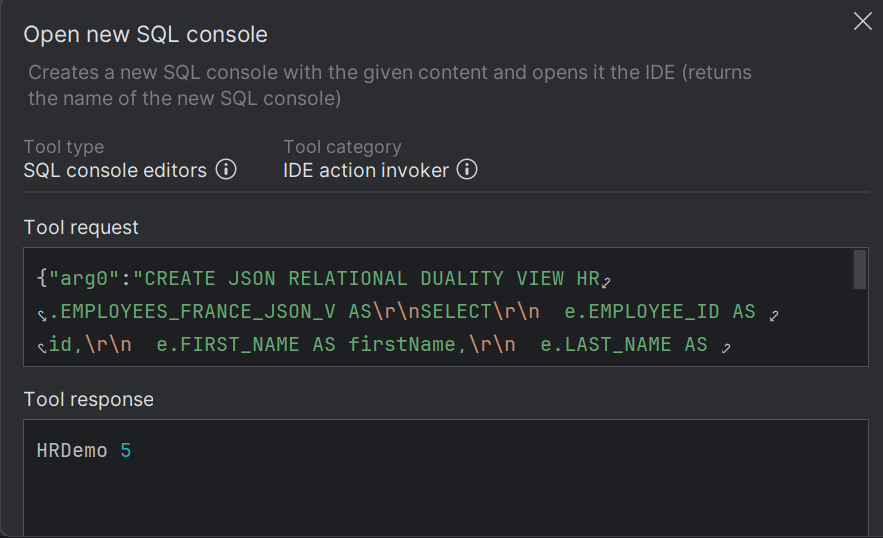
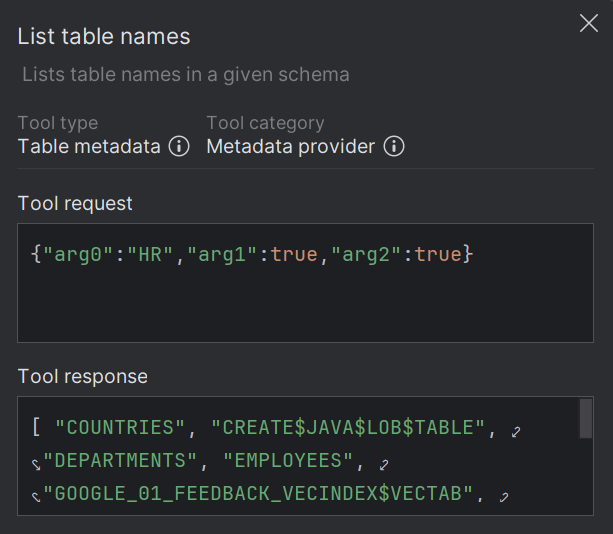
Click the Tool Data icon on the on the confirmation window asking for tool access to open the window displaying the Tool Request and Tool Response exchanged between the invoked tool and the LLM.
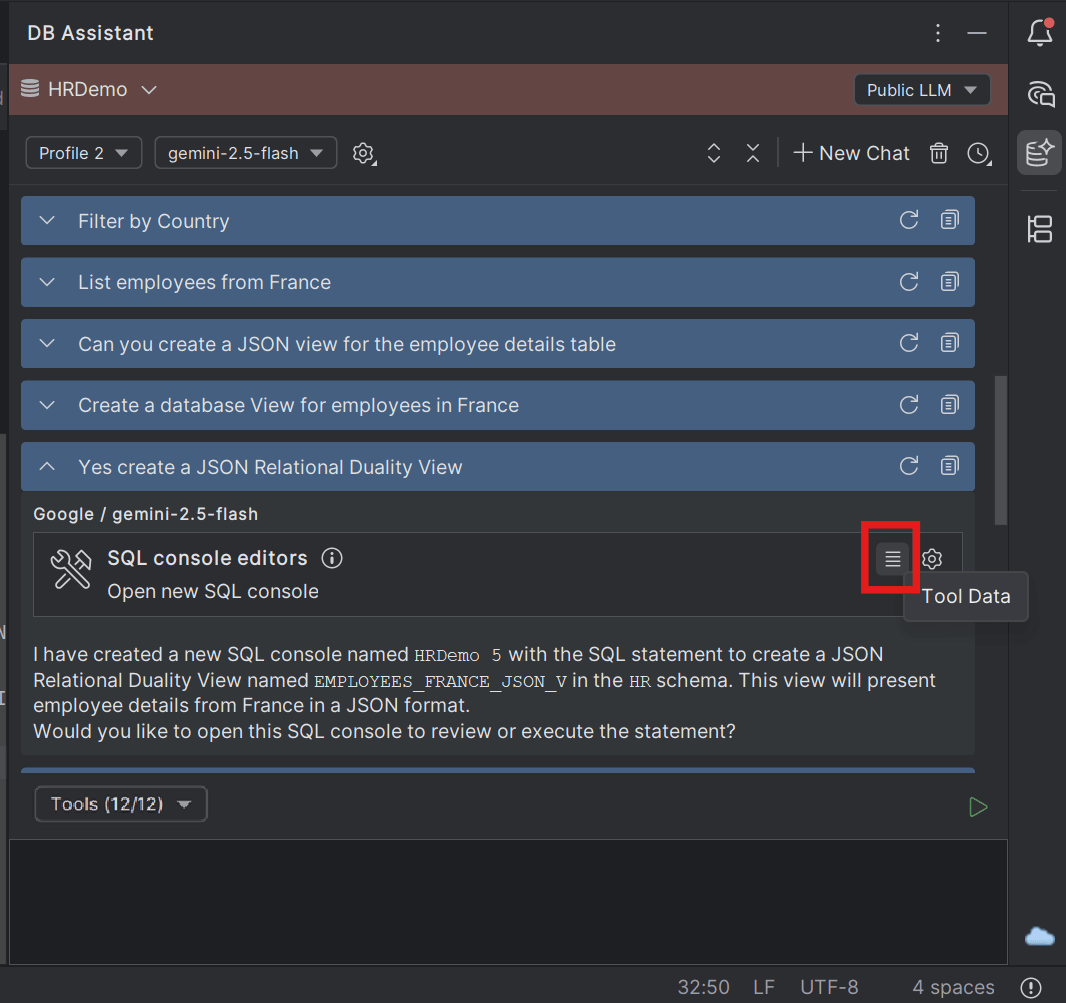
You can view the Tool Request that the LLM send to the tool (or tool category) being invoked with respect to your prompt and the corresponding Tool Response received (response data will be blank till you approve the tool access) from the tool. Additionally, you can view the Tool type, Tool category and tool capability on the Tool Data window.
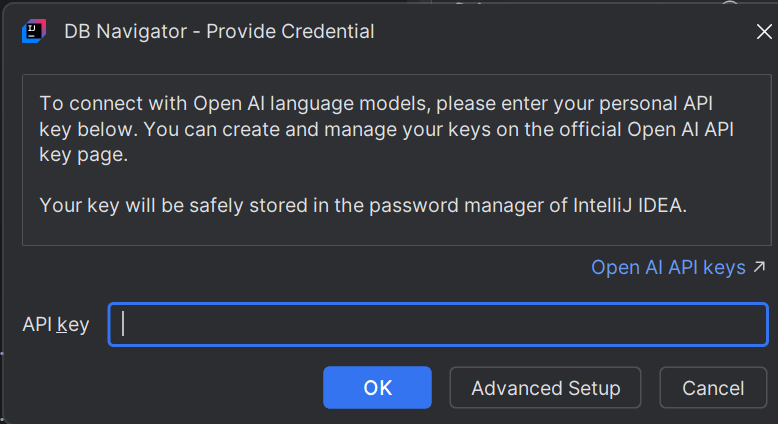
To switch between different LLMs for the same interaction, change the AI Profile and Language Model from the respective drop-down fields on the DB Assistant window. Provide the API Key in the DB Navigator - Provide Credential dialog box, for the new LLM that you want to use for the ongoing chat.
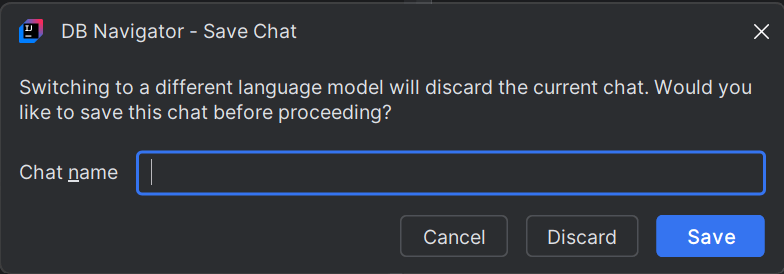
Additionally, to change the Language Model without changing the AI Profile corresponding to the LLM Provider, first save the ongoing chat and then switch to a different language model.
Parent topic: Working with Public LLMs