Building MCP Servers
This topic describes the procedure to build new MCP servers within the scope of connected databases in DBN.
To create a new MCP Server, start with an SQL query you trust, provide each query a tool name, description, and typed inputs, and verify the query against an active connection. Expose the tool you defined to the Database Navigator package to generate a runnable server comprising a runtime JAR, configuration, wallet, source project, README, and client snippets needed to run the MCP server outside of Database Navigator.
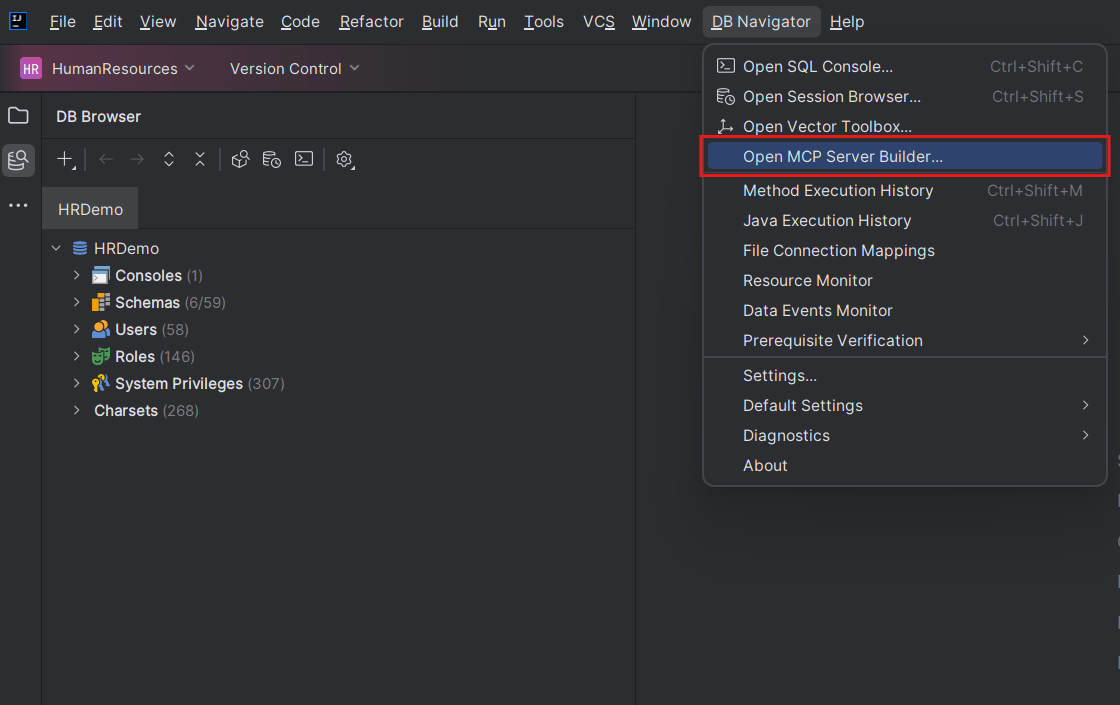
- From the Main menu of Oracle® Database Navigator, select DB Navigator > Open MCP Server Builder, to open the DB Navigator - MCP Server Builder window.
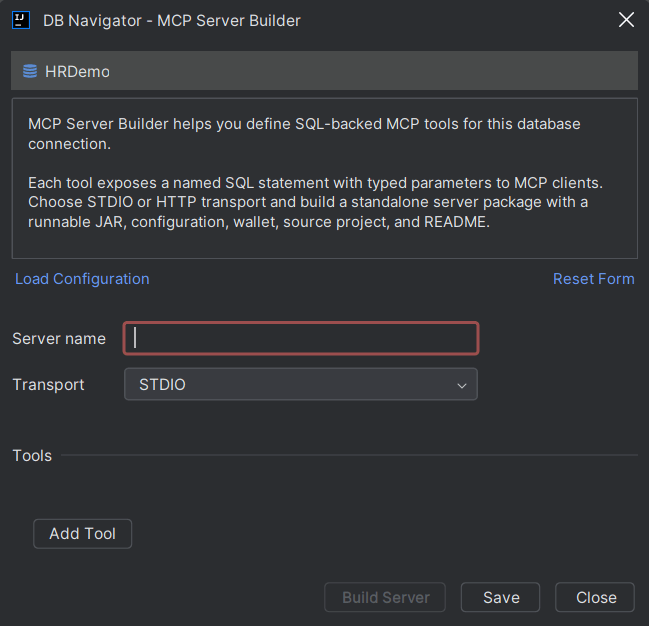
- In the DB Navigator - MCP Server Builder window, provide the following information in the fields:
Field Description Server Name Sets the generated output folder, JAR name, MCP client entry, and server identity. Transport Select either STDIOorHTTPruntime behavior.- STDIO - Follows a local plugin model where the client launches the MCP server. MCP client starts the generated JAR with
java -jar. - HTTP - Follows a service model wherein the MCP server behaves like a web service that MCP clients can connect to. The generated JAR serves the local endpoint port you provide.
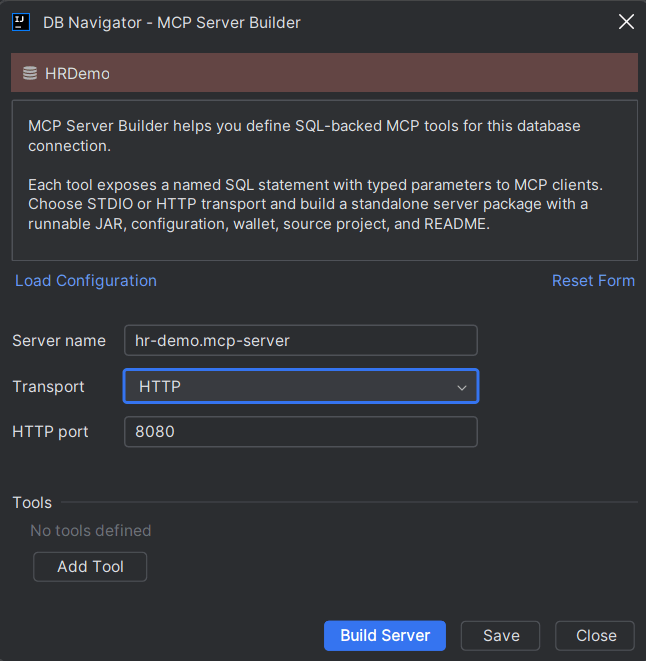
HTTP Port Enter the local endpoint port when you select HTTPtransport option.Save/Save As Saves the current builder definition to an XML file. Build Server Builds the standalone server package. Load Configuration Enables you to select and load an existing XML builder definition created by MCP Server Builder. Reset Form Click this link to reset the server configuration and start afresh. Start again from a default builder definition. MCP Server Builder window when HTTP Transport type is selected:
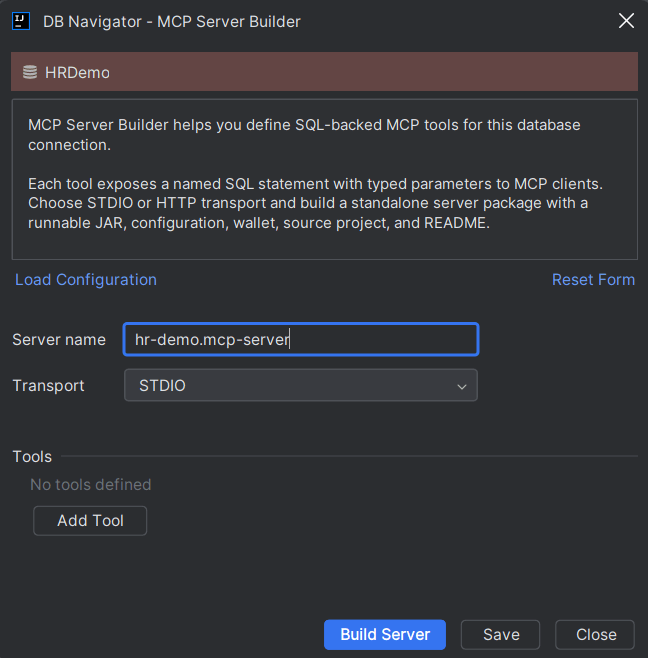
MCP Server Builder window when STDIO Transport type is selected:
- STDIO - Follows a local plugin model where the client launches the MCP server. MCP client starts the generated JAR with
- In the Tools section, click Add Tools to open the DB Navigator - Create MCP Tool window.
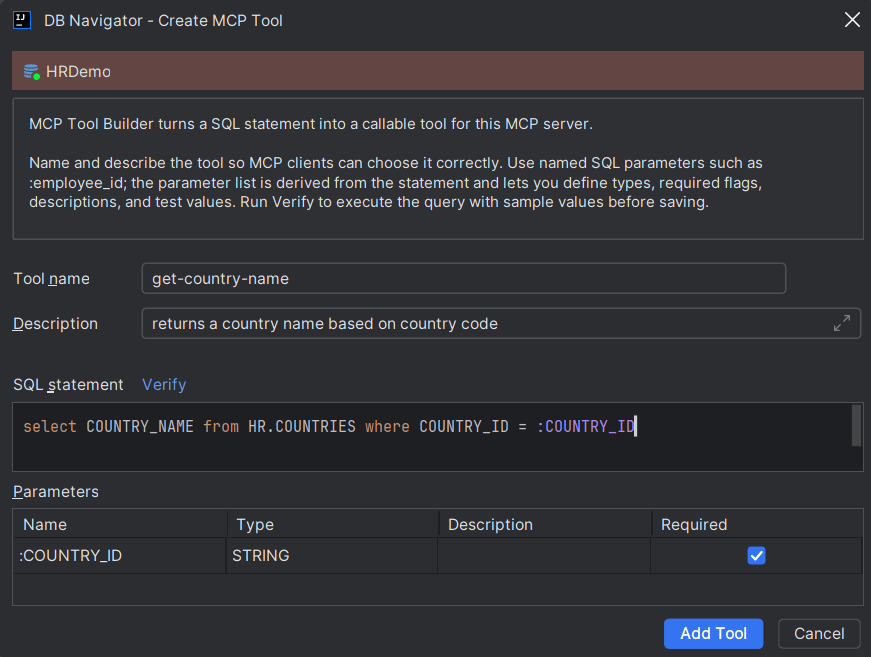
- Click the Verify link followed by Verify Statement to open the DB Navigator - Test SQL Query window.
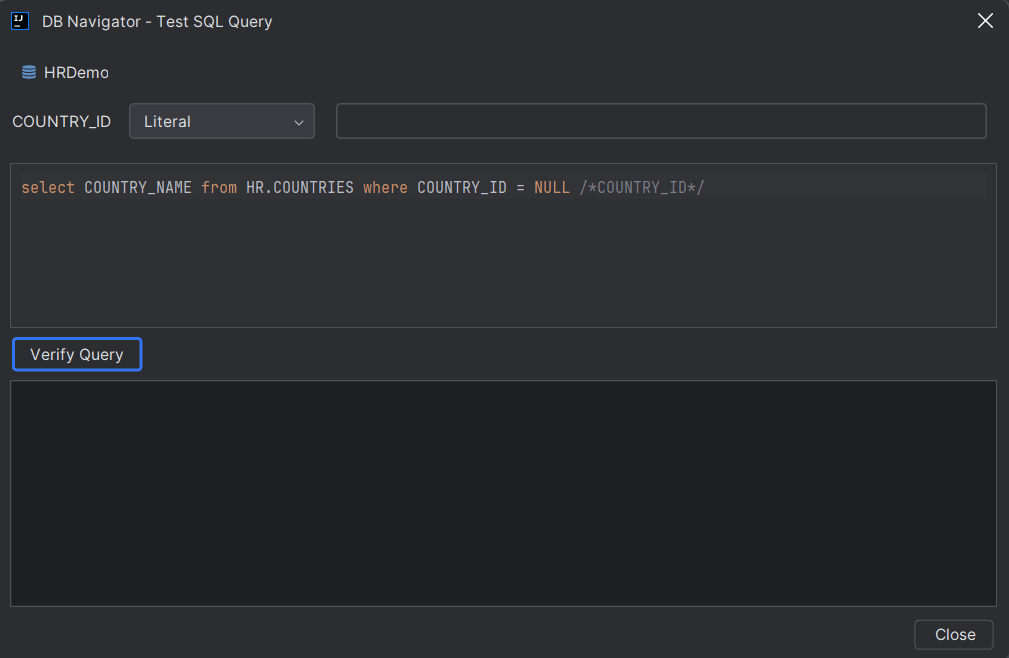
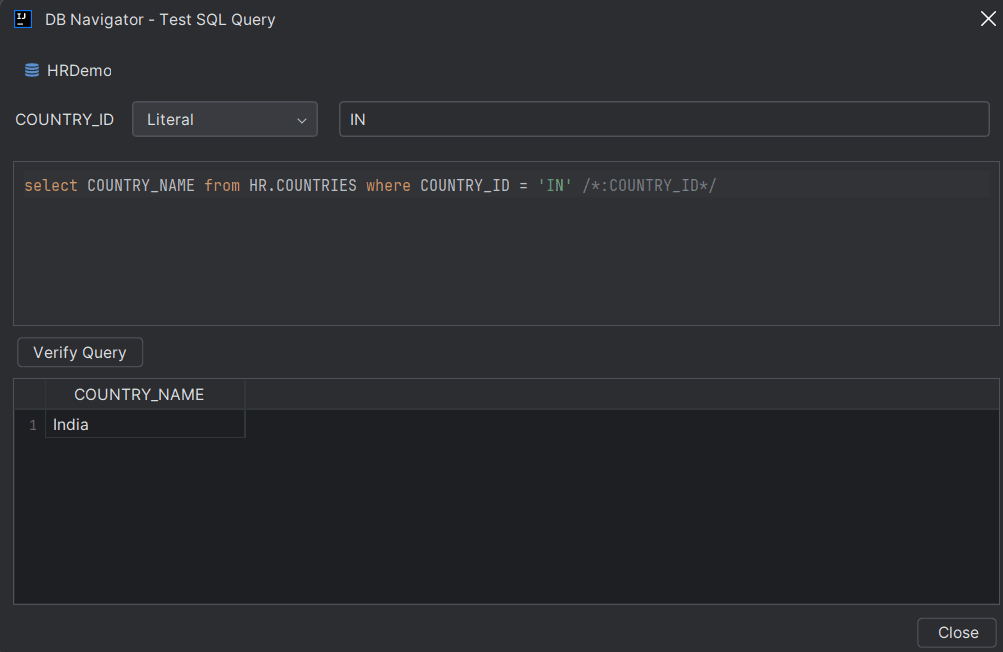
- Enter the sample values and click Verify Query to run the query and check the results in the results pane.
Note:
- Each MCP tool is built from one SQL statement. The tool name and description help MCP clients decide when to call it, while the parameter metadata becomes the tool input schema.
- Tool SQL should be query-oriented. The generated server executes tools with query semantics, so use
SELECT-style statements that return a result set. DML, DDL, and anonymous PL/SQL blocks are not part of the generated server flow. - Named parameters are discovered from the SQL text, excluding SQL comments. Repeated parameters are kept once in the parameter list, but all occurrences are bound when the generated server executes the query.
- Click Add Tool to display the new MCP tool in the Tools section of the DB Navigator - MCP Server Builder window.
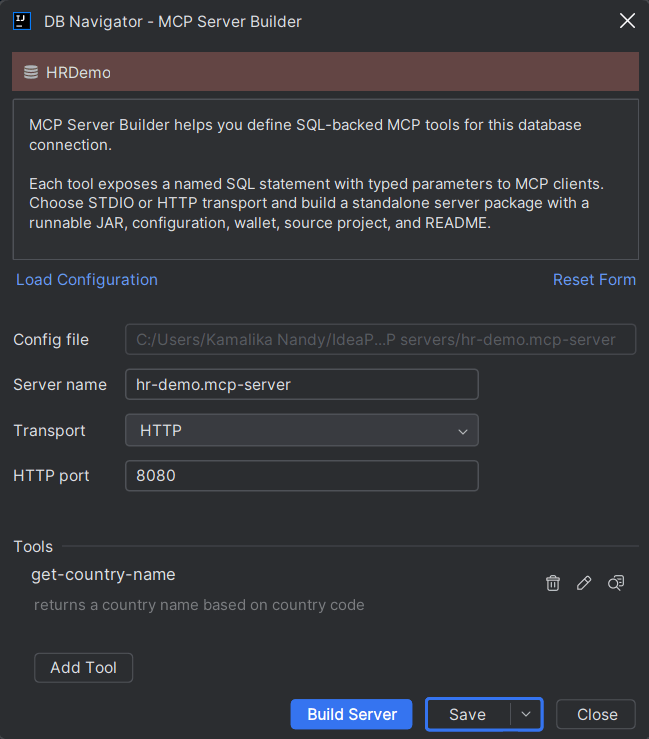
- On the DB Navigator - MCP Server Builder window, click Save to save the MCP tool and server configurations in the desired directory location.Once saved successfully, the DB Navigator - MCP Builder window displays the Config File field with the directory path of the saved server.
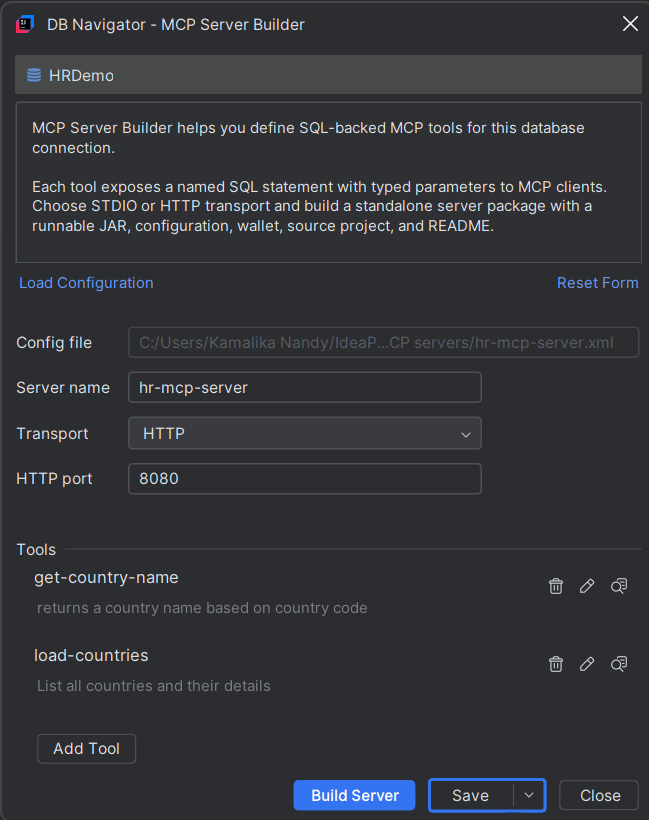
- Click Build Server to start the build process.

Once the build is successfully completed, you can review the build output summary in the Build console. In addition to informational or warning messages, the following data are displayed in the Build console:
- Build Status
- Generated File Count
- Output directory location
- Validation results
- Deployment Readiness Status
The build result dialog provides the location of all the components generated through the build along with the steps to use the generated server along with an MCP client.
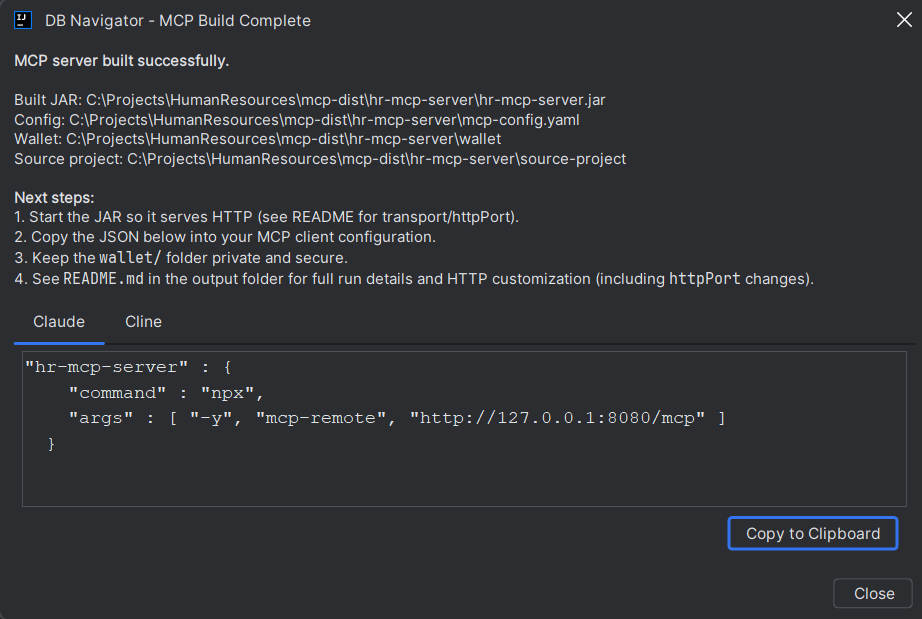
- MCP Server Build Project
This topic explains the components generated as a result of an MCP Server build.
Parent topic: MCP Server Builder