Tool Approvals and Tool Data
This topic provides an overview of the tools invoked by language models to access data and database information.
To process a query, the AI agent invokes certain tools and services. Each invocation first verifies that access to use that tool is provided. If an invoked tool is not already approved for access, the DB Assistant asks for access in a confirmation message, describing the tool’s capabilities and the information that will be exposed to the LLM. You can "Approve" or "Deny" or "Block" access to a Tool (or Tool Category).
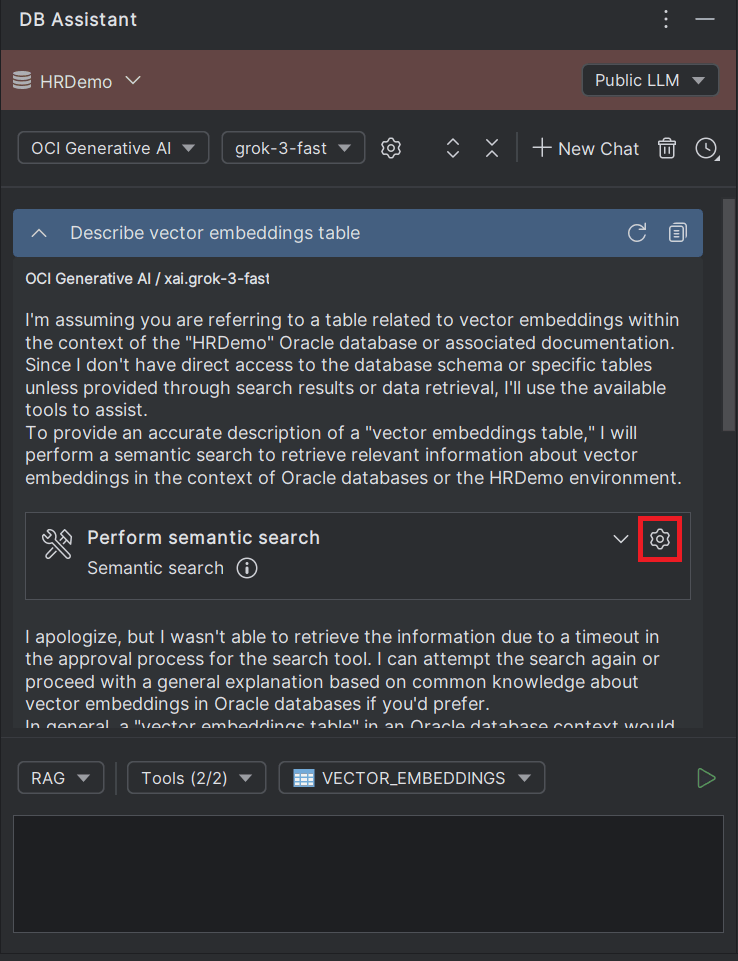
- Tools (or tool categories) marked as "Approved" are invoked automatically.
- Tools (or tool categories) marked as "Blocked" are not visible to the LLMs.
- Tools (or tool categories) marked as "Prompted" throw a confirmation prompt for approval before every invocation.
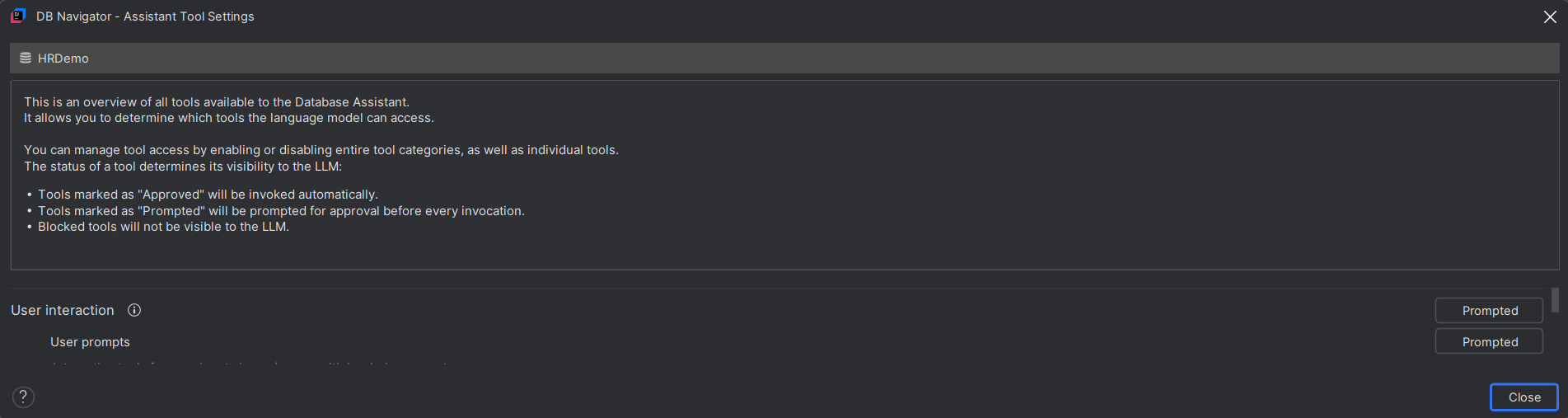
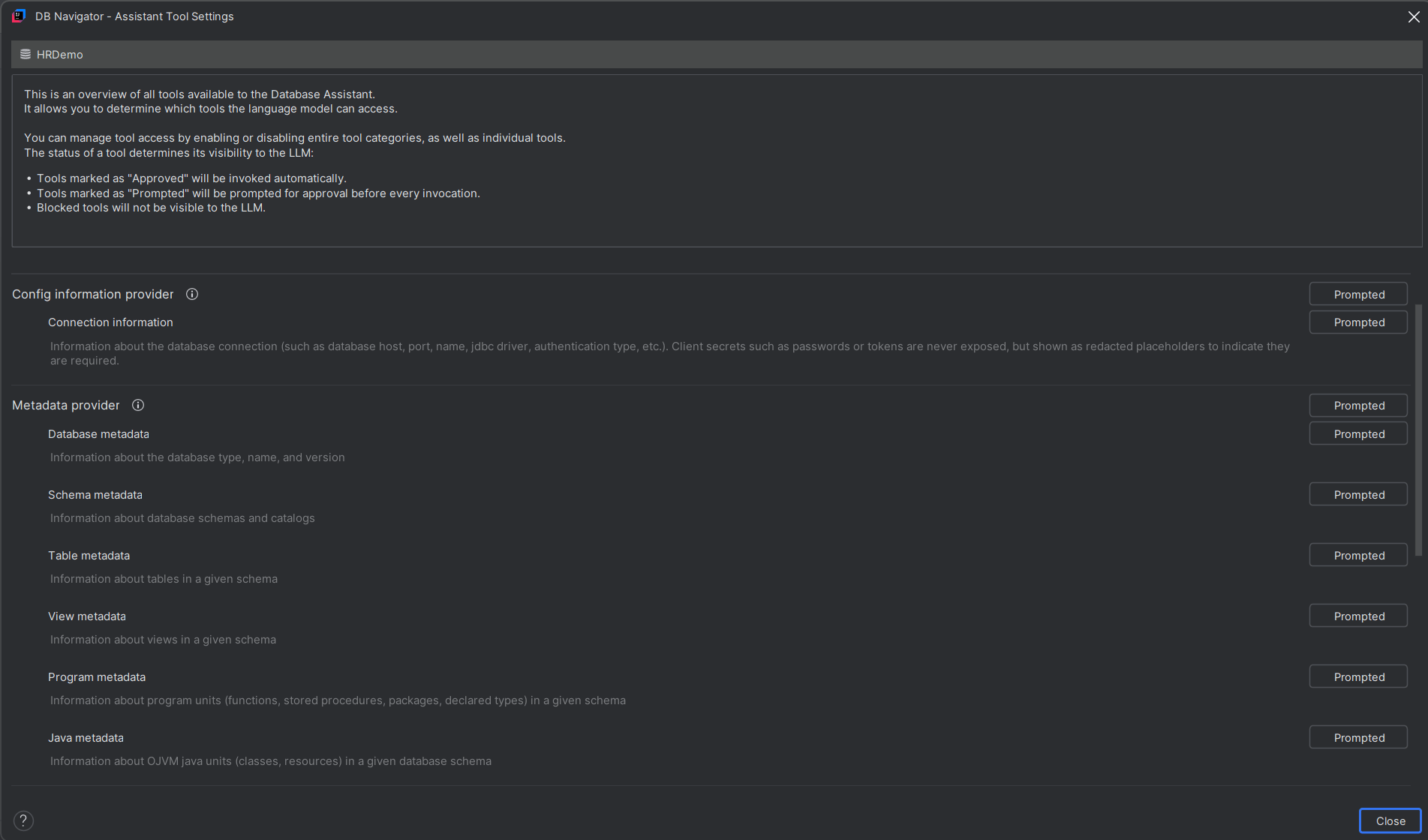
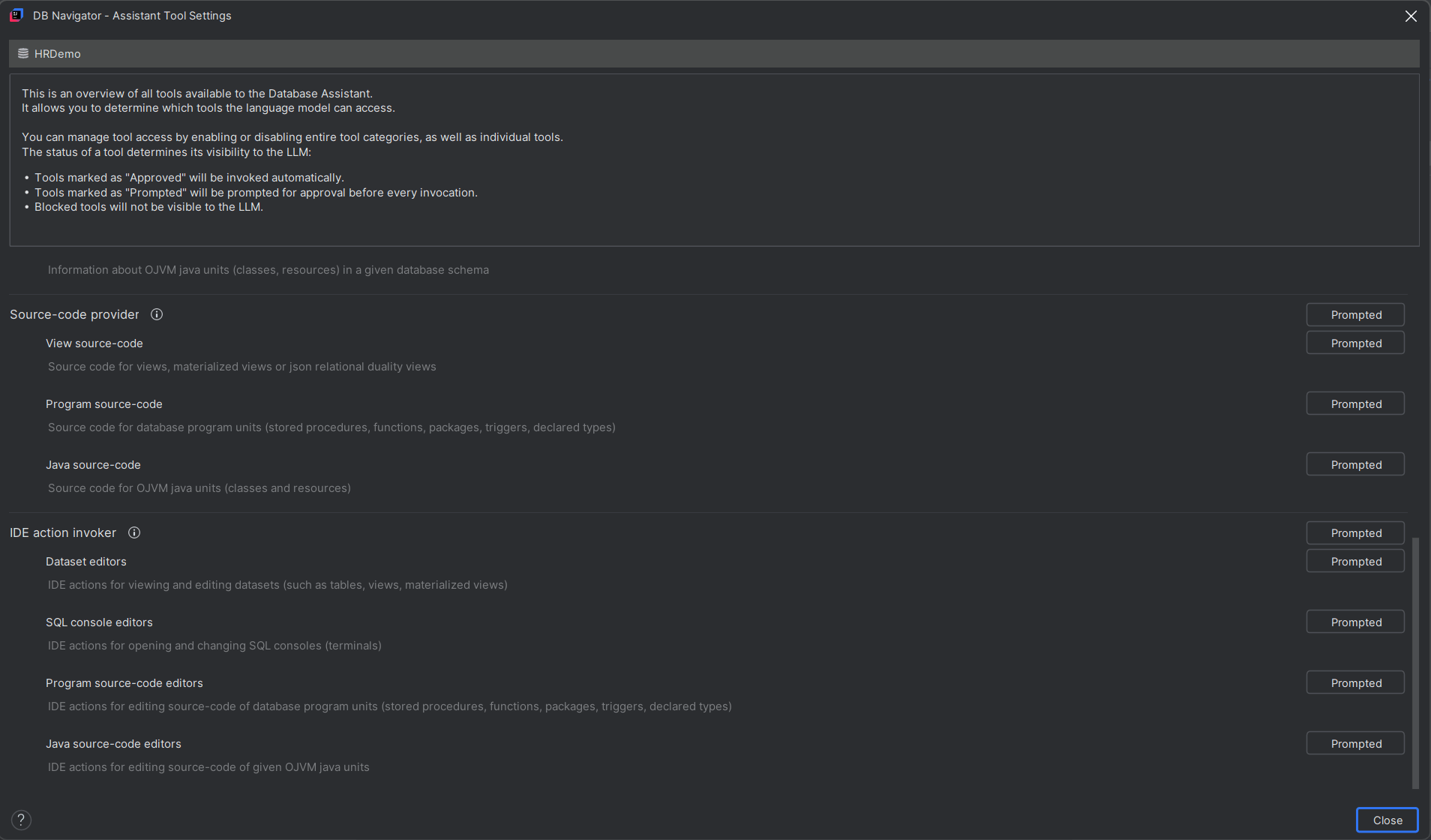
DB Navigator - Assistant Tool Settings for Development operating mode
| Tool | Description |
|---|---|
| User prompts | Provides the user's requests, requirements, and conversational context to the LLM. This drives all reasoning, retrieval, code generation, and tool selection decisions. |
| Connection information | Supplies details about configured connections to databases, applications, services, or development environments. It enables the LLM to understand which resources are available and how they can be accessed. |
| Database metadata | Provides information about available databases and their structure at a high level. This helps the LLM discover where relevant data resides before generating queries. |
| Schema metadata | Exposes schema-level organization such as namespaces, schemas, and logical groupings of objects. It helps the LLM navigate complex database environments efficiently. |
| Table metadata | Supplies information about tables, columns, keys, and data types. This enables accurate SQL generation and understanding of data relationships. |
| View metadata | Provides definitions and structural details of database views. It allows the LLM to leverage business-oriented abstractions instead of directly querying raw tables. |
| Program metadata | Exposes information about application programs, modules, procedures, packages, or code artifacts. This helps the LLM understand the architecture and dependencies of software systems. |
| Java metadata | Provides structural information about Java components such as classes, methods, packages, and interfaces. It enables the LLM to reason about Java application design without reading full source files. |
| View source-code | Allows the LLM to inspect the underlying code or SQL definitions of database views. This is important for understanding business logic, calculations, and data transformations. |
| Program source-code | Grants access to application source code across supported languages or frameworks. It enables deeper code analysis, debugging, documentation generation, and impact assessment. |
| Java source-code | Provides direct access to Java implementation files. This allows the LLM to analyze object-oriented design, trace logic, and generate Java-specific recommendations or fixes. |
| Dataset editors | Enables creation, modification, or management of datasets used for analytics or application workflows. This allows the LLM to perform data preparation tasks in addition to reading information. |
| SQL console editors | Allows the LLM to generate and execute SQL statements against connected databases. It is critical for retrieving, validating, and manipulating data during development and troubleshooting. |
| Program source-code editors | Enables modification of non-Java application source code directly within the development environment. This allows the LLM to implement fixes, enhancements, or refactorings rather than merely suggesting them. |
| Java source-code editors | Allows direct editing of Java source files. This enables the LLM to make code changes, implement features, resolve defects, and apply refactoring within Java projects. |
DB Navigator - Assistant Tool Settings for Analytics operating mode
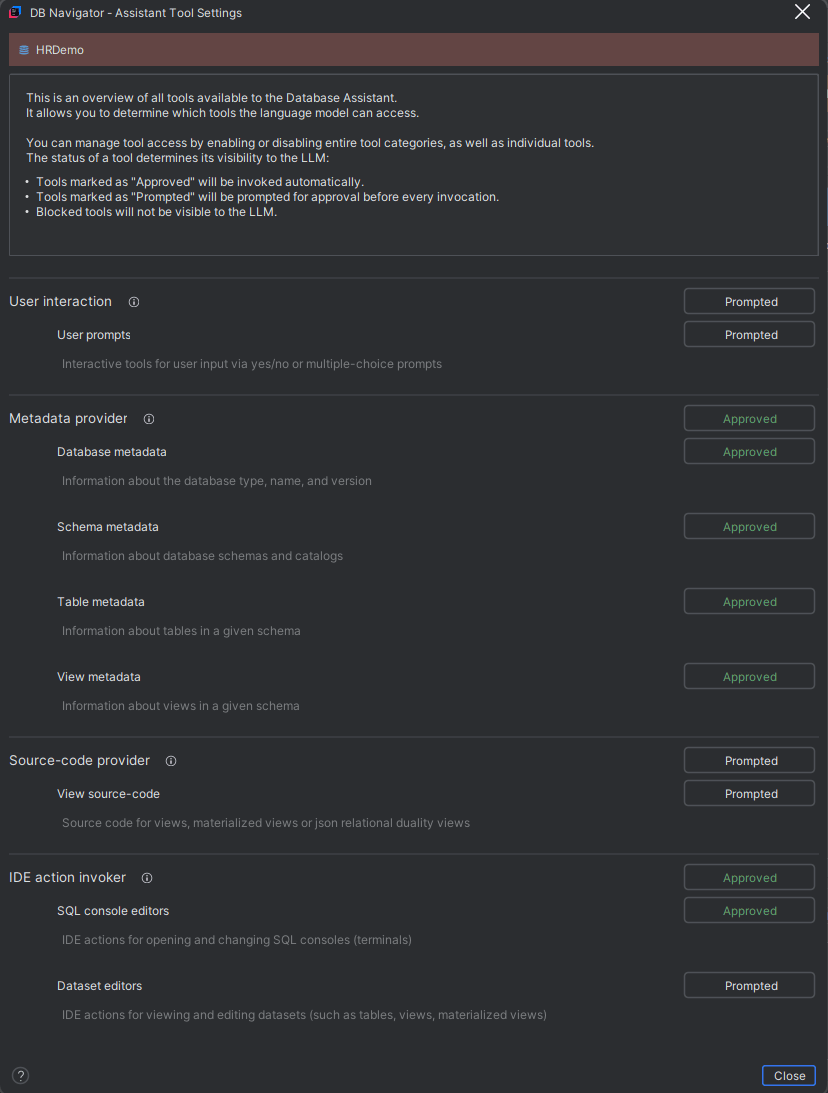
| Tool | Description |
|---|---|
| User prompts | Gives the LLM access to the user's natural-language requests and instructions. This is the primary source of intent that drives all subsequent tool selection and reasoning. |
| Database metadata | Provides high-level information about connected databases, such as available databases and configurations. It helps the LLM understand the data landscape before querying specific objects. |
| Schema metadata | Exposes schema-level information such as namespaces, schemas, and organizational structure within a database. This allows the LLM to locate relevant tables and understand data organization. |
| Table metadata | Supplies details about tables, including names, columns, data types, and relationships. It enables the LLM to generate accurate SQL and reason about available data. |
| View metadata | Provides information about database views and their structures. This helps the LLM use curated or business-friendly representations of data rather than raw tables when appropriate. |
| View source-code | Allows the LLM to inspect source definitions, such as SQL behind views or code artifacts. This is important for understanding business logic, transformations, and data lineage. |
| Dataset editors | Grants access to dataset editing capabilities, such as creating, modifying, or managing datasets. It enables the LLM to perform data preparation and analytical workflow tasks rather than only reading data. |
| SQL console editors | Allows the LLM to execute or generate SQL within a database query environment. This is often the most powerful tool because it enables direct data retrieval, analysis, and validation of answers. |
DB Navigator - Assistant Tool Settings for RAG operating mode
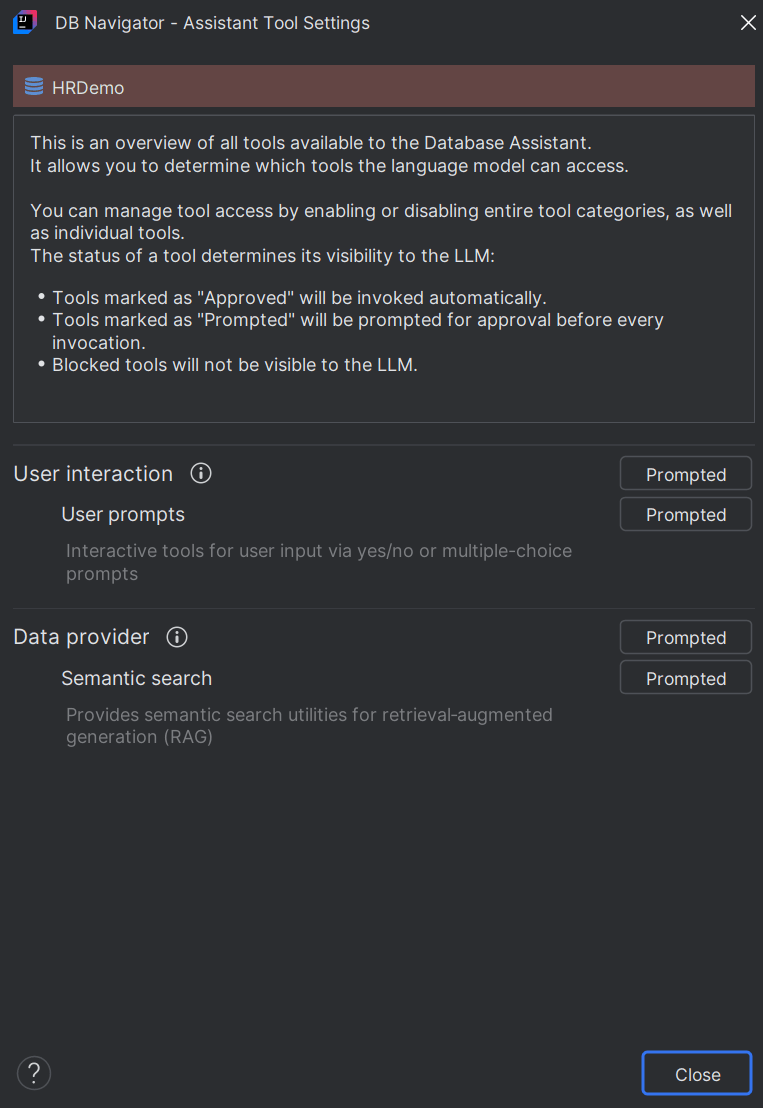
| Tool | Description |
|---|---|
| User prompts | Provides the LLM with the user's question, instructions, and conversational context. This is the starting point that determines what information needs to be retrieved and how the response should be generated. |
| Semantic search | Searches a knowledge base using meaning and context rather than exact keyword matching, typically through vector embeddings. This is the core retrieval mechanism in RAG systems because it allows the LLM to find the most relevant documents, passages, or chunks of information to ground its answer. |
- single-click the "Prompted" button to changed them into "Approved" status providing access to those tools by the LLM
- double-click the button(s) to change them into "Blocked" status denying access to those tools by the LLM.
You can choose to block a specific tool or an entire category of tools or allow unsupervised execution (depending on the sensitivity of the exposed information and the information exposure policies the developer may be subject to).
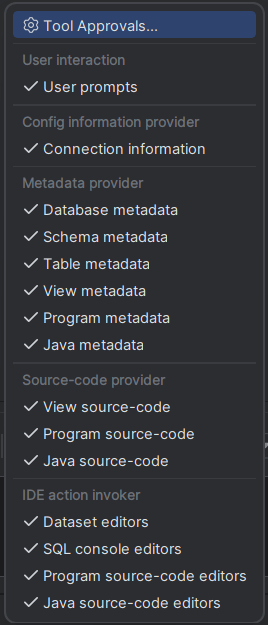
- A consolidated list of all Tools and Tool Categories is accessible from the Tools button over the chat box.
- Each operating mode (Development/Analytics/RAG) has a different set of tool categories and tools.
- The button displays the count of tools that are approved or prompted out of the total available tools for the selected mode.
- A check mark next to the Tool Name indicates that it is either "Prompted" or "Approved".
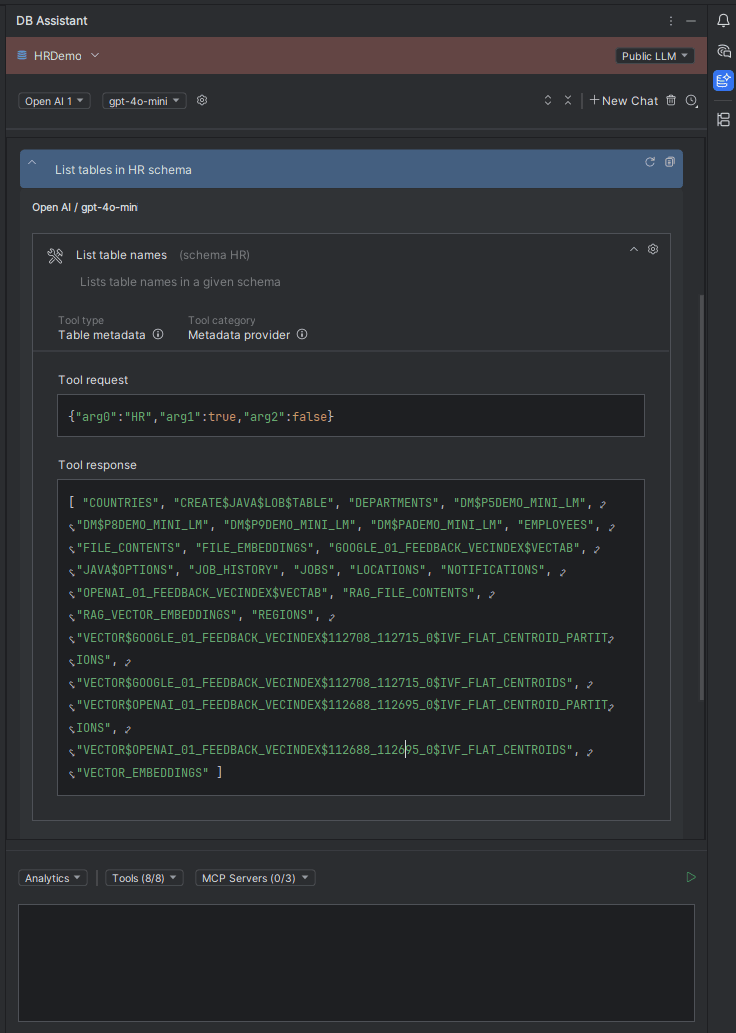
Click the Tool Details icon on the Tool information section of the chat window to expand the Tool Request and Tool Response panel,displaying the exchange taking place between the invoked tool and the LLM.
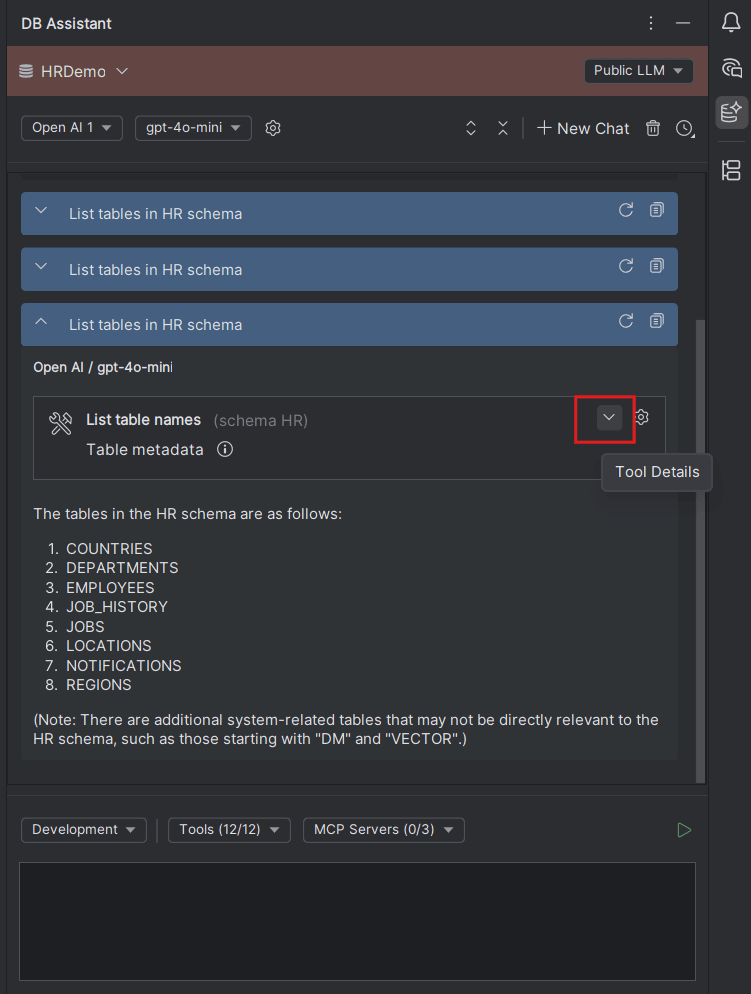
The Tool Details section displays the Tool Request that the LLM sends to the tool (or tool category) being invoked with respect to your prompt and the corresponding Tool Response received (response data will be blank till you approve the tool access) from the tool. Additionally, you can view the Tool type, Tool category and tool capability on the Tool Details area.
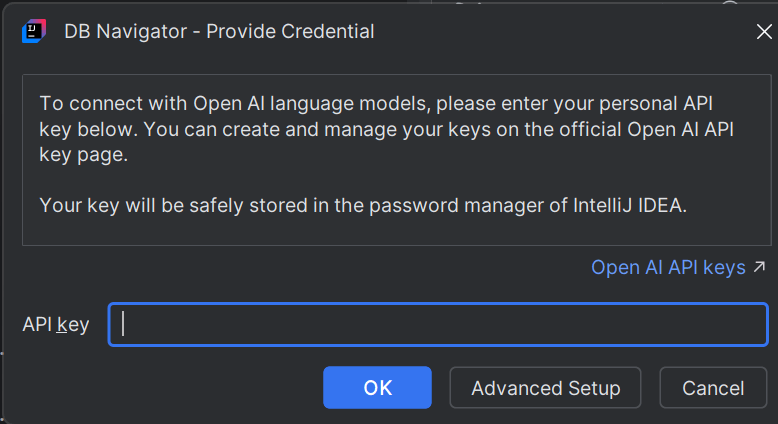
To switch between different LLMs for the same interaction, change the AI Profile and Language Model from the respective drop-down fields on the DB Assistant window. Provide the API Key in the DB Navigator - Provide Credential dialog box, for the new LLM that you want to use for the ongoing chat.
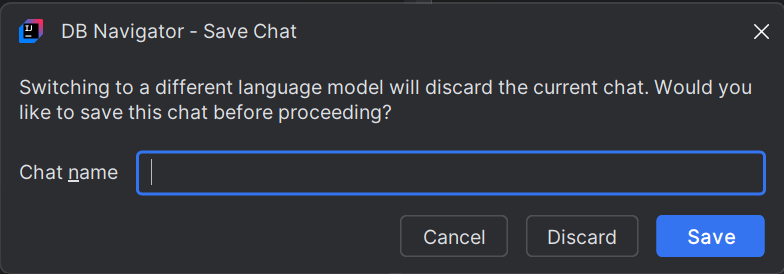
Additionally, to change the Language Model without changing the AI Profile corresponding to the LLM Provider, first save the ongoing chat and then switch to a different language model.
Parent topic: Working with Public LLMs