Working with Public LLMs
This topic provides an overview of interaction with DB Assistant module when using a public LLM.
To use public LLMs for interacting with your database and get insights to your code and data set in a conversational manner:
- Start by selecting a database connection for which you require AI assistance from the banner of the DB Assistant window.
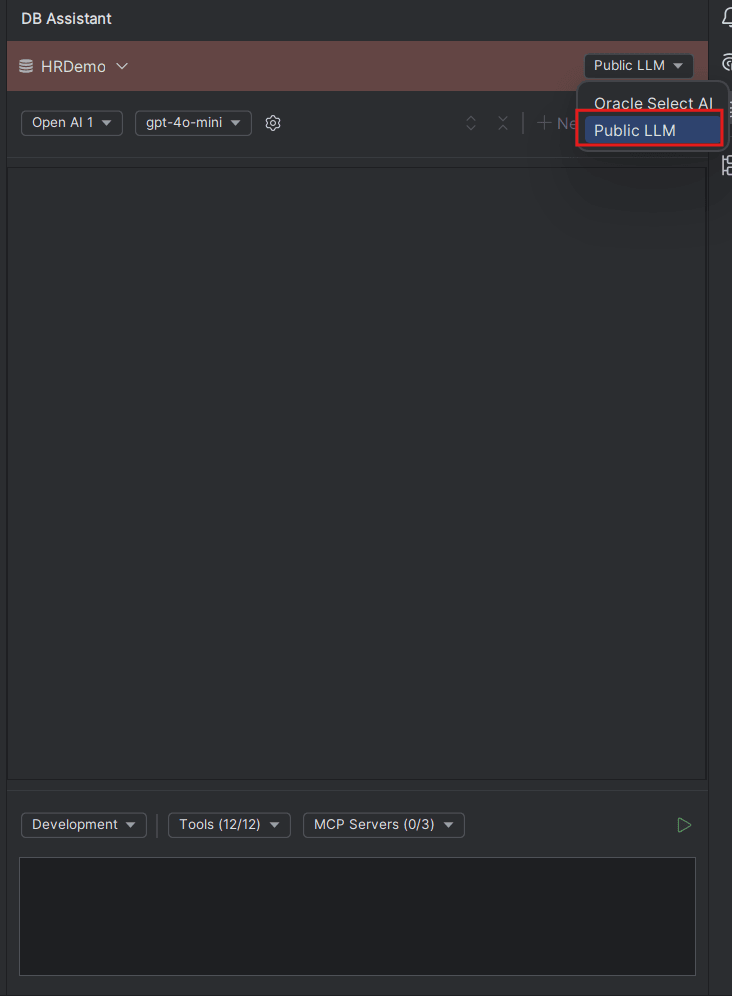
- Next, select the Public LLM option from the drop-down list displayed on DB Assistant window banner.
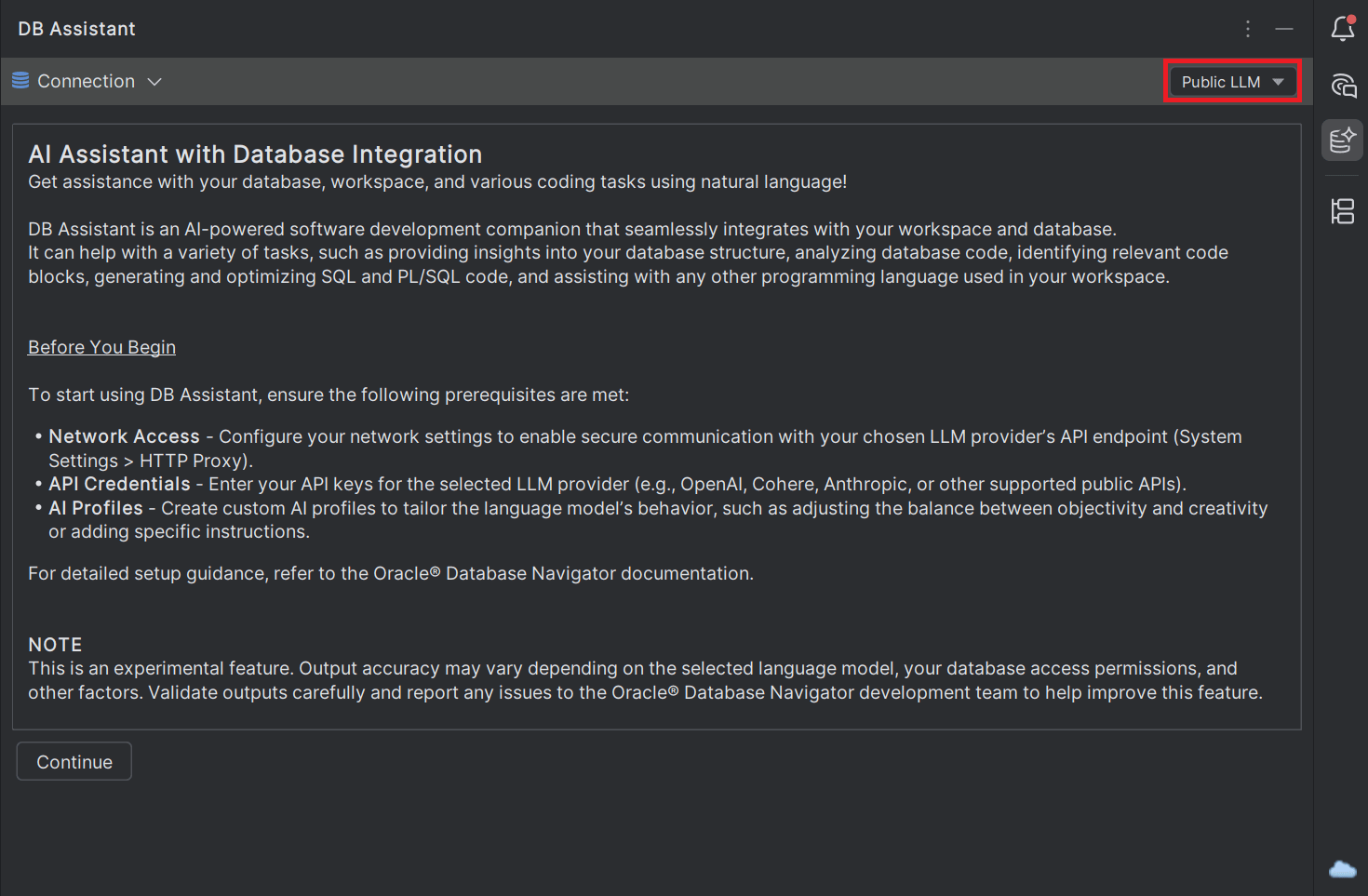
- When you select Public LLM mode for the first time, a disclaimer message is displayed for your review that you must read and then click Continue to proceed.
- From the DB Assistant window drop-down fields, select the AI Profile and the Language Model you want to use.
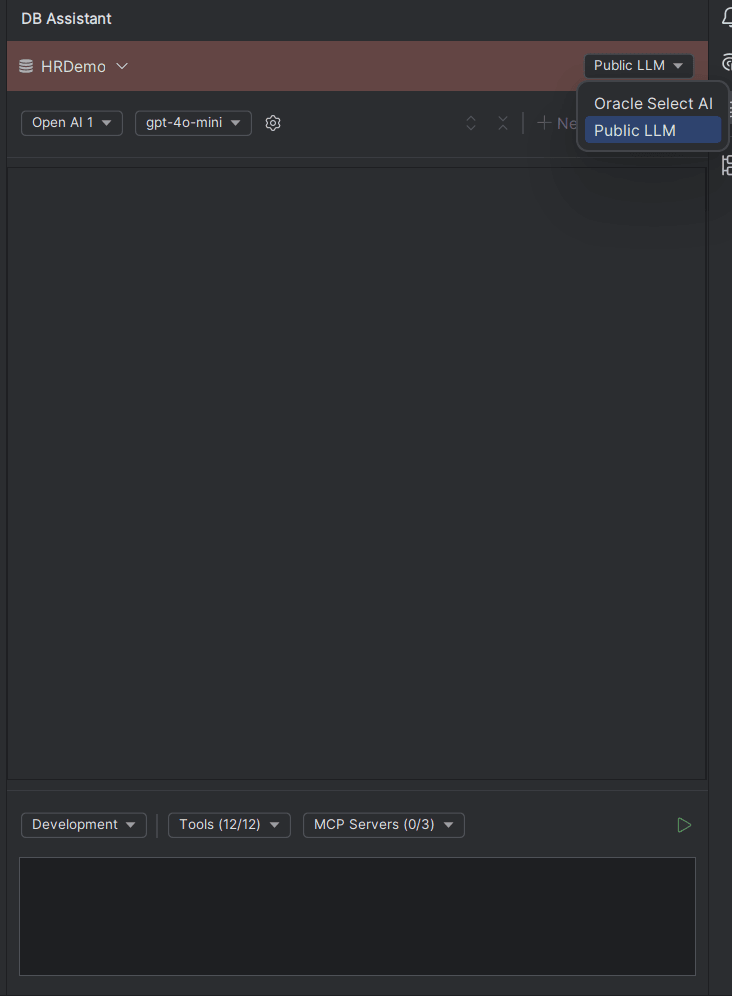
- From the Assistant operating mode drop-down field, select the mode determining the type of response you require from the DB Assistant. Options are:
- Development - select this mode for code-focussed work in the data structure, inspect, view and program source code and underlying logic, to work on data sets and refine them.
- Analytics - Select this mode to explore and query the data model and view metadata. This mode reviews the analytics layers, shape datasets and refine read-focused queries using those datasets.
- RAG - This mode gets automatically selected for vector context. Select this mode for semantic-search based queries. This mode is used to ask natural language questions, and retrieve relevant information using semantic search over the indexed content.
- Based on the selected Assistant Operating Mode, the Assistant Tool Selection drop-down displays the number of Tools that are invoked for the mode.
- Optionally, select the desired MCP server from the MCP server drop-down list. If none exist, you can create a new MCP server to interact with external tools and manage context.
- Start typing your inputs in the DB Assistant chat box or click the + New Chat icon to start conversing with the DB Assistant in a dedicated chat thread and press Enter (or click the Submit icon).
Sample Interaction with DB Assistant
The following example cites a common interaction with the DB Assistant using Open AI gpt-4o-mini AI model.
Start typing an input prompt in the chat box and press Enter (or click the Submit icon). The selected public LLM is invoked.
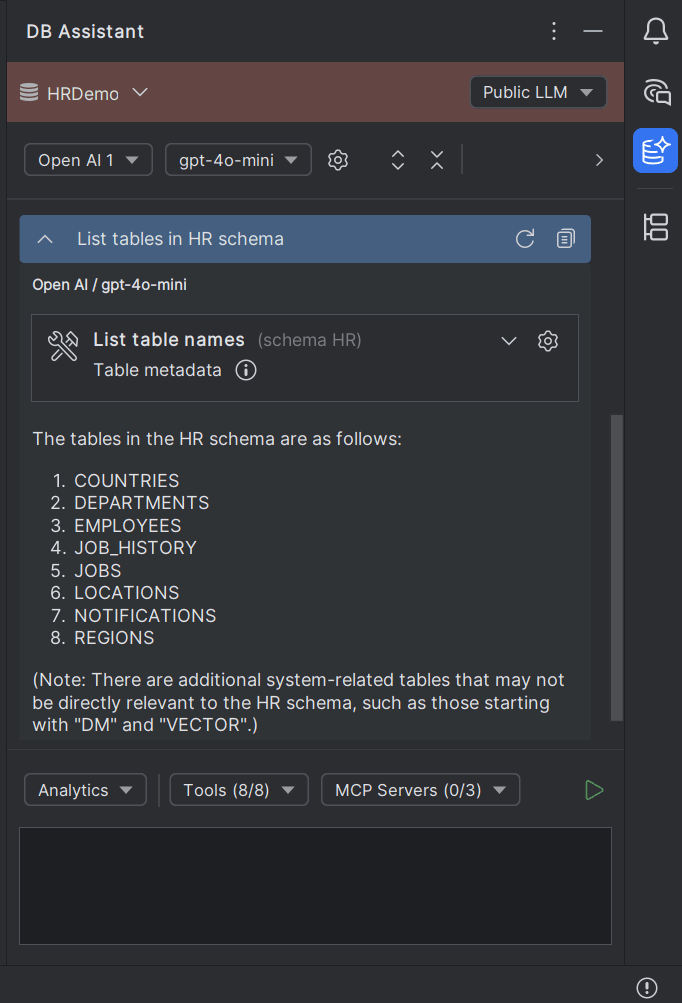
Based on your inputs, the database and workspace integration is provided through MCP services, and the database information from the specific connection is fed to the LLMs.
- The integration is done through invoking certain MCP tools which act as third-party models.
- You can view and manage the access of these tools through Tool Approvals settings in the DB Navigator - Assistant Tool Settings window.
- You will be prompted to approve Tools that are marked as "Prompted" upon every invocation.
- Metadata information (including database metadata, table metadata, schema metadata, view and program metadata).
- Database connection configuration information.
- View (including views, materialized views, JSON relational duality views) and Program source code access.
- SQL consoles, source code editors and data editors in the IDE.
- Tool Approvals and Tool Data
This topic provides an overview of the tools invoked by language models to access data and database information.
Parent topic: Public LLMs