Vector Embedding Results
This topic explains the results of vector embeddings as seen in the DB Execution console window of the Database Navigator plug-in.
The embedding results can either be successful or fail. Following details about the generated vector embeddings are displayed on the DB Execution Console:
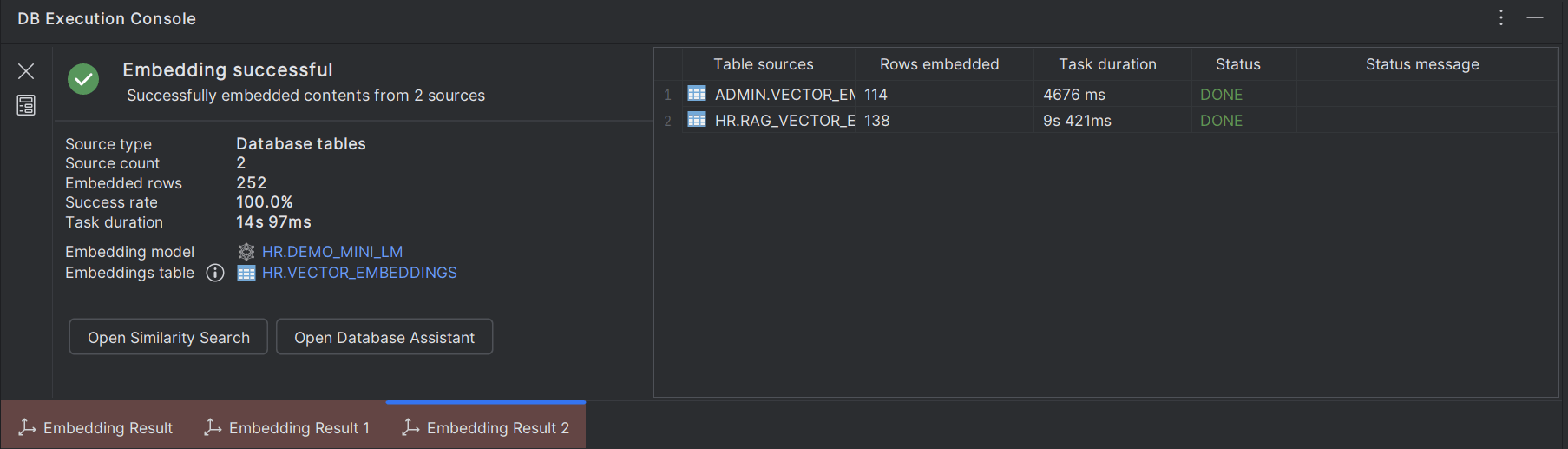
| Field | Description |
|---|---|
| Source type | Database table/Database queries/File System based on your selection. |
| Source count | Count of DB table/queries or files used to create the embeddings. |
| Embedded rows | Number of rows embedded in the destination table. |
| Success rate | The percentage of embeddings generated successfully. |
| Task duration | Time taken (in seconds) to generate the vector embeddings. |
| Embedding model | Displays the embedding model used to generate the vectors. Click the link to locate the embedding model in the database schema. |
| Staging table | Displays the staging table name used to stage the file contents used to generate the embeddings. This parameter only displays for a File System data source type. Click the link to locate the staging table in the database schema. |
| Embeddings table | Displays the embedding destination table where the generated vectors are stored. Click the link to locate the table in the database schema. |
The following details are available on the console if the data source is a File System:
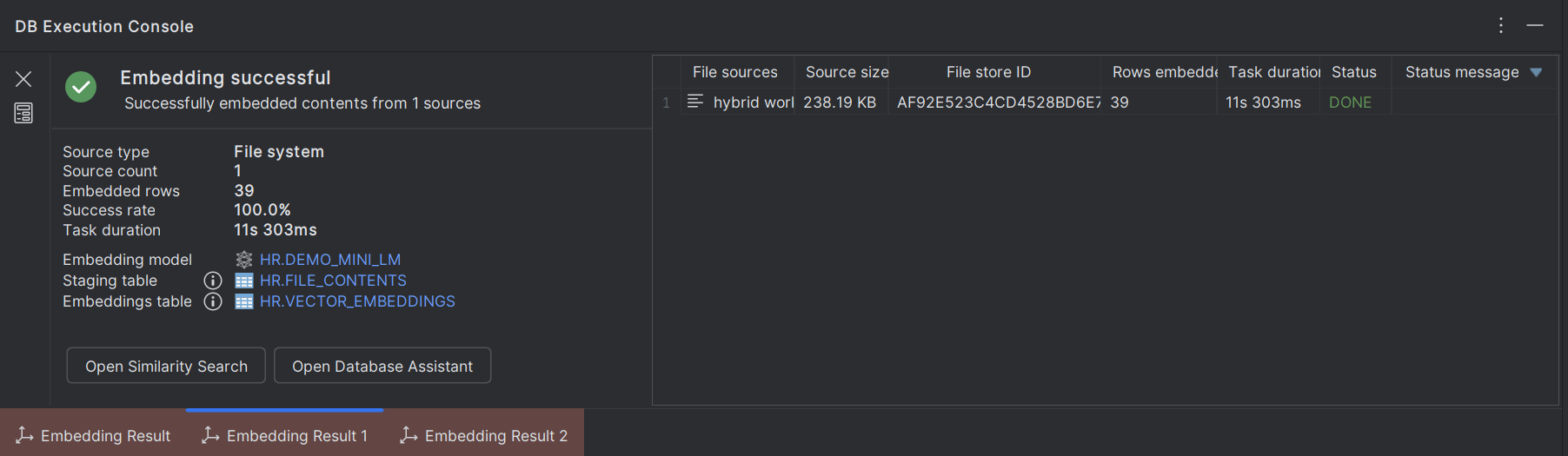
| Field | Description |
|---|---|
| File sources | Displays the name of files selected for generating vector embeddings. |
| Source size | Displays size of the selected files. |
| File store ID | ID of the table column where the file content is staged. |
| Rows embedded | Number of rows from the file that are converted into vector embeddings. |
| Task Duration | Time taken to generate the vector embeddings from the file content. |
| Status | Status of vector generation. |
| Status message | Additional message on status of vector generation. |
The following details are available on the console if the data source is a Database Query:
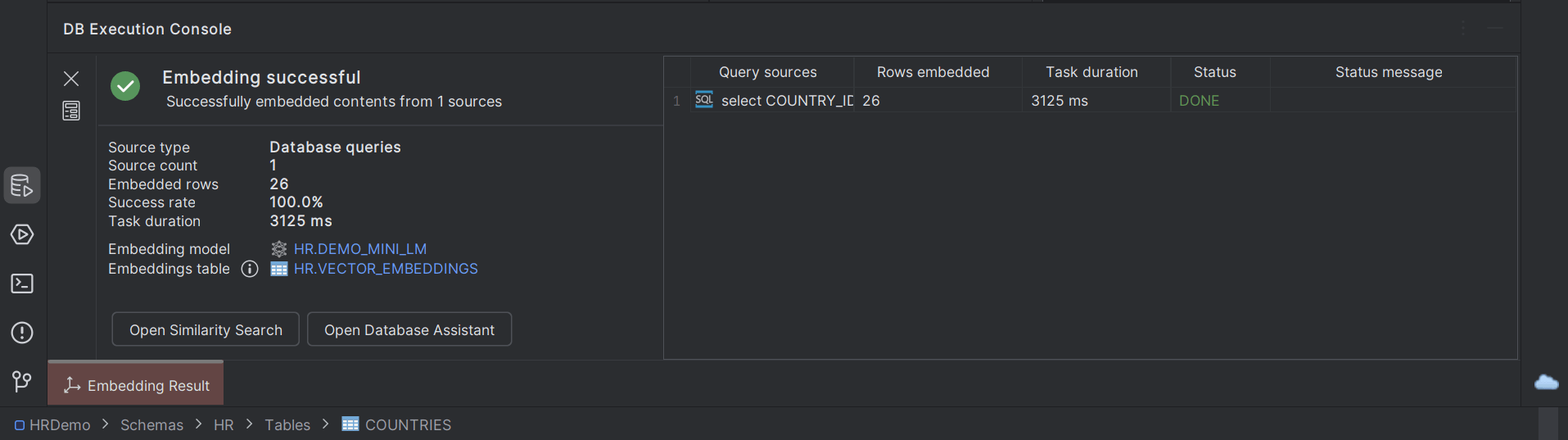
| Field | Description |
|---|---|
| Query sources | Displays the database queries used for generating vector embeddings. |
| Rows embedded | Number of rows converted into vector embeddings. |
| Task duration | Time taken to generate the vector embeddings from the database queries. |
| Status | Status of vector generation. |
| Status message | Additional message on status of vector generation. |
The following details are available on the console if the data source is a Database Table:
| Field | Description |
|---|---|
| Table sources | Lists the database tables selected for generating the embeddings. |
| Rows embedded | Number of rows converted into vector embeddings. |
| Task duration | Time taken to generate the vector embeddings from the DB table. |
| Status | Status of vector generation. |
| Status message | Additional message on status of vector generation. |
Similarity Search Support
You can run a similarity search on the generated vector embeddings directly from the DB execution console. Click Open Similarity Search in the execution console to open the DB console in the editor panel.
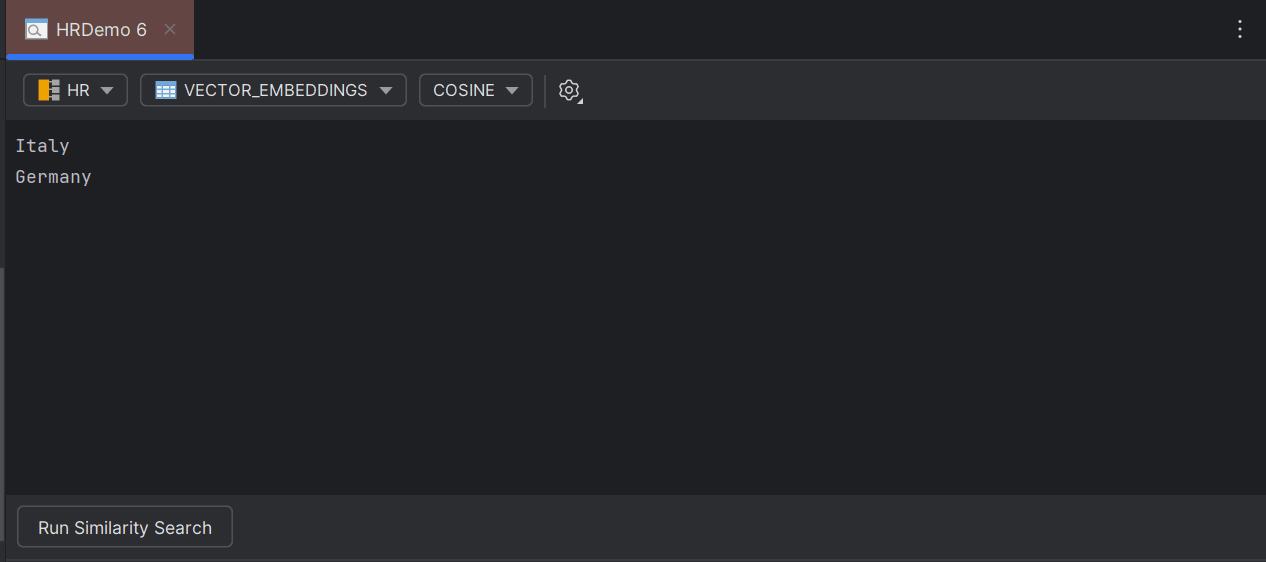
The destination Vector database schema, Vector database table, and the default Vector distance metric (Cosine) are displayed in the respective drop-down fields on the console header. You can change the vector schema or vector table and select any vector distance metric to use for performing the similarity search. Type in the keyword that you want to search and click Run Similarity Search. The vector search results are displayed is a separate panel.
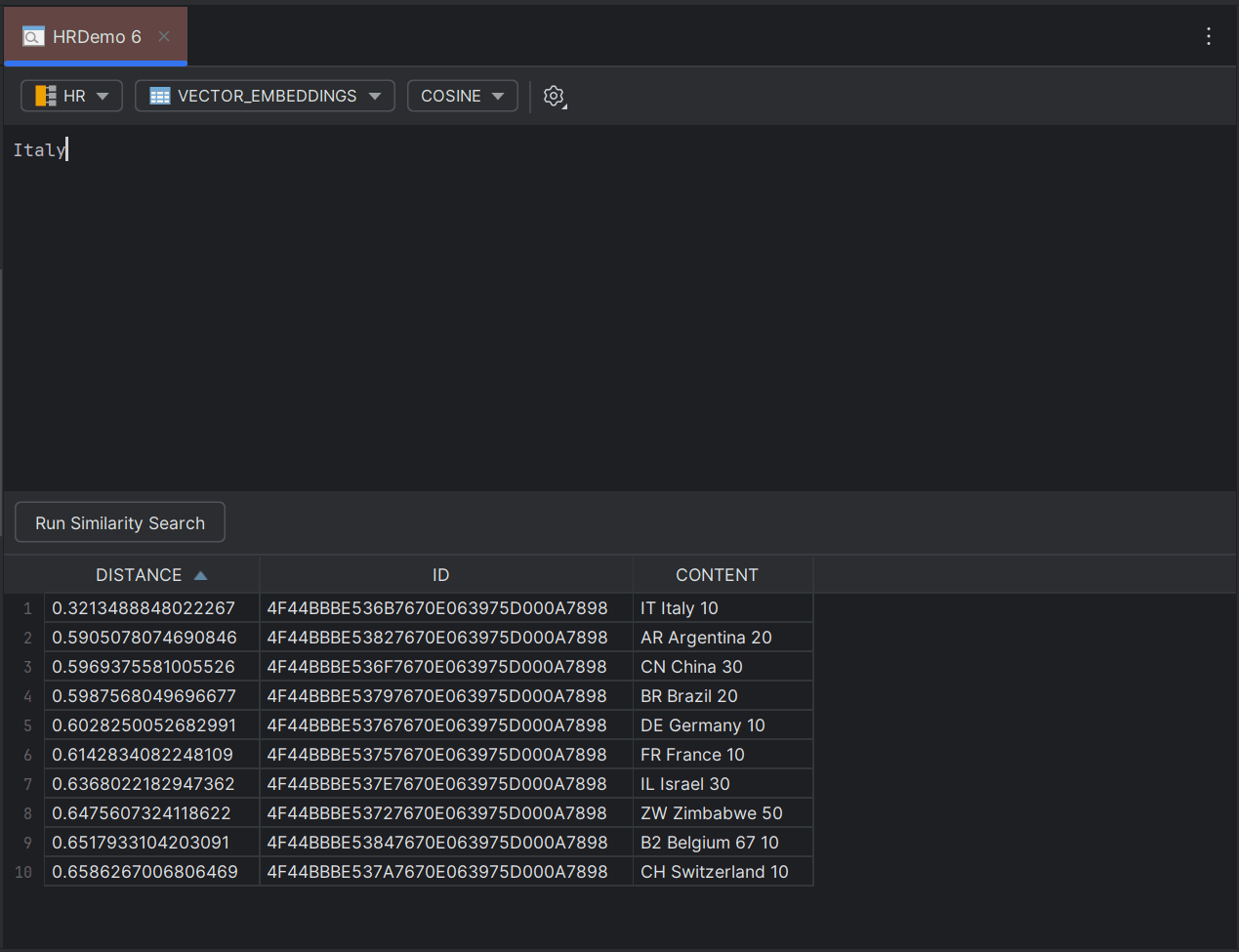
The following vector search result details are displayed:
- DISTANCE - The distance between two vectors.
- ID - Unique Id of the resultant vector.
- CONTENT - Vector content from the search.
Database Assistant Support
The Vector embeddings are integrated with the Database Assistant module of Database Navigator tool. Click Open Database Assistant in the DB Execution Console to open the DB Assistant panel with the context of the embedding result.
For vector embeddings, the DB Assistant by default operates in RAG mode. The RAG (Retrieval-Augmented Generation) Assistant Operating mode is specifically used for semantic search–based operations.
- initiates a semantic search on the embedded data stored in the destination table.
- invokes the tools that are required by the language model to garner the result (or ask you to first approve the tools), and
- generates an appropriate response.
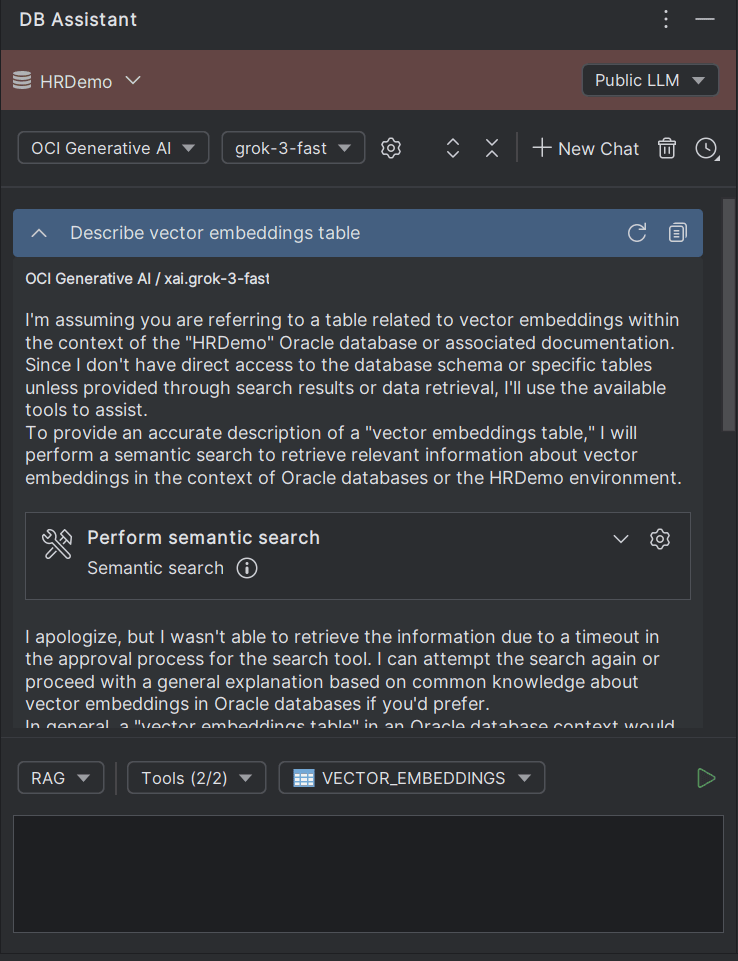
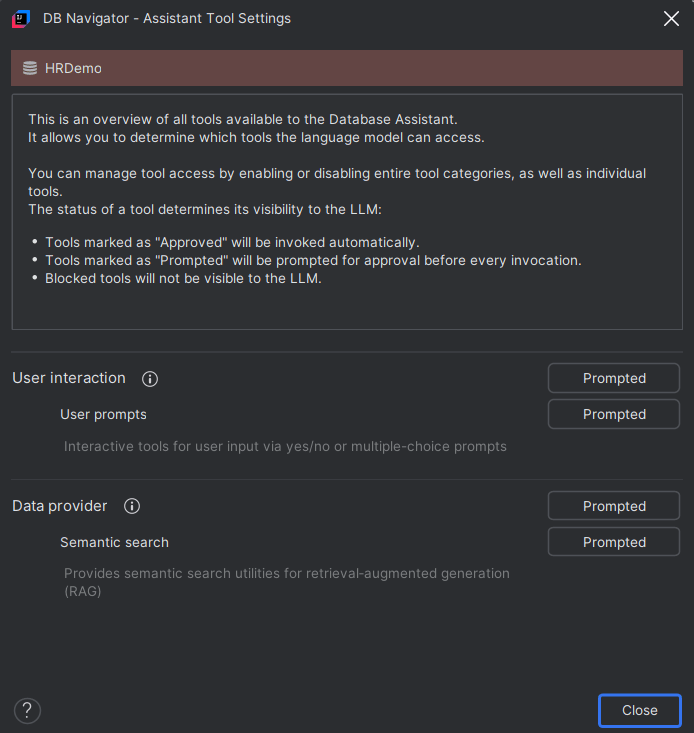
- User Interaction - Invokes interactive tools for user prompts through Yes/No or multiple-prompt prompts.
- Data Provider - Invokes tools that provide semantic search utilities for retrieval‑augmented generation (RAG)
Clicking Tool Approvals option either from the drop-down, or from the Tools Approval icon available on the DB Assistant chat window opens the DB Navigator - Assistant Tool Settings window.
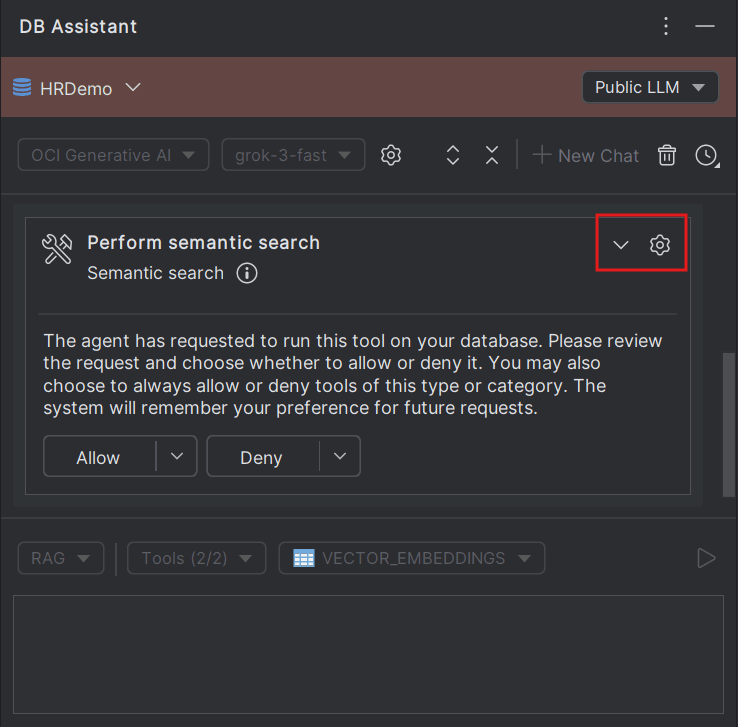
When you submit a query in the DB Assistant in the context of the vector embedding results, the User Prompts and Semantic Search tools are invoked as needed and asks for user's approvals.
By default, the database table where the vector embedding data is stored is queried when you enter the prompt in the DB Assistant chat box. You have the option to change the context (database table) from the Vector Embedding Table drop-down before submitting your prompt in the chat box.
Parent topic: Generating Vector Embeddings