Backup and Restore of Audit Vault Server
Learn about backup and restore of Audit Vault Server.
About Backup and Restore of Audit Vault Server
Learn about the details of backing up and restoring Audit Vault Server.
Audit and network event data that is collected by Oracle DBSecCentral is stored in the embedded Audit Vault Server repository (Oracle Database). This repository also contains reports and configuration data. Audit Vault Sever administrator must take backup of Audit Vault Server on a regular basis. In case of an Audit Vault Server outage, the administrator can install a new Audit Vault Server and restore from the backup taken earlier. This minimizes data loss. For example, if the Audit Vault Server machine faces hardware failure, a new Audit Vault Server can be restored using the most recent backup. This process brings the entire data back to the point when the last backup was taken.
Audit Vault Server backup contains the collected data and the configuration data. The configuration data includes data associated with Agent registration, target registration, wallets, etc. The configuration data is located in the OS files and the embedded repository. Audit Vault Server backup does not take backup of the archived data files. As long as the restored Audit Vault Server has access to these archived files, the data can be retrieved and viewed.
The size of the backup is dependent on the size of the data collected and stored in the embedded repository.
Database Firewall does not require a backup. Audit Vault Server can reapply all existing configuration of the monitoring points to the Database Firewall during the post restore steps.
Types of Backup Supported by Audit Vault Server
Audit Vault Server supports full backups and incremental backups. An incremental backup contains only the new data and configuration changes since the previous backup. For example, a full backup is taken on Sunday, and then incremental backups are taken on Monday, Wednesday, and Friday. A full backup and the subsequent incremental backups together make a backup set. Oracle recommends to test and validate the backup set regularly to determine whether the backup set can be restored. Backup validation can be included as part of the backup cron job. An example is mentioned in the later topics.
Audit Vault Server backup functionality supports both hot (online) and cold (offline) backups. A hot backup is a backup that is taken when the Audit Vault Server is up and running and when the embedded repository is online. This option ensures that the deployment continues to monitor the targets when backup is in progress. The administrator can access reports and make changes to the configuration in this case. Oracle recommends to setup hot backup as a best practice.
A cold backup requires the Audit Vault Server repository to be offline. In this case, the targets are not protected and the Oracle Database Security Central console is unavailable until the backup is completed.
Types of Backup Locations Supported by Audit Vault Server
A backup location is a user defined directory path to store the backup files. The location can be on a local disk or on NFS (Network File System). Oracle recommends using NFS for the backup location as a best practice. The location of the backup files should be accessible by the Audit Vault Server as root and oracle OS user.
Redundancy of Audit Vault Server Backups
Redundancy settings control as to when a backup set is marked as obsolete. For example, if redundancy is set to 2 and the third full backup is taken, the files in the first backup set are marked as obsolete. It is recommended to take more backups than the redundancy setting within a period of 30 days to ensure the obsolete backup files are purged properly. Redundancy is an important setting in managing storage space in the backup location.
Encryption of Audit Vault Server Backup
The Audit Vault Server backup contains information of the OS files and the embedded repository. The embedded repository is encrypted using Transparent Data Encryption and the pertaining backup files are also automatically encrypted. However, the OS configuration files are not encrypted and the backup of these files are also not automatically encrypted. Audit Vault Server backup provides a setting to encrypt the backup of the OS configuration files. This allows to restrict access to configuration like wallets present in the backup location.
Audit Vault Server Backup and Restore Tasks
The following are the backup tasks:
-
Planning for Audit Vault Server backup
-
Configuring Audit Vault Server for backup
-
Performing Audit Vault Sever backup
-
Monitoring Audit Vault Server backup
The following are the restore tasks:
-
Planning for restoring Audit Vault Sever
-
Performing necessary checks for restore
-
Restoring Audit Vault Server from backup taken earlier
Oracle Database Security Central Backup and Restore in a Real Application Cluster Environment
In Oracle Database Security Central Real Application Cluster (RAC) environment, there are two nodes connected together in a cluster environment with a common database in the backend. You can perform a backup operation on any one of the nodes. It’s important to note that RAC environments only supports HOT backup and restore operations. The restore operation must be performed on a single node configured RAC environment. After the restore operation, it can be converted into the 2-node RAC. The restore operation must be performed on an environment using a new IP. For more information see, About Audit Vault Server Backup and Restore Utility.
Warning HOT backup, and recovery from a HOT backup, requires Oracle Database to run in ARCHIVELOG mode. Archive logging stores redo as archived redo logs, and HOT backup activity can significantly increase archive log space usage, especially on busy databases. If the archive log destination runs out of free space, database operations may slow down or stop. Before starting a HOT backup or restore, verify that sufficient archive log space is available, monitor usage during the operation, and configure archive log backup, cleanup, or a larger destination as needed.
Audit Vault Server Backup and Restore in High Availability Environment
Learn about backup and restore of Audit Vault Server in a high availability environment.
In a high availability environment, there are two Audit Vault Servers paired (primary and standby). The primary Audit Vault Server is the active server that provides the Audit Vault Server functionality. The standby is automatically synchronized (audit data and network event data) and has a consistent copy of the primary. The backup operation must be performed on the primary Audit Vault Server and not on the standby Audit Vault Server. When Audit Vault Server is restored from a backup taken on primary Audit Vault Server, the restored Audit Vault Server is configured in standalone mode. It must be paired again with another Audit Vault Server to achieve high availability.
See Also: Configuring High Availability for Audit Vault Servers
The following diagram illustrates different aspects involved in backup and restore functionality of Audit Vault Server configuration in a high availability environment.
Figure 1: Audit Vault Server Backup and Restore in High Availability Environment
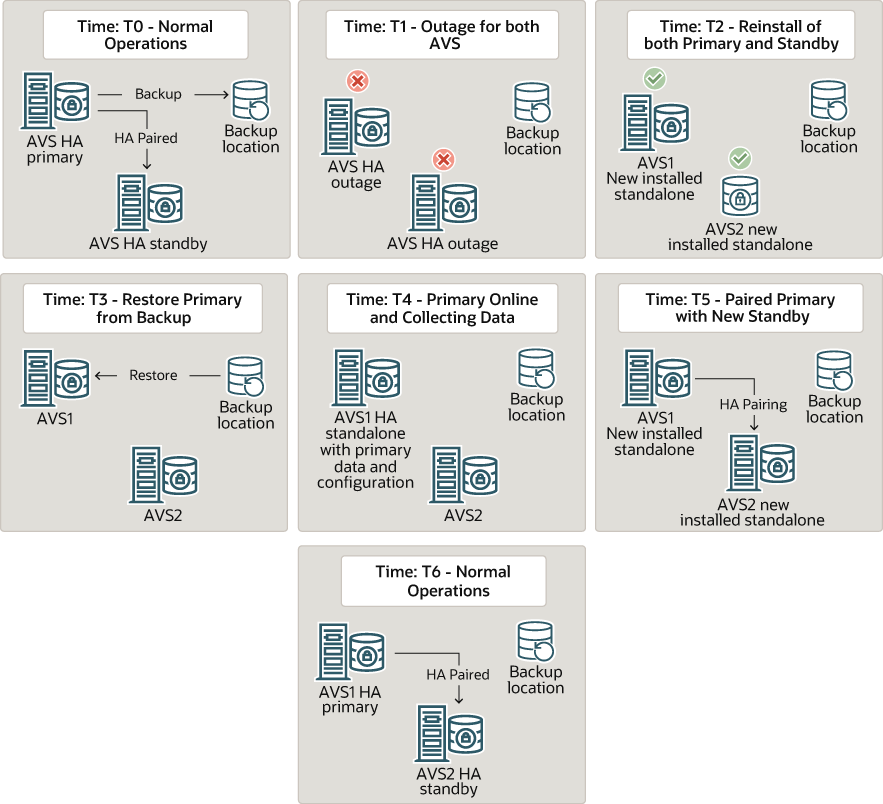
Description of the illustration avs_backup_and_restore.png
About Audit Vault Server Backup and Restore Utility
Learn how the Audit Vault Server backup and restore utility works.
Audit Vault Server backup and restore utility provides all the necessary functionality to perform backup and restore related operations on the Audit Vault Server. This utility avbackup must be run as the root OS user. It is located in /var/lib/oracle/dbfw/bin.
The backup utility supports:
-
full backup and incremental backup
-
hot and cold backup
-
local and NFS backup locations
-
restore of data and configuration to a new Audit Vault Server from backup taken earlier
-
validation of the backup taken earlier
Audit Vault Server Backup and Restore Commands
The following are the commands used to backup and restore Audit Vault Server:
| Command | Task |
avbackup config |
To configure Audit Vault Server backup settings. |
avbackup backup |
To perform backup of Audit Vault Server. |
avbackup validate |
To validate the backup file set. |
avbackup restore |
To restore Audit Vault Server using backup file taken earlier. |
Audit Vault Server Backup Settings
Configure the Audit Vault Server backup and restore functionality by running the avbackup config command as OS root user.
Note: The following settings must be the same for both backup and restore operations.
| Field / Category | Description |
|---|---|
MAXPIECESIZE |
This setting controls the maximum size of a backup file. A backup can contain multiple backup files, otherwise known as backup pieces. The valid maximum file size depends on the actual file system. Setting Valid values: 1 - 2048 Kbs/Mbs/Gbs Default value: For example:
|
BACKUP_DIR |
The directory that stores all the backup files. The directory path is limited to 200 characters. Default value: After this directory is specified, do not change this directory path as Oracle Recovery Manager (RMAN) tracks the backup files in this directory. The files are written to this directory and access to this directory is managed by oracle user (
Note:
See Also: Backup Location Storage Requirements in Backup of Audit Vault Server |
BACKUP_TYPE |
Specifies the type of backup to be performed. Enter A Default value: Archive log mode must be enabled for hot (or online) backup. Enabling archive log mode is quick and requires a restart of the embedded repository. For a cold (offline) backup, the embedded repository in Audit Vault Server is shut down during the backup process. Shutting down the embedded repository results in downtime of monitoring until the backup operation is completed. See Also: Backup Strategy in Backup of Audit Vault Server |
PASSWD |
The password used to encrypt the configuration data stored in the OS files. If this is omitted, then the backup OS files are not encrypted. However, the data backed up from embedded repository is always encrypted by TDE (Transparent Data Encryption). If this password is specified during backup, it must be provided for restore operation later. There is no way to recover if the password is lost for restore operation. Hence, it is recommended to keep the password stored in a safe location. Default value: Not set. Password must be at least 8 characters long and must contain a number, uppercase letter, lowercase letter, and a special character |
CHANNEL_PARALLELISM |
Specifies the number of channels (processes) used for running the commands. In case there are multiple backup locations and each backup location is mounted on separate physical disks, then this setting can be used to increase the speed of backup operations. Set this parameter to match the number of physical disks used for backup locations. If this parameter is set to 1, then the value for Default value: For example:
|
CHANNEL_LOCATION |
Specifies the location for each channel and is required when Default value: None As shown in the example below, it is recommended to specify each location in a different physical disk. For example:
Note: The |
SECTION_SIZE |
This determines the section size for each channel to backup. This setting is required only if If Default value: None For example:
|
Note: Use CHANNEL_PARALLELISM, CHANNEL_LOCATION, and SECTION_SIZE configuration parameters for a database with a size of 1 TB or more.
The following settings can be different for each backup, validate, or restore operations:
| Field / Category | Description |
|---|---|
TMP_DIR |
It is a temporary working parent directory that stores all temporary files and logs. It must have at least 100 MB of free space. The oracle user must have Default value: Directory path For example: |
KEEP_LOGS |
It determines whether the log files are stored after a successful backup operation. Logs are always kept after a failure. Enter The logs are always saved if the backup or restore operation fails irrespective of the Default value: For example:
|
INCREMENTAL |
This setting provides an option to choose from full or incremental backup. Enter Default value: For example:
|
USE_NEW_IP |
Specifies whether to use a new or an existing IP address for the restored system. This setting applies only to restore operation. This setting is ignored if the Audit Vault Server is restored on an OCI image. The allowed values are Default value: If If Case 1
Case 2
For example:
Note: The restore in RAC environment will always be on new IP so value for the field in RAC environment must be USE_NEW_IP[N]:Y. |
REDUNDANCY |
Specifies the number of full backups to be kept before purging obsolete backup sets. This setting applies only to backup. This setting impacts the backup storage specified in the For example: If this value is set to Default value: See Also: Backup Location Storage Requirements in Backup of Audit Vault Server |
Note:
-
Audit Vault Server backup and restore operations may take a long time. When you use SSH to connect to Audit Vault Server to perform these operations, ensure you have configured SSH properly to avoid SSH timeouts.
-
In this table and throughout this document, 1 GB represents 2 to the 30th power (230) bytes or in decimal notation 1,073,741,824 bytes.
Setting Up NFS for Audit Vault Server Backup and Restore
Oracle recommends using Network File System (NFS) for the Audit Vault Server backup location. This location must be the same for backup and restore operations..
For example, if BACKUP_DIR for the Audit Vault Server backup is /var/lib/oracle/avs_backup, then configure the same BACKUP_DIR (/var/lib/oracle/avs_backup) for the Audit Vault Sever restore operation. This location (for example, /var/lib/oracle/avs_backup) should be owned by oracle:oinstall with read-write permission.
For example, to mount avs_backup to the NFS server, follow these steps:
-
Log in to the Audit Vault Server through SSH and switch to the
rootuser.See Logging In to Oracle DBSecCentral Appliances Through SSH.
-
Run the following command:
mount -t nfs <NFS_IP>:<export_path> /var/lib/oracle/avs_backupNote:
-
Configure the same mount point on the Audit Vault Server before backup and restore.
-
The exact
mountcommand may vary. -
Make sure that the
oracleuser hasread,write, andexecutepermissions for the directory that you created as the mount point. -
Ensure that
BACKUP_DIRis set to/var/lib/oracle/avs_backupfor both backup and restore. -
If you updated
/etc/fstabto add the mount point, it reverts to the original state when the system is restarted.
-
Backup of Audit Vault Server
Learn how to perform Audit Vault Server backup.
These are the steps involved in the backup of Audit Vault Server:
-
Planning for Audit Vault Server backup.
-
Configuring the Audit Vault Server backup.
-
Performing or automating Audit Vault Server backup.
-
Monitoring the Audit Vault Server backup.
Planning for Backup
Planning for backup of Audit Vault Server involves the following aspects:
| Aspects | Description |
|---|---|
| Backup strategy | Backup strategy involves setting up a backup schedule that meets corporate requirements or guidelines. Frequent backups can minimize data loss but impact system performance. A full backup can take longer than an incremental backup. A good backup strategy aims to minimize both the data loss and the impact on system performance. Best Practice: A full online backup once a week and multiple incremental backups during the week is optimal. Consider backup optimization mentioned in this table below to reduce backup times. Note: Do not keep both online and offline backup files in the same directory. In such a case, make sure they are stored in two separate backup locations. |
| Backup location storage requirements | Ensure there is sufficient disk space in the backup location to store the backup files. The backup location contains the OS configuration files ( Determining the space requirement for the backup location, depends on the size of the Audit Vault Server repository (Oracle Database). Run the following SQL query as sysdba user for an approximate calculation: This calculation is a simple estimation of a full backup file. For each incremental backup, add more disk space in addition to the above specified amount. It is not possible to calculate the specific size for incremental backup in a live system. Use this as a guideline after Audit Vault Server is deployed and is stable. To calculate a simple estimate of incremental backup file, find the difference between two full backup files. Divide this by the number of incremental backup specified. This provides an average size of an incremental backup file. Note: Ensure oracle user and group oinstall users have |
| Backup type | Oracle Oracle Database Security Central supports online and offline backup. Offline backup requires Audit Vault Server downtime. Offline backup does not have data loss up to the time the backup is taken. Online backup allows taking backup when Audit Vault Server is online. There is a potential loss of data involved in online backup. Online backup requires archive log mode to be enabled for the database. Oracle recommends taking online backup. |
| Retention | The retention of the backup depends on the For obsolete backup files to be purged properly, schedule more full backups than the retention configuration within a period of 30 days. |
| Channel parallelism | Setting higher parallelism (CHANNEL_PARALLELISM), can improve backup performance. However, it only improves performance if it matches the actual physical number of disks available. If there is only one physical disk, it does not improve the backup performance even if CHANNEL_PARALLELISM is set to greater than 1. |
| Backup optimization | It is recommended to increase the channel parallelism to match the physical number of disks. This can improve the backup performance. When channel parallelism is set to a value greater than 1, then set the section size too. Section size defines how the datafile is handled by each channel during backup operation. To improve performance specify different Increasing the maximum piece size can also improve the performance if channel parallelism is set to 1. The maximum piece size depends on the file size supported by the filesystem. |
Space Required for Backup Files
Determine the amount of space needed for backup files. The amount of space needed for backup files is determined by the size of Audit Vault Server repository. You can obtain an upper estimate of the backup file size for the database by running the following SQL query on the Audit Vault Server:
sqlplus system
Enter password: <password>
SELECT SUM (BYTES)/1024/1024/1024||' GB' FROM DBA_DATA_FILES
Note:
-
Ensure the RAM size and disk size in the new system is equal or greater than the original system. This ensures out of memory error is not observed while performing the backup and restore tasks.
-
The backup process does not include the SAN configuration. Ensure the new system has sufficient disk space before performing restore. For more information on the disk space needed, refer to the
info.txtfile available in the backup directory. -
The restore system requires at least the same amount of memory and disk space as the backup system. Otherwise, the restore operation fails.
Configuring Audit Vault Server Backup
Learn how to configure the backup utility for Audit Vault Server.
Audit Vault Server must be configured before performing the backup operations. This configuration includes different settings and values that are saved in a backup settings file /var/lib/oracle/dbfw/av/backup/.backup_restore_config. This file is used to configure the backup process.
The backup of the OS files can be encrypted with a password that must be specified when configuring the Audit Vault Server backup. The backup of the repository is encrypted using TDE (Transparent Data Encryption). Make sure to store both the password (if specified) for backup of the OS files and the TDE keystore password for repository, in a safe location. These passwords are needed during the restore operation.
Run the following command as root user to configure the backup settings, and follow the prompt:
/var/lib/oracle/dbfw/bin/avbackup configPerforming Audit Vault Server Backup
Learn how to run Audit Vault Server backup tasks.
Prerequisite: Configure the backup utility for Audit Vault Server.
For online (hot) backup, follow these steps before initiating backup:
-
Choose the backup type
HOTwhen configuring the backup utility. -
Ensure that the Audit Vault Server is in archive log mode by following these steps:
-
Connect through SQL*Plus as the
oracleOS user, by running the command:sqlplus / as sysdba -
Run the following command:
archive log list; -
If the output from the above command displays
No Archive mode, then Audit Vault Server is not in archive log mode. If the output displayed isArchive mode, then skip the next step.
-
-
To enable archive log mode follow these steps:
-
Log in to the Audit Vault Server through SSH and switch to the
rootuser.See Logging In to Oracle DBSecCentral Appliances Through SSH.
-
Run the following command:
/var/lib/oracle/dbfw/bin/avbackup enable_archivelog -
Enter
Yto confirm you want to continue with the process which includes restarting the database.The process may take several minutes to finish.
-
-
(For RAC environments only) Archive the current redo log on both nodes before starting the backup operation:
-
Use SQL*Plus to connect:
sqlplus \ as sysdba -
Archive teh current redo log:
ALTER SYSTEM ARCHIVE LOG CURRENT;This command forces the current redo log archival, so the backup has a clean ending point.
In a 2-node RAC, each node has its own redo thread, which means:
- Node 1 may be at archive sequence 120
- Node 2 may be at archive sequence 118
The backup should use the latest archive sequence to get the safest common recovery point. Running
ARCHIVE LOG CURRENTpushes each node to archive what’s still in memory so that the common archive boundary moves forward and is easier to determine. This ensures post restore appliance has minimum to zero data loss.
-
-
Switch to
rootOS user. -
Run the following commands:
systemctl start dbfwdbsystemctl start monitor -
As the
rootOS user, run the following command to initiate the backup:/var/lib/oracle/dbfw/bin/avbackup backup -
Enter the required information by following the prompt.
-
A list of files (similar to the following example) appear in the backup location when the backup is complete.
DBID_1440353975_09Q7EF7L_1_1
DBID_1440353975_C-1440353975-20150520-00
Offline (Cold) Backup
-
Choose the backup type as
COLDwhen configuring the backup utility. -
As root OS user, run the following command to initiate backup:
/var/lib/oracle/dbfw/bin/avbackup backup -
Enter the required information by following the prompt.
Note:
-
For an offline backup the Audit Vault Server repository is shutdown for the entire duration of the backup.
-
Oracle recommends to reboot the system in case there is a failure while performing a cold (offline) backup operation.
-
Monitoring and Validating the Audit Vault Server Backup
Learn how to validate, monitor, and troubleshoot the Audit Vault Server backup process.
The backup configuration file is release specific. It works on the same release. It is advisable to run the avbackup config command and create a new configuration file before performing the backup operation after Oracle DBSecCentral upgrade.
Follow these steps to validate the backup last created:
-
Log in to the Audit Vault Server as
rootOS user. -
Run the following command:
/var/lib/oracle/dbfw/bin/avbackup validateThe backup status is displayed, similar to the following:
Backup Restore exit status: 0 Status 0 = Success. Status 1 = Failure. -
The backup process records the logs in the
/var/lib/oracle/dbfw/av/log/av.backup*.logfile. Check the log files for any errors. In case there is any issue in the backup process, then the backup process also records the logs inTMP_DIR/av_backup*directory. The following logs contain detailed information:-
/TMP_DIR/av_backup_<timestamp>/<logs> -
/var/lib/oracle/dbfw/av/log/av.backup_restore-pid-0.log -
/var/lib/oracle/dbfw/av/log/av.backup_restore_error-pid-0.log
-
Oracle DBSecCentral administrator must monitor the disk space usage to make sure there is enough space for the new backup files and obsolete backup files that are purged properly based on the retention setting.
Note:
Important aspects involved in troubleshooting of Audit Vault Server backup process:
-
The backup directory must be owned by
oracle:oinstallwith permission770. -
Make sure to take more backups than
REDUNDANCYsetting within 30 days and obsolete backup files are purged properly. -
Check
/var/lib/oracle/dbfw/av/log/av.backup*log files for any errors. CheckTMP_DIR/av_backup*for more detailed logs if there are any issues. -
Check available disk space for backup.
-
The location of offline backup and online backup must be different. Do not use the same
BACKUP_DIRlocation. Once this location is specified, it is advisable not to change the directory path until the next full backup. -
Ensure the
BACKUP_DIRandCHANNEL_LOCATION_xdisk has enough space for the backup files.
Automating the Backup Schedule
Learn how to automate the backup schedule of Audit Vault Server.
The backup process can be scheduled and automated by setting up a cron job. For example, set up a cron job to take a full online backup once a week. Set up another cron job to take incremental online backup thrice a week.
The backup operation takes the configuration details from the /var/lib/oracle/dbfw/av/backup/.backup_restore_config file. Full backup and incremental backup require different configuration details, and hence need to have two separate configuration files.
Follow these steps to automate both full and incremental backups:
-
Create a settings file for full backup. Run the following command and specify
INCREMENTALvalue to0:avbackup config -
Move the
/var/lib/oracle/dbfw/av/backup/.backup_restore_configfile to another location/var/lib/oracle/dbfw/av/backup/backup_restore_config_full. -
Create a settings file for incremental backup. Run the following command and specify
INCREMENTALvalue to1:avbackup config -
Move
/var/lib/oracle/dbfw/av/backup/.backup_restore_configfile to another location/var/lib/oracle/dbfw/av/backup/backup_restore_config_incremental. -
Create a full backup script (
full_backup_script), that copies the/var/lib/oracle/dbfw/av/backup/backup_restore_config_fullto/var/lib/oracle/dbfw/av/backup/.backup_restore_configbefore running theavbackup backupcommand. -
Set up a cron job to run full backup script as root user at a specific time on a specific day of the week. Follow these steps:
-
Run the following command as root user:
crontab -e -
Add a line similar to the following example in the editor. The example time specified is for midnight on every Saturday.
0 0 * * 6 /<some_directory_path>/<full_backup_script> -
Save the file and exit.
-
Check the cron job setup by running the following command:
crontab -l -
-
Create incremental backup script (
incremental_backup_script), that copies/var/lib/oracle/dbfw/av/backup/backup_restore_config_incrementalfile to/var/lib/oracle/dbfw/av/backup/.backup_restore_configbefore running theavbackup backupcommand. -
Set up a cron job to run incremental backup script as root user at a specific time thrice a week on specific days. Follow these steps:
-
Run the following command as root user:
crontab -e -
Add the lines in the editor similar to the following example for running backup at midnight every Monday, Wednesday, and Friday:
0 0 * * 1 /<some_directory_path>/<incremental_backup_script> 0 0 * * 3 /<some_directory_path>/<incremental_backup_script> 0 0 * * 5 /<some_directory_path>/<incremental_backup_script> -
Save and exit.
-
Check the cron job setup by running the following command:
crontab -l
Note: Use this as a guideline to automate scheduled backups. It is recommended to test out the
full_backup_script,incremental_backup_script, and the cronjob setting before deploying in production. Change the cron job configuration as per your requirement and policy. -
Performing Audit Vault Server Backup in High Availability
Learn how to run the Audit Vault Server backup task in a high availability environment.
In a high availability environment, there are two Audit Vault Servers (primary and standby). Backup operation must be performed on the primary Audit Vault Server.
Follow these steps:
-
Disable automatic failover before performing backup operation.
-
Run the backup operation.
-
Enable automatic failover.
See Also: Disabling or Enabling Failover of the Audit Vault Server
Restoring from Audit Vault Server Backup
Learn how to restore Audit Vault Server from backup taken earlier.
In case of outage or contingency, the Audit Vault Server can be restored from backup taken earlier.
Important aspects involved in restoring of Audit Vault Server:
| Aspects | Description |
|---|---|
| Planning and strategy |
Note: To perform restore on Audit Vault Server, the administrator must provide:
|
| Space | Ensure the new system has sufficient disk space before performing the restore operation. For more information on the disk space needed, refer to the Where |
| Memory | The new system on which the Audit Vault Server is being restored must have equal or more memory available than the backup system. |
| Storage | The backup files must be in the same backup location or path, as the backup system. In case the local file system is being used, then copy the backup files to the same path similar to the backup system. In case of NFS (Network File System), mount the backup location to the same path as of the backup system. |
| Configuration | To restore the new Audit Vault Server from backup file taken earlier, configure the backup utility on the new Audit Vault Server. The configuration of the restore system must match the configuration of the backup system. For example, if the backup files are for online backup, you must configure the restore system for online backup. A new IP address can be used if required on the restore system. If a new IP address is used to configure during restore, the new Audit Vault Server stays on the new IP address and does not switch to the original backup Audit Vault Server IP. In this case all the existing Audit Vault Agents and Database Firewall instances must be updated with the new IP address. In case the restore operation is performed with the existing IP address, then make sure the original IP address is available. After the completion of restore operation, the Audit Vault Server is set to the original IP if |
Follow these steps to restore the Audit Vault Server:
-
Verify and make sure the backup files are owned by
oracle:oinstall. -
Ensure the OS user root on the restore system has access to
BACKUP_DIRdirectory. -
Copy the backup files to the new Audit Vault Server, or mount the NFS placing the files in the
BACKUP_DIRdirectory that was specified earlier. -
Log in to the Audit Vault Server as root.
-
Run the following command:
/var/lib/oracle/dbfw/bin/avbackup restore -
When prompted, enter the keystore password. This password is the same keystore password used for the original system.
-
When restore operation is completed, check the following log files for errors:
-
/TMP_DIR/av_backup_*_timestamp -
/var/lib/oracle/dbfw/av/log/av.backup_restore-pid-0.log -
/var/lib/oracle/dbfw/av/log/av.backup_restore_error-pid-0.logNote:
-
Do not initiate the restore process inside the backup directory.
-
Ensure there is no terminal accessing the backup directory. If any terminal is accessing the backup directory, it results in
device busyerror during restore process. -
Audit Vault Server must be restored from the most recent backup to minimize data loss.
-
-
Post Restore Tasks
Perform these tasks after restoring the Audit Vault Server.
-
Update the Audit Vault Agents or the agentless collection service, depending on what you’ve deployed.
-
Update the Database Firewall instances.
-
Start audit data collection on the restored Audit Vault Server.
-
Configure secondary Network Interface Cards (NICs), if required.
Update Audit Vault Agents
Steps to update Audit Vault Agents when restoring the Audit Vault Server are dependent on where the Audit Vault Server is hosted.
If the Audit Vault Server is:
-
Restored on the same host, then no additional action is needed as the Audit Vault Agents should be able to reconnect.
If any agent did not reconnect, restart the agent.
-
Restored on a new host and the old Audit Vault Server host is still available then the
send_agent_migration_signalcommand should be run as theoracleuser from the source Audit Vault Server. This will migrate all agents to connect to new Audit Vault Server.sh /var/lib/oracle/avs_source/send_agent_migration_signal.sh -primary_avs <ip_of_destination_primary_or_standalone_AVS> [-standby_avs <ip_of_destination_standby_AVS>] [-tcpport <tcp port def 1521>] [-tcpsport <tcps port def 2484>] -
Restored on a new host and old Audit Vault Server host is not available then you will need to redeploy the agents. See Stopping, Starting, and Other Agent Operations for more information.
Update the Agentless Collection Service
If you’re using agentless collection, the agentless collection service will not run on the restored machine if the backup Audit Vault Server and the restored Audit Vault Server are two different machines with different IP address.
If the backup Audit Vault Server and the restored Audit Vault Server are two different machines with different IP address, run the following commands to stop the agentless collection service on the backup Audit Vault Server and deploy and start agentless collection on the restored Audit Vault Server.
-
Enter the following commands to stop the agentless collection service on the backup Audit Vault Server:
su root/usr/bin/systemctl stop monitor_default_agent.service/usr/bin/systemctl disable monitor_default_agent.service/usr/bin/systemctl stop monitor_default_agent.timer/usr/bin/systemctl disable monitor_default_agent.timer/usr/bin/systemctl stop default_agent.service/usr/bin/systemctl disable default_agent.service -
Enter the following commands to deploy and start agentless collection on the restored Audit Vault Server:
su root/usr/local/dbfw/bin/deploy_default_agent.py
Update Database Firewall Instances
After restoring the Audit Vault Server on a new IP address is completed, the Oracle Database Security Central console certificate is invalid. The certificate details are pertaining to the backup system which is no longer valid. A new certificate must be generated and uploaded.
Copy the existing certificate to the Database Firewall server to reconnect. Refer to Specifying the Audit Vault Server Certificate and IP Address for more information.
Start Audit Data Collection on Restored Audit Vault Server
The audit trails must be started on the newly restored Audit Vault Server. The trails start collecting audit records from the time stamp when the Audit Vault Server was backed up.
Note:
-
If audit trail cleanup is configured on the targets, then the audit data collected after the backup may be purged on the target. This data is not available for collection on a restored Audit Vault Server.
-
If audit trail cleanup is not configured on the targets, then the audit data collected after the backup is still available on the target. This data is available for collection on a restored Audit Vault Server.
Audit Vault Server Networking
The restore process is only restoring the management interface. All the secondary NICs and their associated network configuration has to be manually reconfigured and tested after restoring the Audit Vault Server.
Ensure the network interfaces are connected to the correct networks. Also ensure the new IP addresses and the network masks are correct. After restoring the Audit Vault Server appliance, ensure the following have been reconfigured correctly:
-
Secondary NIC IP configuration
-
Static routes
-
Agent connectivity for secondary NICs
-
Access for services (SSH, NTP, etc) previously configured for secondary NICs
See Also: Multiple Network Interface Cards
Monitor the Restore Process
Learn about monitoring the Audit Vault Server restore process.
The restore process usually takes long time. The output can be monitored by checking the log files in the following locations:
-
/var/lib/oracle/dbfw/av/log/av.backup* -
TMP_DIR/av.backup_<timestamp>/*
Note: Since the restore operation takes a long time depending on the size of the backup, ensure the session used to run the command does not abruptly terminate. Oracle recommends to use commands like /usr/bin/screen to run restore commands.
Additional Information for Restoring Audit Vault Server
Here are some additional pointers for troubleshooting the Audit Vault Server restore process:
-
Ensure the access to BACKUP_DIR directory is owned by
oracle:oinstall. -
Ensure the OS user root on the restore system has access to
BACKUP_DIRdirectory. -
In case of incorrect password, run the
avbackup configcommand again to set the password right. This is applicable to password used to encrypt configuration data and not the keystore password. -
The script must be run as root user.
-
The backup directory path on the restore system must be the same as the backup system. In case of NFS, it must be mounted on the same path as the backup system.
-
In case
device busyerror is observed during restore, then contact Oracle Support for detailed steps for a workaround on the issue.
Restoring Audit Vault Server in High Availability
Learn how to restore Audit Vault Server in a high availability environment.
After restoring Audit Vault Server in a high availability environment, the system is a standalone. The restored system is not automatically configured for high availability. To set up high availability, pair the restored system with another new Audit Vault Server.
See Also: Backup and Restore of Audit Vault Server in High Availability