E Transaction Log Audit Data Collection for Microsoft SQL Server
This chapter explains how to configure Oracle GoldenGate for Microsoft SQL Server databases and how to create transaction log audit trails in the Oracle Database Security Central console.
Related Topics
Introduction to the Transaction Log Audit Trail Using Oracle GoldenGate for Microsoft SQL Server
Change Data Capture (CDC) in Microsoft SQL Server records the insert, update, and delete operations that are performed on the data in the tables of the SQL Server.
It captures the data with the help of the SQL Server agent. The first five columns of the CDC table contain the metadata. These columns provide additional information related to the changes that are captured. For each insert, delete, and update operation that is applied to the table, a single row appears in the table. The data columns of the row that results from an insert operation contain the column values after the insert. The data columns of the row that results from a delete operation have the column values before the delete. An update operation requires a one-row entry to identify the column values before the update and a second-row entry to specify the column values after the update.
The Transaction Log collector takes advantage of Oracle GoldenGate’s Extract process (CDC Capture) to pull CDC table data into XML files.
Note: This Extract process captures only data manipulation language (DML) operations that are performed on the configured objects.
Oracle Oracle Database Security Central’s Transaction Log collector for SQL Server collects transaction log records from generated XML files. These logs are forwarded to the Audit Vault Server to show the before and after values that are changed in the Data Modification Before-After Values report. The DML changes are available in the Data Modification Before-After Values report.
The Data Modification Before-After Values report has additional information about key columns. GoldenGate, by default, uses the primary key columns of the table as key columns. If no primary keys are defined for the table, or if you want to use some other columns as key columns, then GoldenGate provides an option to specify key columns in the parameter file.
Figure ?: Figure E-1 Transaction Log Collection Process
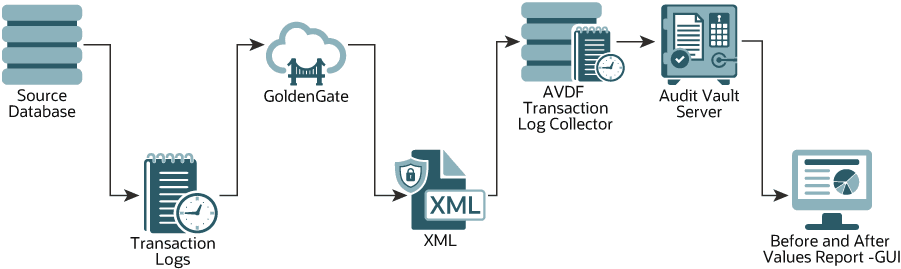
Description of the illustration transaction_log_collector_process.png
Note: By default, Oracle GoldenGate for Microsoft SQL Server does not capture certain details, such as the program name, database username, OS username, OS terminal, client host name, client ID, process ID, and proxy session ID for transactions committed in the database. As a result, this limitation will cause the Oracle Oracle Database Security Central’s Data Modification Before-After Values report to display empty values for these fields. However, if this information is critical for the user, then there is an alternate way to collect session information, explained in section Managing Session Information for SQL Server Transactions
Sizing Guidelines
Follow these sizing guidelines to configuring Oracle GoldenGate for Microsoft SQL Server.
Prerequisites
Follow the system and sizing requirements in What is Required? in the Oracle GoldenGate documentation.
General Sizing Guidelines
-
For memory and CPU, start with 32 GB of memory and 2 CPUs per Extract, because it’s a multithreaded process and uses a large amount of memory when processing large transactions. Depending on the transaction volume and pattern, scale up the resources appropriately following the guidelines in the Oracle GoldenGate documentation.
-
For disk space, start with 2 TB, and vary it based on the volume of data that the Extract captures from the source databases. The Extract uses storage for trail files and temporary disk space for cache files if there’s a big transaction to buffer for processing.
Temporary disk space requirements due to large transactions may fill up the cache and spill over to the transaction-cached data or temporary files. Configure an archive policy and define the retention period of the files so they can be recycled accordingly.
Maintain enough physical memory to handle large transactions. According to the guidelines, have at least 32 GB of memory available for the Extract to use. For a more accurate estimation, collect the statistics from the database server history run and check for the size of the biggest transaction. Oracle GoldenGate provides the send <extract> cachemgr, cachestats command that displays the statistics of the transaction, which is helpful to determine the baseline for estimation.
In general, the sizing, storage, and memory for the Oracle GoldenGate Extract process is highly dependent on the transaction volume and transaction pattern. Collect these statistics from every single database server to estimate, because there’s no standard value. The number of databases that can be supported by a single GoldenGate instance or Extract process depends on the system resources that support multiple Extracts. Configure one Extract for every database.
Restricted Use License for Oracle GoldenGate
A restricted-use license for Oracle GoldenGate is included with Oracle DBSecCentral.
This license permits you to install Oracle GoldenGate and use the Extract process to capture transactional changes in database systems that are monitored by Oracle DBSecCentral. The extracted data from Oracle GoldenGate is consumed only by Oracle DBSecCentral. Deploy Oracle GoldenGate Classic Architecture or Microservices Architecture on a separate server other than the server on which the Oracle DBSecCentral appliance is deployed. Then configure the Oracle GoldenGate Extract feature. Oracle Database Security Central supports Oracle GoldenGate Microservices Architecture version 23.4.2.24.06 and later for Microsoft SQL Server version 2022.
Installing Oracle GoldenGate for Microsoft SQL Server Databases
Follow these instructions to install Oracle GoldenGate for Microsoft SQL Server.
Deploy Oracle GoldenGate on a separate server other than the server on which the Oracle DBSecCentral appliance is deployed. Then configure the Oracle GoldenGate Integrated Extract feature.
Install Oracle GoldenGate Microservices architecture version 23.4.2.24.06 or later from Oracle GoldenGate Downloads.
Follow the instructions for Installing Oracle GoldenGate in the Oracle GoldenGate Microservices documentation for Oracle GoldenGate 26ai.
Capturing Transaction Log Data from Microsoft SQL Server 2012 (Through Version 2019)
You capture transaction log data from Microsoft SQL Server by using Oracle GoldenGate’s change data capture (CDC) Capture (Extract) process.
Capturing Transaction Log Data from Microsoft SQL Server (Classic Architecture)
Use this process to configure Microsoft SQL Server and the CDC Extract process for the Oracle GoldenGate Classic Architecture.
- Creating Users and Privileges
- Creating the Manager Process
- Preparing the System for Oracle GoldenGate
- Preparing the System for the CDC Capture
- Creating the GoldenGate CDC Extract
The Oracle GoldenGate CDC Extract process in version 19.1.0.0.200414+ supports capturing transaction log data from Microsoft SQL Server versions 2012 through 2019. For SQL Server 2014, 2016, and 2017, Microsoft has identified and fixed several important issues that directly affect the SQL Server CDC feature. This situation impacts the ability of Oracle GoldenGate to capture data correctly. The current known issues that require Microsoft patches include KB3030352, KB3166120, and KB4073684. If you’re using SQL Server 2014, 2016, or 2017 as a source database, Oracle highly recommends that you apply the latest service pack or cumulative update for your version of SQL Server. See SQL Server Supported Versions in the Oracle GoldenGate documentation for information.
Creating Users and Privileges
The user that is used for the Oracle GoldenGate Extract process and the user that is used to enable supplemental login need different sets of privileges.
See the following topics in the Oracle GoldenGate documentation for instructions:
-
For the Extract user for Microsoft SQL Server, see only the Extract user section in Extract and Replicat Users for SQL Server.
-
For the user that enables supplemental login, see User that Enables Supplemental Logging and Other Features.
Creating the Manager Process
The Manager process can run as a Microsoft Windows service, or it can run interactively as the current user.
The Manager process requires the following:
-
Full control permissions over the files and folders within the Oracle GoldenGate directories.
-
Full control permissions over the trail files, if they’re stored in a location other than the Oracle GoldenGate directory.
-
Membership in the server’s local administrators group (on all nodes in a cluster).
-
If you’re running the Manager process as a Windows service with an Extract that is connected to a remote database using Windows Authentication, the process attempts to log in to the database with the account that the Manager process is running under. Ensure that the Manager’s service account has the correct access to the remote SQL Server instance.
The programs that capture data for the Extract run under the Manager account and inherit the Manager’s operating system privileges.
Create a file named GLOBALS.txt in the root folder of Oracle GoldenGate.
Add a new schema in the database to be used by Oracle GoldenGate objects that may get created in the database. Open the GLOBALS.txt file and write GGSCHEMA <schema_name>. Use the GGSCHEMA parameter to specify the name of the schema that contains the database objects that are owned by Oracle GoldenGate, such as those that support data definition language (DDL) replication for trigger-based replication, those that are a part of the heartbeat table implementation, and those that are part of the SQL Server CDC Capture and Cleanup implementation. After creating the GLOBALS file, remove the .txt extension. The schema name mentioned under GGSCHEMA is treated as a system object, and table names with wildcards under GGSCHEMA are excluded from the Extract. If you need to capture in GGSCHEMA, don’t use wildcards and make sure that you explicitly map the respective table names.
Open the command prompt in the location of the GoldenGate folder and run ggsci.exe in the command prompt, or you can directly run this as an administrator.
After running ggsci.exe, the GoldenGate command prompt appears.
Run the following command at the GGSCI command prompt:
create subdirsTo create a Manager process, use the following steps:
-
Enter the following command in GGSCI:
edit params mgrNotepad or a similar editor opens the parameter file.
-
In the parameter file, enter the port number for the Manager process. It can be any port number except the well-known port numbers. Use the following format:
port <port_number>For example:
port 3456 -
Enter the following command:
start mgrThis starts the Manager process and only enables communication between the Manager process and the local Oracle GoldenGate instance. For more information about the parameters and configuring other types of network communications for the Manager, see Configuring Manager and Network Communications in the Oracle GoldenGate documentation.
To see if the manager process is running, enter the following command:
info all(Optional) To add a Manager process as a Windows service, run the following commands. You’ll receive a warning or error message if the Manager process is already running as a Windows service. In that case, you don’t need to add the Manager process as a Windows service.
stop mgrshell install addservicestart mgrPreparing the System for Oracle GoldenGate
The Extract connects to a source SQL Server database through an Open Database Connectivity (ODBC) connection.
To create this connection, set up a data source name (DSN) through the Data Sources (ODBC) control panel. For instructions, see Configuring an Extract Database Connection in the Oracle GoldenGate documentation.
Preparing the System for the CDC Capture
To create a CDC Capture process, you enable supplemental logging and create an Oracle GoldenGate CDC cleanup job.
See the following instructions:
Creating the GoldenGate CDC Extract
This section discusses the steps to initiate the CDC Extract process.
Before creating a parameter file for CDC Extract, make sure that you’re already logged in to the database through GGSCI, supplemental logging and Oracle GoldenGate’s CDC Cleanup job are enabled, and the Manager process is running. The following file is a sample parameter file for the CDC Extract process. For more detailed information on the fields in the parameter file, see Valid and Invalid Parameters for CDC Capture in the Oracle GoldenGate documentation.
To create and save a new Extract parameter file, enter the following command in GGSCI:
edit params <extract_name>For example:
edit params extaNotepad or a similar editor opens for you to add the required parameters. The following example parameter file has the minimum required parameters:
EXTRACT <extract_name>
SOURCEDB <dsn> USERID <username> PASSWORD <password>
OUTPUTFORMAT XML _AUDIT_VAULT
EXTTRAIL .\dirdat{Any combination of two alphabets indicating prefix of trail file e.g. ab, bc, ea, sn.....etc}
TABLE owner.table_name;
Note: The OUTPUTFORMAT must appear before the EXTTRAIL.
The following example parameter file is for a single table. Here the dirdat folder will contain the trail files that Oracle GoldenGate generates.
EXTRACT exta
SOURCEDB GGDB USERID sa PASSWORD passwd
OUTPUTFORMAT XML _AUDIT_VAULT
EXTTRAIL .\dirdat\ea
TABLE dbo.employee;
Note: The following examples and commands continue to use exta as the Extract name.
To add the Extract process, run the following commands in GGSCI:
add extract exta, tranlog, begin nowadd exttrail .\dirdat\ea, extract extaMake sure that the Manager process is already running, and then start the Extract with the following commands in GGSCI:
start extract extainfo allThis starts the Extract process. From this point onward, every DML operation on the tables that are monitored by the Extract will be captured and entered in the trail file in the dirdat folder. To learn more about the Extract process, the naming conventions, creating trail, and so on, see Configuring Online Change Synchronization.
To stop the Extract process, enter the following command:
stop extaCapturing Transaction Log Data from Microsoft SQL Server (Microservices Architecture)
Use this process to configure Microsoft SQL Server and the CDC Extract process for the Oracle GoldenGate Microservices Architecture.
- Creating Users and Privileges
- Preparing the System for Oracle GoldenGate
- Configuring the Database for Oracle GoldenGate
- Preparing the System for the CDC Capture
- Creating the GoldenGate CDC Extract
Creating Users and Privileges
The user that is used for the Oracle GoldenGate Extract process and the user that is used to enable supplemental login need different sets of privileges.
See the following topics in the Oracle GoldenGate documentation for instructions:
-
For the Extract user for Microsoft SQL Server, see only the Extract user section in Extract and Replicat Users for SQL Server.
-
For the user that enables supplemental login, see User that Enables Supplemental Logging and Other Features.
Preparing the System for Oracle GoldenGate
The Extract connects to a source SQL Server database through an Open Database Connectivity (ODBC) connection.
To create this connection, set up a data source name (DSN) through the Data Sources (ODBC) control panel. For instructions, see Configuring an Extract Database Connection in the Oracle GoldenGate documentation.
Configuring the Database for Oracle GoldenGate
Configure the database credentials and TRANDATA information for Oracle GoldenGate.
-
Open the Administration Service page in the Oracle GoldenGate Service Manager console.
-
In the navigation menu for the Administration Service, select Configuration.
-
Select Database.
-
Select plus button next to Credentials to add the database credentials.
-
Enter the domain name in the Credential Domain field.
-
Enter the alias in the Credential Alias field.
-
Enter the data source name (DSN) (which you created in Preparing the System for Oracle GoldenGate) in the DSN field.
-
Enter the user ID and password.
-
Select Submit.
-
Select Connect to database icon for the new credential to ensure that the newly created credential can connect to the target database.
After you test the database connection, the TRANDATA Information section appears below the table of credentials.
-
Select plus button next to TRANDATA Information.
-
Select Table and add the table name in the Table Name field.
-
Edit the columns as needed.
-
Select nowait in the Prepare CSN Mode drop-down list.
-
Select Submit.
Preparing the System for the CDC Capture
To create a CDC Capture process, you enable supplemental logging and create an Oracle GoldenGate CDC cleanup job.
See the following instructions:
Creating the GoldenGate CDC Extract
Use these steps to create and run the CDC capture for Microsoft SQL Server.
-
Open the Administration Service page in the Oracle GoldenGate Service Manager console.
-
Select plus button next to Extracts.
-
Select Change Data Capture Extract for the extract type and select Next.
-
Enter the process name in the Process Name field.
-
Select Unidirectional in the Intent field.
-
In the Credential Alias drop-down list, select the credential alias that you created in Configuring the Database for Oracle GoldenGate.
-
In the Begin drop-down list, select Now.
-
Enter a two-character Trail Name.
-
If you need to customize the trail subdirectory, enter the full path of the directory in the Trail Subdirectory field.
This can be any directory, and it must already exist in the file system.
-
Enter the trail size in MB in the Trail Size field.
If the record generation rate of GoldenGate is low (less than 50 records per second), then Oracle recommends that you set the trail size to a lower value, such as 100 MB.
Note: You can leave all other fields unchanged because they’re optional.
-
Select Next.
-
In the Parameter File section, enter the following parameters:
EXTRACT <extract_name>
SOURCEDB <DSN_name> USERIDALIAS <user_alias>, DOMAIN <domain_name>
OUTPUTFORMAT XML _AUDIT_VAULT
EXTTRAIL <subdirectory>/<trail_name>
TABLE <schema>.<trail_name>;
For example:
EXTRACT exta
SOURCEDB odbc1 USERIDALIAS sql, DOMAIN OracleGoldenGate
OUTPUTFORMAT XML _AUDIT_VAULT
EXTTRAIL dirdat/ea
TABLE dbo.employee;
Note the following parameter guidelines:
-
Include a space between
XMLand_AUDIT_VAULTin theOUTPUTFORMATparameter. -
Include the
OUTPUTFORMATparameter before theEXTTRAILparameter in the parameter file. Otherwise, the XML files are not generated. -
Ensure that the
TABLEcommand always ends with a semicolon (;). -
Ensure that the sequence of all the parameters is in the exact same order as the preceding example.
-
For the
TABLEcommand, specify the tables for which DML changes need to be captured. -
For more information about Oracle GoldenGate parameters, see Oracle GoldenGate Parameters.
-
-
Select Create and Run to start the CDC Extract process.
The newly created CDC Extract appears in the Extracts section on the Administration Service page.
-
To view the status of the CDC Extract:
-
Select Actions button for the extract.
-
Select Details.
-
Select Report to view the diagnostic messages.
If the extract process fails, this report displays the relevant errors.
-
Sample Oracle GoldenGate CDC Extract Parameter Files
Use these Oracle GoldenGate CDC Extract parameter files as samples.
Audit DML for a table and set the columns to be used as key columns
The following parameter file configures CDC Extract to do the following:
-
Capture DML operations on the
emptable in thedboschema. -
Set
empnoandenameas key columns.
EXTRACT <extract name>
SOURCEDB <Database Name@Database Server:port> USERIDALIAS <useralias>, DOMAIN <Domain name>
OUTFORMAT XML _AUDIT_VAULT
EXTTRAIL <subdirectory>/<trail name>
TABLE dbo.emp, KEYCOLS (empno, ename);
Audit DML in table
The following parameter file audits DML operations on the required tables:
-
The parameter file provided is for a single table.
-
Additional table names can be added by the user.
EXTRACT <extract_name>
SOURCEDB <Database Name@Database Server:port> USERIDALIAS <useralias>, DOMAIN <Domain name>
OUTPUTFORMAT XML _AUDIT_VAULT
EXTTRAIL <subdirectory> {Any combination of two alphabets indicating prefix of trail file e.g. ab, bc, ea, sn.....etc}
TABLE owner.table_name;
Example: The following parameter file audits DML operations on the dbo.employee table. The audit data will be stored in the \dirdat\ea location:
EXTRACT exta
SOURCEDB HR@10.245.102.35:3306 USERIDALIAS mysql, DOMAIN OracleGoldenGate
OUTPUTFORMAT XML _AUDIT_VAULT
EXTTRAIL \dirdat\ea
TABLE dbo.employee;-
extais the name of the CDC Extract. -
HRis the name of the database. -
10.245.102.35is the IP of the host on which database is installed. -
3306is the port number of the MySQL database. -
mysqlis theUSERIDALIAS. -
OracleGoldenGateis the DOMAIN. -
In
dbo.employee,dbois the schema name that owns theemployeetable.
Audit DML with GETBEFORECOLS option
The following parameter file configures the Extract process to capture DML operations on a specific table with the GETBEFORECOLS option enabled. This option ensures that key columns appear in the before image of the audit file generated by Oracle GoldenGate, which is essential for displaying key columns in reports for update and delete operations.
EXTRACT exta
SOURCEDB HR@10.245.102.35:3306 USERIDALIAS mysql, DOMAIN OracleGoldenGate
OUTPUTFORMAT XML _AUDIT_VAULT
EXTTRAIL ea
TABLE dbo.employee, GETBEFORECOLS(ON UPDATE ALL, ON DELETE ALL);
Use GETBEFORECOLS to specify the columns to be captured and written to the before image of the trail. In the above example, the ALL keyword indicated that all columns should be included in the before image for update and delete operations.
Audit DML with KEYCOLS option
The following parameter file configures the Extract process to capture DML operations on a specific table using the KEYCOLS option. This option is used to define a substitute primary key when a primary key or an appropriate unique index is not available for the table.
EXTRACT exta
SOURCEDB HR@10.245.102.35:3306 USERIDALIAS mysql, DOMAIN OracleGoldenGate
OUTPUTFORMAT XML _AUDIT_VAULT
EXTTRAIL ea
TABLE dbo.emp3, KEYCOLS(id,name), GETBEFORECOLS(ON DELETE ALL);
The above parameter file audits DML operations on the dbo.emp3 table. The KEYCOLS option is used to treat the id and name columns together as a unique primary key or substitute index (KEYCOLS(id, name). The audit data will be stored in the ea trail. The format for KEYCOLS is KEYCOLs(column1, column1, ...).
Related Topics
Creating Audit Trails in the Audit Vault Console
Follow these guidelines for creating transaction log audit trails for Microsoft SQL Server database targets in the Audit Vault console.
Note:
Before creating the audit trails, Oracle recommends (although it’s not mandatory) that you set the AV.COLLECTOR.TIMEZONEOFFSET attribute for the Microsoft SQL Server database target in the Oracle Database Security Central console, because the transaction log audit trail gets the timezones of audit records from the target.
Set AV.COLLECTOR.TIMEZONEOFFSET to the timezone offset of the Microsoft SQL Server database. For example: +03:00 for positive offset and -03:00 for negative offset.
See Registering Targets for the full instructions.
Use the following guidelines when you create audit trails according to the steps in Adding Audit Trails with Agent-Based Collection:
• For Trail Type, select TRANSACTION LOG.
• For Trail Location, enter the full path of the directory that contains the CDC Extract XML files.
• Ensure that the Audit Vault Agent is running on the host machine that has access to the trail location.
• Ensure that the Audit Vault Agent user has read permission for the trail location.
Cleaning Up Audit Trails
Audit trail cleanup involves deleting the files that are read by the Audit Vault Agent.
See Cleaning Up Oracle GoldenGate Extracts.
Managing Session Information for SQL Server Transactions
Learn how to manage session information capture for SQL Server transactions.
Tip: Limit the number of tables you capture session information for to prevent performance issues.
Capturing Session Information for SQL Server Transactions
Capture the session information for SQL Server transactions using the trigger based approach.
-
Configure the GolenGate Change Data Capture extract:
-
Classic architecture: Creating the GoldenGate CDC Extract
-
Microservices architecture: Creating the GoldenGate CDC Extract
-
-
Stop the extract.
-
Move all existing XML files to a different location.
-
Copy the following patch files from
*`<AGENT_HOME>`*/av/plugins/com.oracle.av.plugin.mssql/config/to a machine which has access to the SQL Server instance:-
create_session_info_metadata.sql
-
delete_session_info_metadata.sql
-
enable_session_info.sql
-
disable_session_info.sql
-
grant_privileges_session_info.sql
-
revoke_privileges_session_info.sql
-
-
Create a
target_file.txtfile and add table names into this file (one table name per line), for each table for which GoldenGate CDC extract collects transaction log data.For example, if
dbo.salaryanddbo.employeeare mentioned in GoldenGate CDC extract parameter file, thentarget_file.txtwill look something like:dbo.salary dbo.eomployee -
Ensure that the user who is running the SQL Server (MSSQLServer) service has read privileges on the
target_file.txt.Typically, this user is
NT Service\MSSQLSERVER. -
Run the
create_session_info_metadata.sqlscript to create session info metadata tables:SQLCMD -S <server_name> -d <database_name> -U <super_admin_user> -i"<full path of create_session_info_metadata.sql>"For example:
SQLCMD -S PHOENIX86253 -d somedb -U sa -i"C:\foo\bar\create_session_info_metadata.sql" -
Run the
enable_session_info.sqlscript to create triggers for collecting session information for each table specified intarget_file.txt:SQLCMD -S <server_name> -d <database_name> -U <super_admin_user> -v target_file="'<full path of target_file.txt>'" dml_operation="'insert,update,delete'" -i"<full path of enable_session_info.sql>"The
dml_operationparameter is a comma separated list and can contain insert, update, and/or delete:-
If session info needs to be collected for only update and delete, then set
dml_operation="'update,delete'" -
If session info needs to be collected for only insert and delete, then set
dml_operation="'insert,delete'" -
If session info needs to be collected for only delete, then set
dml_operation="'delete'"
For example:
SQLCMD -S PHOENIX86253 -d somedb -U sa -v target_file="'C:\foo\bar\target_file.txt'" dml_operation="'update, delete'" -i"C:\foo\bar\enable_session_info.sql" -
-
Perform DML operations on the tables specified in
target_file.txtand ensure corresponding records are present in Oracle Database Security Central metadata tablesdbo.avdf_dml_session_dataanddbo.avdf_lsn_time_mapping. -
Run the
grant_privileges_session_info.sqlscript to grant privileges to the Microsoft SQL Server target user used in Oracle Database Security Central:SQLCMD -S <server_name> -d <database_name> -U <super_admin_user> -i"<full path of grant_privileges_session_info.sql>" -v username="[<user_name>]"For example:
SQLCMD -S PHOENIX86253 -d somedb -U sa -i"C:\foo\bar\grant_privileges_session_info.sql" -v username="[targetuser]"For Windows user specify both the domain and the user
SQLCMD -S PHOENIX86253 -d somedb -U sa -i"C:\foo\bar\grant_privileges_session_info.sql" -v username="[domain\user]" -
Start the GoldenGate extract in GoldenGate Administration Console. This will start generating XML files.
-
Modify the target in Oracle Database Security Central Console and set the audit collection attribute
av.collector.get_tran_log_session_infotoY.The audit trail will fetch session information from Oracle Database Security Central metadata tables only if the audit collection attribute
av.collector.get_tran_log_session_infois set toY. -
Stop and start the audit trail in Oracle Database Security Central console. For more information, see Stopping, Starting, and Autostart of Audit Trails in Oracle Audit Vault Server.
-
Optionally, for capturing client identifier (application user) information, the customer application has to set the application user in SQL Server
context_info.For example:
declare @test varbinary(128); set @test = convert(varbinary(128),'<application user name>'); set CONTEXT_INFO @test;
Disabling Session Information Collection for SQL Server Transactions
-
Create a
target_file.txtfile and add table names into this file (one table name per line), for each table for which session information collection needs to be disabled.For example, if session information collection needs to be disabled for
dbo.salaryand ` dbo.employee, then thetarget_file.txt` will look something like:dbo.salary dbo.eomployee -
Ensure that the user who is running the SQL Server (MSSQLServer) service has read privileges on the
target_file.txt.Typically, this user is
NT Service\MSSQLSERVER. -
Run the
disable_session_info.sqlscript to disable session information collection for each table specified intarget_file.txt:SQLCMD -S <server_name> -d <database_name> -U <super_admin_user> -v target_file="'<full path of target_file.txt>'" -i"<full path of disable_session_info.sql>"For example,
SQLCMD -S PHOENIX86253 -d somedb -U sa -v target_file="'C:\foo\bar\target_file.txt'" -i"C:\foo\bar\disable_session_info.sql"
Deleting Session Information for SQL Server Transactions
Caution: Perform this only if all the metadata tables and triggers have to be deleted.
To delete all session information metadata tables and triggers, run the delete_session_info_metadata.sql script:
SQLCMD -S <server_name> -d <database_name> -U <super_admin_user> -i"<full path of delete_session_info_metadata.sql>"For example:
SQLCMD -S PHOENIX86253 -d somedb -U sa -i"C:\foo\bar\delete_session_info_metadata.sql"Revoking Privileges Granted to the SQL Server Target User
To revoke privileges granted to the target user, run the revoke_privileges_session_info.sql script:
SQLCMD -S <server_name> -d <database_name> -U <super_admin_user> -i"<full path of revoke_privileges_session_info.sql>" -v username="[<user_name>]"For example:
SQLCMD -S PHOENIX86253 -d somedb -U sa -i"C:\foo\bar\revoke_privileges_session_info.sql" -v username="[targetuser]"For a Windows user you will need to specify both the domain and the user.
SQLCMD -S PHOENIX86253 -d somedb -U sa -i"C:\foo\bar\revoke_privileges_session_info.sql" -v username="[domain\user]"