Managing Oracle Script Files
All scripts managed by the Oracle Database Project Version 2 must have the .sql file extension and valid SQL or SQL*Plus syntax.
This section includes the following topics:
Oracle SQL Script Compatibility Requirements
Please note that the script execution engine used by default with Visual Studio does not honor Oracle specific SQL syntax nor SQL*Plus directives.
To allow the execution of Oracle SQL scripts, the Oracle Developer Tools for Visual Studio includes a SQL*Plus engine.
Oracle SQL scripts are subject to the following requirements:
Auto-Commit Mode
The SQL script is executed in auto-commit mode by default, which you can change using a SQL*Plus command in the script to turn auto-commit on or off.
SQL*Plus Command Support
Oracle Developer Tools supports most SQL*Plus script commands. The following commands are not supported:
-
HOST -
EDIT -
GET -
SAVE -
SPOOL -
START -
STORE
Character set Encoding of Script File
The Oracle SQL script file should be in the same encoding as specified in the Oracle NLS_LANG environment variable setting. Please refer to the Oracle Database Globalization Support Guide, 11g release 1 (11.1) for more information.
Special Characters in Script File Name
The SQL*Plus script file name cannot contain any of the following special characters:
*, ?, ", <, >, |, /, \
For file names containing these characters an "Invalid file name" error message appears in the output pane and the script will not run.
Adding New Scripts
You can add new scripts to an Oracle Database Project Version 2 using Visual Studio.
To add a new script, do one of the following:
-
Right-click the Oracle Database Project Version 2 root node or the individual type folder node and select Add New Item
-
Select the root node or folder node in Solution Explorer, then select the Project Menu and Add New Item.
The Add New Item dialog box appears.
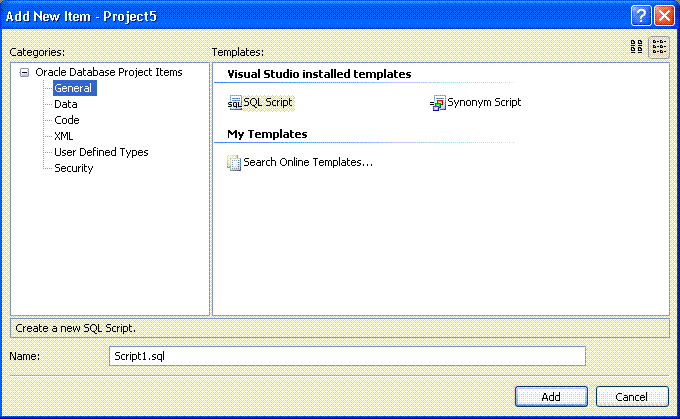
Description of the illustration add_new_item.gif
The Add New Item dialog box lists categories on the left under Oracle Database Project Version 2 Items, and script templates on the right. When you select a category, a list of the available script templates is displayed. The main categories are:
-
General
-
Data
-
Code
-
XML
-
User Defined Types
-
Security
Once you click Add, the newly created file opens in the SQL editor.
See Also How Oracle Database Project Version 2 Project Folder Works
Adding Existing Scripts
You can add existing scripts to an Oracle Database Project Version 2 using Visual Studio.
To add an existing script, do one of the following:
-
Right-click the Oracle Database Project Version 2 root node or folder node and select Add Existing Item
-
Select the root node or folder node in Solution Explorer, then select the Project Menu and Add Existing Item.
The Add Existing Item dialog box appears. You can browse to the desired script, text, XML, or other file, and select it.
This command does not automatically open the added script.
See Also How Oracle Database Project Version 2 Project Folder Works
Adding Automatically Generated Scripts for Schema Objects
Scripts can be automatically generated and added to the Oracle Database Project Version 2 by selecting the Import Schema menu item on the Project folder. This opens the Import Schema Dialog. You can provide a source Server Explorer Oracle Database Connection or create a new one. One SQL script per schema object will be generated into the Oracle Database Project Version 2. You can also use the Schema Compare tool to add new scripts or update existing scripts in the project