PL/SQL Debugging Options
This section describes the Debug options which are found on the PL/SQL Debugging Options page at Accessing PL/SQL Debugging Options. For more information on PL/SQL debugging, see About the Oracle PL/SQL Debugger.
About Debugger Options
There are three debugger options or settings that you can make.
-
Debugger IP Address Configuration
The Oracle PL/SQL debugger requires a valid TCP/IP address for debugging. A listener is started on the machine that hosts Visual Studio using this IP address and the Oracle Database connects back to Visual Studio using this IP address.
You can specify one of the TCP/IP addresses on your computer for PL/SQL debugging in the PL/SQL Debugging Options page. See Accessing PL/SQL Debugging Options in the next section.
If you do not specify a TCP/IP address in the PL/SQL Debugging Options page and you have more than one TCP/IP address on your computer, a dialog box will prompt you to select the TCP/IP address for PL/SQL debugger.
In most cases the IP address used to start a listener on the machine that hosts Visual Studio is the same as the IP address used by Oracle Database to connect back to Visual Studio. However, in some cases, such as when using the database in a container, they might be different. In these cases, modify Hostname or IP Address as known by the database option.
Changing the TCP/IP address only affects subsequent PL/SQL debugging instances.
-
Debugger Port Configurations
The Oracle PL/SQL debugger requires an open TCP port for debugging. The Oracle Database connects to Visual Studio using this port number.
For Direct Database and Multitier application debugging, you can specify a range of port numbers in the PL/SQL Debugging Options page. If you do not specify the port number, the Oracle PL/SQL debugger randomly opens an available port, based on the default port range. The default port range is 65000 to 65535. See Accessing PL/SQL Debugging Options in the next section.
Changing the debugger port only affects subsequent PL/SQL debugging instances.
When you start debugging, if there is no available port in the range that you specified, a dialog box appears indicating that debugging cannot be started because the specified debugging port is unavailable. For remote database connection, the TCP port must be open for external access.
When debugging starts, the Debug Output window displays the IP address and the port number.
Note: For External Application Debugging Mode, you set the port number as part of the start process.
-
PL/SQL Source Location
You can specify the database connection or connections which are possible locations for the PL/SQL source. The choice of connections corresponds to those listed in Server Explorer. During debugging, Oracle Developer Tools looks for the PL/SQL source in the order that you have specified.
If you do not specify a database connection, Oracle Developer Tools displays a message indicating that the source program could not be located.
Accessing PL/SQL Debugging Options
To access the Debug Options Page, select Options… from the Tools menu. From the Options menu, select Oracle Developer Tools. Then select PL/SQL Debugging Options.
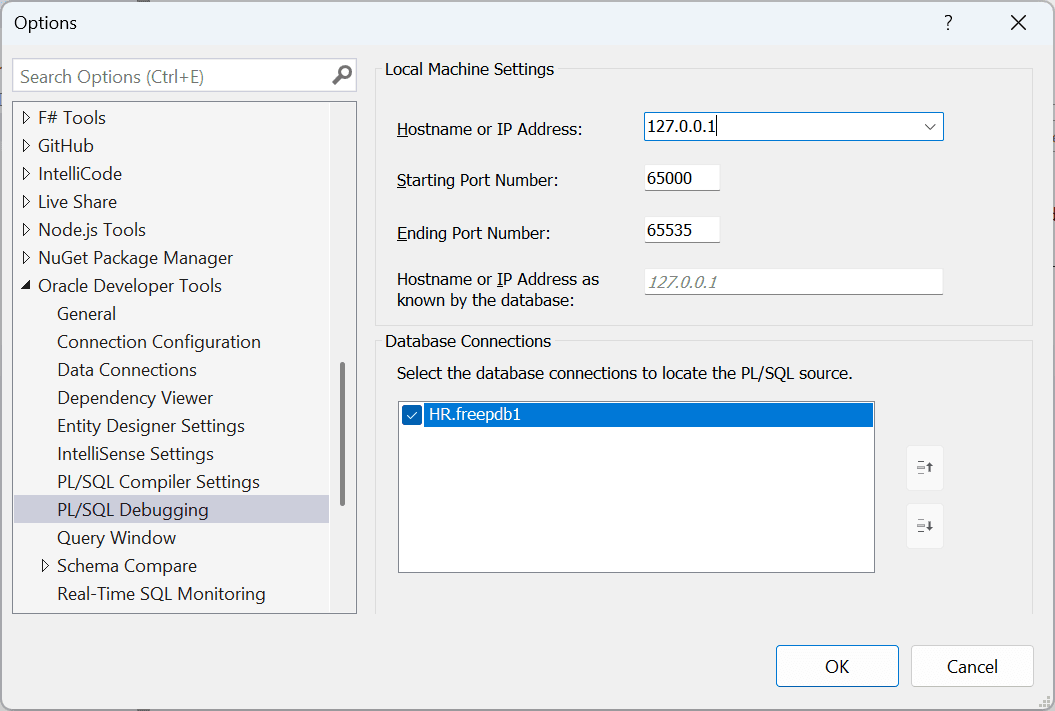
You can change the IP address and the starting and ending port numbers. You can check which database connections could be the source locations, and, you can change the order of database connections by selecting one and clicking Move Up or Move Down. This determines the order that the debugger searches for PL/SQL code.
Using the PL/SQL Debugging Options
The controls in the Debug tab of the PL/SQL Debugging Options are as follows:
| Control | Description |
|---|---|
| Hostname or IP Address | The hostname or IP address of the machine where Visual Studio is located. |
| Starting Port Number | Enter the starting number for a range of ports to be available for the Oracle PL/SQL Debugger. By default, the starting number is 65000. |
| Ending Port Number | Enter the ending port number for the Oracle PL/SQL Debugger. By default, the ending number is 65535. |
| Hostname or IP Address as known by the database | This is the IP Address or hostname that the database will use to connect back to the machine Visual Studio is located on. In most cases this will be the same value as the Hostname or IP address field above. In other cases, such as when using the database in a container, it might be different. |
| Database Connections | Specify a database connection as a location for a PL/SQL source by checking the database connection box. Set the order of database connections that the debugger searches by selecting a connection and clicking Move Up or Move Down. To deselect a database connection, uncheck the database connection box. |
See Also Connection Dialog Box | Connecting to Oracle Database from Visual Studio