User Designer
The User Designer lets you create a new User or edit existing Users.
This section contains the following topics:
Starting the User Designer
In the Server Explorer, right-click on the users or schemas node, and select New User.
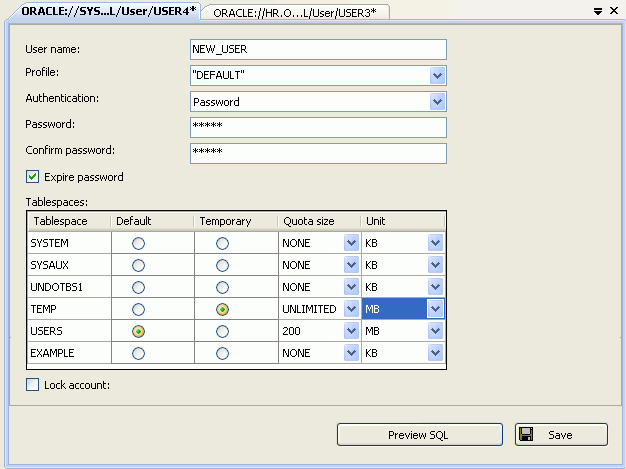
Description of the illustration user_designer01.gif
Using the User Designer
The User Designer control has some restrictions on non-SYSDBA users as indicated. The controls in the User Designer are as follows:
| Control | Description |
|---|---|
| User name | Enter the username or accept the autogenerated name. |
| Profile | Enter or select the profile. Non- |
| Authentication | Enter or select the authentication type. Valid types are Password (the default), Global, and External. For non- |
| Password | Enter the password for the user. This is only enabled when the authentication type is Password. |
| Confirm Password | Enter the password. This is only enabled when the authentication type is Password. |
| Expire Password | Check to expire the user password. This is only enabled when the Authentication type is password. For non- |
| *X.500 Distinguished name | Enter the distinguished name for the user. This is only visible and enabled when the Authentication type is Global. |
| Tablespaces | Lists the available tablespaces with details in these columns: Tablespace, Default, Temporary, Quota Size, and Unit. For non- |
| Lock Account | Check to lock the account. |
| Preview SQL | Displays the CREATE USER SQL dialog. This button is only enabled when there is a pending SQL statement to execute. Verifies that username, password authentication, password, and confirm password are not empty and that password and confirm password are the same. |
| Save | Verifies that username, password authentication, password, and confirm password are not empty and that password and confirm password are the same. Save the changes. |
See Also Schema Nodes | User Nodes | About Users, Roles, and Privileges