Common Oracle Key Vault Tasks
Review these tasks for resolving common issues encountered when working with Oracle Key Vault.
-
How to Re-Enroll an Endpoint on an Endpoint Database
You can re-enroll an endpoint again on an endpoint database using these steps. Additionally, you should re-enroll an endpoint if endpoint certificates or CA certificates have expired.
-
How To Download Diagnostics From Oracle Key Vault Server
Downloading the Oracle Key Vault diagnostics log for 21.5 or previous versions provides troubleshooting information for Oracle Key Vault issues.
-
How to Recover the root User Password
You can reset the Oracle Key Vault’s root user password when the current root password is forgotten using Oracle Key Vault server’s terminal console.
-
How to Reset the support User Password
You can reset the Oracle Key Vault support user password when the current password is forgotten using Oracle Key Vault server’s console terminal.
-
How to Add SAN Details to the Console Certificate
You can add SAN details in console certificate using these steps.
-
Check if additional patches are applicable to your environment. Oracle recommends that you check for patches after installing or upgrading Oracle Key Vault.
How to Re-Enroll an Endpoint on an Endpoint Database
You can re-enroll an endpoint again on an endpoint database using these steps. Additionally, you should re-enroll an endpoint if endpoint certificates or CA certificates have expired.
-
Log in to the Oracle Key Vault management console as a user who has either the system administrator role or privilege to manage the endpoint.
-
Navigate to the Endpoints tab.
-
Select the endpoint and re-enroll the endpoint.
-
Download the
okvclient.jarfile using the endpoint enrollment token. -
Securely transfer
okvclient.jarusingSCPto the endpoint database server. -
Set the ORACLE_BASE, ORACLE_HOME, ORACLE_SID, JAVA_HOME, and OKV_HOME environment variables as required. OKV_HOME is where
okvclient.jarwas installed earlier, which contains the bin, conf, ssl and other directories. -
Back up the
$OKV_HOMEdirectory and delete the files under $OKV_HOME:$cp -R $OKV_HOME $OKV_HOME_bkp -
Go to the $OKV_HOME directory and remove all the files.
-
Install the new
okvclient.jarfile:$JAVA_HOME/bin/java -jar okvclient.jar -d $OKV_HOME -v -o
How To Download Diagnostics From Oracle Key Vault Server
Downloading the Oracle Key Vault diagnostics log for 21.5 or previous versions provides troubleshooting information for Oracle Key Vault issues.
For information on downloading trace files for Oracle Key Vault versions 21.6 and later, see About Capturing System Diagnostics.
To download the Oracle Key Vault diagnostics log requested by Oracle Support:
-
SSH into the Oracle Key Vault system as user
support, then switch to userroot:ssh support@<OKV_IP_Address> su - root -
Install the diagnostics package:
/usr/local/dbfw/bin/priv/dbfw-diagnostics-package.rb --install -
Modify the diagnostics configuration to allow the utility to collect information about the appliance. Enable collection of all elements and files:
/usr/local/dbfw/bin/priv/dbfw-diagnostics-package.rb --enable ALL -
Copy the diagnostics file outside Oracle Key Vault before deleting them.
scp /usr/local/dbfw/tmp/diagnostics_okv*.zip user@hostname:/tmp -
Collect the diagnostic logs:
/usr/local/dbfw/bin/priv/dbfw-diagnostics-package.rbFor example, a diagnostics file looks like:
/usr/local/dbfw/tmp/diagnostics_okv0039f6043e9a_2017_06_08_17_48_07_75F4728E5644D781A215200EAAEADF3B.zip -
Delete the generated diagnostics zip file and remove the package using the following commands:
/usr/local/dbfw/bin/priv/dbfw-diagnostics-package.rb --clean
/usr/local/dbfw/bin/priv/dbfw-diagnostics-package.rb --remove
How to Recover the root User Password
You can reset the Oracle Key Vault’s root user password when the current root password is forgotten using Oracle Key Vault server’s terminal console.
To reset the root user password of Oracle Key Vault Server:
-
Reboot the Oracle Key Vault server.
On the terminal console, when the GRUB2 menu appears with the menu item for the Oracle Key Vault server entry, enter the edit mode by pressing e key.
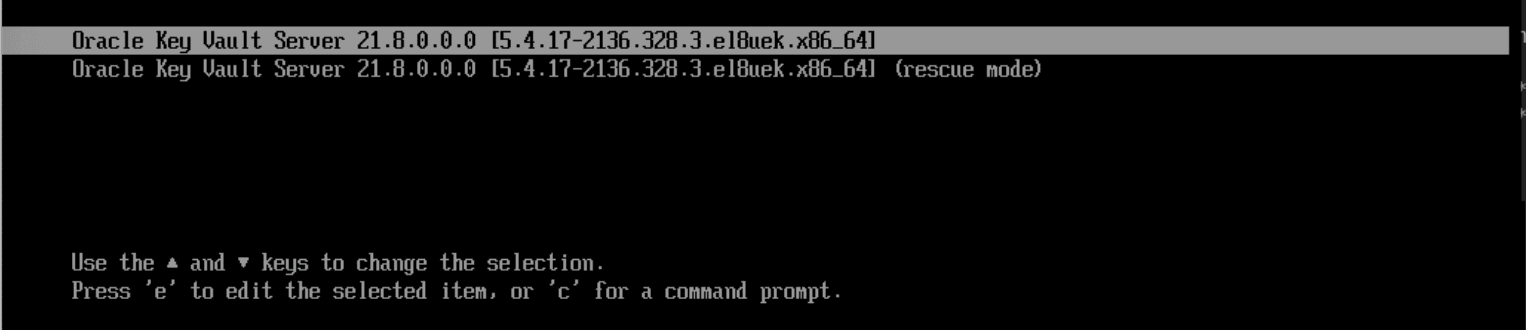
Description of the illustration 218_root_user_password.png
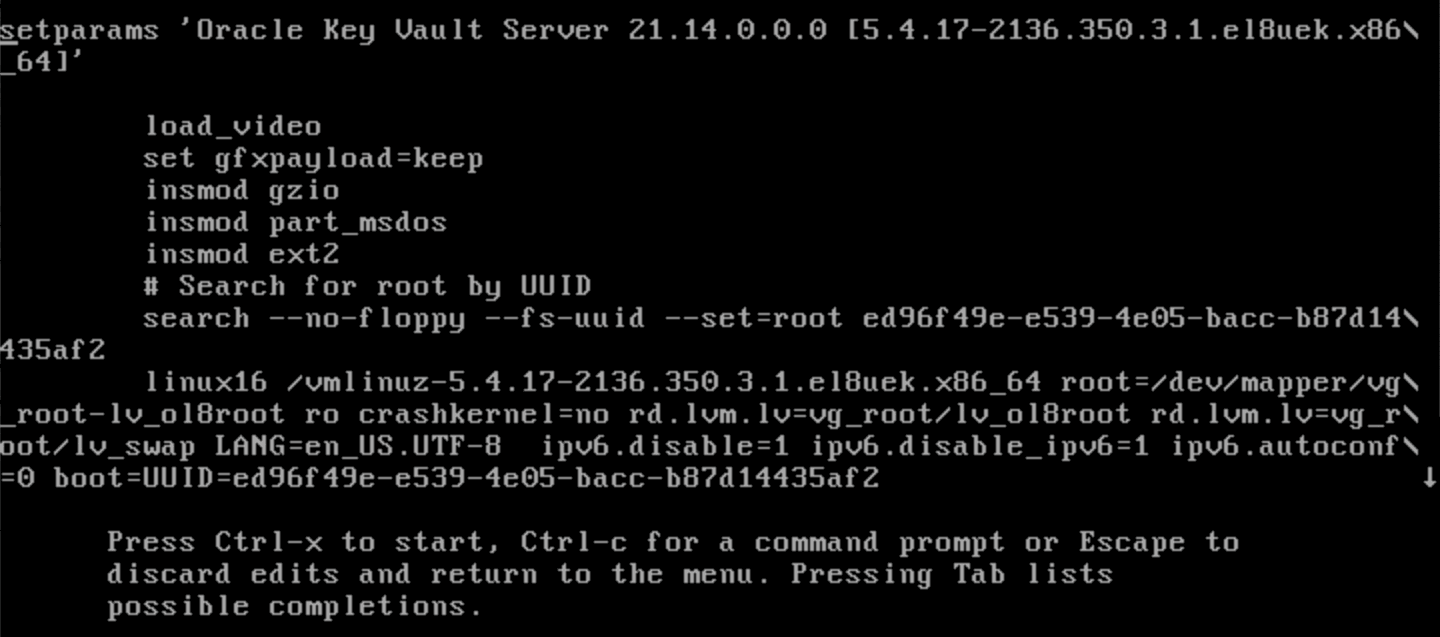
The GRUB edit mode interrupts the boot process to display the kernel boot parameters as shown in the following image:
-
Go to the end of the line that starts with linux16. Alternatively, press Ctrl-e to jump to the end of the line.
-
Enter rd.break at the end of the above line.
-
Press Ctrl-x to continue the boot process with changed kernel parameters. The switch_root:/# prompt displays.
-
Remount the file system with read write access to change the root password. By default, the file system is mounted as read-only at
/sysroot. -
Run the given command on the switch_root:/# prompt to make
/sysrootwritable:mount -o remount,rw /sysroot -
To enter
chrootenvironment, run the following command:chroot /sysroot -
Use the
passwdcommand to set the new root password. Follow the prompts to complete the password change.passwd -
Force
SELinuxfile system relabeling process on the next system reboot:touch /.autorelabelMake sure the dot appears after the forward-slash.
-
Exit the
chrootenvironment.exit -
Exit the
switch_rootprompt.exitThe boot process continues. Wait for few minutes to complete the
SELinuxrelabeling process. The system reboots automatically when the relabelling process is completed. -
Once the system reboots, the root password resetting is completed.
-
Login with your new root password.
How to Reset the support User Password
You can reset the Oracle Key Vault support user password when the current password is forgotten using Oracle Key Vault server’s console terminal.
To change the OS user support password on the Oracle Key Vault console terminal:
-
Login as root user.
Note: You can login as root using console terminal.
-
Run the
passwd supportcommand to reset the support user password.[root@okvserver ~]# passwd support Changing password for user support. New password: Retype new password: passwd: all authentication tokens updated successfully. [root@okvserver ~]#There are no consequence in changing the support password.
After the password is set successfully, the following message is displayed on the console:
All authentication tokens updated successfully. -
Login as support.
How to Add SAN Details to the Console Certificate
You can add SAN details in console certificate using these steps.
Example
In Oracle Key Vault, after uploading the console certificate, the browser displays Invalid Certificate due to no SAN details.
Probable Cause
-
Currently, you cannot add the SAN details while generating console certificate from the Oracle Key Vault Management web console.
-
SAN details cannot be added into console certificate in Oracle Key Vault 21.7 or previous versions.
Solution 1. Login with support user to the Oracle Key Vault server through ssh and switch to root user.
-
Create a temporary directory under
/tmpdirectory like,mkdir /tmp/console_cert.chmod 755 /tmp/console_cert cp/etc/pki/tls/private/user_uploaded_ui.key public.key -
Copy the configuration code.
consolecrt.conf: [req] distinguished_name = req_distinguished_name req_extensions = v3_req [req_distinguished_name] countryName = Country Name (2 letter code) countryName_default = US localityName = Locality Name (eg, city) organizationalUnitName = Organizational Unit Name (eg, section) commonName = Common Name (eg, YOUR name) commonName_max = 64 emailAddress = Email Address emailAddress_max = 70 [v3_req] basicConstraints = CA:FALSE keyUsage = nonRepudiation, digitalSignature, keyEncipherment extendedKeyUsage = serverAuth subjectAltName = @alt_names [alt_names] DNS.1 = [eg. oracle.com] IP.1 = [ip address] -
Create
consolecrt.confin/tmp/console_cert. -
Edit the
consolecrt.conffile and add thealt_namesunderalt_namerecord. -
Generate the csr using the given command.
openssl req -new -key public.key -out console_cert_okvname.csr -config consolecrt.conf- Sign the generated
csr,
- Sign the generated
-
Go to the console certificate page in the Oracle Key Vault management console.
-
Click Upload Certificate to upload the signed certificate.
Checking for Patch Updates
Check if additional patches are applicable to your environment. Oracle recommends that you check for patches after installing or upgrading Oracle Key Vault.
To download and update patches for Oracle Key Vault:
-
Log in to the My Oracle Support website: https://support.oracle.com.
-
In the My Oracle Support Support for Oracle Hardware, Software, and Managed Cloud services section, click Sign-in or Create your Oracle account.
Note: If you are not a My Oracle Support registered user, then register.
-
From the search bar, select Patches and Product Certification Matrix. The Patch Search window is displayed.
-
To search for patches, in the Patch Search window, search by Patch Name or Number or Bug Number if you have it. Otherwise, search by Platform, Language, Product, or Release criteria.
-
Click Apply. The patch search results are displayed in the main window.
-
Click the patch number in the Patch Name column to open the patch details in a new window.
-
Click Download to download the patch. Next, uncompress the Oracle patch updates that you downloaded from My Oracle Support.
-
Click Read Me to view the readme file.
The README page is displayed. It contains information about the patch that you just downloaded, and how to apply the patch to your installation.
Note: For detailed instructions to obtain patch inventory information that is applied on the Oracle Key Vault system, and a history of all upgrades to the system (after upgrades to Oracle Key Vault 21.11 and later), see Generating Patch Inventory Information.