Manage Data Science Conversations
The Data Science Agent Conversations page lists all the conversations you created. Here, you create and manage conversations.
- Data profiling
- Data wrangling and transformation
- Statistical analysis of variable relationships
- Feature Importance, Classification, Regression, XGBoost, Clustering, and Anomaly Detection.
- Model training and evaluation
- Inference on new data
Here is the Data Science Conversations page. It lists all the conversations that you created. Click a conversation title to open it and resume it.
Figure 7-6 Data Science Conversation listing page
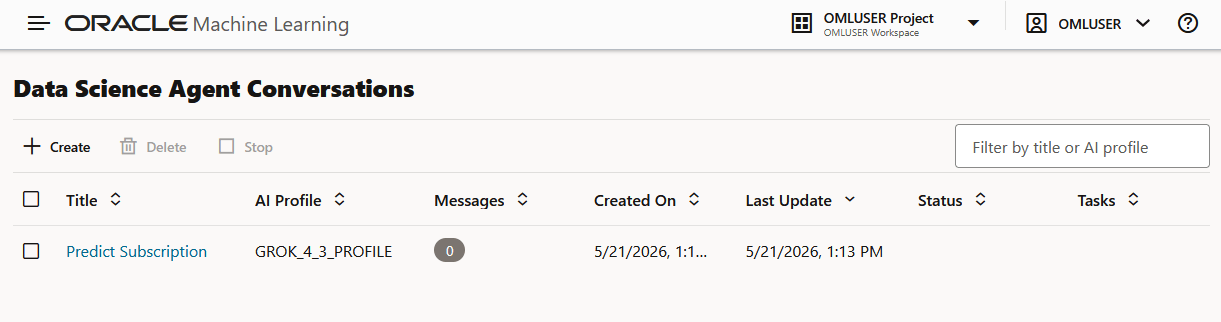
- Title: This is the name of the conversation you provided while creating the conversation.
- Profile Name: This is the AI Profile you
selected while creating the conversation. An AI Profile contains information
about the user and their attributes, such as the
provider,credential_name, andobject_list. You can create and manage your AI profiles throughDBMS_CLOUD_AIpackage. - Messages: This indicates the number of
interactions in the conversation with the agent. As shown in the screenshot, the
conversation titled
SQLhas 2 messages or interactions as of the last updated date. - Created on: This is the date on which the conversation was first created.
- Last Updated: This is the date on which the conversation was last used or updated.
- Status: There are two statuses ACTIVE and IDLE.
You can perform the following tasks here:
- Create a Data Science Agent Conversation
A conversation is a set of interactions with Data Science Agent in the chat interface. Before you start a conversation with the Data Science Agent, you must create a conversation. - Delete a Data Science Agent Conversation
You can delete a conversation from the Data Science Agent Conversations listing page.
Parent topic: Data Science Agent
Create a Data Science Agent Conversation
A conversation is a set of interactions with Data Science Agent in the chat interface. Before you start a conversation with the Data Science Agent, you must create a conversation.
Note:
You can use the same Database user credentials to access the same conversation in multiple browsers. However, Oracle does not recommend this as it may lead to unexpected behavior. If you attempt this, Data Science Agent will display a warning, but you will have the option to override it.- On the Data Science Agent Conversation page, click
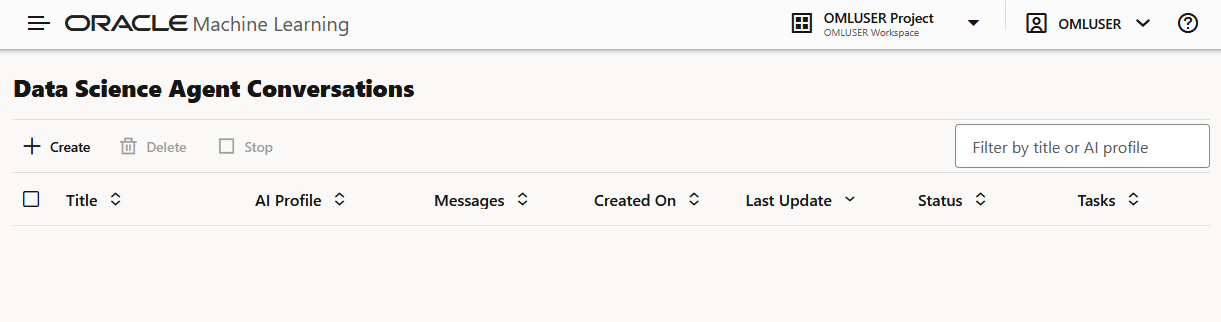
Create. This opens the New Conversation dialog.
Figure 7-7 Data Science Agent listing page
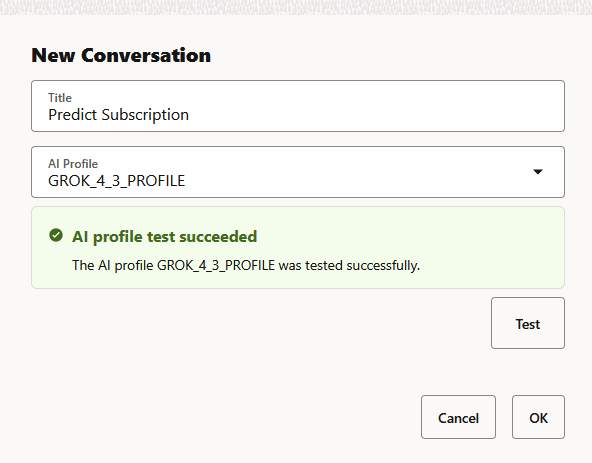
- In the New Conversation dialog, enter the following details:
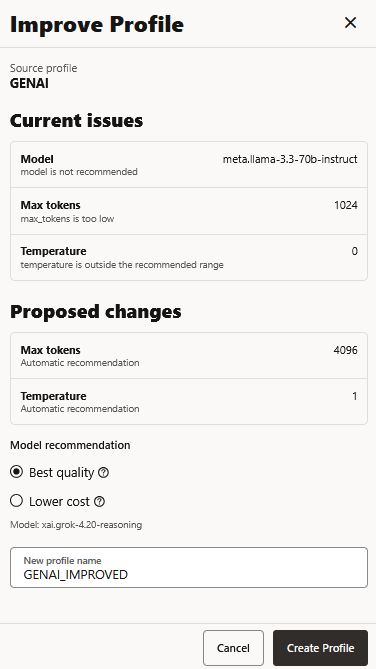
- In case the selected profile has any issues, Data Science Agent
displays a message showing the current issues with the
profile. In the example below, Data Science Agent has
diagnosed issues related to model compatibility, tokens, and
temperature settings with the AI profile GENAI.
Scroll down to view the proposed changes. Data Science Agent proposes the required changes, and recommends models based on best quality and lower costs. Select any model recommendation options here. You may also change the improved profile name suggested by the agent. Click Create Profile.
Note:
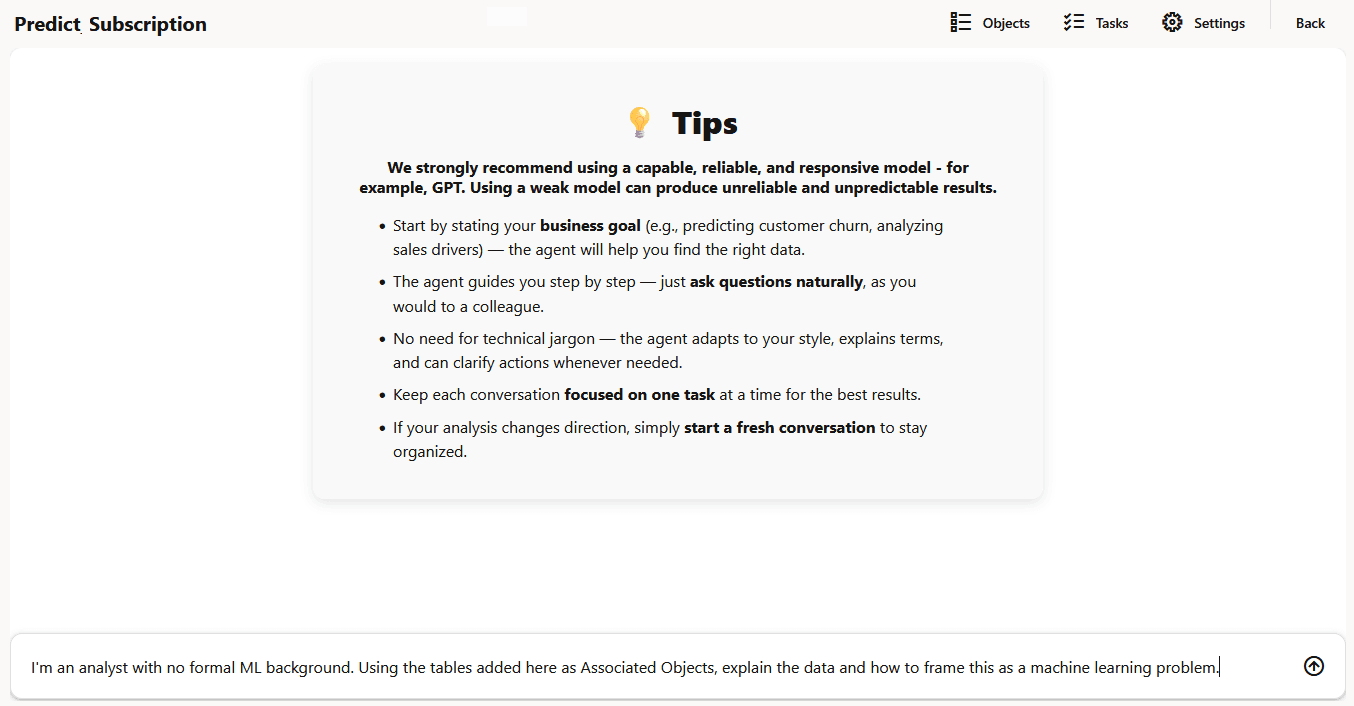
You will encounter this dialog only if there are issues with the selected AI Profile. - In the chat interface, Data Science presents tips to begin your
conversation. In the Send a message
field, type in your prompt in natural language and press
Enter.
Parent topic: Manage Data Science Conversations
Delete a Data Science Agent Conversation
You can delete a conversation from the Data Science Agent Conversations listing page.
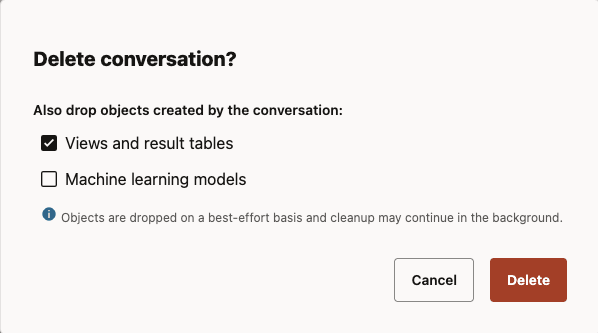
- In the Delete Conversation dialog:
- Select Views and results table to drop views and tables associated with the conversation.
- Select Machine learning models to drop machine learning models associated with the conversation.
Parent topic: Manage Data Science Conversations