Use Data Science Agent Chat Interface
On the Data Science Agent chat interface, you interact with the agent for all machine learning and data science related questions.
To begin a chat with Data Science Agent:
- On the top right corner of the chat interface, you can configure the settings
of your conversation:
- Click Objects to manually associate database objects to the conversation. The objects are tables, views, and machine learning models.
- Click Tasks to view tasks running in the background.
- Click Settings to view and edit AI Profile, and define database service levels.
- Click Back to go back to the Data Science Conversation listing page.

- Add Objects to Data Science Agent Conversation
To improve the precision and efficiency of Data Science Agent's responses, you can manually add database objects to a conversation. - Manage AI Profile and Service Level of Data Science Conversation
You can manage AI Profile and Database Service Levels of a conversation from the Settings option in the Data Science Conversation chat interface. These settings are conversation-specific.
Parent topic: Data Science Agent
Add Objects to Data Science Agent Conversation
To improve the precision and efficiency of Data Science Agent's responses, you can manually add database objects to a conversation.
To add objects to your conversation:
- On the Data Science Agent chat interface, click Objects
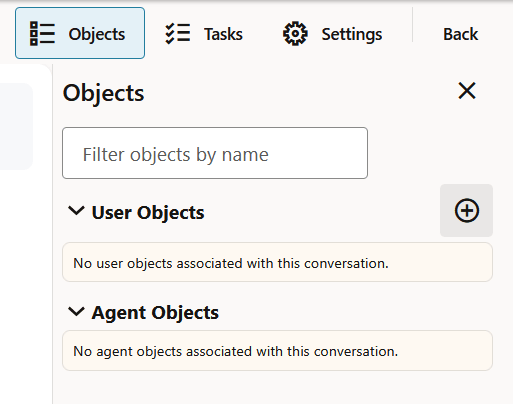
on the top right corner of the page. This opens the Objects pane on the right.
- Click the + icon to add objects to the conversation. The Object Management
dialog opens. You can also search for objects by typing the name in the search
box.
Note:
The objects are tables, views, and machine learning models. You can associate multiple objects with the conversation.Turn on Show other schemas to view objects present in schemas besides your own. Select the objects from the drop-down list. You can associate multiple objects with the conversation.Figure 7-14 Object Management dialog
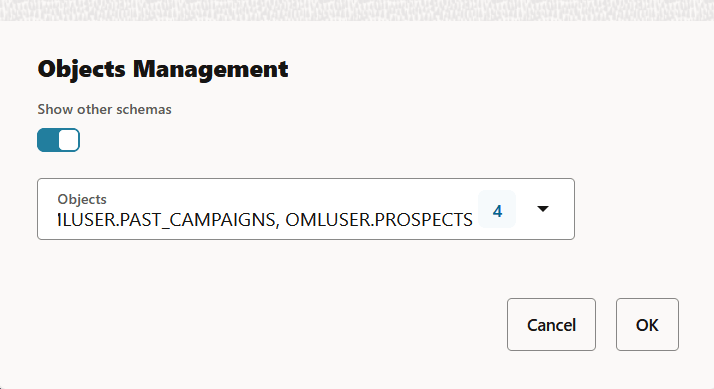
- Click OK to associate objects with the conversation.
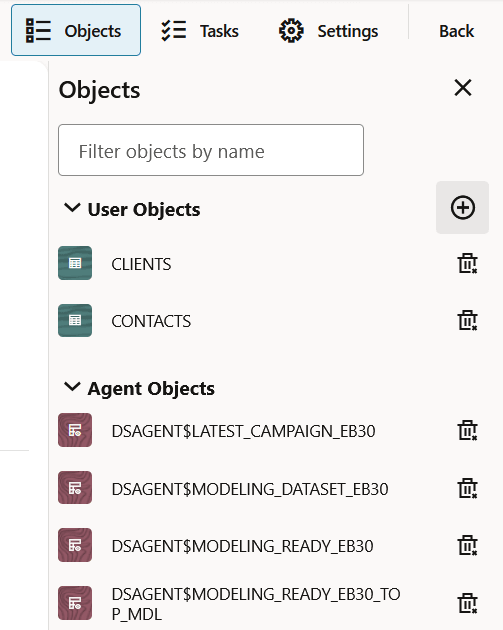
Once the objects are successfully associated, they are listed under
User Objects. To disassociate an object, click the
delete icon. The Agent Objects section displays the agent-generated objects for the conversation.
Note:
Objects created by Data Science Agent are prefixed withDSAGENT$. This distinguishes them as agent-generated, prevents naming conflicts, and enables safe routine cleanup.
This completes the task of associating objects with your conversation.
Parent topic: Use Data Science Agent Chat Interface
Manage AI Profile and Service Level of Data Science Conversation
You can manage AI Profile and Database Service Levels of a conversation from the Settings option in the Data Science Conversation chat interface. These settings are conversation-specific.
To view and edit AI Profile and Database Service level :
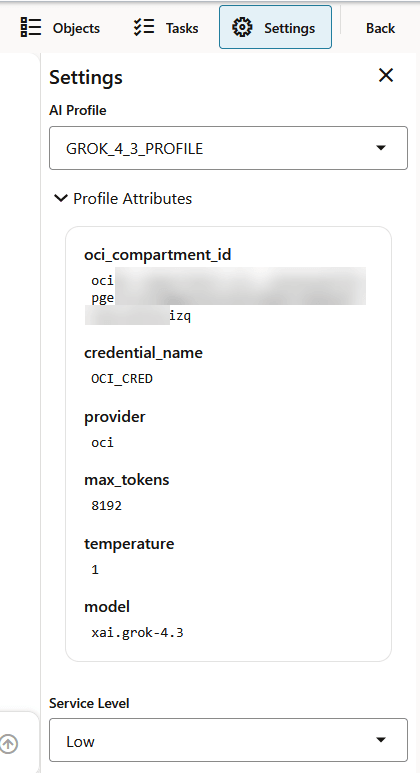
- On the Settings pane, you can manage the following:
- Click AI Profile down arrow to select an AI profile for your conversation. You can also change the profile in the middle of a conversation.
- Click Profile Attributes down arrow to view the details of the selected AI profile.
- Click Service Level down arrow to
select a database service level. By default, the service level is set to
Low.
Note:
If you are working with a large dataset, consider changing the service level to Medium or High to achieve parallelism in the database backend.
Parent topic: Use Data Science Agent Chat Interface