Managing Common and Local Roles and Privileges in Enterprise Manager
In a multitenant environment, you can use Oracle Enterprise Manager to create, edit, drop, and revoke common and local roles.
This section contains the following topics:
-
Creating a Common Role in Enterprise Manager
Common roles can be used to assign common privileges to common users. -
Editing a Common Role in Enterprise Manager
You can edit a common role from the root. -
Dropping a Common Role in Enterprise Manager
You can drop a common role from the root. -
Revoking Common Privilege Grants in Enterprise Manager
You can revoke common privilege grants from the root. -
Creating a Local Role in Enterprise Manager
A common role can be used to assign a local set of privileges to local users later. -
Editing a Local Role in Enterprise Manager
You can edit a local role in the PDB in which the local role resides. -
Dropping a Local Role in Enterprise Manager
You can drop local role from the PDB in which the local role resides. -
Revoking Local Privilege Grants in Enterprise Manager
You can revoke local privileges in the PDB in which the privileges are used.
Creating a Common Role in Enterprise Manager
Common roles can be used to assign common privileges to common users.
These roles are valid across all containers of the multitenant environment.
-
From the Enterprise Manager database home page, log in to the root as a common user who has the common
CREATE ROLEandSET CONTAINERprivileges. -
From the Administration menu, select Security, then Roles.
If prompted, enter your login information. Afterward, the Create Role page appears.
-
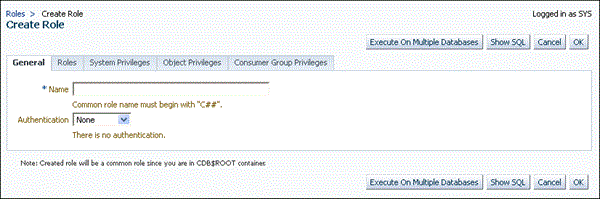
Click Create.
The Create Role page appears.
-
Select the options that create a common role and grant this role privileges.
Ensure that you preface the role name with
C##orc##. -
Click OK.
The common role is created in the root.
Editing a Common Role in Enterprise Manager
You can edit a common role from the root.
-
From the Enterprise Manager database home page, log in to the root or the PDB. If you are logging into the root, then ensure that you are a common user who has the common
CREATE ROLEandSET CONTAINERprivileges. If you are logging into a PDB, ensure that you have theCREATE ROLEprivilege for that PDB. -
From the Administration menu, select Security, then Roles.
If prompted, enter your login information. Afterward, the Roles page appears. In the root, only common roles are shown. In the PDB, both common and local roles are shown.
-
Select the common role to be edited and then click Edit.
The Edit Role page appears. For a common user in the root, you can modify all settings for the common user.
For a common role in a PDB, you can only change the role’s authentication and grant this user different roles, system privileges, object privileges, and consumer group privileges. These settings apply only to the current PDB.
-
Modify the common user as necessary.
-
Click Apply.
Dropping a Common Role in Enterprise Manager
You can drop a common role from the root.
-
From the Enterprise Manager database home page, log in to the root as a common user who has the common
CREATE ROLEandSET CONTAINERprivileges.You cannot drop common roles from PDBs.
-
From the Administration menu, select Security, then Roles.
If prompted, enter your login information. Afterward, the Roles page appears, showing only common roles.
-
Select the common role that you want to drop and then click Delete.
-
Confirm that you want to delete the common role.
Revoking Common Privilege Grants in Enterprise Manager
You can revoke common privilege grants from the root.
-
From the Enterprise Manager database home page, log in to the root as a common user who has the common
CREATE USER,CREATE ROLE, andSET CONTAINERprivileges. -
From the Administration menu, select Security, then Users.
The Users page lists the common users.
-
Select the user whose privileges you want to revoke and then click Edit.
The Edit User page appears.
-
Select Roles or the appropriate Privileges tab.
Enterprise Manager displays a list of roles and privileges assigned to this user.
-
Select Edit List and then remove the roles or privileges as necessary.
-
Click the OK button.
Creating a Local Role in Enterprise Manager
A common role can be used to assign a local set of privileges to local users later.
These roles will be valid across PDB containers for whom they are defined.
-
From the Enterprise Manager database home page, log in to the PDB as a user who has the local
CREATE ROLEprivilege. -
From the Administration menu, select Security, then Roles.
The Roles page appears.
-
Click Create.
If prompted, enter your login information. Afterward, the Create Role page appears.
-
Select the options that create a local role and grant this role privileges.
Ensure that you do not preface the role name with
C##orc##. -
Click OK.
The local role is created in the current PDB.
Editing a Local Role in Enterprise Manager
You can edit a local role in the PDB in which the local role resides.
-
From the Enterprise Manager database home page, log in to the PDB as a user who has the local
CREATE ROLEprivilege. -
From the Administration menu, select Security, then Roles.
If prompted, enter your login information. Afterward, the Roles page appears, showing only local roles for the current PDB and common roles.
-
Select the local role to be edited and then click Edit.
The Edit User page appears.
-
Modify the local user as necessary.
-
Click Apply.
Dropping a Local Role in Enterprise Manager
You can drop local role from the PDB in which the local role resides.
-
From the Enterprise Manager database home page, log in to the PDB as a user who has the local
CREATE ROLEprivilege. -
From the Administration menu, select Security, then Role.
If prompted, enter your login information. Afterward, the Roles page appears, showing only local roles for the current PDB and common roles. (You cannot drop common roles from a PDB.)
-
Select the local role you want to drop and then click Delete.
Enterprise Manager prompts you to confirm deletion of the role.
-
Confirm that you want to delete the local role.
Revoking Local Privilege Grants in Enterprise Manager
You can revoke local privileges in the PDB in which the privileges are used.
-
From the Enterprise Manager database home page, log in to the PDB as a common or local user who has the
CREATE USERandCREATE ROLEprivileges. -
From the Administration menu, select Security, then Users.
If prompted, enter your login information. Afterward, the Users page appears. In a PDB, both common and local users are listed.
-
Select the user whose privileges you want to revoke and then click Edit.
The Edit User page appears.
-
Select Roles or the appropriate Privileges tab.
Enterprise Manager displays a list of roles and privileges assigned to this user.
-
Select Edit List and then remove the privileges as necessary.
-
Click the OK button.