Getting Started with Database Administration
To get started with database administration, you must understand basic database concepts, such as the types of database users, database security, and privileges. You must also be able to complete basic tasks, such as submitting commands and SQL to the database and creating a password file.
Changes in Oracle AI Database Release 26ai for Oracle AI Database Administrator’s Guide
The following are changes in Oracle AI Database Administrator’s Guide for Oracle AI Database Release 26ai.
New Features in 26ai
The following features are new in this release.
The new feature list for Oracle AI Database 26ai is too long to list in this guide. See Oracle AI Database New Features for a complete list of features.
Deprecated Features
The following features are deprecated in this release.
-
Oracle Persistent Memory Database
Oracle Persistent Memory Database (PMEM) is deprecated as of Oracle AI Database 26ai due to Intel discontinuing Optane Persistent Memory hardware.
Intel has announced they will discontinue the Optane Persistent Memory product. Therefore, Oracle Persistent Memory Database is being deprecated.
-
Enterprise User Security (EUS)
Enterprise User Security (EUS) is deprecated with Oracle AI Database 26ai.
Desupported Features
The following features are desupported in this release.
-
Data Recovery Advisor (DRA)
Starting in Oracle AI Database 26ai, the Data Recovery Advisor (DRA) feature is desupported.
The desupport of DRA includes desupporting the following Oracle Recovery Manager (RMAN) commands:
LIST FAILURE,ADVISE FAILURE,REPAIR FAILURE, andCHANGE FAILURE. Database administrators will no longer have access to these commands. There is no replacement feature for DRA. -
EXP Export Utility
The original Oracle Database Export (
exp) utility is desupported in Oracle AI Database 26ai.Oracle recommends that you use Oracle Data Pump Export (
expdp). -
Oracle Enterprise Manager Database Express
Oracle Enterprise Manager Database Express (EM Express) is desupported in Oracle AI Database 26ai.
EM Express is a web-based database management tool that is built inside Oracle AI Database. It supports key performance management and basic database administration functions. EM Express was deprecated in Oracle Database 21c. Many of EM Express’s capabilities are now available in Oracle Cloud Infrastructure (OCI) Database Management service, Oracle Enterprise Manager Cloud Control, or Oracle SQL Developer.
Instead of EM Express, Oracle recommends that you choose a tool that fits the requirements and deployment type (cloud, on-premises, or hybrid) from OCI Database Management service, Oracle Enterprise Manager Cloud Control or Oracle SQL Developer Web or Oracle SQL Developer desktop products.
-
Traditional Auditing
Traditional auditing is desupported in Oracle AI Database 26ai. Oracle recommends that you use unified auditing.
Starting with Oracle AI Database 26ai, unified auditing is the way forward to perform database auditing. Unified auditing offers more flexibility to perform selective and effective auditing, which helps you focus on activities that really matter to your enterprise. Unified auditing has one single and secure unified trail, conditional policy for audit selectivity, and default preconfigured policies for simplicity. To improve security and compliance, Oracle strongly recommends that you use unified auditing.
Types of Oracle AI Database Users
The types of users and their roles and responsibilities depend on the database site. A small site can have one database administrator who administers the database for application developers and users. A very large site can find it necessary to divide the duties of a database administrator among several people and among several areas of specialization.
Database Administrators
Each database requires at least one database administrator (DBA). An Oracle AI Database system can be large and can have many users. Therefore, database administration is sometimes not a one-person job, but a job for a group of DBAs who share responsibility.
A database administrator’s responsibilities can include the following tasks:
-
Installing and upgrading the Oracle AI Database server and application tools
-
Allocating system storage and planning future storage requirements for the database system
-
Creating primary database storage structures (tablespaces) after application developers have designed an application
-
Creating primary objects (tables, views, indexes) once application developers have designed an application
-
Modifying the database structure, as necessary, from information given by application developers
-
Enrolling users and maintaining system security
-
Ensuring compliance with Oracle license agreements
-
Controlling and monitoring user access to the database
-
Monitoring and optimizing the performance of the database
-
Planning for backup and recovery of database information
-
Maintaining archived data on tape
-
Backing up and restoring the database
-
Contacting Oracle for technical support
Security Officers
In some cases, a site assigns one or more security officers to a database. A security officer enrolls users, controls and monitors user access to the database, and maintains system security.
As a DBA, you might not be responsible for these duties if your site has a separate security officer.
See Oracle AI Database Security Guide for information about the duties of security officers.
Network Administrators
Some sites have one or more network administrators. A network administrator, for example, administers Oracle networking products, such as Oracle Net Services.
See Oracle AI Database Net Services Administrator’s Guide for information about the duties of network administrators.
For more information, see: Distributed Database Management, for information on network administration in a distributed environment
Application Developers
Application developers design and implement database applications.
Their responsibilities include the following tasks:
-
Designing and developing the database application
-
Designing the database structure for an application
-
Estimating storage requirements for an application
-
Specifying modifications of the database structure for an application
-
Relaying this information to a database administrator
-
Tuning the application during development
-
Establishing security measures for an application during development
Application developers can perform some of these tasks in collaboration with DBAs. See Oracle AI Database Development Guide for information about application development tasks.
Application Administrators
An Oracle AI Database site can assign one or more application administrators to administer a particular application. Each application can have its own administrator.
Database Users
Database users interact with the database through applications or utilities.
A typical user’s responsibilities include the following tasks:
-
Entering, modifying, and deleting data, where permitted
-
Generating reports from the data
Tasks of a Database Administrator
You must complete several specific tasks to design, implement, and maintain an Oracle AI Database.
Note: When upgrading to a new release, back up your existing production environment, both software and database, before installation. For information on preserving your existing production database, see Oracle AI Database Upgrade Guide.
Task 1: Evaluate the Database Server Hardware
Evaluate how Oracle AI Database and its applications can best use the available computer resources.
This evaluation should reveal the following information:
-
How many disk drives are available to the Oracle products
-
How many, if any, dedicated tape drives are available to Oracle products
-
How much memory is available to the instances of Oracle AI Database you will run (see your system configuration documentation)
Task 2: Install the Oracle AI Database Software
As the database administrator, you install the Oracle AI Database server software and any front-end tools and database applications that access the database.
In some distributed processing installations, the database is controlled by a central computer (database server) and the database tools and applications are executed on remote computers (clients). In this case, you must also install the Oracle Net components necessary to connect the remote systems to the computer that executes Oracle AI Database.
For more information on what software to install, see Identifying Your Oracle AI Database Software Release.
For more information, see:
For specific requirements and instructions for installation, see the following documentation:
-
The Oracle documentation specific to your operating system
-
The installation guides for your front-end tools and Oracle Net drivers
Task 3: Plan the Database
As the database administrator, you must plan the logical storage structure of the database, the overall database design, and a backup strategy for the database.
It is important to plan how the logical storage structure of the database will affect system performance and various database management operations. For example, before creating any tablespaces for your database, you should know how many data files will comprise the tablespace, what type of information will be stored in each tablespace, and on which disk drives the data files will be physically stored. When planning the overall logical storage of the database structure, take into account the effects that this structure will have when the database is actually created and running. Consider how the logical storage structure of the database will affect:
-
The performance of the computer running Oracle AI Database
-
The performance of the database during data access operations
-
The efficiency of backup and recovery procedures for the database
Plan the relational design of the database objects and the storage characteristics for each of these objects. By planning the relationship between each object and its physical storage before creating it, you can directly affect the performance of the database as a unit. Be sure to plan for the growth of the database.
In distributed database environments, this planning stage is extremely important. The physical location of frequently accessed data dramatically affects application performance.
During the planning stage, develop a backup strategy for the database. You can alter the logical storage structure or design of the database to improve backup efficiency.
It is beyond the scope of this book to discuss relational and distributed database design. If you are not familiar with such design issues, see accepted industry-standard documentation. Oracle AI Database Structure and Storage, and Schema Objects, provide specific information on creating logical storage structures, objects, and integrity constraints for your database.
Task 4: Create and Open the Database
After you complete the database design, you can create the database and open it for normal use.
You can create a database at installation time, using the Database Configuration Assistant, or you can supply your own scripts for creating a database.
For more information, see:
-
Oracle AI Database Multitenant Administrator’s Guide for information on creating a database
-
Oracle AI Database SQL Language Reference for guidance in starting up the database
Task 5: Back Up the Database
After you create the database structure, perform the backup strategy you planned for the database.
Create any additional redo log files, take the first full database backup (online or offline), and schedule future database backups at regular intervals.
For more information, see: Oracle AI Database Backup and Recovery User’s Guide
Task 6: Enroll System Users
After you back up the database structure, you can enroll the users of the database in accordance with your Oracle license agreement, and grant appropriate privileges and roles to these users.
See Managing Users and Securing the Database for guidance in this task.
Task 7: Implement the Database Design
After you create and start the database, and enroll the system users, you can implement the planned logical structure database by creating all necessary tablespaces. When you have finished creating tablespaces, you can create the database objects. Oracle AI Database Structure and Storage and Schema Objects provide information on creating logical storage structures and objects for your database.
Task 8: Back Up the Fully Functional Database
When the database is fully implemented, again back up the database. In addition to regularly scheduled backups, you should always back up your database immediately after implementing changes to the database structure.
Task 9: Tune Database Performance
Optimizing the performance of the database is one of your ongoing responsibilities as a DBA. Oracle AI Database provides a database resource management feature that helps you to control the allocation of resources among various user groups.
The database resource manager is described in Managing Resources with Oracle AI Database Resource Manager.
For more information, see: Oracle AI Database Performance Tuning Guide for information about tuning your database and applications
Task 10: Download and Install Release Updates and Release Update Revisions
After the database installation, download and install Release Updates (Updates) and Release Update Revisions (Revisions) for your Oracle software on a regular basis.
Starting with Oracle Database 18c, Oracle provides quarterly updates in the form of Release Updates (Updates) and Release Update Revisions (Revisions). Oracle no longer releases patch sets. Check the My Oracle Support website for required updates for your installation.
For more information, see:
-
Oracle AI Database Installation Guide for your platform for instructions on downloading and installing Release Updates (Updates) and Release Update Revisions (Revisions)
-
My Oracle Support Note 2285040.1
Task 11: Roll Out to Additional Hosts
After you have an Oracle AI Database installation properly configured, tuned, patched, and tested, you may want to roll that exact installation out to other hosts.
Reasons to do this include the following:
-
You have multiple production database systems.
-
You want to create development and test systems that are identical to your production system.
Instead of installing, tuning, and patching on each additional host, you can clone your tested Oracle AI Database installation to other hosts, saving time and avoiding inconsistencies. There are two types of cloning available to you:
-
Cloning an Oracle home—Just the configured and patched binaries from the Oracle home directory and subdirectories are copied to the destination host and fixed to match the new environment. You can then start an instance with this cloned home and create a database.
You can use Oracle Enterprise Manager Cloud Control to clone an Oracle home to one or more destination hosts. You can manually clone an Oracle home using a set of provided scripts and Oracle Universal Installer.
-
Cloning a database—The tuned database, including database files, initialization parameters, and so on, are cloned to an existing Oracle home (possibly a cloned home).
You can use Cloud Control to clone an Oracle database instance to an existing Oracle home.
For more information, see:
-
Oracle Enterprise Manager Lifecycle Management Administrator’s Guide
-
Cloud Control online help
SQL Statements
The primary means of communicating with Oracle AI Database is by submitting SQL statements.
Submitting Commands and SQL to the Database
There are several ways to submit SQL statements and commands to Oracle AI Database.
-
Directly, using the command-line interface of SQL*Plus
-
Indirectly, using a graphical user interface, such as Oracle Enterprise Manager Database Express (EM Express) or Oracle Enterprise Manager Cloud Control (Cloud Control)
With these tools, you use an intuitive graphical interface to administer the database, and the tool submits SQL statements and commands behind the scenes.
See the online help for the tool for more information.
-
Directly, using SQL Developer
Developers use SQL Developer to create and test database schemas and applications, although you can also use it for database administration tasks.
See Oracle SQL Developer User’s Guide for more information.
Oracle AI Database also supports a superset of SQL, which includes commands for starting up and shutting down the database, modifying database configuration, and so on. Note: Oracle Enterprise Manager Database Express (EM Express) is deprecated, and will be removed in a future Oracle Database release.
About SQL*Plus
SQLPlus is the primary command-line interface to your Oracle database. You use SQLPlus to start up and shut down the database, set database initialization parameters, create and manage users, create and alter database objects (such as tables and indexes), insert and update data, run SQL queries, and more.
Before you can submit SQL statements and commands, you must connect to the database. With SQLPlus, you can connect locally or remotely. Connecting locally means connecting to an Oracle database running on the same computer on which you are running SQLPlus. Connecting remotely means connecting over a network to an Oracle database that is running on a remote computer. Such a database is referred to as a remote database. The SQL*Plus executable on the local computer is provided by a full Oracle AI Database installation, an Oracle Client installation, or an Instant Client installation.
For more information, see: SQLPlus User’s Guide and Reference*
Connecting to the Database with SQL*Plus
Connect to the Oracle AI Database instance using SQL*Plus.
About Connecting to the Database with SQL*Plus
Oracle AI Database includes the following components: the Oracle AI Database instance, which is a collection of processes and memory, and a set of disk files that contain user data and system data.
Each instance has an instance ID, also known as a system ID (SID). Because there can be multiple Oracle instances on a host computer, each with its own set of data files, you must identify the instance to which you want to connect. For a local connection, you identify the instance by setting operating system environment variables. For a remote connection, you identify the instance by specifying a network address and a database service name. For both local and remote connections, you must set environment variables to help the operating system find the SQL*Plus executable and to provide the executable with a path to its support files and scripts.
To manage objects that are shared by the multitenant container database and its pluggable databases (PDBs), such as control files, redo log files, or archived redo log files, connect to the CDB root. Objects such as tablespaces, data files, or temp files can be created in the CDB root or a PDB. To manage such objects, connect to the container that owns the object.
In the remainder of this book, connecting to the database means connecting to the CDB root.
For more information, see: Oracle AI Database Concepts for background information about the Oracle instance
Step 1: Open a Command Window
Take the necessary action on your platform to open a window into which you can enter operating system commands.
- Open a command window.
Step 2: Set Operating System Environment Variables
Depending on your platform, you may have to set environment variables before starting SQL*Plus, or at least verify that they are set properly.
For example, on most platforms, you must set the environment variables ORACLE_SID and ORACLE_HOME. In addition, you must configure the PATH environment variable to include the ORACLE_HOME/bin directory. Some platforms may require additional environment variables:
-
On Unix and Linux, set environment variables by entering operating system commands as needed.
-
On Microsoft Windows, the installer automatically assigns values to
ORACLE_HOMEandORACLE_SIDin the Windows registry. Modify thePATHenvironment variable as needed.
If you did not create a database upon installation, then the installer does not set ORACLE_SID in the registry; after you create your database at a later time, you must set the ORACLE_SID environment variable from a command window.
Unix and Linux installations come with two scripts, oraenv and coraenv, that you can use to easily set environment variables.
For all platforms, when switching between instances with different Oracle homes, you must change the ORACLE_HOME environment variable. If multiple instances share the same Oracle home, then you must change only ORACLE_SID when switching instances.
Example 1-1 Setting Environment Variables in Unix (C Shell)
setenv ORACLE_SID orcl
setenv ORACLE_HOME /u01/app/oracle/product/database_release_number/dbhome_1
setenv LD_LIBRARY_PATH $ORACLE_HOME/lib:/usr/lib:/usr/dt/lib:/usr/openwin/lib:/usr/ccs/lib
Example 1-2 Setting Environment Variables in Linux (Bash Shell)
export ORACLE_SID=orcl
export ORACLE_HOME=/u01/app/oracle/product/database_release_number/dbhome_1
export LD_LIBRARY_PATH=$ORACLE_HOME/lib:/usr/lib:/usr/dt/lib:/usr/openwin/lib:/usr/ccs/lib
Step 3: Start SQL*Plus
To connect to Oracle AI Database, use one of these options to start SQL*Plus.
-
Do one of the following:
-
Ensure that the
PATHenvironment variable contains$ORACLE_HOME/bin. -
Change directory to
$ORACLE_HOME/bin. Ensure that thePATHenvironment variable contains a dot (“.”).
-
-
Enter the following command (case-sensitive on Unix and Linux):
sqlplus /nologYou can also run the
sqlpluscommand by specifying its complete path:$ORACLE_HOME/bin/sqlplus /nolog
Step 4: Submit the SQL*Plus CONNECT Command
Submit the SQL*Plus CONNECT command to initially connect to the Oracle database instance or at any time to reconnect as a different user.
-
In SQL*Plus, submit the
CONNECTcommand.This command is used to connect to the CDB root or a particular PDB.
Example 1-3 Connecting to a Local Database User
This simple example connects to a local database as user SYSTEM. SQL*Plus prompts for the SYSTEM user password.
connect systemExample 1-4 Connecting to a Local Database User with SYSDBA Privilege
This example connects to a local database as user SYS with the SYSDBA privilege. SQL*Plus prompts for the SYS user password.
connect sys as sysdbaWhen connecting as user SYS, you must connect AS SYSDBA.
Example 1-5 Connecting to a Local Database User with SYSBACKUP Privilege
This example connects to a local database as user SYSBACKUP with the SYSBACKUP privilege. SQL*Plus prompts for the SYSBACKUP user password.
connect sysbackup as sysbackupWhen connecting as user SYSBACKUP, you must connect AS SYSBACKUP.
Example 1-6 Connecting Locally with SYSDBA Privilege with Operating System Authentication
This example connects locally with the SYSDBA privilege with operating system authentication.
connect / as sysdbaExample 1-7 Connecting to a Pluggable Database with SYSDBA Privilege
This example connects locally to a pluggable database (PDB) named sales_pdb as user SYS with the SYSDBA privilege. SQL*Plus prompts for the SYS user password.
connect sys@sales_pdb as sysdbaWhen connecting as user SYS, you must connect AS SYSDBA.
Example 1-8 Connecting with Easy Connect Syntax
This example uses Easy Connect syntax to connect as user salesadmin to a remote database running on the host dbhost.example.com. The Oracle Net listener (the listener) is listening on the default port (1521). The database service is sales.example.com. SQL*Plus prompts for the salesadmin user password.
connect salesadmin@"dbhost.example.com/sales.example.com"Example 1-9 Connecting with Easy Connect Syntax with the Service Handler Type Indicated
This example is identical to the preceding example of connecting with Easy Connect, except that the service handler type is indicated.
connect salesadmin@"dbhost.example.com/sales.example.com:dedicated"Example 1-10 Connecting with Easy Connect Syntax with a Nondefault Listener Port
This example is identical to the preceding example of connecting with Easy Connect, except that the listener is listening on the nondefault port number 1522.
connect salesadmin@"dbhost.example.com:1522/sales.example.com"Example 1-11 Connecting with Easy Connect Syntax with the Host IP Address
This example is identical to the preceding example of connecting with Easy Connect, except that the host IP address is substituted for the host name.
connect salesadmin@"192.0.2.5/sales.example.com"Example 1-12 Connecting with an IPv6 Address
This example connects to the database using an Internet Protocol version 6 (IPv6) address. Note the enclosing square brackets.
connect salesadmin@"[2001:0DB8:0:0::200C:417A]/sales.example.com"Example 1-13 Connecting by Specifying an Instance
This example specifies the instance to which to connect, and omits the database service name. Note that when you specify only the instance, you cannot specify the service handler type.
connect salesadmin@"dbhost.example.com/orcl"Example 1-14 Connecting with a Net Service Name
This example connects remotely as user salesadmin to the database service designated by the net service name sales1. SQL*Plus prompts for the salesadmin user password.
connect salesadmin@sales1Example 1-15 Connecting with External Authentication
This example connects remotely with external authentication to the database service designated by the net service name sales1.
connect /@sales1Example 1-16 Connecting with SYSDBA Privilege and External Authentication
This example connects remotely with the SYSDBA privilege and with external authentication to the database service designated by the net service name sales1.
connect /@sales1 as sysdbaExample 1-17 Connecting as a User with a Service Name
This example connects remotely as user salesadmin to the database service designated by the net service name sales1. The database session starts in the rev21 edition. SQL*Plus prompts for the salesadmin user password.
connect salesadmin@sales1 edition=rev21Note: If you come across any issues while connecting to the database as a user with the SYSDBA privileges, then refer to My Oracle Support Notes 69642.1, 233223.1, 18089.1, and 747456.1.
Syntax of the SQL*Plus CONNECT Command
Use the SQL*Plus CONNECT command to initially connect to the Oracle instance or to reconnect to the Oracle instance.
Syntax
CONN[ECT] [logon] [AS {SYSOPER | SYSDBA | SYSBACKUP | SYSDG | SYSKM | SYSRAC}]The syntax of logon is as follows:
{username | /}[@connect_identifier] [edition={edition_name | DATABASE_DEFAULT}]When you provide the username, SQL*Plus prompts for a password. The password is not echoed as you type it.
The following table describes the syntax components of the CONNECT command.
| Syntax Component | Description |
|---|---|
/ |
Calls for external authentication of the connection request. A database password is not used in this type of authentication. The most common form of external authentication is operating system authentication, where the database user is authenticated by having logged in to the host operating system with a certain host user account. External authentication can also be performed with an Oracle wallet or by a network service. See Oracle AI Database Security Guide for more information. See also Using Operating System Authentication. |
AS {SYSOPER | SYSDBA | SYSBACKUP | SYSDG | SYSKM | SYSRAC} |
Indicates that the database user is connecting with an administrative privilege. Only certain predefined administrative users or users who have been added to the password file may connect with these privileges. See Administrative Privileges for more information. |
| username | A valid database user name. The database authenticates the connection request by matching username against the data dictionary and prompting for a user password. |
| connect_identifier (1) | An Oracle Net connect identifier, for a remote connection. The exact syntax depends on the Oracle Net configuration. If omitted, SQL*Plus attempts connection to a local instance. A common connect identifier is a net service name. This is an alias for an Oracle Net connect descriptor (network address and database service name). The alias is typically resolved in the See Oracle AI Database Net Services Administrator's Guide for more information on connect identifiers. |
| connect_identifier (2) | As an alternative, a connect identifier can use easy connect syntax. Easy connect provides out-of-the-box TCP/IP connectivity for remote databases without having to configure Oracle Net Services on the client (local) computer. Easy connect syntax for the connect identifier is as follows (the enclosing double-quotes must be included): "host[:port][/service_name][:server][/instance_name]" where:
See Oracle AI Database Net Services Administrator's Guide for more information on easy connect. |
edition={edition_name | DATABASE_DEFAULT} |
Specifies the edition in which the new database session starts. If you specify an edition, then it must exist, and you must have the See Oracle AI Database Development Guide for information on editions and edition-based redefinition. |
For more information, see:
-
SQLPlus User’s Guide and Reference* for more information on the
CONNECTcommand -
Oracle AI Database Net Services Administrator’s Guide for more information on net service names
-
Oracle AI Database Net Services Reference for information on how to define the default service in
listener.ora
Identifying Your Oracle AI Database Software Release
As many as five numbers may be required to fully identify a release.
Because Oracle AI Database continues to evolve and can require maintenance, Oracle periodically produces new releases. Not all customers initially subscribe to a new release or require specific maintenance for their existing release. As a result, multiple releases of the product exist simultaneously.
About Oracle AI Database Release Numbers
Oracle AI Database releases are categorized by five numeric segments that indicate release information.
Note: Starting with October 2022, Oracle provides quarterly updates in the form of Release Updates (Updates, or RU) and Monthly Recommended Patches (MRPs). Oracle no longer releases patch sets or bundle patch sets. MRPs replace Release Update Revisions (RURs). For more information, see My Oracle Support note 555.1.
Release Numbers and their Meaning
Oracle AI Database releases are released in version and version_full releases.
The version release is designated in the form major release version.0.0.0.0. This base release number is not updated over the course of the release. You can identify the base release by logging in to SQL*Plus and entering SELECT BANNER FROM V$VERSION to see the release displayed. For example:
SELECT banner FROM v$version;

BANNER
--------------------------------------------------------------------------------
Oracle AI Database 26 AI Enterprise Edition Release 23.26.1.0.0
The version_full releases are categorized by five numeric segments separated by periods as shown in the following example:
Figure 1: Example of an Oracle AI Database Version Full Release Number
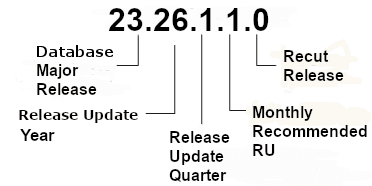
Description of the illustration upgrd004.png
-
First numeral: This numeral indicates the major release version. It also denotes the last two digits of the year in which the Oracle AI Database version was released for the first time.
-
Second numeral: This numeral indicates the release update year. In this example the release update year is 2026.
-
Third numeral: This numeral indicates a refresh of an RU version. In this example, the numeral is 1, indicating that this is the first quarter release update.
-
Fourth numeral: The fourth numeral indicates the Monthly Recommended Release Update patch level (MRP). In this example, the numeral is 1, indicating the first MRP for this RU.
-
Fifth numeral: This numeral indicates the recut level of the version. In this example, the recut level is 0.
Note: The first three numerals mainly identify an Oracle AI Database release.
You can see both the major release version and the compatibility and any RU or MRP updates by entering SELECT BANNER_FULL FROM V$VERSION. For example:
SQL> SELECT banner_full FROM v$version;

BANNER_FULL
--------------------------------------------------------------------------------
Oracle AI Database 26ai Enterprise Edition Release
23.26.0.0.0 - for Oracle Cloud and
Engineered Systems
Version 23.26.0.0.0
Monthly Recommended Patches and Release Updates
For each new release update (RU) after October 2022, Oracle provides to customers six MRPs for each RU, with the following characteristics:
-
Each MRP for an RU contains all MRPs previously released for the RU, as well as the most current set of recommended one-off patches for the RU. These patches are documented My Oracle Support Note 555.1
-
MRPs replace RURs.
-
MRPs are available only for the Linux operating system.
Related Topics
Checking Your Current Release Number
To identify the release of Oracle AI Database that is currently installed and to see the release levels of other database components you are using, query the data dictionary view PRODUCT_COMPONENT_VERSION.
A sample query follows. Other product release levels may increment independent of the database server.
COL PRODUCT FORMAT A42
COL VERSION FORMAT A10
COL VERSION_FULL FORMAT A12
COL STATUS FORMAT A12
SELECT * FROM PRODUCT_COMPONENT_VERSION;

PRODUCT                                    VERSION    VERSION_FULL STATUS
------------------------------------------ ---------- ------------ --------------------
Oracle AI Database 26ai Enterprise Edition 23.0.0.0.0 23.26.1.0.0  for Oracle Cloud and
                                                                    Engineered Systems
It is important to convey to Oracle the results of this query when you report problems with the software.
Note: You can also query the V$VERSION view to see component-level information about all the Oracle AI Database components that are currently installed.
About Database Administrator Security and Privileges
To perform the administrative tasks of an Oracle AI Database DBA, you need specific privileges within the database and possibly in the operating system of the server on which the database runs. Ensure that access to a database administrator’s account is tightly controlled.
The Database Administrator’s Operating System Account
To perform many of the administrative duties for a database, you must be able to execute operating system commands.
Depending on the operating system on which Oracle AI Database is running, you might need an operating system account or ID to gain access to the operating system. If so, your operating system account might require operating system privileges or access rights that other database users do not require (for example, to perform Oracle AI Database software installation). Although you do not need the Oracle AI Database files to be stored in your account, you should have access to them.
For more information, see: Your operating system-specific Oracle documentation. The method of creating the account of the database administrator is specific to the operating system.
Administrative User Accounts
Oracle AI Database provides several administrative user accounts that are associated with administrative privileges.
About Administrative User Accounts
Administrative user accounts have special privileges required to administer areas of the database, such as the CREATE ANY TABLE or ALTER SESSION privilege, or EXECUTE privilege on packages owned by the SYS schema.
The following administrative user accounts are automatically created when Oracle AI Database is installed:
-
SYS -
SYSTEM -
SYSBACKUP -
SYSDG -
SYSKM -
SYSRAC
Oracle recommends that you create at least one additional administrative user and grant it appropriate privileges for performing daily administrative tasks. Do not use SYS and SYSTEM for these purposes.
Note: Both Oracle Universal Installer (OUI) and Database Configuration Assistant (DBCA) prompt for SYS and SYSTEM passwords and do not accept default passwords.
For more information, see:
-
Oracle AI Database Multitenant Administrator’s Guide for information about passwords for the
SYSandSYSTEMusers -
Oracle AI Database Security Guide for the security checklist for configuring a database
SYS
When you create an Oracle database, the user SYS is automatically created with all the privileges.
All of the base tables and views for the database data dictionary are stored in the schema SYS. These base tables and views are critical for the operation of Oracle AI Database. To maintain the integrity of the data dictionary, tables in the SYS schema are manipulated only by the database. They should never be modified by any user or database administrator, and no one should create any tables in the schema of user SYS. (However, you can change the storage parameters of the data dictionary settings if necessary.)
Ensure that most database users are never able to connect to Oracle AI Database using the SYS account.
SYSTEM
When you create an Oracle database, the user SYSTEM is also automatically created and granted the DBA role.
The SYSTEM user name is used to create additional tables and views that display administrative information, and internal tables and views used by various Oracle AI Database options and tools. Never use the SYSTEM schema to store tables of interest to non-administrative users.
SYSBACKUP, SYSDG, SYSKM, and SYSRAC
When you create an Oracle database, the following users are automatically created to facilitate separation of duties for database administrators: SYSBACKUP, SYSDG, SYSKM, and SYSRAC.
These users separate duties in the following ways:
-
SYSBACKUPfacilitates Oracle Recovery Manager (RMAN) backup and recovery operations either from RMAN or SQL*Plus. -
SYSDGfacilitates Data Guard operations. The user can perform operations either with Data Guard Broker or with theDGMGRLcommand-line interface. -
SYSKMfacilitates Transparent Data Encryption keystore operations. -
SYSRACfacilitates Oracle Real Application Clusters (Oracle RAC) operations by connecting to the database by the Clusterware agent on behalf of Oracle RAC utilities such as SRVCTL.The
SYSRACadministrative privilege cannot be granted to database users and is not supported in a password file. TheSYSRACadministrative privilege is used only by the Oracle agent of Oracle Clusterware to connect to the database using operating system authentication.
Each of these accounts provides a designated user for the new administrative privilege with the same name. Specifically, the SYSBACKUP account provides a designated user for the SYSBACKUP administrative privilege. The SYSDG account provides a designated user for the SYSDG administrative privilege. The SYSKM account provides a designated user for the SYSKM administrative privilege.
Create a user and grant to that user an appropriate administrative privilege to use when performing daily administrative tasks. Doing so enables you to manage each user account separately, and each user account can have a distinct password. Do not use the SYSBACKUP, SYSDG, or SYSKM user account for these purposes.
To use one of these administrative privileges, a user must exercise the privilege when connecting to a database by specifying the privilege, for example AS SYSBACKUP, AS SYSDG, or AS SYSKM. If the authentication succeeds, then the user is connected to a database with a session in which the administrative privilege is enabled. In this case, the session user is the corresponding administrative user account. For example, if user bradmin connects with the AS SYSBACKUP administrative privilege, then the session user is SYSBACKUP.
Note:
-
These user accounts cannot be dropped.
-
These user accounts are schema only accounts, that is, they are created without passwords. You can assign passwords to these user accounts whenever you want them to be authenticated.
For more information, see:
The DBA Role
A predefined DBA role is automatically created with every Oracle AI Database installation. This role contains most database system privileges. Therefore, the DBA role should be granted only to actual database administrators.
Note: The DBA role does not include the SYSDBA, SYSOPER, SYSBACKUP, SYSDG, or SYSKM system privileges. These are special administrative privileges that allow an administrator to perform basic database administration tasks, such as creating the database and instance startup and shutdown. These administrative privileges are discussed in “Administrative Privileges”.
For more information, see:
-
Oracle AI Database Security Guide for more information about administrative user accounts
Database Administrator Authentication
As a DBA, you often perform special operations such as shutting down or starting up a database. Because only a DBA should perform these operations, the database administrator user names require a secure authentication scheme.
Administrative Privileges
Administrative privileges that are required for an administrator to perform basic database operations are granted through special system privileges.
These privileges are:
-
SYSDBA -
SYSOPER -
SYSBACKUP -
SYSDG -
SYSKM -
SYSRAC
Excluding the SYSRAC privilege, grant these privileges to users depending upon the level of authorization they require. The SYSRAC privilege cannot be granted to users because it is used only by the Oracle agent of Oracle Clusterware to connect to the database using operating system authentication.
Starting with Oracle Database 12c Release 1 (
12.1), the SYSBACKUP, SYSDG, and SYSKM administrative privileges are available. Starting with Oracle Database 12c Release 2 (12.2), the SYSRAC administrative privilege is available. Each new administrative privilege grants the minimum required privileges to complete tasks in each area of administration. The new administrative privileges enable you to avoid granting SYSDBA administrative privilege for many common tasks.
Note:
These administrative privileges allow access to a database instance even when the database is not open. Control of these privileges is totally outside of the database itself. Methods for authenticating database administrators with these privileges include operating system (OS) authentication, password files, and strong authentication with a directory-based authentication service.
These privileges can also be thought of as types of connections that enable you to perform certain database operations for which privileges cannot be granted in any other fashion. For example, if you have the SYSDBA privilege, then you can connect to the database by specifying the AS SYSDBA clause in the CONNECT command and perform STARTUP and SHUTDOWN operations. See “Authentication Methods for Database Administrators”.
Operations Authorized by Administrative Privileges
Each administrative privilege authorizes a specific set of operations.
The following table lists the operations that are authorized by each administrative privilege:
| Administrative Privilege | Operations Authorized |
|---|---|
SYSDBA |
This administrative privilege allows most operations, including the ability to view user data. It is the most powerful administrative privilege. |
SYSOPER |
This privilege allows a user to perform basic operational tasks, but without the ability to view user data. |
SYSBACKUP |
This privilege allows a user to perform backup and recovery operations either from Oracle Recovery Manager (RMAN) or SQL*Plus. See Oracle AI Database Security Guide for the full list of operations allowed by this administrative privilege. |
SYSDG |
This privilege allows a user to perform Data Guard operations. You can use this privilege with either Data Guard Broker or the See Oracle AI Database Security Guide for the full list of operations allowed by this administrative privilege. |
SYSKM |
This privilege allows a user to perform Transparent Data Encryption keystore operations. See Oracle AI Database Security Guide for the full list of operations allowed by this administrative privilege. |
SYSRAC |
This privilege allows the Oracle agent of Oracle Clusterware to perform Oracle Real Application Clusters (Oracle RAC) operations. See Oracle AI Database Security Guide for the full list of operations allowed by this administrative privilege. |
The manner in which you are authorized to use these privileges depends upon the method of authentication that you use.
When you connect with an administrative privilege, you connect with a current schema that is not generally associated with your username. For SYSDBA, the current schema is SYS. For SYSOPER, the current schema is PUBLIC. For SYSBACKUP, SYSDG, and SYSRAC, the current schema is SYS for name resolution purposes. However, the current schema for SYSKM is SYSKM.
Also, when you connect with an administrative privilege, you connect with a specific session user. When you connect as SYSDBA, the session user is SYS. For SYSOPER, the session user is PUBLIC. For SYSBACKUP, SYSDG, SYSKM, and SYSRAC, the session user is SYSBACKUP, SYSDG, SYSKM, and SYSRAC, respectively.
For more information, see:
-
Oracle AI Database SQL Language Reference for more information about the current schema and the session user
Example 1-18 Current Schema When Connecting AS SYSDBA
This example illustrates that a user is assigned another schema (SYS) when connecting with the SYSDBA administrative privilege. Assume that the sample user mydba has been granted the SYSDBA administrative privilege and has issued the following command and statement:
CONNECT mydba
CREATE TABLE admin_test(name VARCHAR2(20));
Later, user mydba issues this command and statement:
CONNECT mydba AS SYSDBA
SELECT * FROM admin_test;
User mydba now receives the following error:
ORA-00942: table or view does not existHaving connected as SYSDBA, user mydba now references the SYS schema, but the table was created in the mydba schema.
Example 1-19 Current Schema and Session User When Connecting AS SYSBACKUP
This example illustrates that a user is assigned another schema (SYS) and another session user (SYSBACKUP) when connecting with the SYSBACKUP administrative privilege. Assume that the sample user mydba has been granted the SYSBACKUP administrative privilege and has issued the following command and statements:
CONNECT mydba AS SYSBACKUP

SELECT SYS_CONTEXT('USERENV', 'CURRENT_SCHEMA') FROM DUAL;

SYS_CONTEXT('USERENV','CURRENT_SCHEMA')
--------------------------------------------------------------------------------
SYS

SELECT SYS_CONTEXT('USERENV', 'SESSION_USER') FROM DUAL;

SYS_CONTEXT('USERENV','SESSION_USER')
--------------------------------------------------------------------------------
SYSBACKUP
Authentication Methods for Database Administrators
Database administrators can be authenticated with account passwords, operating system (OS) authentication, password files, or strong authentication with a directory-based authentication service, such as Oracle Internet Directory.
About Authentication Methods for Database Administrators
There are several ways to authenticate database administrators.
Oracle database can authenticate database administrators through the data dictionary, (using an account password) like other users. Keep in mind that database passwords are case-sensitive. See Oracle AI Database Security Guide for more information about case-sensitive database passwords.
In addition to normal data dictionary authentication, the following methods are available for authenticating database administrators with the SYSDBA, SYSOPER, SYSBACKUP, SYSDG, or SYSKM privilege:
-
Operating system (OS) authentication
-
Password file including Kerberos and SSL authentication services
-
Strong authentication with a directory-based authentication service, such as Oracle Internet Directory Note: The
SYSRACprivilege only allows OS authentication by the Oracle agent of Oracle Clusterware. Password files and strong authentication cannot be used with theSYSRACprivilege.
These methods are required to authenticate a database administrator when the database is not started or otherwise unavailable. (They can also be used when the database is available.)
The remainder of this section focuses on operating system authentication and password file authentication. See Oracle AI Database Security Guide for information about authenticating database administrators with directory-based authentication services.
Note: Operating system authentication takes precedence over password file authentication. If you meet the requirements for operating system authentication, then even if you use a password file, you will be authenticated by operating system authentication.
Your choice is influenced by whether you intend to administer your database locally on the same system where the database resides, or whether you intend to administer many different databases from a single remote client. The following figure illustrates the choices you have for database administrator authentication schemes.
Figure 2: Database Administrator Authentication Methods
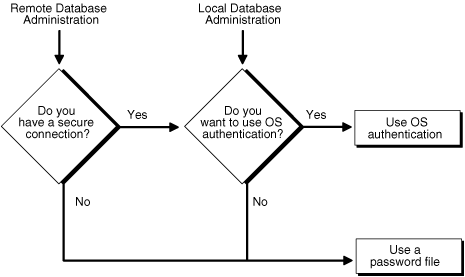
Description of the illustration admin001.gif
If you are performing remote database administration, then consult your Oracle Net documentation to determine whether you are using a secure connection. Most popular connection protocols, such as TCP/IP and DECnet, are not secure.
For more information, see:
-
Oracle AI Database Security Guide for information about authenticating database administrators with directory-based authentication services.
Nonsecure Remote Connections
To connect to Oracle AI Database as a privileged user over a nonsecure connection, you must be authenticated by a password file.
When using password file authentication, the database uses a password file to keep track of database user names that have been granted the SYSDBA, SYSOPER, SYSBACKUP, SYSDG, or SYSKM administrative privilege. This form of authentication is discussed in “Using Password File Authentication”.
Local Connections and Secure Remote Connections
You can connect to Oracle AI Database as a privileged user over a local connection or a secure remote connection.
You can connect in two ways:
-
If the database has a password file and you have been granted a system privilege, then you can connect and be authenticated by a password file.
-
If the server is not using a password file, or if you have not been granted a system privilege and are therefore not in the password file, then you can use operating system authentication. On most operating systems, authentication for database administrators involves placing the operating system username of the database administrator in a special group.
For example, users in the OSDBA group are granted the
SYSDBAadministrative privilege. Similarly, the OSOPER group is used to grantSYSOPERadministrative privilege to users, the OSBACKUPDBA group is used to grantSYSBACKUPadministrative privilege to users, the OSDGDBA group is used to grantSYSDGadministrative privilege to users, the OSKMDBA group is used to grantSYSKMadministrative privilege to users, and the OSRACDBA group is used to grantSYSRACadministrative privilege to users.
Using Operating System Authentication
Membership in special operating system groups enables a DBA to authenticate to the database through the operating system rather than with a database user name and password. This is known as operating system authentication.
Operating System Groups
Operating system groups are created and assigned specific names as part of the database installation process.
The default names of the operating system groups vary depending upon your operating system, and are listed in the following table:
| Operating System Group | UNIX or Linux User Group | Windows User Group |
|---|---|---|
| OSDBA | dba |
|
| OSOPER | oper |
|
| OSBACKUPDBA | backupdba |
ORA_HOMENAME_SYSBACKUP |
| OSDGDBA | dgdba |
ORA_HOMENAME_SYSDG |
| OSKMDBA | kmdba |
ORA_HOMENAME_SYSKM |
| OSRACDBA | racdba |
ORA_HOMENAME_SYSRAC |
For the Windows user group names, replace HOMENAME with the Oracle home name.
Oracle Universal Installer uses these default names, but, on UNIX or Linux, you can override them. On UNIX or Linux, one reason to override them is if you have multiple instances running on the same host computer in different Oracle homes. If each instance has a different person as the principal DBA, then you can improve the security of each instance by creating different groups for each instance.
For example, for two instances on the same UNIX or Linux host in different Oracle homes, the OSDBA group for the first instance might be named dba1, and OSDBA for the second instance might be named dba2. The first DBA would be a member of dba1 only, and the second DBA would be a member of dba2 only. Thus, when using operating system authentication, each DBA would be able to connect only to their assigned instance.
On Windows, default user group names cannot be changed. The HOMENAME placeholder enables you to have different user group names when you have multiple instances running on the same host Windows computer.
Membership in a group affects your connection to the database in the following ways:
-
If you are a member of the OSDBA group, and you specify
AS SYSDBAwhen you connect to the database, then you connect to the database with theSYSDBAadministrative privilege. -
If you are a member of the OSOPER group, and you specify
AS SYSOPERwhen you connect to the database, then you connect to the database with theSYSOPERadministrative privilege. -
If you are a member of the OSBACKUPDBA group, and you specify
AS SYSBACKUPwhen you connect to the database, then you connect to the database with theSYSBACKUPadministrative privilege. -
If you are a member of the OSDGDBA group, and you specify
AS SYSDGwhen you connect to the database, then you connect to the database with theSYSDGadministrative privilege. -
If you are a member of the OSKMDBA group, and you specify
AS SYSKMwhen you connect to the database, then you connect to the database with theSYSKMadministrative privilege. -
If you are a member of the OSRACDBA group, and you specify
AS SYSRACwhen you connect to the database, then you connect to the database with theSYSRACadministrative privilege. -
If you are not a member of one of these operating system groups, and you attempt to connect as
SYSDBA,SYSOPER,SYSBACKUP,SYSDG,SYSKM, orSYSRAC, then theCONNECTcommand fails. For more information, see: Your operating system specific Oracle documentation for information about creating the OSDBA and OSOPER groups
Preparing to Use Operating System Authentication
DBAs can authenticate to the database through the operating system rather than with a database user name and password.
To enable operating system authentication of an administrative user:
-
Create an operating system account for the user.
-
Add the account to the appropriate operating-system defined groups.
Connecting Using Operating System Authentication
A user can connect to the database using operating system authentication.
You can use operating system authentication by performing one of the following actions.
- A user can be authenticated, enabled as an administrative user, and connected to a local database by typing one of the following SQL*Plus commands:
CONNECT / AS SYSDBA CONNECT / AS SYSOPER CONNECT / AS SYSBACKUP CONNECT / AS SYSDG CONNECT / AS SYSKM -
For the Windows platform only, remote operating system authentication over a secure connection is supported. You must specify the net service name for the remote database:
CONNECT /@net_service_name AS SYSDBA CONNECT /@net_service_name AS SYSOPER CONNECT /@net_service_name AS SYSBACKUP CONNECT /@net_service_name AS SYSDG CONNECT /@net_service_name AS SYSKMBoth the client computer and database host computer must be on a Windows domain. Note: The
SYSRACadministrative privilege is used only by the Oracle agent of Oracle Clusterware to connect to the database using operating system authentication.
For more information, see:
-
SQLPlus User’s Guide and Reference* for the syntax of the
CONNECTcommand
Using Password File Authentication
You can use password file authentication for an Oracle database instance and for an Oracle Automatic Storage Management (Oracle ASM) instance. The password file for an Oracle database is called a database password file, and the password file for Oracle ASM is called an Oracle ASM password file.
For more information, see: Oracle Automatic Storage Management Administrator’s Guide for information about creating an Oracle ASM password file.
Preparing to Use Password File Authentication
To prepare for password file authentication, you must create the password file, set the REMOTE_LOGIN_PASSWORDFILE initialization parameter, and grant privileges.
To enable authentication of an administrative user using password file authentication, you must do the following:
-
If it is not already created, then create the password file using the
ORAPWDutility:orapwd FILE=filename FORMAT=12.2See “Creating and Maintaining a Database Password File” for details.
Note:
-
When you invoke the Database Configuration Assistant (DBCA) as part of the Oracle AI Database installation process, DBCA creates a password file.
-
The administrative privileges
SYSBACKUP,SYSDG, andSYSKMare not supported in the password file when the file is created with theFORMAT=LEGACYargument. -
12.2is the default for theFORMATcommand-line argument. -
The administrative privilege
SYSRACis not supported in the password file. -
The administrative privileges can be granted to external users only when the file is created with the
FORMAT=12.2argument.FORMAT=12.2also enables SSL and Kerberos authentication for administrative users. -
When you create a database password file that is stored in an Oracle ASM disk group, it can be shared among the multiple Oracle RAC database instances. The password file is not duplicated on each Oracle RAC database instance.
-
-
Set the
REMOTE_LOGIN_PASSWORDFILEinitialization parameter toexclusive. (This is the default).Note:
REMOTE_LOGIN_PASSWORDFILEis a static initialization parameter and therefore cannot be changed without restarting the database. -
Connect to the database as user
SYS(or as another user with the administrative privileges). -
If the user does not already exist in the database, then create the user and assign a password.
Keep in mind that database passwords are case-sensitive. See Oracle AI Database Security Guide for more information about case-sensitive database passwords.
-
Grant the
SYSDBA,SYSOPER,SYSBACKUP,SYSDG, orSYSKMadministrative privilege to the user. For example:GRANT SYSDBA to mydba;This statement adds the user to the password file, thereby enabling connection
ASSYSDBA,ASSYSOPER,ASSYSBACKUP,ASSYSDG, orASSYSKM.For more information, see: “Creating and Maintaining a Database Password File” for instructions for creating and maintaining a password file
Connecting Using Password File Authentication
Using password file authentication, administrative users can be connected and authenticated to a local or remote database by using the SQL*Plus CONNECT command. By default, passwords are case-sensitive.
To connect using password file authentication:
- In SQL*Plus, execute the
CONNECTcommand with a valid username and password and theASSYSDBA,ASSYSOPER,ASSYSBACKUP,ASSYSDG, orASSYSKMclause.
For example, if user mydba has been granted the SYSDBA privilege, then mydba can connect as follows:
CONNECT mydba AS SYSDBAHowever, if user mydba has not been granted the SYSOPER privilege, then the following command fails:
CONNECT mydba AS SYSOPERNote:
Operating system authentication takes precedence over password file authentication. Specifically, if you are a member of the appropriate operating system group, such as OSDBA or OSOPER, and you connect with the appropriate clause (for example, AS SYSDBA), then you will be connected with associated administrative privileges regardless of the username/password that you specify.
If you are not in the one of the operating system groups, and you are not in the password file, then attempting to connect with the clause fails.
For more information, see:
-
SQLPlus User’s Guide and Reference* for syntax of the
CONNECTcommand
Creating and Maintaining a Database Password File
You can create a database password file using the password file creation utility, ORAPWD. For some operating systems, you can create this file as part of your standard installation.
For more information, see:
-
Oracle Automatic Storage Management Administrator’s Guide for information about creating and maintaining an Oracle ASM password file
ORAPWD Syntax and Command Line Argument Descriptions
The ORAPWD command creates and maintains a password file.
The syntax of the ORAPWD command is as follows:
orapwd FILE=filename
[FORCE={y|n}]
[ASM={y|n}]
[DBUNIQUENAME=dbname]
[FORMAT={12.2|12}]
[SYS={y|n|password|external('sys-external-name')|global('sys-directory-DN')}]
[SYSBACKUP={y|n|password|external('sysbackup-external-name')|global('sysbackup-directory-DN')}]
[SYSDG={y|n|password|external('sysdg-external-name')|global('sysdg-directory-DN')}]
[SYSKM={y|n|password|external('syskm-external-name')|global('syskm-directory-DN')}]
[DELETE={y|n}]
[INPUT_FILE=input-fname]
orapwd DESCRIBE FILE=filenameCommand arguments are summarized in the following table.
| Argument | Description |
|---|---|
FILE |
If the If the |
FORCE |
(Optional) If y, permits overwriting an existing password file. It also clears CRS resources, if they already have the password file registered. |
ASM |
(Optional) If If |
DBUNIQUENAME |
Unique database name used to identify database password files residing in an ASM disk group only. This argument is required when the database password file is stored on an Oracle ASM disk group. This argument is ignored when an Oracle ASM password file is created by setting the ASM argument to y. |
FORMAT |
(Optional) Specify one of the following values:
|
SYS |
(Optional) This argument specifies if This argument can be set to If If If If |
SYSBACKUP |
(Optional) Creates This argument can be set to If If If |
SYSDG |
(Optional) Creates This argument can be set to If If If |
SYSKM |
(Optional) Creates (Optional) This argument can be set to If If If If Note: The If |
DELETE |
(Optional) If If |
INPUT_FILE |
(Optional) Name of the input password file. This argument can be used to convert a password file from one format to another, for example from 12 format to 12.2 format. This argument also can be used to reset the password for the
|
DESCRIBE |
Describes the properties of the specified password file, including the FORMAT value (12.2 or 12). |
There are no spaces permitted around the equal-to (=) character.
Note: Each external name must be unique.
The following sections provide more information about some of the ORAPWD command line arguments.
FILE
This argument sets the name of the password file being created. This argument is mandatory.
If you specify a location on an Oracle ASM disk group, then the database password file is shared automatically among the nodes in the cluster. When you use an Oracle ASM disk group to store the password file, and you are not using Oracle Managed Files, you must specify the name of the password file, including its full path. The full path is not required if you are using Oracle Managed Files.
If you do not specify a location on an Oracle ASM disk group, then the file name required for the password file is operating system specific. Some operating systems require the password file to adhere to a specific format and be located in a specific directory. Other operating systems allow the use of environment variables to specify the name and location of the password file.
The following table lists the required name and location for the password file on the UNIX, Linux, and Windows platforms. For other platforms, consult your platform-specific documentation.
| Platform | Required Name | Required Location |
|---|---|---|
| UNIX and Linux | orapwORACLE_SID |
ORACLE_BASE/dbs |
| Windows | PWDORACLE_SID.ora |
ORACLE_BASE\database |
For example, for a database instance with the SID orcldw, the password file must be named orapworcldw on Linux and PWDorcldw.ora on Windows.
In an Oracle Real Application Clusters (Oracle RAC) environment on a platform that requires an environment variable to be set to the path of the password file, the environment variable for each instance must point to the same password file.
For a policy-managed Oracle RAC database or an Oracle RAC One Node database with ORACLE_SID of the form db_unique_name_n, where n is a number, the password file is searched for first using ORACLE_BASE/dbs/orapwsid_prefix or ORACLE_BASE\database\PWDsid_prefix.ora. The sid_prefix (the first 8 characters of the database name) is used to locate the password file.
Note:
-
It is critically important to the security of your system that you protect your password file and the environment variables that identify the location of the password file. Any user with access to these could potentially compromise the security of the connection.
-
For Oracle Database 18c and later, if the password file is not found in its default directory, then the database checks for the password file in the directory that was the default directory in the earlier database releases. In the Oracle Database releases earlier to 18c, the default directory of the password file on UNIX and Linux platforms was
ORACLE_HOME/dbsand on Windows wasORACLE_HOME\database.
For more information, see: Using Oracle Managed Files
FORCE
This argument, if set to y, enables you to overwrite an existing password file. An error is returned if a password file of the same name already exists and this argument is omitted or set to n.
ASM
If this argument is set to y, then ORAPWD creates an Oracle ASM password file. The FILE argument must specify a location in the Oracle ASM disk group.
If this argument is set to n, the default, then ORAPWD creates a password file. The FILE argument can specify a location in the Oracle ASM disk group or in the operating system file system. When the DBUNIQUENAME argument is specified, the password file is a database password file. When the DBUNIQUENAME argument is not specified, the password file can be a database password file or an Oracle ASM password file.
For more information, see: Oracle Automatic Storage Management Administrator’s Guide for information about creating and maintaining an Oracle ASM password file
DBUNIQUENAME
This argument sets the unique database name for a database password file being created on an Oracle ASM disk group. It identifies which database resource to update with the database password file location.
This argument is not required when a database password file is created on an operating system file system.
This argument is ignored when an Oracle ASM password file is created by setting the ASM argument to y.
FORMAT
If this argument is set to
12.2, the default, then ORAPWD creates a database password file in 12.2 format. 12.2 format is required for the password file to support granting administrative privileges to external users and SSL and Kerberos authentication for administrative users. Password profiles assigned to the users are also enforced on the administrative users.
If this argument is set to 12, then ORAPWD creates a database password file in Oracle Database 12c format. Oracle Database 12c format is required for the password file to support SYSBACKUP, SYSDG, and SYSKM administrative privileges.
If this argument is set to legacy, then ORAPWD creates a database password file that is in the format before Oracle Database 12c. The password file supports SYSDBA and SYSOPER administrative privileges, but it does not support SYSBACKUP, SYSDG, and SYSKM administrative privileges.
SYS
If SYS=Y and INPUT_FILE is specified to migrate password file entries, then you will be prompted to enter the new password for the SYS administrative user.
If password, then you will be prompted to enter the password for the SYS administrative user.
If external('sys-external-name'), then replace sys-external-name with the external name for SSL or Kerberos authentication for the SYS administrative user.
If global(sys-directory-DN), then specify the directory service name for the global SYS user.
SYSBACKUP
If password, then you will be prompted to enter the password for the SYSBACKUP administrative user.
If external('sysbackup-external-name'), then replace sysbackup-external-name with the external name for SSL or Kerberos authentication for the SYSDG administrative user.
If global(sysbackup-directory-DN), then specify the directory service name for the global SYSBACKUP user.
SYSDG
If password, then you will be prompted to enter the password for the SYSDG administrative user.
If external('sysdg-external-name'), then replace sysdg-external-name with the external name for SSL or Kerberos authentication for the SYSDG administrative user.
If global(sysdg-directory-DN), then specify the directory service name for the global SYSDG user.
SYSKM
If password, then you will be prompted to enter the password for the SYSKM administrative user.
If external('syskm-external-name'), then replace syskm-external-name with the external name for SSL or Kerberos authentication for the SYSKM administrative user.
If global(syskm-directory-DN), then specify the directory service name for the global SYSKM user.
DELETE
If this argument is set to y, then ORAPWD deletes the specified password file. When y is specified, FILE, ASM, or DBUNIQUENAME must be specified. When FILE is specified, the file must be located on an ASM disk group.
If this argument is set to n, the default, then ORAPWD creates the password file.
INPUT_FILE
This argument specifies the name of the input password file. ORAPWD migrates the entries in the input file to a new password file. This argument can convert a password file from one format to another, for example from 12 format to 12.2 format.
This argument also can be used to reset the password for the SYS administrative user.
When the INPUT_FILE argument is specified, ORAPWD does not create any new entries. Therefore, ORAPWD ignores the following arguments:
-
PASSWORD -
SYSBACKUP -
SYSDG -
SYSKM
When an input file is specified and the new password file replaces the input file, FORCE must be set to y.
Note: When the FORMAT argument is not specified, by default the new password file is created in 12.2 format from the input file.
For more information, see: “Administrative Privileges” and “Adding Users to a Database Password File”
Creating a Database Password File with ORAPWD
You can create a database password file with ORAPWD.
Passwords are case-sensitive. However, password files created using an earlier Oracle AI Database release retain their case-insensitive passwords, if the ignorecase option was omitted during password file creation. Oracle recommends that you force case sensitivity in these older password files by migrating the password file from one format to another.
The maximum number of bytes for a password is
ORAPWDallows the passing of 1024 byte passwords for seeded administrative users such asSYS,SYSBACKUP, and others.
To create a database password file:
- Run the
ORAPWDcommand.
Example 1-20 Creating a Database Password File Located in an Oracle ASM Disk Group
The following command creates a database password file in 12.2 format named orapworcl that is located in an Oracle ASM disk group. The DBUNIQUENAME argument is required because the database password file is located in an Oracle ASM disk group.
orapwd FILE='+DATA/orcl/orapworcl' DBUNIQUENAME='orcl' FORMAT=12.2Example 1-21 Creating a Database Password File with a SYSBACKUP Entry
The following example is the similar to Example 1-20 except that it creates a SYSBACKUP entry in the database password file. The password file is in 12.2 format by default.
orapwd FILE='+DATA/orcl/orapworcl' DBUNIQUENAME='orcl' SYSBACKUP=password FORMAT=12.2Example 1-22 Creating a Database Password File with External Authentication for SYS and SYSKM
The following example is the similar to Example 1-20 except that it specifies an external name for the SYS and SYSKM administrative users.
orapwd FILE='+DATA/orcl/orapworcl' DBUNIQUENAME='orcl' FORMAT=12.2
sys=external('KerberosUserSYS@example.com')
syskm=external('KerberosUserSYSKM@example.com')
Example 1-23 Creating a Database Password File Located in a File System
The following command creates a database password file in 12.2 format named orapworcl that is located in the default location in an operating system file system.
orapwd FILE='/u01/oracle/dbs/orapworcl' FORMAT=12.2Example 1-24 Migrating a Database Password File to Oracle Database 12c Format
The following command migrates a database password file to the 12.2 format. The new password file is case-sensitive and will contain case-sensitive passwords. The password file is named orapworcl, and it is located in an operating system file system. The new database password file replaces the existing database password file. Therefore, FORCE must be set to y.
orapwd FILE='/u01/oracle/dbs/orapworcl' FORMAT=12.2 INPUT_FILE='/u01/oracle/dbs/orapworcl' FORCE=yExample 1-25 Resetting the Password for the SYS Administrative User
The following command resets the password for the SYS administrative user. The new database password file replaces the existing database password file. Therefore, FORCE must be set to y.
orapwd FILE='/u01/oracle/dbs/orapworcl' SYS=Y INPUT_FILE='/u01/oracle/dbs/orapworcl' FORCE=yYou are prompted to enter the new password for the SYS administrative user.
Example 1-26 Describing a Password File
The following command describes the orapworcl password file.
orapwd DESCRIBE FILE='orapworcl'
Password file Description : format=12.2
Note:
If the database password file name or location is changed, then run the following command for the changes to take effect:
SQL> ALTER SYSTEM FLUSH PASSWORDFILE_METADATA_CACHE;This command flushes the metadata cache and the subsequent logins to the database use the new password file. In an Oracle RAC environment, this command clears cache in all the Oracle RAC databases, but there could be some databases that may still continue using the old password file till the change is propagated across all the Oracle RAC databases.
After running this command, you can verify the changes by querying the V$PASSWORDFILE_INFO view.
Note: Whenever the password file is recreated, it is recommended that you restart the database instance to synchronize the user profile status from the data dictionary.
For more information, see: Oracle Automatic Storage Management Administrator’s Guide for information about managing a shared password file in an Oracle ASM disk group
Sharing and Disabling the Database Password File
You use the initialization parameter REMOTE_LOGIN_PASSWORDFILE to control whether a database password file is shared among multiple Oracle AI Database instances. You can also use this parameter to disable password file authentication.
To share a password file or disable password file authentication:
- Set the
REMOTE_LOGIN_PASSWORDFILEinitialization parameter.
You can set the REMOTE_LOGIN_PASSWORDFILE initialization parameter to one of the following values:
-
none: Setting this parameter tononecauses Oracle AI Database to behave as if the password file does not exist. That is, no privileged connections are allowed over nonsecure connections. -
exclusive: (The default) Anexclusivepassword file can be used with only one database. Only anexclusivefile can be modified. Using anexclusivepassword file enables you to add, modify, and delete users. It also enables you to change the password forSYS,SYSBACKUP,SYSDG, orSYSKMwith theALTER USERcommand.When an
exclusivepassword file is stored on an Oracle ASM disk group, it can be used by a single-instance database or multiple instances of an Oracle Real Application Clusters (Oracle RAC) database.When an
exclusivepassword file is stored on an operating system, it can be used with only one instance of one database. -
shared: Asharedpassword file can be used by multiple databases running on the same server, or multiple instances of an Oracle RAC database, even when it is stored on an operating system. Asharedpassword file is read-only and cannot be modified. Therefore, you cannot add users to asharedpassword file. Any attempt to do so or to change the password ofSYSor other users with the administrative privileges generates an error. All users needing administrative privileges must be added to the password file whenREMOTE_LOGIN_PASSWORDFILEis set toexclusive. After all users are added, you can changeREMOTE_LOGIN_PASSWORDFILEtoshared, and then share the file.This option is useful if you are administering multiple databases with a single password file.
You cannot specify
sharedfor an Oracle ASM password file.
If REMOTE_LOGIN_PASSWORDFILE is set to exclusive or shared and the password file is missing, this is equivalent to setting REMOTE_LOGIN_PASSWORDFILE to none.
Keeping Administrator Passwords Synchronized with the Data Dictionary
If you change the REMOTE_LOGIN_PASSWORDFILE initialization parameter from none to exclusive or shared, then you must ensure that the passwords stored in the data dictionary and the passwords stored in the password file for the non-SYS administrative users, such as SYSDBA, SYSOPER, SYSBACKUP, SYSDG, and SYSKM users are the same.
Note: Starting with Oracle Database 12c Release 2 (
12.2), authentication for the SYS user happens using only the password file and not using the data dictionary.
To synchronize the passwords for non-SYS administrative users, such as SYSDBA, SYSOPER, SYSBACKUP, SYSDG, and SYSKM users, you must first revoke and then regrant the privileges to these users as follows:
-
Find all users who have been granted the
SYSDBAprivilege.SELECT USERNAME FROM V$PWFILE_USERS WHERE USERNAME != 'SYS' AND SYSDBA='TRUE'; -
Revoke and then re-grant the
SYSDBAprivilege to these users.REVOKE SYSDBA FROM non-SYS-user; GRANT SYSDBA TO non-SYS-user; -
Find all users who have been granted the
SYSOPERprivilege.SELECT USERNAME FROM V$PWFILE_USERS WHERE USERNAME != 'SYS' AND SYSOPER='TRUE'; -
Revoke and regrant the
SYSOPERprivilege to these users.REVOKE SYSOPER FROM non-SYS-user; GRANT SYSOPER TO non-SYS-user; -
Find all users who have been granted the
SYSBACKUPprivilege.SELECT USERNAME FROM V$PWFILE_USERS WHERE USERNAME != 'SYS' AND SYSBACKUP ='TRUE'; -
Revoke and regrant the
SYSBACKUPprivilege to these users.REVOKE SYSBACKUP FROM non-SYS-user; GRANT SYSBACKUP TO non-SYS-user; -
Find all users who have been granted the
SYSDGprivilege.SELECT USERNAME FROM V$PWFILE_USERS WHERE USERNAME != 'SYS' AND SYSDG='TRUE'; -
Revoke and regrant the
SYSDGprivilege to these users.REVOKE SYSDG FROM non-SYS-user; GRANT SYSDG TO non-SYS-user; -
Find all users who have been granted the
SYSKMprivilege.SELECT USERNAME FROM V$PWFILE_USERS WHERE USERNAME != 'SYS' AND SYSKM='TRUE'; -
Revoke and regrant the
SYSKMprivilege to these users.REVOKE SYSKM FROM non-SYS-user; GRANT SYSKM TO non-SYS-user;
Adding Users to a Database Password File
When you grant SYSDBA, SYSOPER, SYSBACKUP, SYSDG, or SYSKM administrative privilege to a user, that user’s name and privilege information are added to the database password file.
A user’s name remains in the password file only as long as that user has at least one of these privileges. If you revoke all of these privileges, then Oracle AI Database removes the user from the password file.
Note: The password file must be created with the FORMAT=12.2 or FORMAT=12 argument to support SYSBACKUP, SYSDG, or SYSKM administrative privilege.
Creating a Password File and Adding New Users to It
Use the following procedure to create a password file and add new users to it:
-
Follow the instructions for creating a password file as explained in “Creating a Database Password File with ORAPWD”.
-
Set the
REMOTE_LOGIN_PASSWORDFILEinitialization parameter toexclusive. (This is the default.)Oracle AI Database issues an error if you attempt to grant these privileges and the initialization parameter
REMOTE_LOGIN_PASSWORDFILEis not set correctly.Note:
REMOTE_LOGIN_PASSWORDFILEis a static initialization parameter and therefore cannot be changed without restarting the database. -
Connect with
SYSDBAprivileges as shown in the following example, and enter theSYSpassword when prompted:CONNECT SYS AS SYSDBA -
Start up the instance and create the database if necessary, or mount and open an existing database.
-
Create users as necessary. Grant
SYSDBA,SYSOPER,SYSBACKUP,SYSDG, orSYSKMadministrative privilege to yourself and other users as appropriate. See “Granting and Revoking Administrative Privileges”.
Granting and Revoking Administrative Privileges
Use the GRANT statement to grant administrative privileges. Use the REVOKE statement to revoke administrative privileges.
To grant the SYSDBA, SYSOPER, SYSBACKUP, SYSDG, or SYSKM administrative privilege to a user:
- Run the
GRANTstatement.
For example:
GRANT SYSDBA TO mydba;To revoke the administrative privilege from a user:
- Run the
REVOKEstatement.
For example:
REVOKE SYSDBA FROM mydba;The WITH ADMIN OPTION is ignored if it is specified in the GRANT statement that grants an administrative privilege, and the following rules apply:
-
A user currently connected as
SYSDBAcan grant any administrative privilege to another user and revoke any administrative privilege from another user. -
A user currently connected as
SYSOPERcannot grant any administrative privilege to another user and cannot revoke any administrative privilege from another user. -
A user currently connected as
SYSBACKUPcan grant or revoke another user’sSYSBACKUPadministrative privilege. -
A user currently connected as
SYSDGcan grant or revoke another user’sSYSDGadministrative privilege. -
A user currently connected as
SYSKMcan grant or revoke another user’sSYSKMadministrative privilege.
Administrative privileges cannot be granted to roles, because roles are available only after database startup. Do not confuse the database administrative privileges with operating system roles.
For more information, see: Oracle AI Database Security Guide for more information on administrative privileges
Viewing Database Password File Members
The V$PWFILE_USERS view contains information about users that have been granted administrative privileges.
To determine which users have been granted administrative privileges:
- Query the
V$PWFILE_USERSview. For more information, see: Oracle AI Database Reference for information about theV$PWFILE_USERSview
Removing a Database Password File
You can remove a database password file if it is no longer needed.
If you determine that you no longer require a database password file to authenticate users, then to remove it:
- Delete the database password file, and optionally reset the
REMOTE_LOGIN_PASSWORDFILEinitialization parameter tonone.
After you remove this file, only those users who can be authenticated by the operating system can perform SYSDBA, SYSOPER, SYSBACKUP, SYSDG, or SYSKM database administration operations.
Data Utilities
Oracle utilities are available to help you maintain the data in your Oracle AI Database.
SQL*Loader
SQL*Loader is used both by database administrators and by other users of Oracle AI Database. It loads data from standard operating system files (such as, files in text or C data format) into database tables.
Export and Import Utilities
The Data Pump utility enables you to archive data and to move data between one Oracle AI Database and another. Also available are the original Import (IMP) and Export (EXP) utilities for importing and exporting data from and to earlier releases.
For more information, see:
-
Oracle AI Database Utilities for detailed information about SQL*Loader
-
Oracle AI Database Utilities for detailed information about Data Pump