Enriching Tables
After creating groups, you can add more granular details to the individual tables within them.
Learn how to add descriptions and annotations to tables.
Topics:
Adding a Description to a Table
Follow these steps to add a natural language description to a table.
-
Open a table group’s view.
Click a group’s name in the Table group section of the AI Enrichment dashboard, or in the Connections panel under the AI Enrichment node.
-
Review the Tables section to identify any missing descriptions.
-
To add a description to a table, click its Description cell.
-
In the Set description panel that appears, enter a description and click Save.
You can also add table descriptions directly in a table’s view. To open it, click a table’s name in the table group view or in the Connections panel, under the AI Enrichment node.
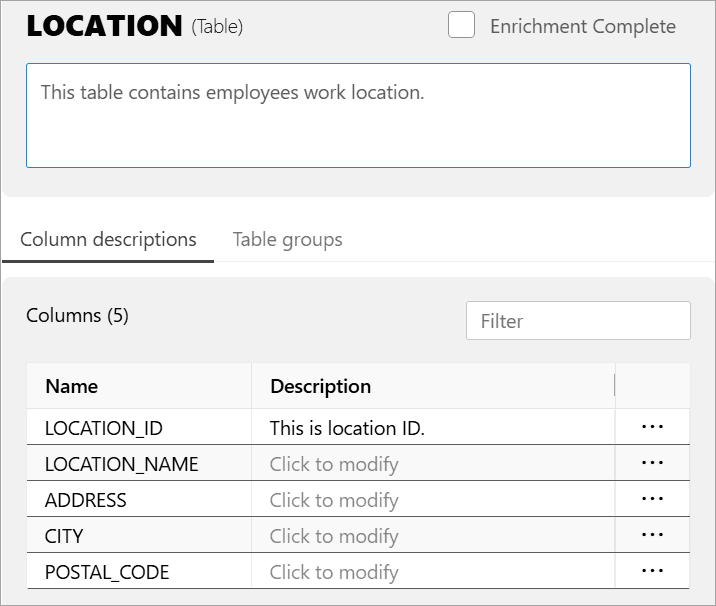
Note: Select the Enrichment Complete checkbox to mark a table as fully annotated even if some columns aren’t annotated. This includes the table in the overall Database Enrichment Percentage shown on the AI Enrichment dashboard.
Adding Annotations for a Table
Follow these steps to add or edit annotations for a table.
-
Open a table group’s view.
Click a group’s name in the Table group section of the AI Enrichment dashboard, or in the Connections panel under the AI Enrichment node.
-
In the Tables section, click ... for the target table.
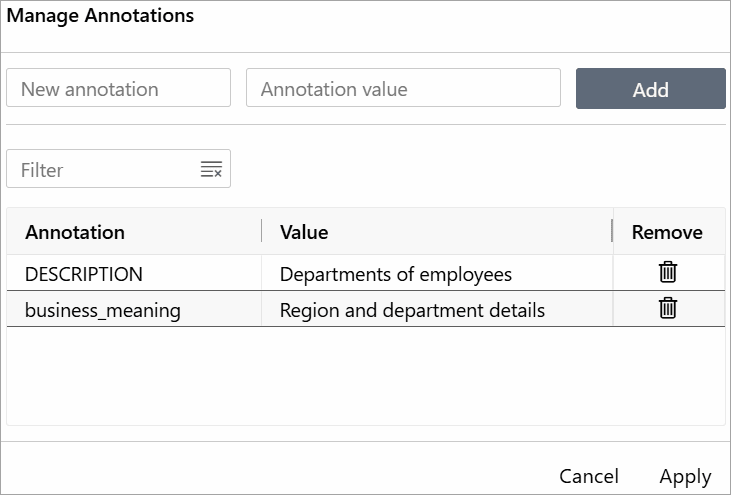
The Manage Annotations panel opens.
-
To define an annotation, enter a key-value pair in the New annotation and Annotation value fields, respectively.
-
Click Add, and then click Apply.
The new annotation is added to the table. You can also edit an existing annotation from the Manage Annotations panel.