Configuring Microsoft Entra ID Proxy Authentication
Proxy authentication allows an Azure user to proxy to a database schema for tasks such as application maintenance.
-
About Configuring Microsoft Entra ID Proxy Authentication
Azure users can connect to Oracle Autonomous Database by using proxy authentication. -
Configuring Proxy Authentication for the Azure User
To configure proxy authentication for an Azure user, this user must already have a mapping to a global schema (exclusive or shared mapping). A separate database schema for the Azure user to proxy to must also be available. -
Validating the Azure User Proxy Authentication
You can validate the Azure user proxy configuration for token authentication.
About Configuring Microsoft Entra ID Proxy Authentication
Azure users can connect to Oracle Autonomous Database by using proxy authentication.
Proxy authentication is typically used to authenticate the real user and then authorize them to use a database schema with the schema privileges and roles in order to manage an application. Alternatives such as sharing the application schema password are considered insecure and unable to audit which actual user performed an action.
A use case can be in an environment in which a named Azure user who is an application database administrator can authenticate by using their credentials and then proxy to a database schema user (for example, hrapp). This authentication enables the Entra ID administrator to use the hrapp privileges and roles as user hrapp in order to perform application maintenance, yet still use their Entra ID credentials for authentication. An application database administrator can sign in to the database and then proxy to an application schema to manage this schema.
Configuring Proxy Authentication for the Azure User
To configure proxy authentication for an Azure user, this user must already have a mapping to a global schema (exclusive or shared mapping). A separate database schema for the Azure user to proxy to must also be available.
After you ensure that you have this type of user, alter the database user to allow the Azure user to proxy to it.
-
Log in to the Oracle AI Database instance as a user who has the
ALTER USERsystem privileges. -
Grant permission for the Azure user to proxy to the local database user account.
An Azure user cannot be referenced in the command so the proxy must be created between the database global user (mapped to the Azure user) and the target database user.
In the following example,
hrappis the database schema to proxy to, andpeterfitch_schemais the database global user exclusively mapped to userpeterfitch.ALTER USER hrapp GRANT CONNECT THROUGH peterfitch_schema;
At this stage, the Azure user can log in to the database instance using the proxy. For example:
CONNECT [hrapp]/@connect_stringValidating the Azure User Proxy Authentication
You can validate the Azure user proxy configuration for token authentication.
-
Log in to the Oracle Autonomous Database instance as a user who has the
CREATE USERandALTER USERsystem privileges. -
Connect as the Azure user and run the
SHOW USERandSELECT SYS_CONTEXTcommands.For example, suppose you want to check the proxy authentication of the Azure user
peterfitchwhen they proxy to database userhrapp:CONNECT [hrapp]/@connect_string SHOW USER; --The output should be USER is "HRAPP " SELECT SYS_CONTEXT('USERENV','AUTHENTICATION_METHOD') FROM DUAL; --The output should be "TOKEN_GLOBAL" SELECT SYS_CONTEXT('USERENV','PROXY_USER') FROM DUAL; --The output should be "PETERFITCH_SCHEMA" SELECT SYS_CONTEXT('USERENV','CURRENT_USER') FROM DUAL; --The output should be "HRAPP"
Configuring Microsoft Power BI Single-Sign On
Users have an option of a simpler configuration if only Power BI users will connect to the Oracle Database.
-
About Configuring Microsoft Power BI Single-Sign On
Users of the Microsoft Power BI data visualization tool frequently also use Microsoft Entra ID (MSEI). These users want to use their MSEI Single Sign-On (SSO) credentials to access their Oracle data sources seamlessly. -
Configuring the Oracle Database
Configure the Oracle database to accept access tokens from Microsoft Power BI. -
Authorizing the User
The Power BI Azure AD user must be authorized to the database. -
Connecting Power BI to Oracle Database using Microsoft Entra ID
Once the database has been configured, you will need to configure Power BI Desktop or service.
About Configuring Microsoft Power BI Single-Sign On
Users of the Microsoft Power BI data visualization tool frequently also use Microsoft Entra ID (MSEI). These users want to use their MSEI Single Sign-On (SSO) credentials to access their Oracle data sources seamlessly.
Previously, Power BI users either had to access the Oracle Database using the database local username and password or had to migrate data from the Oracle Database to a different database if the security teams demanded centralized access management.
By using MSEI SSO to access Oracle data sources, security is improved since the users are centrally managed and Azure AD tokens are used instead of password credentials. Ease of use for DBAs is also improved since data can remain in the Oracle Database and not have to be migrated. Users also benefit since they can use their SSO to access their source database and not have to remember and continuously rotate their database password credentials.
Configuring Microsoft Power BI SSO is supported with:
-
Oracle AI Database server 26ai
-
Oracle Database server 19c (19.20 and above, on-premises and cloud)
-
Any database client that supports MSEI tokens
SeeSupported Client Drivers for Entra ID Connections for more information.
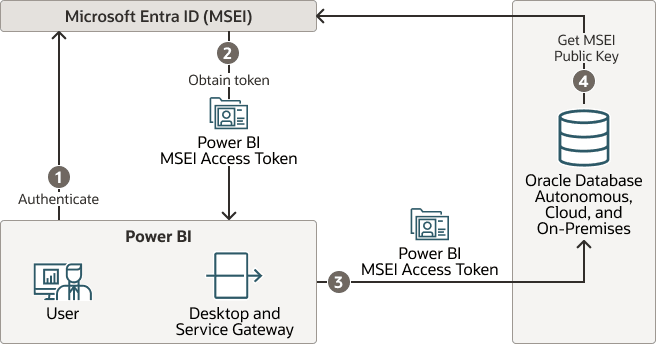
The following diagram illustrates how MSEI SSO can be used to access the Oracle AI Database used as a source for Microsoft Power BI.
Figure 6: Microsoft Entra ID Access Tokens Sent to the Oracle Database For Power BI
Description of the illustration powerbi_token.png
-
Power BI user authenticates themselves with MSEI
-
Power BI gets the user’s access token for the database when a connection is opened to the database
-
Power BI sends the MSEI Power BI access token to the Oracle AI Database
-
The Oracle AI Database caches the MSEI public key to validate the MSEI Power BI token
Related Topics
Configuring the Oracle Database
Configure the Oracle database to accept access tokens from Microsoft Power BI.
Prerequisites:
The Oracle database mush be registered with MSEI app registration.
-
Set the external identity provider as Microsoft Entra ID:
ALTER SYSTEM SET IDENTITY_PROVIDER_TYPE=AZURE_AD SCOPE=BOTH; -
Configure the external identify provider.
ALTER SYSTEM SET identity_provider_config='{"application_id_uri": 111-111-111, "tenant_id": "111-111-111", "app_id":"111-111-111"}';
Note: The values identity_provider_config can be anything such as the “111-111-111” used in this example when working with Power BI access tokens
This configuration is specific for Power BI user SSO integration. Power BI user SSO integration is also supported with the full MSEI integration. The full MSEI integration allows both the Power BI user access as well as DBAs using SQLPlus and the MSEI interactive login and applications using client credential flow to access the database. The simpler Power BI SSO configuration described in this topic only allows Power BI users to access the database.
See Configuring the Oracle Database for Microsoft Entra ID Integration for more information about MSEI full integration.
Authorizing the User
The Power BI Azure AD user must be authorized to the database.
-
Log in to the Oracle database instance as a user who has the
CREATE USERandALTER USERsystem privileges. -
Run the following command to create the Power BI Microsoft Entra ID user in the database:
CREATE USER <first_last> IDENTIFIED GLOBALLY AS 'AZURE_USER=<first.last@example.com>';GRANT CREATE SESSION TO <first_last>;All privileges and roles required by the user must be granted to the database schema/user. Power BI users cannot use a shared schema configuration; they can only use exclusive mapping to a schema.
Connecting Power BI to Oracle Database using Microsoft Entra ID
Once the database has been configured, you will need to configure Power BI Desktop or service.
Follow the instructions in this Oracle blog: Microsoft Power BI can now connect with the Oracle Database using Microsoft Entra ID SSO tokens.