Evaluate Search Quality with Test Runs
An evaluation set contains test queries and their Ground Truth: the Search Targets and target input values that you expect each query to return. Run the set against a selected search space version to review search accuracy and latency before publishing changes. The Test Runs page also lets you compare evaluation sets and revisit earlier runs.
Create and Maintain an Evaluation Set
- Sign in to the Admin application and select the Search Space to test.
- Open Test Runs and select the Search Space Version to evaluate.
- Select Create Evaluation Set, enter a Name and optional Description, and select Create. The dialog also offers Upload File.
- On the Create Test Runs tab, select the evaluation set name to open its details. Use Add Test Query to enter queries and their Ground Truth expected results. Review the Evaluation Queries report before running the set.
The evaluation-set details also provide controls to edit or remove individual queries and to export the set. Review the queries and ground truth when you change a Search Target so that the expected results still reflect the behavior you intend to test.
For example, in the Demo Brokerage search space, the query Compare my equity allocation with its target. has Allocation Explorer as its expected Search Target and ASSET_CLASS = EQUITIES as its expected target input. Store both as ground truth so that the test checks the intended report and input value.
Add Dashboard Queries to an Evaluation Set
Use recorded searches to build an evaluation set from queries that users or Search Space Experts have already submitted.
Before you begin, create an evaluation set for the selected search space as described above.
- Open Dashboard > Telemetry for the search space. Set Data interval to include the searches you want to review.
- Open the relevant search-activity report, such as Searches with No Clicked Search Target or Query Tester Searches, and select the queries to add.
- Select the add-to-evaluation-set icon and choose the existing evaluation set.
- Review each query’s Ground Truth Source. Choose Use current search results only when the saved results are the expected results. This option saves the Search Targets already returned for the query; if none were returned, it saves empty ground truth. To specify different expected results, choose Curate manually, select the expected Search Targets, and supply any required target input values. Choose No target matches exist when the query should return no matching target.
- Select Save to Eval Set.
- Open Test Runs > Create Test Runs and select the evaluation set name. Review the added queries and their ground truth in Evaluation Queries before running the set.
For the Demo Brokerage example above, verify that the saved results identify Allocation Explorer with ASSET_CLASS = EQUITIES. If the recorded search returned the wrong report or input value, curate the expected result instead of using the current search results as ground truth.
Run an Evaluation Set
- On Test Runs > Create Test Runs, find the evaluation set.
- Under Run Options, choose an LLM profile or Disable LLM for the run.
- Set Search latency profiling enabled according to whether you need a detailed latency breakdown for this run.
- Select Run in the evaluation set’s Actions column. Open View Test Runs to follow its progress, or select View Runs in the evaluation set’s row to revisit its runs.
The run is associated with the selected search space version. Select the intended version before running the set, especially when comparing a draft with a published version.

Review Results and Latency
The View Test Runs tab lists each run’s evaluation set, start and end times, LLM profile, Total Queries, Passed Queries, Progress, Status, P1, P3, P5, and average, p50, and p99 latency. Open a Run ID to review its summary and individual queries. The run summary presents Top-1, Top-3, and Top-5 accuracy alongside the latency measures.
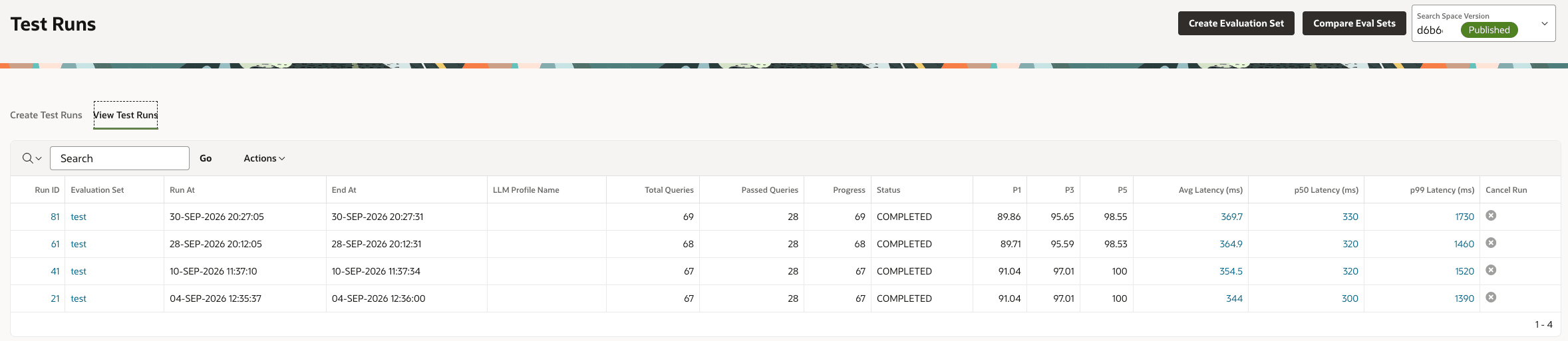
Select a latency value in the run list to inspect its phase breakdown when profiling data is available. The breakdown can show time spent in query preprocessing, target-value matching, candidate scoring, lexical matching, ranking, and response building. Use the individual query results to investigate unexpected matches rather than relying on an aggregate score alone.
To compare two saved evaluation sets, select Compare Eval Sets, choose the Base Eval Set and Comparison Eval Set, and select Generate Diff. This compares the evaluation sets; it is separate from the search-space version diff and regression views described in Manage Search Space Versions.